
Recording Audit Progress and Audit Sign Off
Audit Automation needs to be aware of the current status of the audit, as certain functions will be activated or inactivated on the basis of the activity which should be taking place. For example, the Completion menu will not become active until the system knows when you have completed the planning stage. A number of menu options are provided to allow you to record this progress, and they all operate in the same way. The options are as follows:
Record date interim planning sign off
Where you have indicated in the Client control data dialog that an interim audit is being performed, an option will appear within [Sign off] on the Planning menu, called Interim planning sign off. This allows you to record the date that you signed off planning for the interim audit work to commence. On selecting this option, the system will check that the risk model has been fully completed before proceeding as set out below. After the date has been recorded, a tick appears by the menu item to show that it has been completed and details appear on the Audit progress summary dialog. Completing this sign off does not release any other menu options as you are not yet in the final audit completion cycle. However, you may enter details of audit work done by signing off audit tests via the [Completion] button.
If, after carrying out your interim audit work, you revise the planning and run the option to update audit test exclusion, the system will pay special attention to those tests where work has already been carried out, as follows:
Auto inactivate
Where work on a test has been started, indicated by a WP reference being entered, or the test has been signed off, the system will not deactivate the test even if the logic now applied would have resulted in the test being deactivated.
Sample size changes
Where the planning has been reconsidered in the light of interim audit work and the sample sizes have increased, or the sample interval decreased, for a test that has been signed off during the interim work, the system will reverse the sign off, record the increased sample and place the following details in the test’s comment field:
Programmes reviewed on dd/mm/yy
Sample size increased from x to y
(or Sample interval reduced from x to y)
Test originally signed off by aaaa on dd/mm/yy
Planning sign off Senior/Manager/Partner/Independent partner
The system will include options in [Sign off] on the Planning menu for senior, manager and partner sign off. The actual options that appear are dependent on the design of the master pack to which the client is attached.
On selecting one of these options, the system will check the risk model and planning section and the Sign off and conclusion dialog will be presented provided:
• all questions have been answered
• all planning area notes for the attention of the level selected have been cleared
• procedures have been planned in all areas where reliance is taken or there is a residual risk.
This Sign off and conclusion dialog will contain the default conclusion for the area and details of how to use the features it contains are set out on click here.
After you have signed off a tick will appear by the menu item. Once the senior has signed off the manager sign off will become available and once the manager has signed off the partner sign off and the option to record the date planning was completed will become active.
It is possible to reverse your sign off, by selecting the option again, up to the time that the next level of sign off has been made.
Audit Automation keeps a record of whether or not the client data has been updated in a way that may affect the audit programmes and checklists. If it has, then the user is advised of this when they try and sign off planning, and given the opportunity to abort the sign off so that the routines to update audit test and checklist question exclusion can be run.
Record date planning completed
This option on the [Sign off] sub menu will only appear if the designer of the master pack has indicated that it is required. It allows you to inform the system that you have finished planning the audit and wish to proceed to the completion stage. If the option is not present, then the partner sign off indicates to the system that the planning is completed and will trigger the display of the cancel option. In this case the “Prepared by:” initials will be those of the person who signed off the lowest sign off presented on the planning menu.
On selecting this option, the system will check that the risk model has been fully completed before proceeding as set out below. When the date has been recorded, the files will be updated and the name of the menu item will change to Cancel date planning completed, which will be available until you have recorded that field work has started. If, before you start field work, you decide that you wish to reactivate planning to make changes, you may use this option to do this. On selecting the option, the system will ask you to confirm that you wish to cancel the record of the date planning was completed before carrying out your instructions.
The person who carried out the planning should be the person who takes responsibility for recording the date the planning was completed as the system will include the initials of the person who does this in the "Prepared by:" box of all Audit Automation generated schedules.
Record date field work started
This option, on the Completion menu under [Sign off], allows you to record the start of field work. Once this has been set, the option to cancel the date planning was completed will no longer be available.
Recorde date field work ended
This option, on the Completion menu under [Sign off], allows you to record the date that the field work ceased. No checks are carried out as this is purely a record of the date the team withdrew and there may well still be audit tests and checklist questions to complete.
Senior sign off
This option, on the Completion menu under [Sign off], allows the senior to record the date that he or she signed off the audit. On selecting this option, the system will scan the records to check that all tests have been completed and questions answered. If any are still outstanding it will not allow the sign off to be carried out. The system will check that all areas that the senior is required to sign off have been signed off and that all notes aimed at senior level have been cleared. It will only allow you to proceed if these tests pass.
Manager sign off
This option, on the Completion menu under [Sign off], allows the manager to record the date that he or she signed off the audit. This option will only become active after the audit senior has signed off the audit and, on selecting this option, the system will check that the manager has signed off all relevant audit areas, that that there are no uncleared notes to manager or lower levels and that any review notes aimed at seniors or juniors have been confirmed. It will only allow you to proceed if these tests pass.
Partner sign off
This option, on the Completion menu under [Sign off], allows the partner to record the date that he or she signed off the audit. This option will only become active after the audit manager has signed off the audit and, on selecting this option, the system will check that the partner has signed off all relevant audit areas, that there are no uncleared notes to partner or lower levels and that any review notes have been confirmed. It will only allow you to proceed if these tests pass.
Independent partner sign off
Some master packs are designed for the Independent Partner review to be evidenced via checklists. To accommodate this, there is an option to suppress the Independent Partner review on the Completion menu. This is a master pack setting and, if selected, will suppress the menu option even when you indicate that the client required an independent partner review.
If the option to activate an independent partner review is set in the client’s control data, this option will appear on the Completion menu under [Sign off]. It allows an independent partner to record the date that he or she signed off the audit. This option will only become active after the audit partner has signed off the audit.
Record date audit report signed
This option, on the Completion menu under [Sign off], allows you to record the date that the audit report was signed. This works in the same way as the other completion sign off options.
All date options
On selecting one of the above date options, the system will present the Date completed dialog.
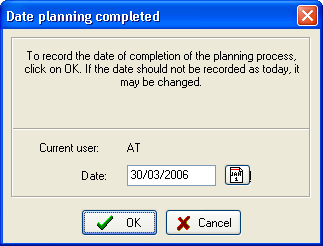
Date completed dialog
The current date will be offered as a default, and you may accept this, enter a different date, or select a date using the [Calendar] button. Clicking on [OK] will record the event, clicking on [Cancel] will close the dialog without recording the date.
Once an item has been signed off, a tick will appear by it to indicate that it has been completed. It will remain active and the subsequent sign off will become active, but the previous sign off will become inactive.
The person who signed it can reverse the last sign off by clicking on the menu option. The system will ask you to confirm that you wish to reverse your sign off before updating the records.