Acessing Report Settings

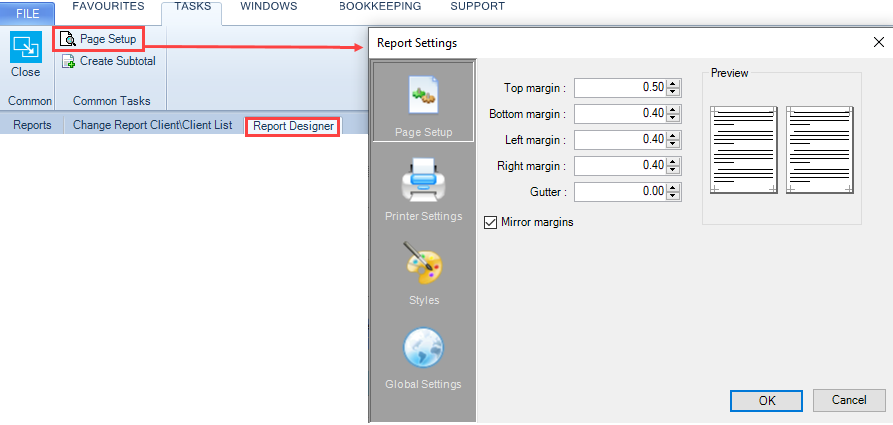
On the Report Designer tab click Page Setup on the task bar as below.
Smart reports - Smart Reports - report designer tab - page setup.PNG

Page Setup

The margins allow you to adjust the margin space on each edge of the page and to provide for a left hand side gutter as used in bound documents. You are also able to set mirror margins to allow for double sided reports.

Note

Measurements are, by default, displayed in inches however you can change this to centimetres (see Global Settings below).

Printer Settings

The Printer Settings options allow you to switch between Portrait and Landscape orientation, to change paper size and to control the options on a default printer.

Styles

Styles work as they do in Microsoft Word; in other words you are able to define named styles which are then available to use within the report layout. Most commonly you may want to set styles for headings so that a standard look and feel can be applied reports. Should you want to change the default Normal style, then it makes sense to edit it just once here rather than continually having to change it within the Report work area.

Global Settings

In the Global Settings area, you are able to choose to display a grid and to adjust the measurements that control the grid in the report work area. The grid is used to assist with alignment of objects; auto alignment can be activated using the Align controls to grid checkbox.

The global settings window also allows you to switch between inches and centimetres as the ruler units within the report work area.

Related documents

CCH Central Suite Update Guide (Latest Offline Version)
The document outlines the process for using the Central Suite Installer Offline (CSI Offline) for customers with specific IT requirements that prevent internet updates. It provides detailed instructions for installing updates to the Central Suite, including necessary prerequisites, folder structure, and the installation steps. Key points include ensuring Microsoft SQL Server is supported, confirming .NET Framework requirements, and the importance of backups before starting the update. The document also highlights the need for administrator rights, handling database upgrades, and checking for office plugin updates, particularly for users of CCH Document Management.
CCH Central Suite 2026.3 Update Guide
This guide explains how to update an existing install of the CCH Central Suite to the latest version 2026.3 (including Service Packs and Hotfixes) using the Central Suite Installer (CSI).
CCH Central 2026.3 Release Notes
Central Suite Installer (CSI) instructions
The document announces the update of the Central Suite Installer (CSI) for the CCH Central Suite, now compatible with the latest releases and service packs and hotfixes of various CCH applications. Key points include prerequisites for installation, compatibility information, and the necessity for proper backup before proceeding with the update. It highlights specific requirements for Microsoft components, and it warns users of CCH Accounts Production regarding regional settings for date format. Support options are mentioned for users seeking assistance during the update process. Release notes are accessible for detailed information on the updates.
CCH Central 2026.210 Service Pack