
Resetting the User Count
CCH Audit Automation keeps track of the number of users accessing each user pack.
In the single user version this can never be more than 1, and in the multi user version the user count should always show 0 when all users are out of a pack. In certain circumstances, for example a power failure, the user count may not have been reset and this will either stop access to the client on a single user system, or prevent certain operations from being performed on the multi user version. The number of users accessing a pack is shown in the Users column of the audit pack pick list.
The system maintains a list of users who are active in each data set and therefore represent the count of users shown in the data set pick list. When you need to do something that requires exclusive use to the data, the system blocks you from accessing the data if there are other users in the system, and presents you with a list of users who are logged into the data set, showing their name, and the date and time they logged in. This is a real-time list that is updated every 10 seconds and you can therefore leave the list displayed and call the users asking them to come out of the data. As they exit, the list you have displayed will be updated. Once all the users have come out you can then close the dialog and run the routine that you were trying to access.
A facility is provided to reset the user count. This option cannot be accessed by users with a level of 5 and will be greyed out if you do not have access to it.
To reset the user count, select Reset user count from the system maintenance menu of the main window. The system will request the entry of the audit pack code and the period, you may use the pick list to select the code if you do not know it.
The system will present a list of users thought to be accessing the data and a button appears on the dialog allowing you to clear the user count.
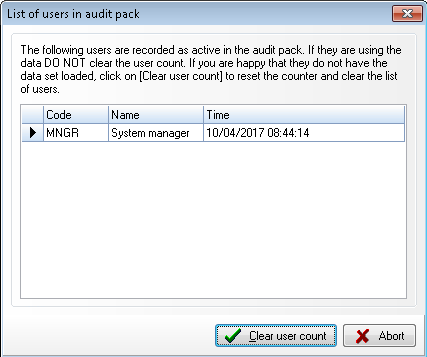
List of users in audit pack
You should check that the users listed are not actually in the data set before selecting the option to clear the count. The list is updated every 10 seconds, so if a user is in the data and they close the data set, they will be removed from the list. If any user is incorrectly shown as active, please note the date and time the data was loaded and investigate the reason why the system did not record the fact that they are no longer using the data.
The user list is maintained on a last in first out basis. Hence, if a user logs into the system on more than one terminal, when they log out, their last access record is removed first. This also means that, where a user did not log out of the system, which can happen if their computer crashes or the network goes down, the record of their last access before the offending event will be left in the system. In this case users can appear more than once in the list if they have logged in again.
To reset the user count, click on [Clear user count] and the list of active users will be cleared and the user count reset to zero. As indicated in the message in the dialog, only do this if you are certain that there are no users in the data.
Note : Do not reset the count of a user pack that is in use as it may allow access to options that must only be run if there are no other users accessing the pack.