
Rolling Forward a Schedule
A Schedule contains a vast amount of information about a job. When the job is complete, it is possible to reuse the schedule information. The process is called a 'roll-forward'.
In rolling forward the schedule you can use the existing information or modify the values for actual, allocated or budget hours to account for an up coming period. The process provides the practice with a quick method of recreating schedules for recurring work.
- Find the Assignment that contains the Schedule that you want to roll-forward.
- Select the WIP tab on the Assignment Details page.
- Highlight the line of the Schedule you want to roll forward (from the grid under Fees Budges and Repeat Bill).
- Click the Schedule Roll Forward wizard

- option under Tasks on the Task Bar. The Schedule Roll Forward Wizard Step 1 of 3 window appears.
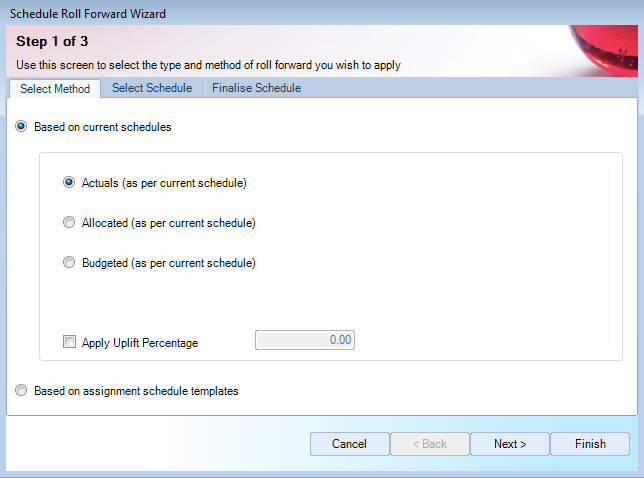
- Select the basis of the roll forward:
If selecting Actual, Allocated or Budgeted hours...
This function aggregates the actual hours on the current Schedule to Stage category level and uses them as the basis for the actual, allocated or budgeted hours on the new Schedule. The system extends the charge on the newly created Schedule using the current employee category charge rates.
a. Select the box to Apply Uplift Percentage and enter the percentage amount. This applies a percentage figure to increase the actual, allocated or budgeted hours in the current Schedule. If decreasing the hours, place a minus symbol before the percentage.
b. Click 'Next'. The Schedule Roll Forward Wizard Step 2 of 3 appears.
c. Select the check box for the Schedule you are rolling forward.
d. Select the Complete ALL box if required.
You have the option to complete all the schedules in the window. By selecting the box, it completes all the underlying stages of a category not already marked as Complete. You will see a confirmation message before the stages are completed.
e. Click 'Next'.The Schedule Roll Forward Wizard Step 3 of 3 appears.
f. If necessary, modify the Description, Start and End Dates, Budget. Fee Budget and Frequency fields. The system presents the schedule again so that you have the opportunity to revise any information before rolling it forward.
6. Click 'Finish'.
If selecting Assignment Schedule Templates...
- Click on

- on the toolbar.
- Find the Assignment that contains the Schedule that you want to roll-forward and check the box on the left of individual assignment or check the box on the header to choose all of them.
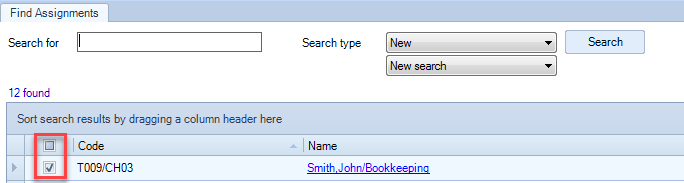
- Click the Schedule Roll Forward wizard
- option under Tasks on the Task Bar.
- The Schedule Roll Forward Wizard Step 1 of 3 window appears.
- Repeat the steps 5 and 6 above.
Note: If no assignment template exists for a particular schedule, an icon appears next to the entry in the Wizard. This means that the schedule is not created and will not appear in the schedule listing.