
Saving Reports
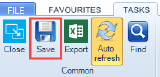
From edit mode, click Save from the Task Bar.
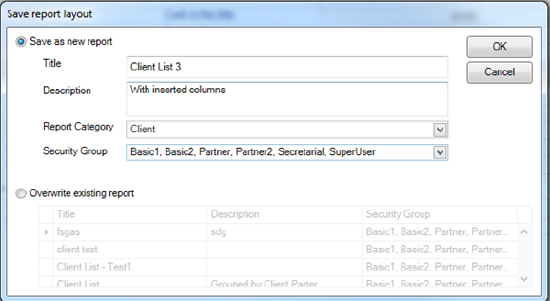
The default option is Save as new report.
The Save report layout uses the existing Smart Reports save screen.
|
Save as new report |
Allows you to save your new report or create an additional report using a pre-existing report as a template. |
|
Title |
Entry of the report name is mandatory and is included on the printed report. |
|
Description |
Entry of the Description is not mandatory, this is a useful area to detail how and when the report is used within the practice. |
|
Report Category |
A user definable option for grouping of reports. (See Categories) |
|
Security Group |
Determines the security groups’ ability to view and edit the report. By default only View is active. If Edit permissions are required these need to be added at the point of Saving. Use the drop down arrow to review and assign permissions. |
|
Overwrite existing report |
Allows changes to the saved report. All pre-existing definitions are retained. |
By default, the Can View permission is set for all security groups.
Saving a New Report
When a new report is being saved, if you have the permission #Reporting#Can Set Permission set to allow, is able to apply individual permissions within the available Security Group dropdown. otherwise, the security group box is visible but greyed out.
Overwriting an Existing Report
When a report is being overwritten, if you have the permission #Reporting#Can Set Permission set to allow is able to apply individual permissions within the available Security Group dropdown. Otherwise, the security group box is visible but greyed out.
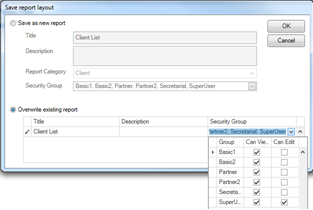
Security Group - Can View
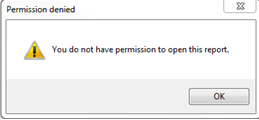
If you do not have the permission to view a report layout, you are presented with the following message when you click on either the Edit or Run option on the Task Bar.
Security Group - Can Edit
All ‘Available Fields’ are greyed out for anyone who does not have the permission to Edit a report layout.