
Security Group Maintenance
Setting up a security group
Choose File > Maintenance > Security Group Maintenance to open the window which lists all security groups.
To add a new security group:
- On the first row under the column heading Name, type the name of the new security group.
2. Type the description of the security group under the column heading Description to provide information of the level of access for the group.
3. Check the box on the column heading Super User if you want the group to have unlimited access to all task permissions.
Super User access should be used with caution as this allows FULL ACCESS to the suite of products, with no restriction.
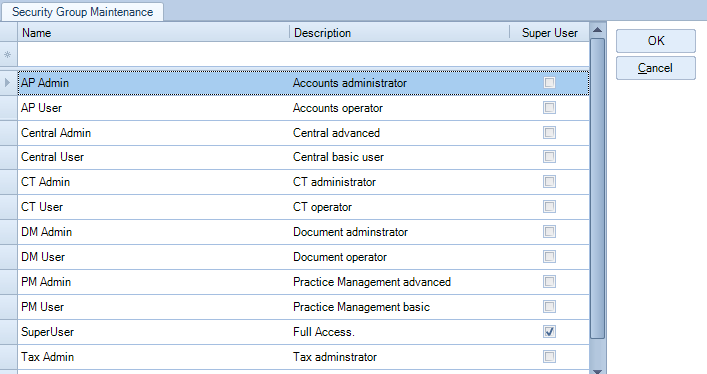
Note: It is possible to copy a security group, highlight the line of the group you want to copy, right click on the line, an option to Copy Security Group appears, click on it. The copied security group will be added to the list, click on the name and description fields to edit them accordingly. Use this facility with caution as it will copy all of the Task Permissons relating to the Security Group
Modify Security Group
Security groups are used to group employees together who will use the same features of the database. Employees can be grouped together for various reasons but normally, it is because they are at the same staff level or they perform similar duties. You can amend a security group as long as it is not being used by the system.
-
On the main menu, click File > Maintenance > Security > Security Group Maintenance.
-
On the Security Group Maintenance window, edit the Name or Description of a security group.
-
Click OK to save the changes and close the window.
Useful Tip! If you have Super User permissions, you can create a new Security Group based on an existing one by right clicking a group to copy it.
Note:
As Security Groups have links to employees within the database structure, users will not be able to delete a group if there are employees allocated to it.
Deleting a Security Group
CCH Central comes with some default security groups but you can delete any security group as required.
- On the main menu, click File > Maintenance > Security > Security Group Maintenance.
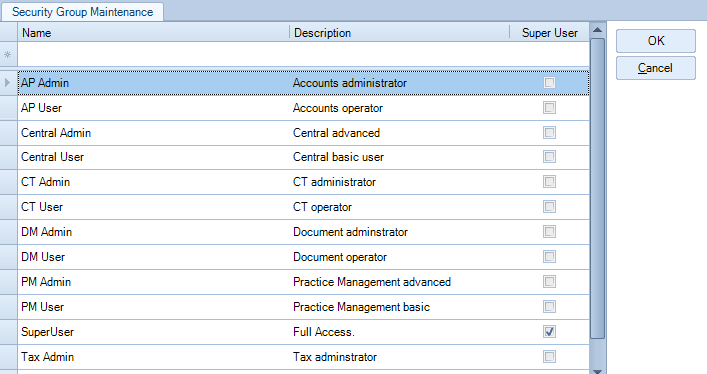
- On the Security Group Maintenance window, click the blue margin cell in the row of the group you want to delete, an arrow appears.
- Press the [Delete] key and then click Yes to confirm the action. The group is deleted.
- Click OK to save the changes and close the window.
Note:
As Security Groups have links to employees within the database structure, users will not be able to delete a group if there are employees allocated to it.