Send and File allows you to opt to be prompted to file emails to CCH Document Management when they are sent.

Using Send and File - Outlook
QuickFiling.png

In Outlook, switching Send and File on means that every time you click Send in an email the Add Document window is opened. Fields are automatically populated based on your default settings and the email addresses you have stored in Central. Providing all the mandatory fields are completed you can click OK to file the email to Document Management, or if you don't want to file it click Cancel.


To activate Send and File you will need to set it up in CCH Email Filing Options. 


To do this click the


CCHEmailFilingOptions.jpg
 button at the top of the Filing Pane, then click Options and select the Filing Tab.

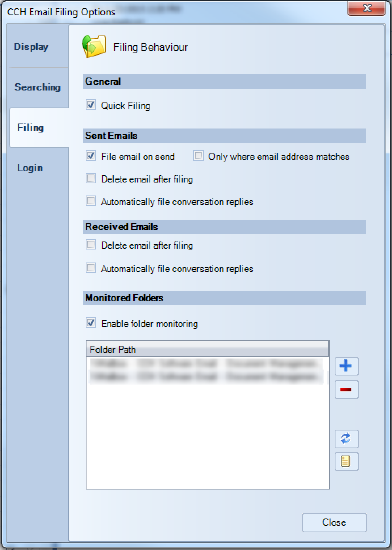
Sent Emails

The Sent Emails option will only be enabled for selection if Enable folder monitoring is ticked. Tick File email on send to file emails as you send them. The Add Document window will be opened with profiling details populated by defaults where these have been set.

Tick Only where email address matches checkbox to only file emails on send if a recipient email address matches a contact in the CCH Central database.

Tick Delete email after filing checkbox to automatically delete sent emails after they are filed.

Received Emails

Tick Delete email after filing checkbox to enable the automatic deletion of emails after they have been filed, either using drag and drop to the Filing Pane or via the Filed Details Pane.

Automatically File Conversation Replies

Tick this if you want replies to be filed with the same profiling options as when sent. This will stay in place for 14 days and will then stop.

Preview on Add Document window for emails

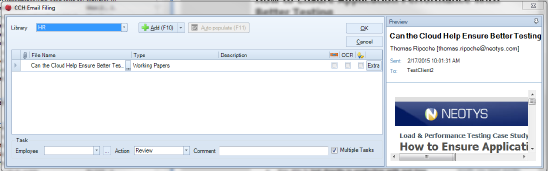
The user has the ability to preview documents in the Add document window to assist with profiling emails.
Preview.png
To switch off the preview, click the Auto Hide icon
CCHEmailFilingPin.jpg


 in the header of the email preview. 
 To switch the preview back on, click on the Preview tab 


preview-tab.png
to the right of the Add document window.

Task Permissions

Practices are now able to force security groups to file every sent email created into a Document Library.  This applies where the ‘Enabled folder monitoring’ option is ticked and the user sends emails making use of the Outlook Send button (where File Email on Send option is not ticked) or the File and Send button (where File Email on Send option is ticked).  This does not apply where a manual filing event occurs by the user for received or existing sent emails.

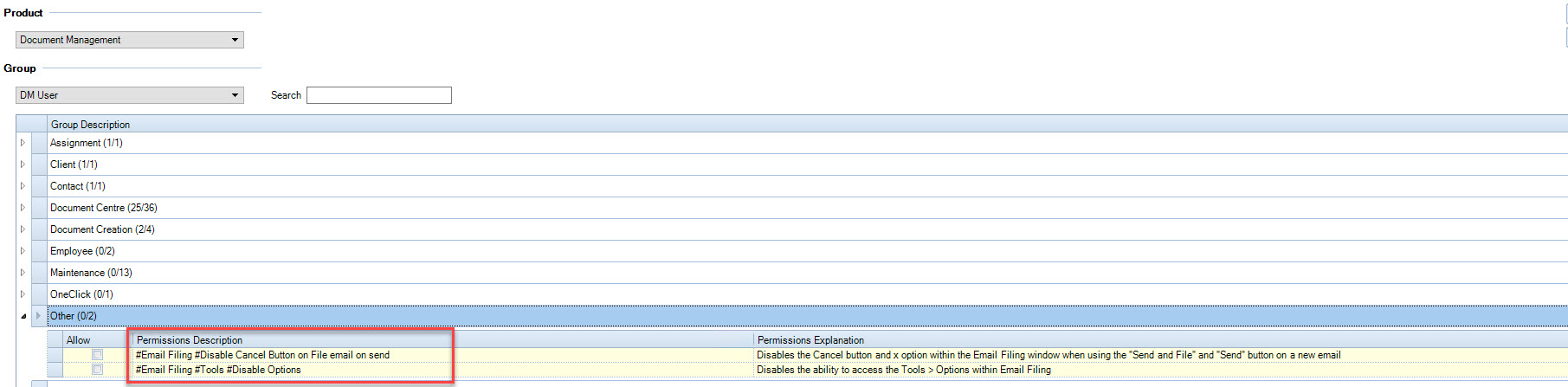
Where practices are planning to utilise the ability to Disable cancel and close options on email filing, it is recommended to also apply Disabling the Options menu, to ensure that users cannot disable the auto file emails on Send, and/or the Enabled folder monitoring.

The Document Management task permission keys are located within main menu File > Maintenance > Security > Task Permissions.

Document Management

Other

#Email Filing #Disable Cancel Button on File email on send

#Email Filing #Tools #Disable Options
TaskPermission-SendandFile.jpg

Related documents

CCH Document Management 2025.1: Release Notes
The CCH Document Management 2025.1 Release Notes detail the installation process using the Central Suite Installer and highlight new software enhancements, particularly for integrating with CCH iFirm's AML, Personal Tax, and Accounts Production products. Key features include enabling document saving, managing document types, setting default assignments, and adjusting monitoring configurations for filing documents. Additionally, troubleshooting tips are provided for issues related to document visibility within a client's Document Centre. The document emphasizes the importance of user permissions and system settings to ensure proper functionality.
CCH Document Management 2026.3: Release Notes
Release Notes for the CCH Document Management 2026.3
CCH Document Management: enhanced training online (10133824)
This document outlines an enhanced training course on CCH Document Management, focused on customization, delegation, and preferences for document handling. Prerequisite completion of the essentials course is required. The course, lasting 3 hours and delivered via the CloudShare platform, aims to deepen participants' understanding of advanced features in document management. It is designed for document-focused roles, covering topics such as document structure, client document centers, and email filing. Resources for further learning are also provided.
CCH Document Management: essentials training online (10133823)
The document outlines a training course for CCH Document Management, a comprehensive system for managing client documentation within CCH Central. Participants will learn to navigate, store, and retrieve documents using a Microsoft plug-in in a GDPR compliant environment. The course is designed for all employees who handle documents, lasts 3 hours, and employs the CloudShare interactive training platform. It includes various topics related to document management structures and offers additional resources for further learning. Completion of CCH Central essentials is a prerequisite for attendees.
CCH Packs: Document Management Implementation Consultancy
This document outlines the structure and objectives of an online consultancy session for implementing a document management system, specifically CCH Document Management. The session, lasting up to 3 hours, aims to refine document management processes, set up security measures, and create a standardized letter template. Participation is encouraged from business decision-makers and administrative staff to facilitate smooth implementation. Attendees should be familiar with existing systems and come prepared with relevant materials. The agenda includes reviewing current systems, understanding CCH functionalities, and discussing document management policies. Resources for additional learning are also provided.