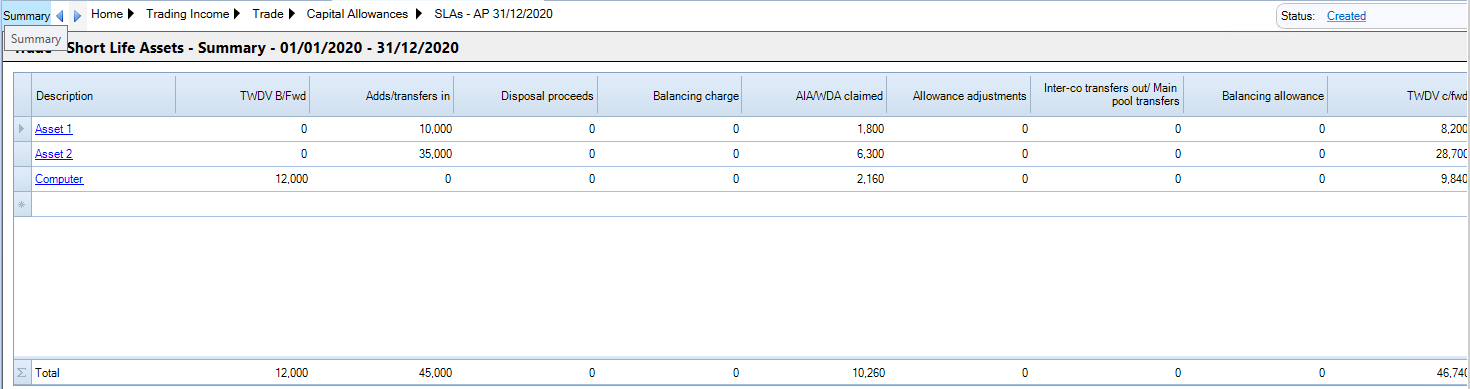
Short Life Assets
You can use this feature to add capital assets eligible for short life assets claims.
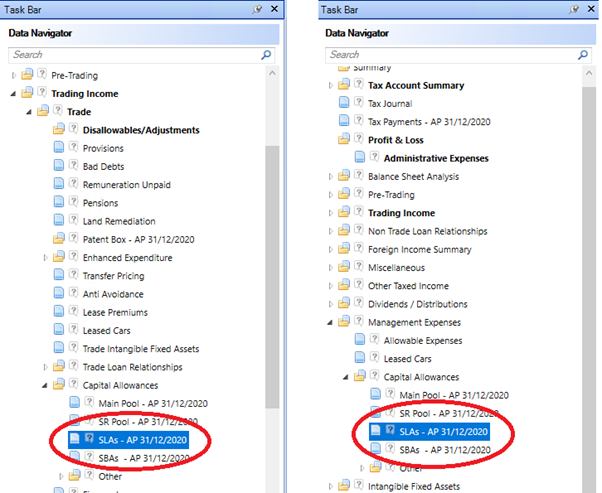
The Short life asset input screen is located in the data navigator within the Capital allowance section of either the trade or management expenses.
Short life life assets can be added manually or linked from the tangible fixed asset additions and disposals analysis statements.

To insert directly clicking on a blank row under the Description column and completing the dialogue box that appears.
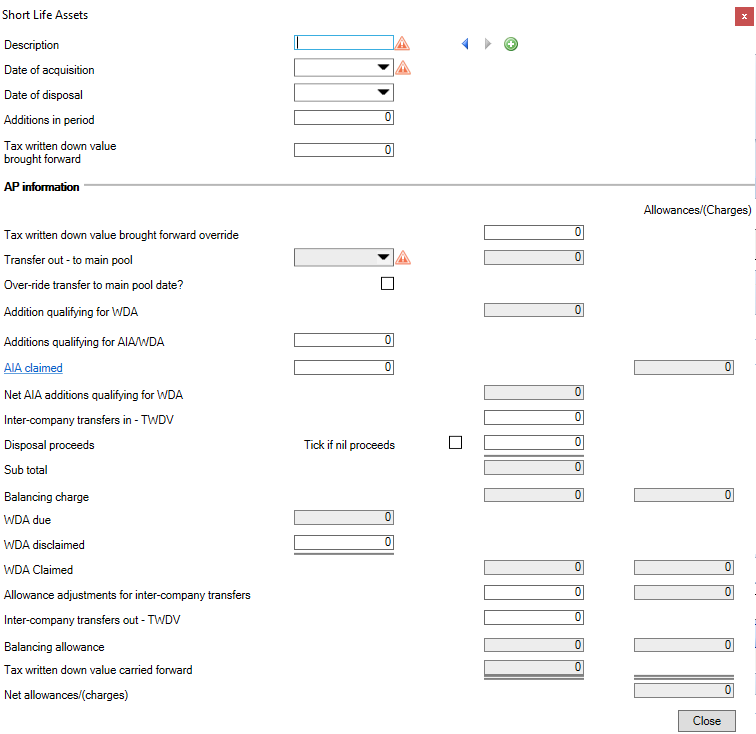
A unique Description and Date of Acquisition are required.
The Date of Acquisition will automatically populate from the date of expenditure in the Additions analysis statement if linked from there.
The Date of Acquisition will determine the transfer out to main pool date. This can be amended by flagging the Over-ride transfer to main pool date? checkbox.
An existing asset where the Date of Acquisition is prior to the current accounting period can only be added if the period of account is the first period created using CCH Corporation Tax.
If disposing of the short life asset in the period, enter a Date of Disposal. The Date of disposal will automatically populate from the Date in the Disposals analysis statement if linked from there.
Enter any Tax Written down Value brought forward. A Tax Written down Value brought forward override is available for additions to existing short life assets
Enter the value of any Additions in the period or link from the Additions analysis statement.
If entering directly in enter the value in Additions qualifying for AIA/WDA.
If claiming the Annual Investment Allowance, enter the amount to be claimed against the short life asset in AIA claimed.
If disposing of the asset, enter Disposal Proceeds or flag the Tick if nil proceeds checkbox.
To disclaim any written down allowance, enter the value in WDA disclaimed
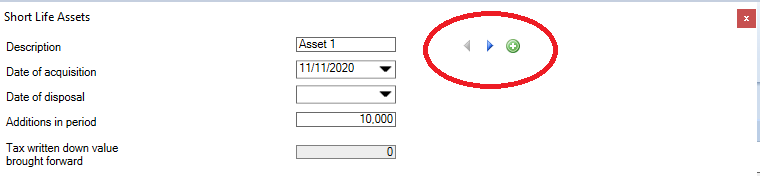
Within the Short Life Asset dialogue box Toggle between short life assets with the blue arrows or add new short life assets with the Green plus symbol.
Click Close at the bottom of the Short Life Asset dialogue box to save the information into the Short Life Asset summary screen.