This section details  what is required to set up the database to enable firms to perform a mail merge using the SMTP mail method.

Configuration Keys

Three new configuration keys have been added to enable practices to set the SMTP Server and to provide an encryption method that the firm wishes to use.

For practices who wish to utilise this functionality, the following configuration keys needs to be set up under main menu File > Maintenance > User Defined > Configuration.

SMTP Configuration Keys

Key Name

Key Value

Comments

SMTPServer SMTP.gmail.com The Key value represents the SMTP address
SMTPServerPort 587 The Key value represents the open port for the SMTP Server
SMTPServerEncryption If the Key value is left blank no encryption is applied to the server
SMTPServerEncryption SSL SSL enables the Secure Sockets Layer public key encryption
SMTPServerEncryption TLS TLS enables the Transport layer Security public key encryption

Only enter one SMTPServerEncription keyname and value.

Please contact your system administrator to proceed with the configuration above.

Add the SMTP credentials

The SMTP username and passwords are held within the individual Employees record. 

  1. Click Employees.PNG on the toolbar.
  2. Search and select the Employee who is generating the mail merge
  3. Access the Main Tab’ of the employee and select the passwords button at the bottom right. 
  4. Within the SMTP Password tab enter in the username and password for the SMTP
  5. Click OK to save the password details.
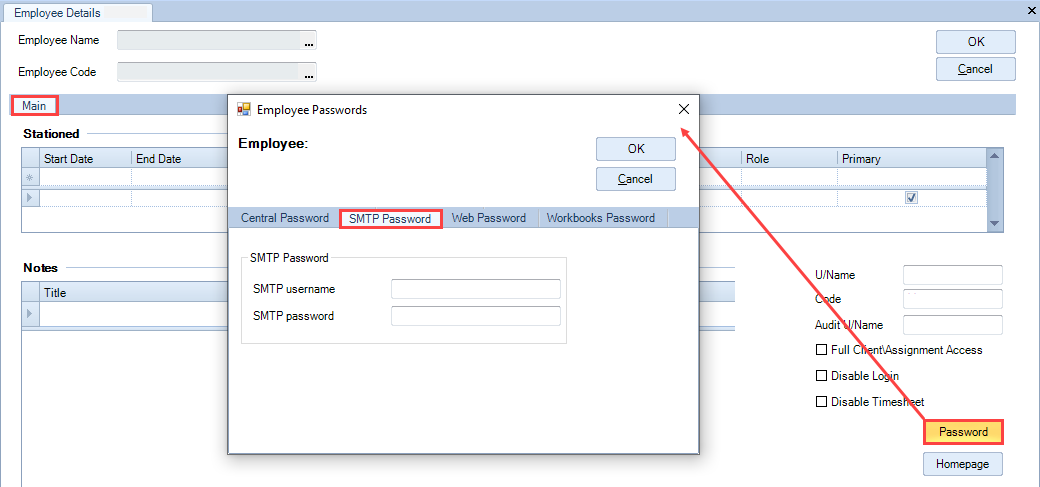
Mail Merge - STMP configuration.PNG

Salted AES Encryption is used to store the SMTP password details.  Once entered the password is masked by asterisks.  To update/amend an existing password, highlight password and re-enter.

Sending emails using SMTP protocol with CCH Document Management

When sending the emails via SMTP the file is saved as an html file and any attachments are stored as a separate document.

Email Wizard

Once all the above SMTP information has been entered, on Step 2 of the Mail Merge Wizard, you are presented with the choice of using either Outlook or SMTP mail protocol.
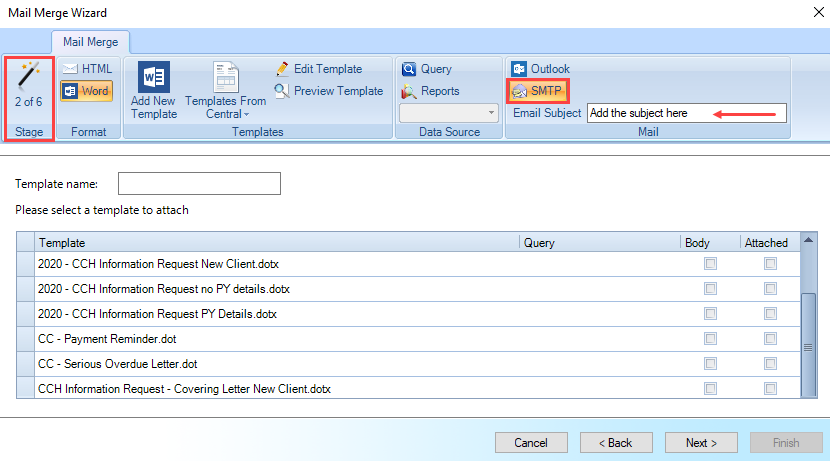
Mail Merge - STMP - step two mail merge wizard.PNG

Related documents

CCH Central Suite Update Guide (Latest Offline Version)
The document outlines the process for using the Central Suite Installer Offline (CSI Offline) for customers with specific IT requirements that prevent internet updates. It provides detailed instructions for installing updates to the Central Suite, including necessary prerequisites, folder structure, and the installation steps. Key points include ensuring Microsoft SQL Server is supported, confirming .NET Framework requirements, and the importance of backups before starting the update. The document also highlights the need for administrator rights, handling database upgrades, and checking for office plugin updates, particularly for users of CCH Document Management.
CCH Central Suite 2026.3 Update Guide
This guide explains how to update an existing install of the CCH Central Suite to the latest version 2026.3 (including Service Packs and Hotfixes) using the Central Suite Installer (CSI).
CCH Central 2026.3 Release Notes
Central Suite Installer (CSI) instructions
The document announces the update of the Central Suite Installer (CSI) for the CCH Central Suite, now compatible with the latest releases and service packs and hotfixes of various CCH applications. Key points include prerequisites for installation, compatibility information, and the necessity for proper backup before proceeding with the update. It highlights specific requirements for Microsoft components, and it warns users of CCH Accounts Production regarding regional settings for date format. Support options are mentioned for users seeking assistance during the update process. Release notes are accessible for detailed information on the updates.
CCH Central 2026.210 Service Pack