
The final stage in the planning process is to enter the staff planning details and the time budgets.
The system allows you to record details of each member of staff that has been allocated to the audit, his or her charge out grade, level of seniority, assignment dates and notes detailing why they are an appropriate choice for the audit. You may also record time budgets, see the next section for details.
The Apply security option on the Client control data dialog, under the File menu [Control], will restrict access to any client to only the staff members who have been assigned to the audit using this Staff details option.
To add or edit the staff record, select [Staff records] from the Planning menu. The Staff details window will be displayed in which will be listed the exiting records.
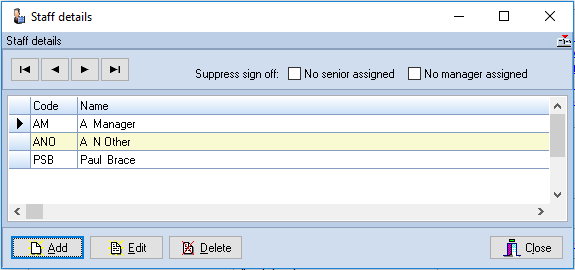
Staff details window
You may scroll through the list using the scroll bar, the navigation buttons or the keyboard, and add, edit or delete records using the buttons provided.
Suppress senior and/or manager sign off
When there is no senior or manager assigned to the audit you can indicate this to the system by clicking the relevant checkboxes so that the system will suppress the associated sign off options meaning that two sign offs are not required.

Adding a new record
To add a new record, click on the [Add] button. The system will display a blank Staff details form.
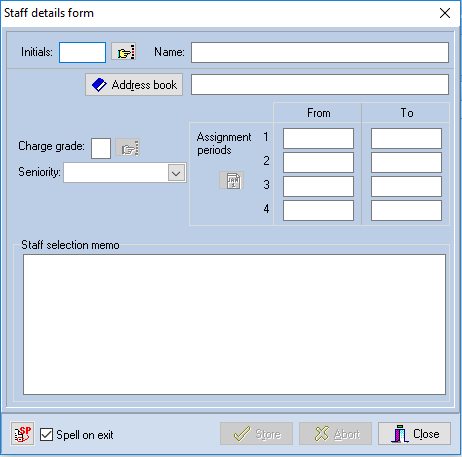
Staff details form
Each member of staff is identified by up to four initials, and the following details can be entered:
| Initials | A 4-digit code, normally the employees initials, identifying the member of staff. A [Pick list] button is available, which will display the list of Audit Automation users and from which you can pick the employee if present in the list. The initials and name will be completed from the entry selected. |
| Name | The name of the member of staff, up to 40 characters. |
| Email address | This can be picked out of your email address book by clicking on the [Address book] button or typed in, as it is also possible to enter the email address for staff allocated to the audit to cater for audit staff that are not recorded as users in Audit Automation. This field can be left blank for staff that are recorded users and the system will default to using that stored in the user file. If you enter an email address here for a member of staff that is recorded as a user, it will be used in preference to the email address in the user file. |
| Charge grade | The charge-out grade of the staff member. The system maintains up to 30 grades, numbered from 1 - 30. Enter here the grade which is relevant to the member of staff and the system will allocate the appropriate charge-out rate per hour. A [Pick list] button is provided to allow you to select the grade from a list. |
| Seniority |
The level of each member of staff is set as one of the following:
A drop-down list is provided, giving the above for selection. However, if you have gained access as a manager or partner, you can elevate a member of staff by 1 level. E.g. a user with an access level of senior could be recorded |
| Assignment periods | You can enter up to 4 periods for the assignment for each member of staff, and the dates allocated are printed on the staff allocation/planning schedule. When the insertion point is positioned in one of the date fields, the [Calendar] will be active to allow you to select a date for the field being edited. |
| Staff selection memo | Each member of staff has a free-text memorandum associated with his/her record in which you may record any details which are relevant to the decision to select that member of staff for the audit. Such information as the level of experience, knowledge of the client, knowledge of any specialised systems which the client may maintain, experience with regulatory bodies etc., is relevant and should be entered in this memorandum. |
Enter the information relating to the staff member, and click on [Store] to save it. The record will be saved and the form cleared to allow the entry of another record. When all entries have been made, click on [Close] to return to the Staff details list. If you start to make an entry and do not wish to save it, pressing [Abort] will clear the form without saving the details.
Editing a record
To edit a record, either double click on the entry in the list, or highlight it and click on [Edit]. The Staff details form will be displayed and you are free to edit any of the information shown, apart from the initials of the staff member. When you have finished making the amendments, click on [Store] to save them and return to the Staff details list. Alternatively, if you do not wish to save the amended record click on [Abort].
Deleting a record
To delete a record, highlight the record in the list and click on [Delete]. The system will ask you to confirm that you wish to delete the highlighted record before carrying out your instructions.
The staff briefing and planning schedules, which can be viewed or printed via Print planning section on the Planning menu, include the details entered here.