
Stage 3 of 6 - Choose the address and email type
Choose the address and email type
1. You need to select the address type, the team responsibility and the email address type that will be used to send out the messages.
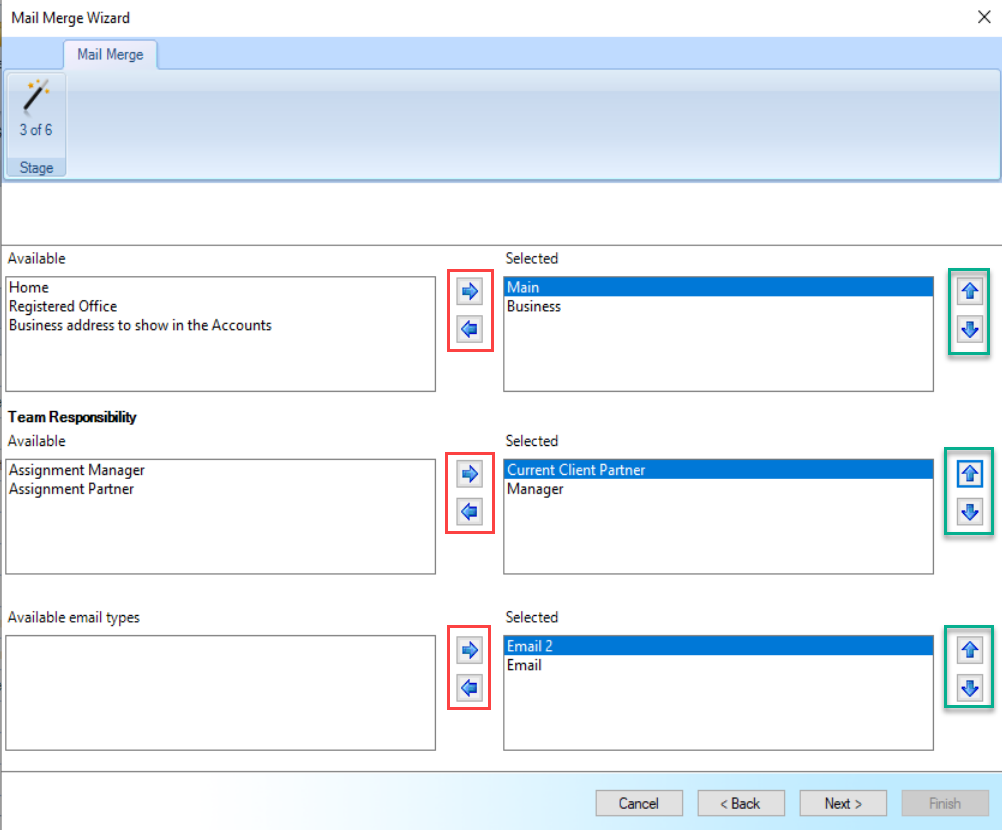
IF YOU SELECTED A WORD TEMPLATE, THE STAGE 3 WILL SHOW THOSE OPTIONS:
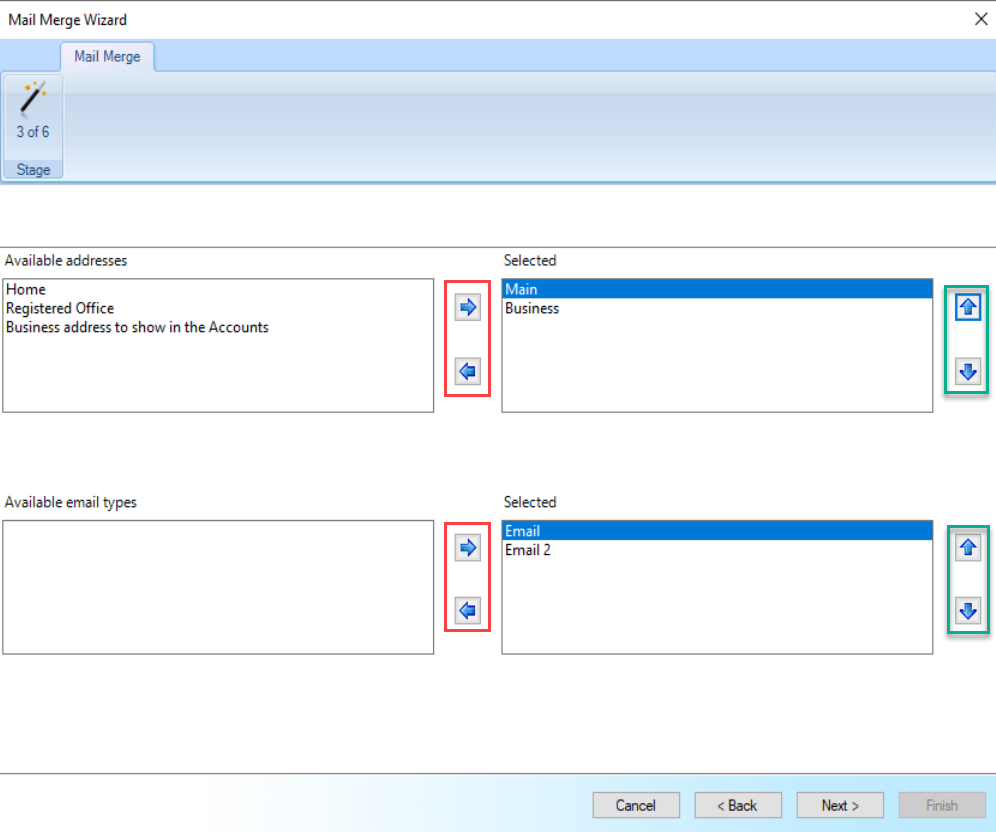
IF YOU SELECTED A HTML TEMPLATE, THE STAGE 3 WILL SHOW THOSE OPTIONS:
ADDRESSES TYPES (applicable to Word and HTML templates)
If the template selected has the address fields then the addresses type that are Selected (right grid) will be used.
You can select more than one address type using the arrows in the middle of the screen to move the Available type of address (left grid) to Selected type of address (right grid).
If more than one address type is shown on the Selected grid then you can use the arrows on the right side to prioritise the address type on the merge process.
For instance, if Main address and Business address (as shown above) are on the Selected grid and a contact or client selected have both addresses, then the Main address type (first address type on this scenario) will be merged for this contact or client.
If the contact or client selected does not have Main address but has Business Address then Business Address will be used on the merge.
TEAM RESPONSIBILITY (applicable to Word templates only)
If the Word template select has a field related to an employee record (name or signature for instance) then select the status of the employee you want to show on the merge.
For example if the Word template has the field employee name, having Current Client Partner to the Selected grid will pull the name of the partner linked with the contact or client to the merge.
Selecting more than one team responsibility on Selected grid means that the first team responsibility will be used on the merge. The second team responsibility will only be used if there is not data for the first team responsibility selection on the contact or client's records.
EMAIL TYPES (applicable to Word and HTML templates)
Select the email types you want to use for this email merge.
You can select more than one email type using the arrows in the middle to move the email type from the Available (left grid) to the Selected (right grid).
If more than one email type is shown on the Selected (right grid) then you can use the arrows on the right side to prioritise the email type that will be used on the merge process.
For instance, if Email and Email 2 (as shown above) are on the Selected grid and a contact or client selected for the merge has both email addresses, then the first email type (Email on this scenario) will be used on the merge. If the contact or client selected does not have an email address on the field Email on their records but has one on Email 2 then Email 2 will be used on the merge process.
2. Make the selections according to your requirements and click Next.