
The Task Bar is always displayed between the main menu and the toolbar.

Central_Getting-Started_Task-Bar1.png

The Task Bar above, marked in red, is shown when you click Home at the toolbar.

The Task Bar provides you with one–click navigation to main features.

As you move through windows, you will notice that the contents of the Task Bar keep changing. This is because the Task Bar updates to display the options available for the window that is currently open.

Using the Task Bar you can customise your Home Page to display information you need to access quickly or at a glance.

  • To minimise the Task Bar, click Close icon_Task-Bar-close.png from the top right side of the screen.
  • To view Task Bar again, click Expand icon_Task-Bar-expand.png from the top right side of the screen.

----------------------

Overview

As you navigate through the application and perform various tasks the information on the Task Bar changes. Clicking a Toolbar icon displays associated Task Bar options.

Depends up on licenses and plug-ins installed, the Toolbar will show all or some of the options below:

Central_Getting-Started_Task-Bar2.png

Clients

When you click Clients on the Toolbar, depends up on licenses and plug-ins installed, the Task Bar under menu Tasks will show all or some of the options below:

Central_Getting-Started_Task-Bar3.png

Contacts

When you click Contacts on the Toolbar, depends up on licenses and plug-ins installed, the Task Bar under menu Tasks will show all or some of the options below:

Central_Getting-Started_Task-Bar4.png

Assignments

When you click Assignments on the Toolbar, depends up on licenses and plug-ins installed, the Task Bar under menu Tasks will show all or some of the options below:

Central_Getting-Started_Task-Bar5.png

Employees

When you click Employees on the Toolbar, depends up on licenses and plug-ins installed, the Task Bar under menu Tasks will show all or some of the options below:

Central_Getting-Started_Task-Bar6.png

Smart Reports

When you click Smart Reports on the Toolbar, the Task Bar under menu Tasks will the options below:

Central_Getting-Started_Task-Bar7.png

The Task Bar changes again when you search for a record and the specific details page opens. The Task Bar is explained with each details page.

Launching an Application

CCH iXBRL Review and Tag

If the CCH iXBRL Review and Tag and the Companies House submissions are licensed, the user can access those module by clicking on Clients from the Toolbar, then click on the main menu Other Applications.

Click on the icon Launch iXBRL which opens the tab for the CCH iXBRL Review and Tag module.

Click on the icon Co. House Submissions to open the Companies House filling history and status tab.

Central_Getting-Started_Task-Bar8.png

Third party applications

You can set up access to third party applications. The short cuts will be shown on the Task bar when the Find Clients tab is selected (click on Clients from the Toolbar).
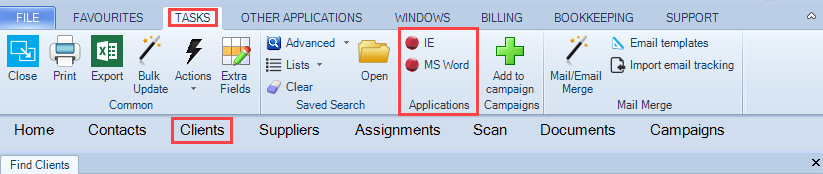
Central_Getting-Started_Task-Bar9.png

Related documents

CCH Central Suite Update Guide (Latest Offline Version)
The document outlines the process for using the Central Suite Installer Offline (CSI Offline) for customers with specific IT requirements that prevent internet updates. It provides detailed instructions for installing updates to the Central Suite, including necessary prerequisites, folder structure, and the installation steps. Key points include ensuring Microsoft SQL Server is supported, confirming .NET Framework requirements, and the importance of backups before starting the update. The document also highlights the need for administrator rights, handling database upgrades, and checking for office plugin updates, particularly for users of CCH Document Management.
CCH Central Suite 2026.3 Update Guide
This guide explains how to update an existing install of the CCH Central Suite to the latest version 2026.3 (including Service Packs and Hotfixes) using the Central Suite Installer (CSI).
CCH Central 2026.3 Release Notes
Central Suite Installer (CSI) instructions
The document announces the update of the Central Suite Installer (CSI) for the CCH Central Suite, now compatible with the latest releases and service packs and hotfixes of various CCH applications. Key points include prerequisites for installation, compatibility information, and the necessity for proper backup before proceeding with the update. It highlights specific requirements for Microsoft components, and it warns users of CCH Accounts Production regarding regional settings for date format. Support options are mentioned for users seeking assistance during the update process. Release notes are accessible for detailed information on the updates.
CCH Central 2026.210 Service Pack