
Task Permissions: CCH Reporting
New Task Permissions have been created for the Reporting product; click on main menu File > Maintenance > Security > Task Permissions then select the product Reporting and then select the security group where those permissions will be applied. On the example below the permissions will be applied to Central Admin security group.
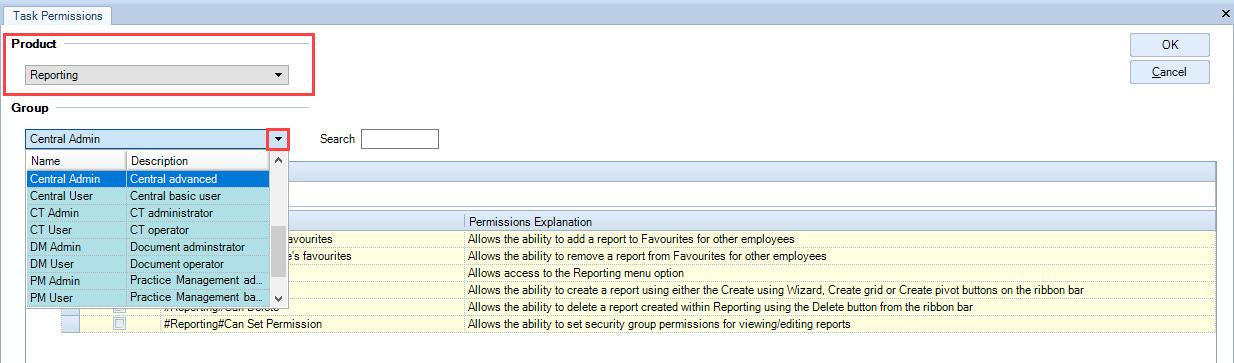
Reporting Access
|
Task Permission |
Description |
|
Other - #can add other people's favourites |
Allows a user to add a report to Favourites for other employees |
|
Other - #can remove other people's favourites |
Allows a user to remove a report from Favourites for other employees |
|
Other - #Reporting #Can Access |
Allows access into the Reporting product |
|
Other - #Reporting #Can Create |
Allows a user to create a report |
|
Other - #Reporting #Can Delete |
Allows a user to delete a report |
|
Other - #Reporting #Can Set Permission |
Allows a user to set security group permissions for viewing/editing reports |
Field Access
Within standard CCH Task Permissions, each plug in provides their own security task items. Within CCH Reporting this is also the case. Each plug in is responsible for providing security on all the fields available within the product.
By default all fields are set to allow for all security groups, therefore, Administrators are required to remove any security permissions where necessary.
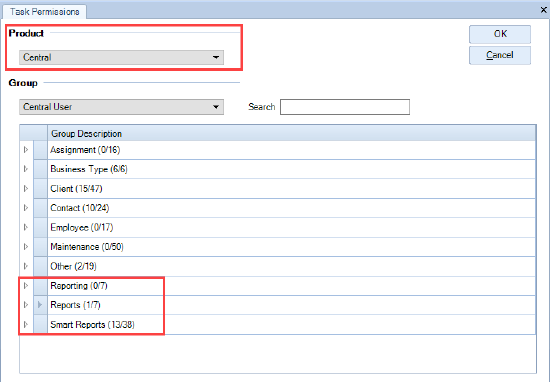
The reporting field permissions are found within the Task Permission tab, select the Product (Central, Accounts Production etc), select the Security Group and expand the sections related to reports (Reporting, Reports and Smart Reports): the access to the report fields are distributed across the products.
Report Category
Access to the Reporting Category maintenance screen is controlled by a permission key, under the Product Central, within the main menu File > Maintenance > Security > Task Permissions.
- Maintenance – [Maintenance][User Defined][Report Category]