
Task Permissions: Security Groups
How to add or remove Task Permissions within a security group
CCH Central has default permissions already set for the default security groups. You can add or remove permissions from any default group.
Click on the main menu File > Maintenance > Security > Task Permissions to add or remove permissions of a security group under a specific Product.
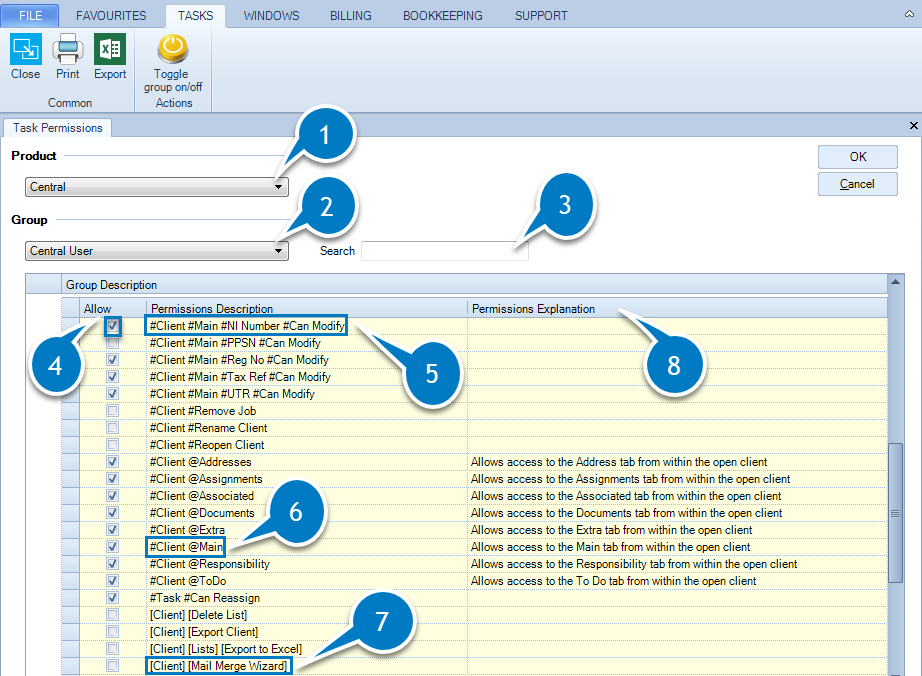
- Product: from the drop-down list choose the Product connected with the permissions you want to allow or to remove from a specific security group. The example in the above screenshot refers to Task Permissions for Central, however each product will have it's own set of Task Permissions.
- Group: from the drop-down list choose the Security Group which you want to setup the task permissions for. The Group should match the selected Product.
- Search box: used to assist you to find out a specific task permission, for example, type the word 'modify' brings all task permissions which have this word.
- Allow column: check the box to allow that task permission or uncheck the box to remove it.
- Permissions description: when the permission description has the hash symbol #, it relates to a function, it allows the user to action on the specific field located as described. For example:
#Client#Main#NI Number#Can Modify means that the user has the permission to Modify the field NI Number which sits on the Main tab within the Client's records. - Permissions description: when the permission description has the 'at' symbol @, it relates to access to a tab, it allows the user to access a tab. For example:
#Client@Mainmeans that the user has the permission to access the Main tab within the Client's records. - Permissions description: when the permission description has words in squared brackets [ ], it relates to an option within a menu, it allows the user to access certain functionalities under a menu for example, the Ribbon or options under the Maintenance area. For example:
[Client][Mail Merge Wizard] means that the user has the permission to access and use Mail Merge Wizard which is under the Ribbon of Clients.[Maintenance][Security][Tax Permissions] means that the user has access to the Maintenance menu and within that menu, the Security option and within the security option, the Tax Permissions. - Permissions explanation column: in some permissions you find a detailed explanation of its functionality.
Toggle permissions on/off
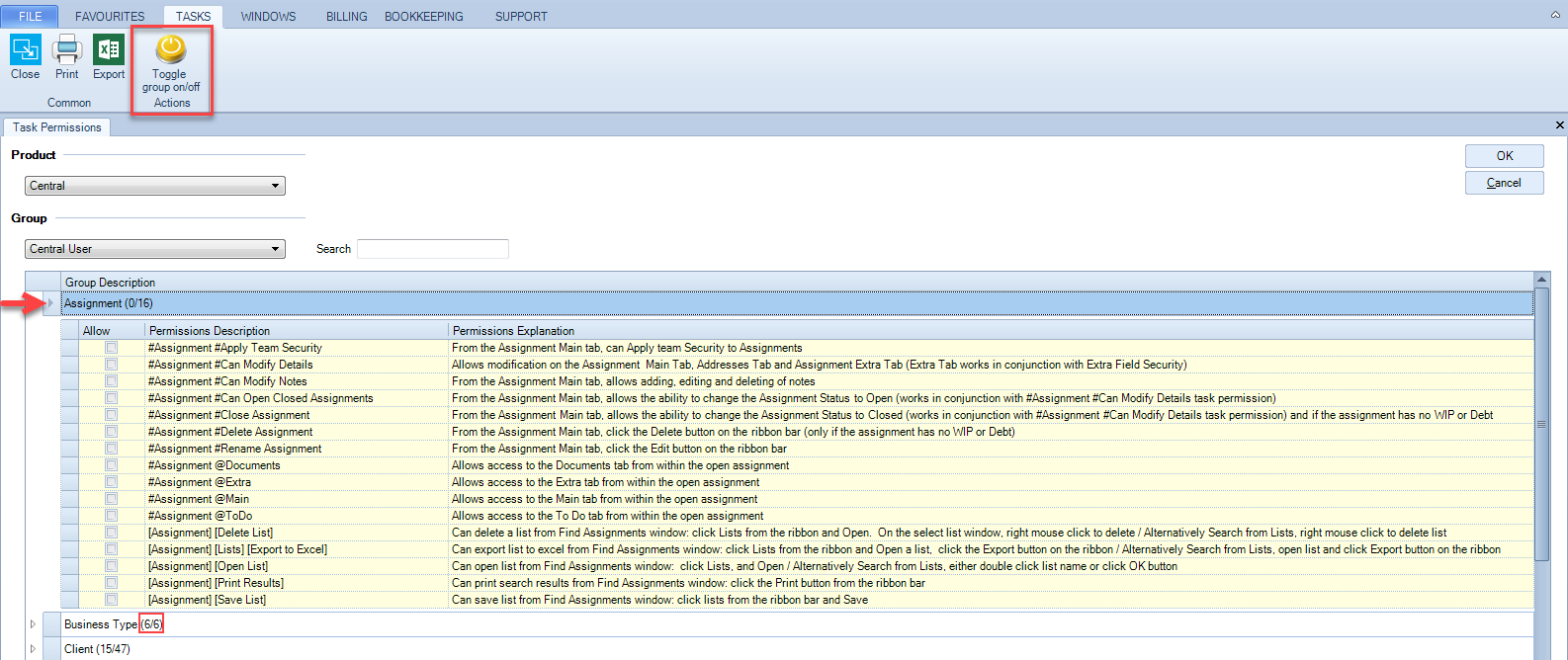
Each Product and Security Group will show different sections which lists their respective task permissions. Each section has a heading i.e. Assigment. To the right of each heading you will see two sets of numbers in brackets:

The first number is the number of enabled Task Permissions. The second number is the amount of available Task Permisisons. You can allow or remove all permissions of a section clicking on Toggle Group on and off. Highlight the section as shown below (Assignment) and click Toggle Group on/off to allow all permissions or Toogle Group on/off to remove all permissions for that section.
If you create a new Security Group, please ensure that you use the Toggle Group on/off to toggle off all default permissions prior to tailoring the Security Group to your needs.
You can also click on the Excel icon from the Ribbon to export the permissions to an MS Excel file. You can also Print using the Print button from the Ribbon.
Employee Security Group Structure
We recommend that each product has a two tier Security Group Structure, however, your Practice may introduce additional Security Groups to suit your requirements. Having this structure gives you control over all of the products indvidually within the Suite.
Everyone requires access to Central regardless of the access level. However, for example, you may wish to restrict those who can and can not create a new client record. Therefore there needs to be two Security Groups for the CCH Central product.
An example of this would be:
- Central User: This Security Group could restrict users from entering new client records (amongst other permissions)
- Central Advanced : This Security Group would allow encompass all persmissions of the Central User group plus give users the ability to create a new client record (amongst other permissions)
You will then need to exapand this by adding, to the employee records, the product Security Groups relevant to the employee role within the Practice. For example, if an employee is required to produce a Tax Return, they will need to be a member of one of the Personal Tax Groups.
Please note: regardless of what products your Practice is using within the Suite, each staff member will need to have a Central Security Group allocated to them as a minimum.
Note: For CCH Document Management, you will need to ensure that if more than one Document Management Security Group is added to a single employee record, no Task Permissions are duplicated in either of the Security Groups as this would use 2 x Document Management licences.