Tasks Homepages: Using Advance Filters

Within this release the Tasks homepage now includes an Advance Filter. The right-mouse click options have been reduced and previous options can now be achieved using the advance filter.
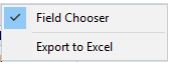
Tasks home page - filters1.JPG

Access the Advance Filter

To access the Advance Filter, click on the 'No Filter' hyperlink located on the top left corner of Tasks homepage
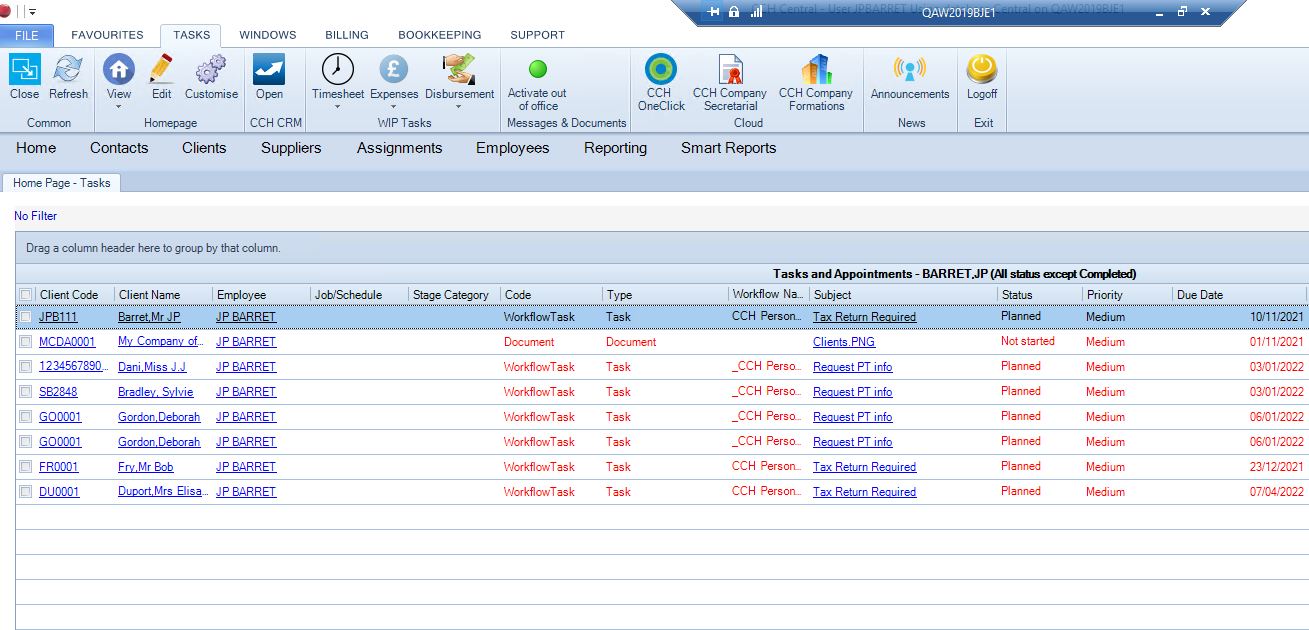
Tasks home page - filters2.JPG

And the following screen will be displyed in the middle of CCH screen:
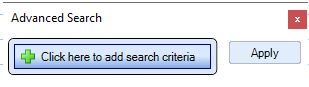
Tasks home page - filters3.JPG

Upon upgrade, the homepage is automatically re-set to show all the outstanding tasks for the logged in Employees. Therefore, all customisations are required to be re-applied using the new advance filter option. The right-mouse click options that were available within earlier releases can now be achieved by applying the following advance search criteria:

Tasks not yet complete

This is the default view for the logged in employee where no filter has been set. It shows all task status except for Completed.

Tasks completed today

Logged in Employee: To show all tasks completed today for the logged in employee the Advance Search needs to have the following criteria:
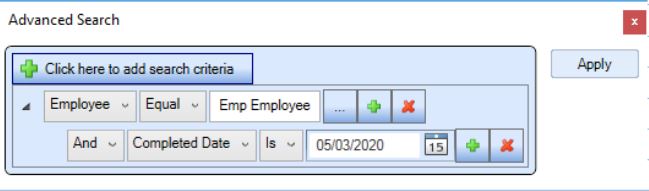
Tasks home page - filters4.JPG

Tasks due to start today

Logged in Employee: To show all tasks started today for the logged in employee the Advance Search needs to have the following criteria:
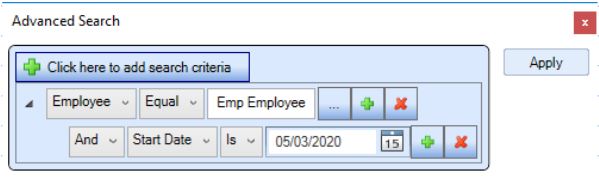
Tasks home page - filters5.JPG

Tasks due to end today

Logged in Employee: To show all tasks due to end today for the logged in employee the Advance Search needs to have the following criteria:
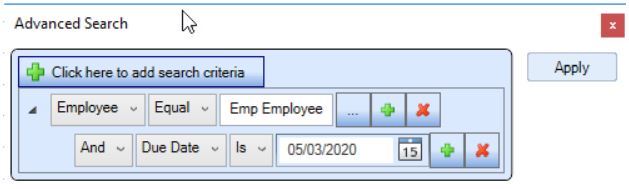
Tasks home page - filters6.JPG

My started tasks

This option is no longer supported.

My Team tasks

The ability to show ‘My team tasks’ is currently not available and is to be included within a future release.

Tasks assigned by me

Logged in Employee: To show all tasks assigned for the logged in employee the Advance Search needs to have the following criteria:
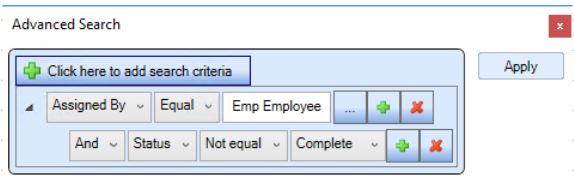
Tasks home page - filters7.JPG

The Assignment Manager and Assignment Partner fields within the advance filter show tasks where they have been added to the Team within the Client > Responsibility tab.

Related documents

CCH Central Suite Update Guide (Latest Offline Version)
The document outlines the process for using the Central Suite Installer Offline (CSI Offline) for customers with specific IT requirements that prevent internet updates. It provides detailed instructions for installing updates to the Central Suite, including necessary prerequisites, folder structure, and the installation steps. Key points include ensuring Microsoft SQL Server is supported, confirming .NET Framework requirements, and the importance of backups before starting the update. The document also highlights the need for administrator rights, handling database upgrades, and checking for office plugin updates, particularly for users of CCH Document Management.
CCH Central Suite 2026.3 Update Guide
This guide explains how to update an existing install of the CCH Central Suite to the latest version 2026.3 (including Service Packs and Hotfixes) using the Central Suite Installer (CSI).
CCH Central 2026.3 Release Notes
Central Suite Installer (CSI) instructions
The document announces the update of the Central Suite Installer (CSI) for the CCH Central Suite, now compatible with the latest releases and service packs and hotfixes of various CCH applications. Key points include prerequisites for installation, compatibility information, and the necessity for proper backup before proceeding with the update. It highlights specific requirements for Microsoft components, and it warns users of CCH Accounts Production regarding regional settings for date format. Support options are mentioned for users seeking assistance during the update process. Release notes are accessible for detailed information on the updates.
CCH Central 2026.210 Service Pack