
Travelling Clients
How to manage Travelling Clients in CCH Audit Automation (SQL)
Travelling Clients
Warning:
- This feature is only recommended for the auditor who cannot remotely connect to the office network. While you can take customer data offline through CCH Audit Automation or CCH Central, it will be quicker to take client data offline via CCH Central if you are running 2022.320 or above.
- If you are attempting to install CCH Audit Automation on a laptop for the external reviewer, please refer to this Knowledge Base article
Travelling to offline database from CCH Audit Automation
The computer that you are travelling the client pack needs to have a workstation install of the CCH Audit automation software. This should be installed using the Central Suite Installer and selecting the workstation install. The offline database and connection string for the local computer will be set up on the workstation the first time that traveling is performed.
Whilst connected to the office network open the audit software and log into network at office.
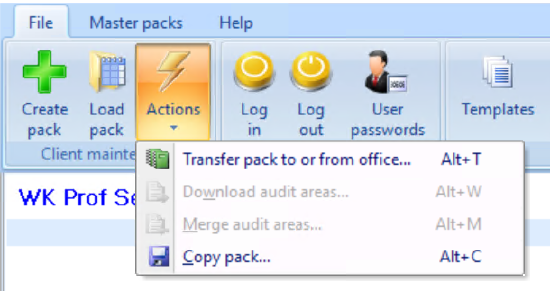
From the Actions button select Transfer pack to or from office.
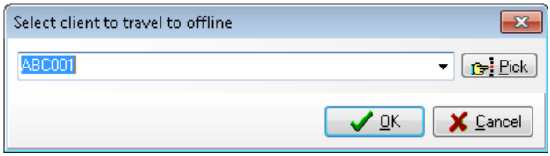
Use the Pick button to select the client to be taken offline and the click OK.
The Client will be exported from the Office database and then imported into the Offline database.

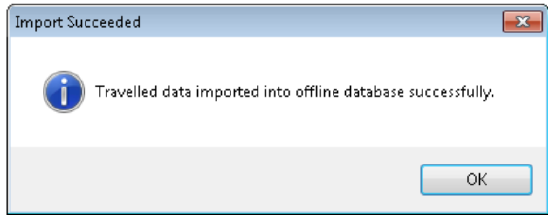
The client name will be prefixed with the initials of the user that performed the travel.
Note: If the client being travelled is using a master pack that is being used on the local machine for the first time then the travelling process will also take a copy of this master pack. This will result in all versions of the master pack being copied to the local database and therefore the process will take longer when new master packs are travelled to the local machine.
Travelling back to office database from CCH Audit Automation
Log into the offline database and from the client maintenance screen select Transfer pack to or from office.
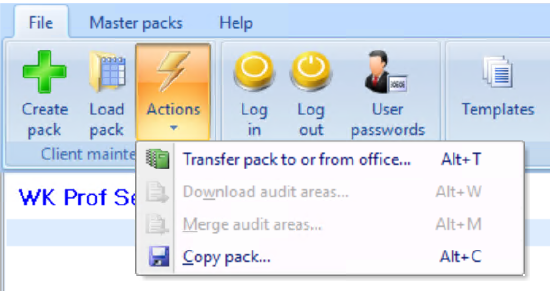
Select the client to be travelled back to the office
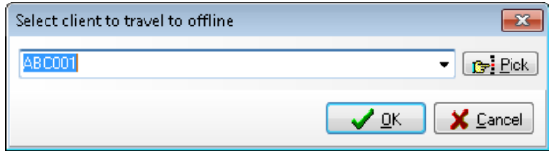
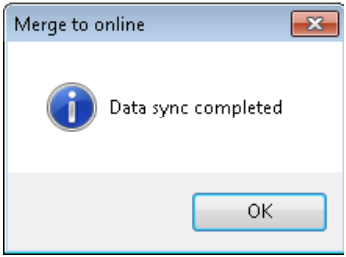
The client will be removed from the offline database and the status of the client on the office database will be updated to current data and the initials of the user that travelled the client from the office will be removed from the client name.
Travelling to offline database from CCH Central
Configuration Settings
The current method for travelling accounts production and corporation tax data was to travel each data set into a separate database, however with the addition of audit this is no longer possible as CCH Audit Automation makes use of the new travel function whereby the data is travelled into a single database.
Warning: Before updating this setting any CCH Accounts Production or CCH Corporation Tax data that is currently travelled out should be travelled back to the server.
In the deploy folder open the ClientFrameWork.exe.config file in notepad and change the offline mode from zero to 1. This will travel all data into a single offline database.
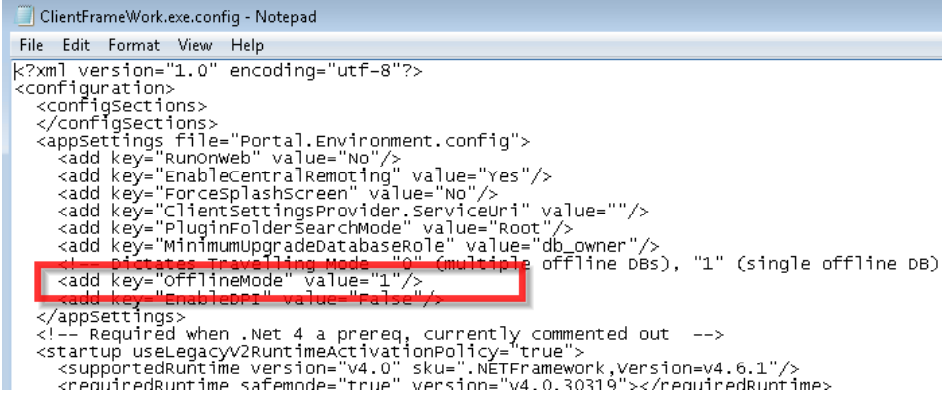
The CCH_Travelling_Mode configuration key will also need to be updated to 1. Open Central and browse to Maintenance > User Defined > Configuration and update the key value from 0 to 1.

Travelling the client
If a client is travelled from CCH Audit Automation and the client also has data for CCH Accounts Production and / or CCH Corporation Tax the following dialogue will appear:
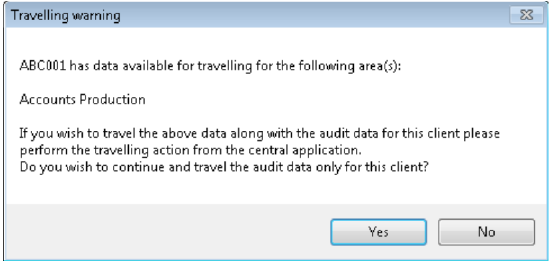
If only the audit data is to be travelled, then select Yes, alternatively, if the data for the other products is also to be travelled, select No and travel the client from CCH Central.
Warning: If you leave any documents checked out then any changes that you have made to these documents will only be recorded in your local document store and will not be included in any backups created.
Log on to CCH Central first
Step 1 - Setting-up CCH Central homepage controls for travelled data
There are two homepage controls for travelled data:
1. Travelled Clients, and
2. Data to import. Lists any restored travelled data where any changes to CCH Central records have not yet to be reviewed and accepted.
To set these up, from the HOME screen ribbon choose a View, click Customise to open the Toolbox.
From the Toolbox, choose the Central drawer, select the Data to import and Travelled Clients homepage controls to a clear area on the homepage, resize by dragging the borders as required.
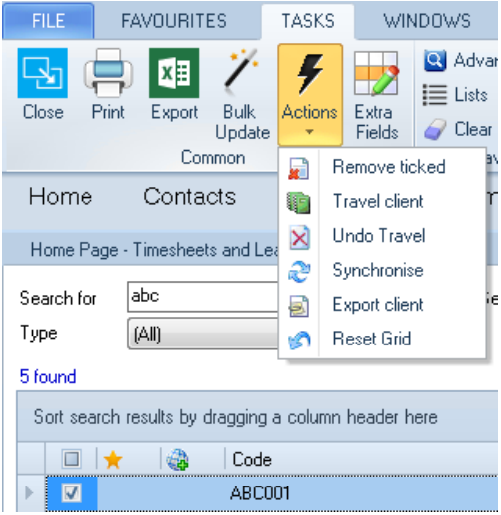
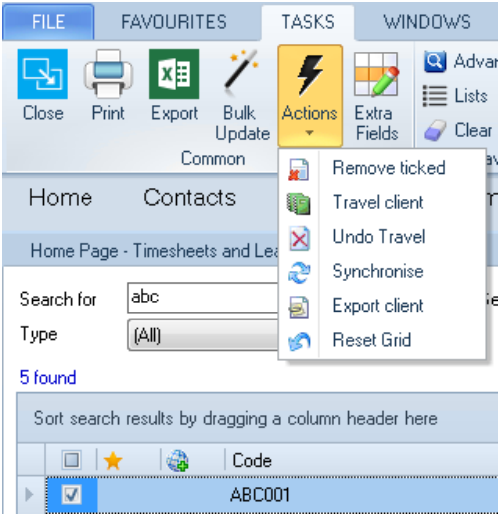
Step 2 - From the client search window mark the client to be travelled using the check box and from the Actions drop-down, select Travel client:
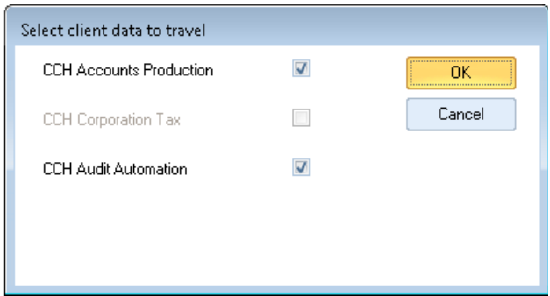
The following dialogue will be displayed and the client data that is available to be taken off line will be listed. Select the data to be travelled and select OK:
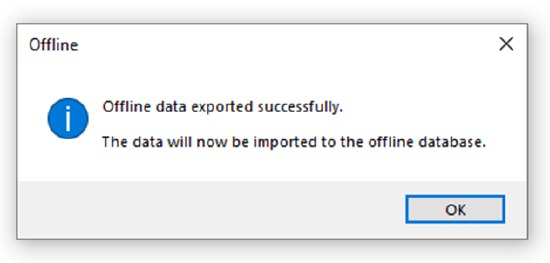
Select OK on this Offline dialogue
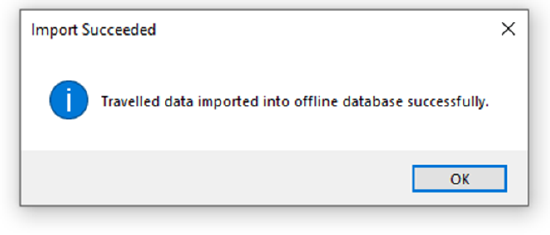
Select OK on this Import Succeeded dialogue
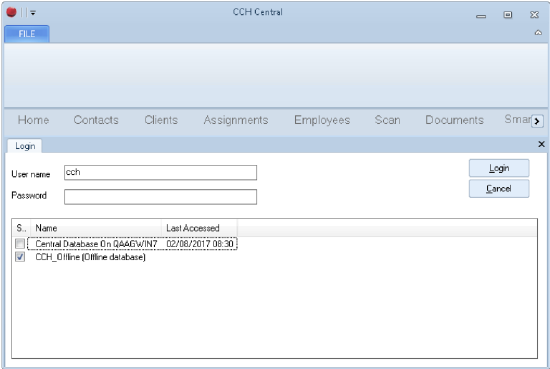
Step 3 - Following the successful travel of a client when logging into central a new line will appear on the CCH Central login screen called CCH Offline (Offline database). This is the offline database that has been created and contains the travelled data. This option should be selected when using the CCH Accounts Production or CCH Corporation Tax data that has been travelled along with the audit data.
Travelling back to office database from CCH Central
To travel the client back to the office log into the offline database select the client from the client search window and from the actions dropdown select Synchronise:
The System will display the user who travelled the client and the date the client was travelled out of the office. Select Yes, and the data will be travelled back to the office database.
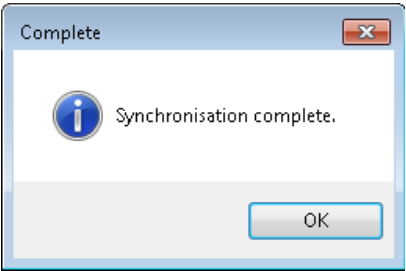
Note: It is no longer possible to synchronise audit data back to the office database whilst being logged into the office database. The system will now force the user to synchronise audit data from the offline database. This change has been made as synchronising data from the office database would result in the documents not being transferred to the office database.
Apply the change of the synchronized data within the office database
You will need to apply the changes from the offline into the office database. Go to the Central Homepage, open the view for Data to import and follow steps 1-4 below.

- To review the changes, double click the entry and a new tab is displayed listing any changes that have been made to the Central data while offline.
- To accept the changes, click Apply in the Task Bar.
- If you do not want the local changes reflected in the office Central database, click Cancel changes.
- Your instruction will be processed, the tab closed and the record will be removed from the homepage control.
Cancelling a travelled client state in Audit Automation
Undo Transfer Pack in Audit Automation
The status of a travelled client can be reversed if it is not possible to reverse the travelled client by transferring the pack back to the office. This routine should only be used if the computer with the travelled data is not available to transfer the pack back to the office. Select Undo transfer pack from the system maintenance window and use the Pick button to select the client reverse the travelled status on.
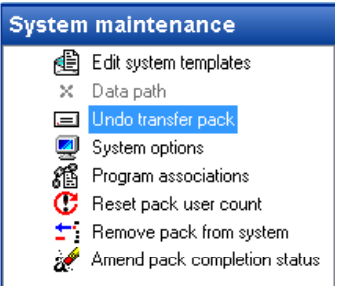
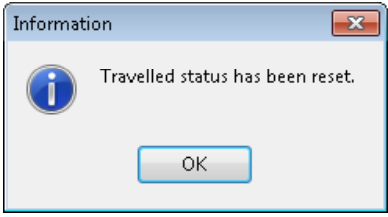
The travelled status of the client will be reset and the confirmation message below will appear.
Undo Travel option in CCH Central
If a client should not have been travelled out there is the option on the Actions menu (on the Client search screen) to Undo Travel*.
Note: Undo transfer pack or Undo travel will revert the client back to the position it was in when it was travelled out of the system. Therefore, it will result in the loss of any work performed on the travelled client pack. Also, the status of the pack on of the travelled client will not be updated and will still show are current data.
This process can only be performed by a System manager.