How to use our Virtual Assistant

You will see the Virtual Assistant icon (at the bottom right of your screen) 
 

icon_Virtual_Expert.png


when you are logged into the Support Portal.  

Onboarding_access_customer_support_1.png


Getting started

Start by reviewing the popular links shown in the blue box and click on any that may answer your question.

If none of these links are helpful to you, type your question into the New question field shown.  Make sure you use keywords as if you were talking to a human. The Virtual Assistant will then search our support articles and product guides for your solution.  

Onboarding_Using_our_Virtual_Expert_2.png

Reviewing your information

You will see a summary of information that is relevant to your question and beneath the summary, there will be three links to articles that are also seen as relevant to your question. There is a summary for each article provided and a read more prompt to help you decide.

Beneath the articles you will be asked whether the information answers your question or not at which time you can refine your question, ask a new question or contact our Support Team.

Onboarding_Using_our_Virtual_Expert_3.png
Onboarding_Using_our_Virtual_Expert_4.png
Onboarding_Using_our_Virtual_Expert_5.png

Requesting assistance from a Support agent

Onboarding_Using_our_Virtual_Expert_6.png

When you click Contact Support, you will be offered a Create a Case form to complete form before selecting how you would like to work with a support agent. 

You must complete all form fields showing an asterisk.  Please use the Create a Case instructions if you need assistance with this.  Once the form has been completed, tick the Privacy Notice box (if you have read and agree) and click Next.

Onboarding_Using_our_Virtual_Expert_7.png
Onboarding_Using_our_Virtual_Expert_8.png
Onboarding_Using_our_Virtual_Expert_9.png

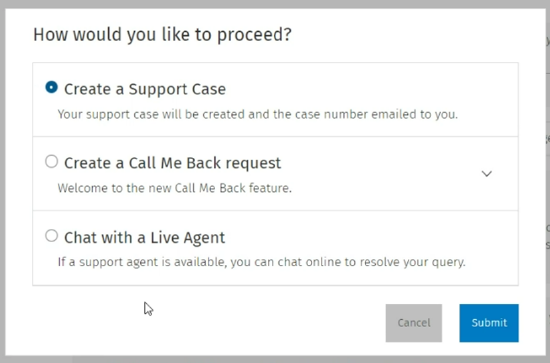
Now you can select from one of three options:
clipboard_ee108c52f04b2b0ed88c099bec799cc18.png

Follow the prompts as appropriate for each option.  When you create your case, a case number will show on your screen before your leave the chat.  
 

Useful Information

The Virtual Assistant is available for you 24/7 so you'll have access to the information you need in real-time.  

Q    When I click away from the Virtual Assistant search, how do I return to my existing chat?
A    Click the browser icon you were using for your chat, located in the bottom taskbar (eg. Google Chrome or Firefox) and you will be able to return to your existing Virtual Assistant chat window.

Q    Will the Virtual Assistant time out during my session?
A    The Virtual Assistant will time out after six minutes if there has been no activity.

Q    How can I view previous searches I have made with the Virtual Expert?
A    Each time you search using our Virtual Assistant a closed case will be created and show in your Closed Cases tab on the Support Portal. You can use this to review information you searched for and to refresh your memory of answers delivered.

Related documents

Release Schedule 2026
The document provides information about joining groups for updates on Wolters Kluwer software releases, particularly in the Tax and Accounting sector. It details scheduled releases for various software, including CCH Central, CCH OneClick, and CCH iFirm, along with specific dates and software functionalities. Key upcoming versions include CCH Central 2026.3 and several CCH iFirm releases throughout Q3/Q4 of 2026, focusing on enhancements and bug fixes across their suite of services. Users are encouraged to provide feedback through the relevant groups.
Northern User Group (NUG) Officers
The document outlines the key positions within the Northern User Group, including roles such as Chair Person, Secretary, and various sub-group chairs (CCH Accounting, CCH Trust Accounts, and CCH Central). It provides contact information for the Group Chairman, Stephen Leonard, including his email and phone number for inquiries.
How to Join the Northern User Group (NUG)
The CCH Northern User Group offers a 2025 subscription for £445, allowing unlimited delegate attendance at meetings. Founded in 1985, the group has undergone several name changes but remains independent of CCH. It now consists of various product sub-groups related to tax, accounting, and practice management. Members find the membership benefits exceed costs compared to traditional seminars. Potential members are encouraged to contact the Group Chairman for inquiries or to apply. Members can also engage in discussions and updates through a Support Portal group.
Scottish User Group (SCUG) Meetings
The Scottish User Group (ScUG) fosters collaboration among Wolters Kluwer customers, providing a platform for firms to share knowledge and best practices. Established in 2001, it currently includes about 50 members from 26 firms across Scotland. Meetings, held biannually, feature product updates from Wolters Kluwer and discussions on pertinent topics like tax legislation and operational efficiency. Members are encouraged to participate actively and suggest agenda topics. The next meeting is scheduled for March 19, 2026, at the Apex Dunblane Hydro Hotel. Interested individuals can contact Anne Melville for membership details.
How to Join the Scottish User Group (SCUG)
The Scottish User Group (SUG) offers Wolters Kluwer customers a platform for networking, learning, and influence. Members gain direct access to experts, share best practices, engage in topical discussions, and can customize their participation. The group fosters a supportive peer network focused on practical applications rather than sales. New members are welcome, and interested firms can contact the Secretary, Anne Melville, for more information. Additionally, members can join the SUG group on the Support Portal for updates and interactions within the community.