Using Reports to filter contacts and clients

There will be scenarios where you need to use Reports in order filter the contacts or clients you want on screen.

One of the scenario where you will require to use Reports to filter the clients is when you want to send a payment on account reminder.

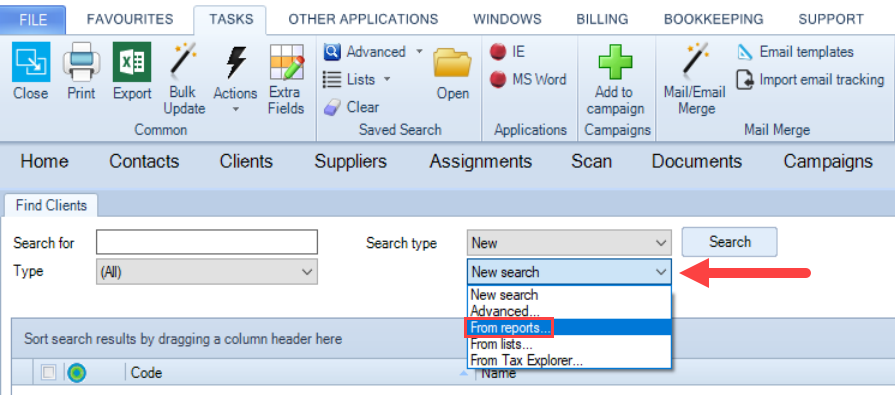
  1. Open Find Clients screen and under the New Search drop-down, click From Reports.
Mail Merge - filter reports 1.PNG

2. Click the blue button Search.

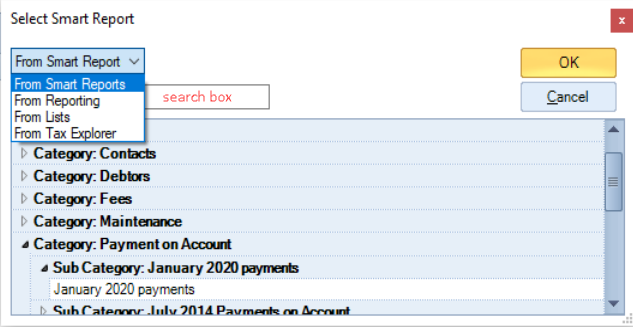
3. Select the type of report you want (Smart Reports, Reporting, Lists, Tax Explorer).

   Once the type of report is selected, a list of reports categories is shown, look for the report or use the search box.
Mail Merge - filter reports 2.PNG

4. Select the report and click OK.

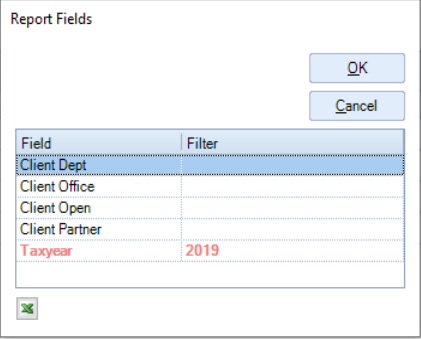
5. If the report has any filter, a Report Fields window appears, choose the options for the filters as required, illustration below.
Mail Merge - filter reports 3.PNG

6. Click OK.

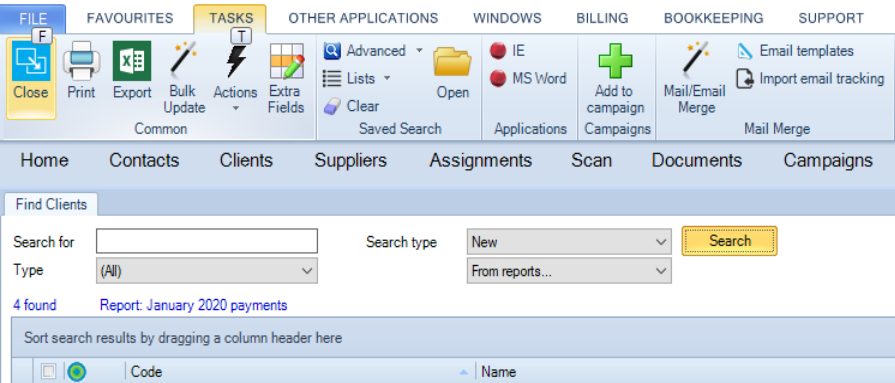
7. The result will appear on the Find Clients screen.
Mail Merge - filter reports 4.PNG

Performing a search from Reports gives the flexibility of creating different categories of searches due to the ability of expanding the search criteria using the filters available from the reporting tools (CCH Smart Reports and CCH Reporting). 

Related documents

CCH Central Suite Update Guide (Latest Offline Version)
The document outlines the process for using the Central Suite Installer Offline (CSI Offline) for customers with specific IT requirements that prevent internet updates. It provides detailed instructions for installing updates to the Central Suite, including necessary prerequisites, folder structure, and the installation steps. Key points include ensuring Microsoft SQL Server is supported, confirming .NET Framework requirements, and the importance of backups before starting the update. The document also highlights the need for administrator rights, handling database upgrades, and checking for office plugin updates, particularly for users of CCH Document Management.
CCH Central Suite 2026.3 Update Guide
This guide explains how to update an existing install of the CCH Central Suite to the latest version 2026.3 (including Service Packs and Hotfixes) using the Central Suite Installer (CSI).
CCH Central 2026.3 Release Notes
Central Suite Installer (CSI) instructions
The document announces the update of the Central Suite Installer (CSI) for the CCH Central Suite, now compatible with the latest releases and service packs and hotfixes of various CCH applications. Key points include prerequisites for installation, compatibility information, and the necessity for proper backup before proceeding with the update. It highlights specific requirements for Microsoft components, and it warns users of CCH Accounts Production regarding regional settings for date format. Support options are mentioned for users seeking assistance during the update process. Release notes are accessible for detailed information on the updates.
CCH Central 2026.210 Service Pack