
CCH Central 2025.3: Release Notes
Prerequisites
Installing CCH Central 2025.3
This release is installed using the Central Suite Installer. This ensures that all prerequisites are in place and that all the products for which you are licenced are installed in the correct sequence.
Click here to find out more about the Central Suite Installer.
Software Enhancements
CCH iFirm Integration
CCH Central Addresses
CCH Central now pushes all current contact/client addresses into CCH iFirm.
Launching CCH iFirm from CCH Central
When a user tries to launch CCH iFirm from within Central and they do not have an email address within their employee record, the following pop-up message appears
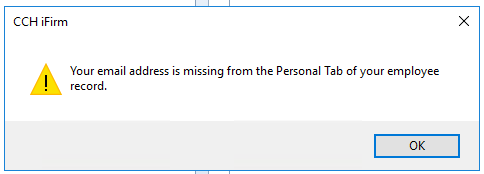
Note: This currently excludes the Bulk Upload of contacts and Clients and the launching of CCH iFirm Accounts Production, which will be addressed in a later release.
CCH iFirm Console
The right-click action when the focus is within the Sync Messages has been expanded to include the ability to 'Export list to Excel'. This allows firms to export the Sync Message history. The amount of exported information will depend on what has been entered in the Days to keep sync messages. Please be aware that this could result in a large volume of data being exported.
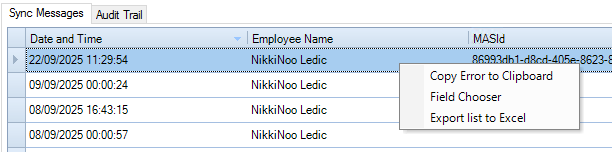
Where the user has applied a search to show a targeted output, the Export option will only export the displayed results. Once exported, perform a 'Save As' to keep the Excel file.
IDV History
Firms can now save their IDV Checks in CCH Central. A new option has been added within the AML tab for individuals (Contacts or Clients).
To perform an IDV Check, open the Individual and click the CCH iFirm AML button. This launches the link to CCH iFirm and allows the user to click the IDV Check option. Once the check has been performed, the grid below is updated.

The IDV History is intended to show the following:
- IDV Check status - This can either be auto-populated (if performed through CCH iFirm) or manually updated
- Pass (with a passed date) - if both the Identity Verification and Address & Mortality have passed. (The date is added, either by a refresh or by clicking OK on the AML tab.)
- Fail - if one or both Identity Verification and Address & Mortality have failed.
- Review - if one or both Identity Verification and Address & Mortality have been marked for review.
- Personal Code—This is the Companies House Identification number that the Director/Managing Director receives from Companies House (formerly Companies House ID on Contact > Main tab).
- Submitted Date - This is the date the IDV Check was submitted..
- Status - Passed from CCH iFirm: In-Progress or Complete
- Identity Verification - Passed from CCH iFirm: Pass / Fail / Review
- Address & Mortality - Passed from CCH iFirm: Pass / Fail / Review
- Employee - The employee who performed the check.
- Document Name - A link to the document from the client's document centre. (If CCH Document Management is installed)
Note: The grid is only populated if the IDV check has been performed within CCH iFirm.
Note: If more than one check has been performed, the automatic update will use the last entry made.
Update of IDV Check
There are two ways to update the IDV Check Status drop-down:
- The drop-down box is automatically updated if the IDV Check was performed via CCH iFirm.
- The IDV Check drop-down menu can be manually updated, though CCH recommends only manually updating it if a check has been performed prior to use or if the IDV check has been done outside of CCH iFirm.
Personal Code
The Personal Code is where the Companies House ID number that is provided to the individual can be added.

Note: This was the old Companies House ID field that was present on the main tab of a contact. It has been renamed and moved to the AML tab for individuals of type Contacts and Clients.
Note: For firms wishing to save all their AML downloaded documents to CCH Document Management, please refer to CCH Document Management 2025.1 Release Notes.
Audit Trail
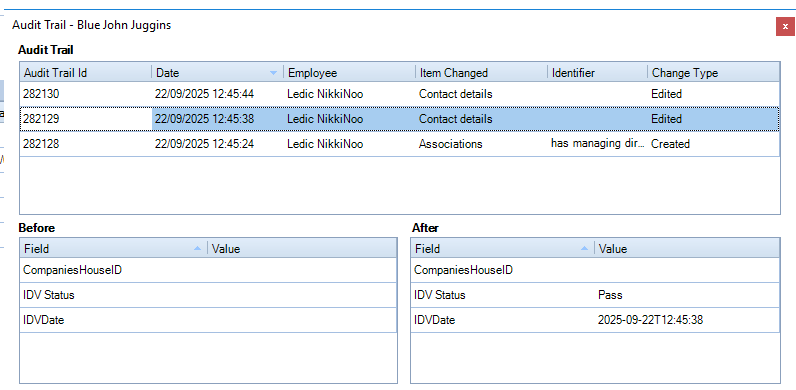
The updating of the IDV Check can be tracked via the Audit Trail to identify who made the change and what was changed before and after.
The name of the employee is shown if the change was manually performed.
The 'unspec' employee is shown if the IDV Check was updated via CCH iFirm.
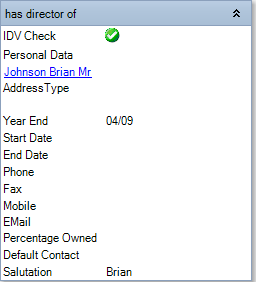
IDV Check on Association Tab
A new icon has been added to the Association tab 
List View
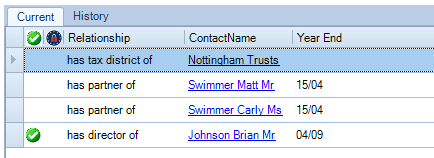
Card View
Configuration Keys
The following configuration keys relate to activating CCH Central to monitor documents/results from CCH iFirm AML (IDV check).
To active, navigate to File > Maintenance > User Defined > Configuration
Keyname = iFirm_EnableIDVPolling. Change the KeyValue from 0 to 1, to allow the saving of IDV Check PDFs.
Keyname = iFirm_IDVPolling. This value is set to 60 minutes.Change the value to decrease or increase the interval times for the service monitoring.
Note: The CCH Central Services must be restarted whenever the KeyValue is changed for the iFirm_EnableIDVPolling.
Reporting
The following fields are now available within CCH Reporting under Central > Contacts > AML
- AML Check Type
- AML Status
- AML Submitted Date
- KYB Status
- KYB Submitted Date
- IDV Date
- IDV Status
- Ongoing Monitoring Enabled
- Ongoing Monitoring Last Updated Date
- Personal Code

Extra Tab
A search option has been added to the Extra Tab for Contacts/Clients/Employees and Assignments.

Personal Data
As an ongoing exercise, the 
The GDPRPersonalData.dotx and the XML file have been updated to include the following merge fields:
NI Number: «NINumber»
UTR: «UTR»
R40 Reference: «HMRCR40»
Personal Code: «PersonalCode»
D/Licence Number: «DLNumber»
Passport Number: «PPNumber»
The updated GDPRPersonalData.dotx can be found within the Program Files (x86)\CCH ProSystem\Deploy\Templates folder and is required to be copied to the same location as the Template Path from Central. Found under File > Maintenance > Documents > Mailing Settings.
Quality Improvements
CCH iFirm Console - Service Unknown
It was reported that some firms' service was reported as 'Unknown' when opening the CCH iFirm Console.
ITS 51704 - Smart Reports: Hyperlinks: Message box referring to needing apps installed
Previously, when clicking on a hyperlink within Smart Reports, instead of being directed to the record, a message was shown about 'needing a new app to open this clientcode'.
Legal Notice
Disclaimer : Wolters Kluwer (UK) Limited has made every effort to ensure the accuracy and completeness of these Release Notes. However, Wolters Kluwer (UK) Limited, its staff and agents will not be liable for any errors or omissions and use of the software is subject to the customer’s licence with Wolters Kluwer (UK) Limited. These Release Notes should not be relied upon as a detailed specification of the system or the software. Wolters Kluwer (UK) Limited may make changes to these Release Notes from time to time. This is provided for informational purposes only. The information reflected in this document may be changed or updated without notice. Wolters Kluwer (UK) Limited may also make improvements and/or changes in its products, practices, and/or programs described in this document at any time without notice. This document should not be seen as a contractual agreement, a modification or amendment of any existing contractual agreement with Wolters Kluwer (UK) Limited, or an indication of terms of service. All technical data, specification and other information contained in this document is confidential and the proprietary intellectual property of Wolters Kluwer (UK) Limited and/or its licensors. No reproduction, copy, alteration, or distribution thereof may be made without the express written consent of Wolters Kluwer (UK) Limited.
Copyright: These Release Notes may not be copied, altered, edited, disposed of, or distributed without the prior consent of Wolters Kluwer (UK) Limited. The content is confidential. Unless indicated otherwise all elements of this software product are owned by Wolters Kluwer (UK) Ltd. © 2026 Wolters Kluwer (UK) Limited
Trademark Rights: Microsoft, Windows, Windows NT, Windows for Workgroups, Windows 98, 2000, XP, MSDOS, Windows Vista, Windows 7, Windows 8, Windows 10, Windows Server, Microsoft SQL Server, and Microsoft Office, are either registered trademarks or trademarks of Microsoft Corporation. Novell and NetWare are trademarks of Novell Inc. Citrix MetaFrame is a registered trademark or trademarks of Citrix Systems, Inc. All rights reserved. All other trademarks are the property of their respective owners.
Wolters Kluwer (UK) Limited,Wolters Kluwer House, 145 London Road, Kingston Upon Thames, Surrey, KT2 6SR