
Add Data Items to Employer Notes
Where to Add Data Item
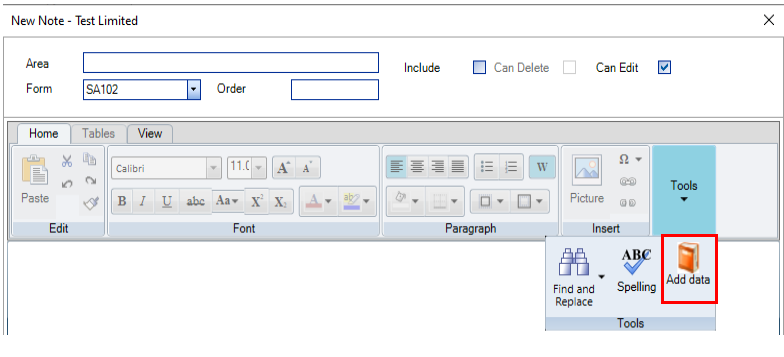
The Data item can be added in the word processing section of the New notes window or the word processing section of the Employer notes window by entering the character { in the word processing section or by clicking on the Add data button in the word processing control:
If you want the { character to appear in the text then escape the character using the backslash character (\) e.g. \{.
Adding Data Item
- Click on the Add data button or type the { character in the word processing control.
- The Find Data window is displayed.
- Select the Data item you want to select and click on the OK button or double click on the Data item to select.
- The selected Data item is returned with brackets e.g. {Data item} within the word processing control.
Categories of Data Items
The Data Items are broken down into the following categories:
- Central Data Items.
- Personal Tax Data Items.
- R40 Tax Return.
- SA100 Tax Return.
- SA302 Tax Computation.
The Central Data Items include the Date of Issue from the Tax Return Bundle window.
The Personal Tax Data Items include the following items that are evaluated for 2013 as:
| Tax Year | 2013 |
| Tax Year + 1 | 2014 |
| Tax Year + 2 | 2015 |
| Tax Year - 1 | 2012 |
| Tax Return year | 2012/13 |
| Tax Return year + 1 | 2013/14 |
| Tax Return year + 2 | 2014/15 |
The SA302 Tax Computation items include the sub-set of the tax computation included in Tax Explorer in Personal Tax.
Boxes on the Tax Return Where There Can Be Multiple Instances
It is possible to have more than one instance of a supplementary page on the taxpayer's Tax Return e.g. SA102 Employment pages. This means that that it is possible for a single paragraph on the maintenance window that refers to a box on that supplementary page to generate two or more instances of that disclosure note in the client's letter (depending on the number of employments).
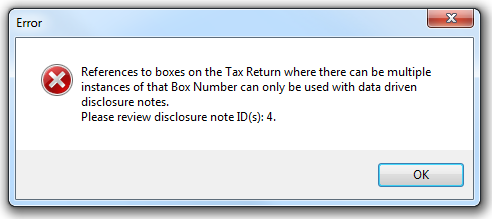
Where the data item (box on the Tax Return) is capable of resulting in more than one instance in the client letter then it is restricted to being used with data driven notes. There is validation that warns the user when this is not the case:
Note: It is best practice to make reference to the particular instance in situations where there can be multiple instances of a data item e.g. if this refers to a box on the SA102 then include the employer's name in the disclosure so as to identify which disclosure note relates to which employment.