
Business Tax
Create a New Business
A wizard guides you through the process of creating a new business.
-
Open the Business Tax section.
-
Click on 'Click here to create a new business link'
-
Enter the name of the business. Tick a contact to re-use it, from the list of contacts with similar names already on file which appears. Click Next.
-
Enter the business address. If re-using a contact, you can remove the linked address or edit the address on file. Click Next.
-
Enter the business activity, then click Next.
- Description
- Does the business qualify for averaging?
- SIC Code
- Date business activity commenced
- Date business activity permanently ceased
- Date registered for VAT
- Date re-registered for VAT
- Tick other relevant business details, then click Next.
- Is the business activity carried on abroad?
- Treat 31st of March to 5 April accounting dates as co-terminous?
- Confirm that the business details are correct. Click Finish.
Create Accounting Period
A wizard guides you through the process of creating a set of accounts for a specific period.
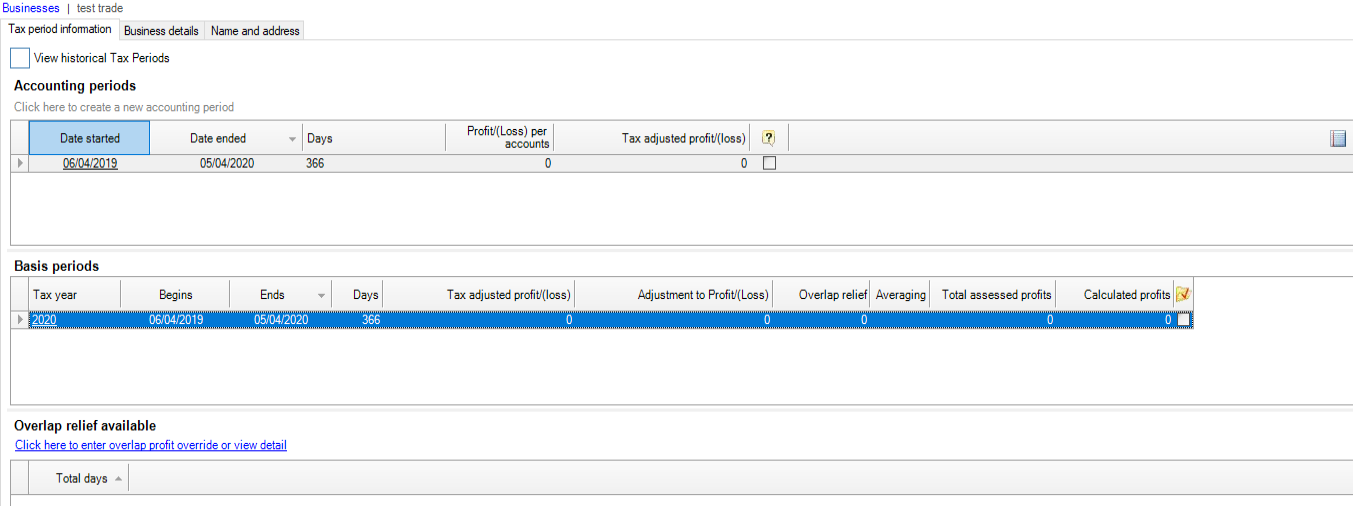
- On the Tax period information tab click on 'Click here to create a new accounting link'
- Enter the New accounting period and related information, then click Finish.
- Date period started.
- Date period ended.
- Cash basis.
- Has the business name of address changed since the last Tax Return?
- Do special arrangements for particular trades apply?
- Tick if the accounts do NOT cover the period from the last accounting date.
- Tick if the accounting period has changed.
- Tick if second or further change.
- Is the business registered for VAT?
- Do the accounts include VAT?
- Are "short" accounts used?
- When you complete the wizard the account information appears in the various grids shown within Business tax.
Modify business details
This topic describes how to modify various business details such as the business name and address.
Edit Name
Ensure you have the main section of the Business Tax tab displayed. At the top you should see the business name.
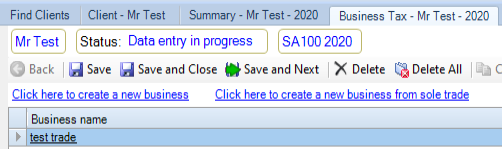
- Click on the name of the business under Business Name.
- Select the Name and address tab.
- Click into the Name of business field to modify the business name.
Edit Address
- Select the Name and address tab. By default the address appears dimmed.
- Click the
button to modify an address.
- Type in the changes in the address fields that need modifying.
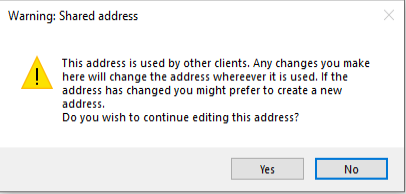
If the address is used by other clients, a warning message appears before being able to edit the address.
Remove Linked Address
- Select the Name and address tab.
- Click
to clear the contents of the address field.
- Add new address details by typing in the address fields.
- To to select an address from your Contacts list, click
and the Select and address window appears.
- Enter the text to search for, or click to select from the addresses on file.
The option
Change Business Type and VAT
Click the Business details tab to add or modify the information about your business.
- Description
- Does the business qualify for averaging?
- SIC Code
- Date business activity commenced
- Date business activity permanently ceased
- Date registered for VAT
- Date re-registered for VAT