Create a Wolters Kluwer Account
How to create your login record in our identity management system - the Wolters Kluwer Account.

You will need a Wolters Kluwer Account to access several of our cloud applications and resources as you work with Wolters Kluwer.

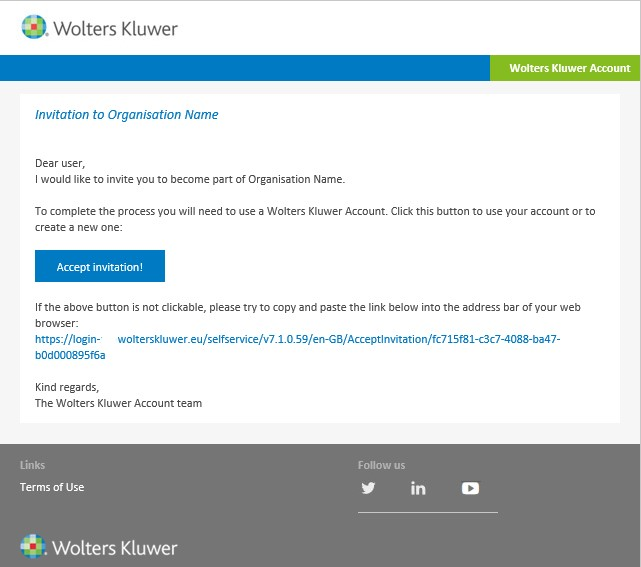
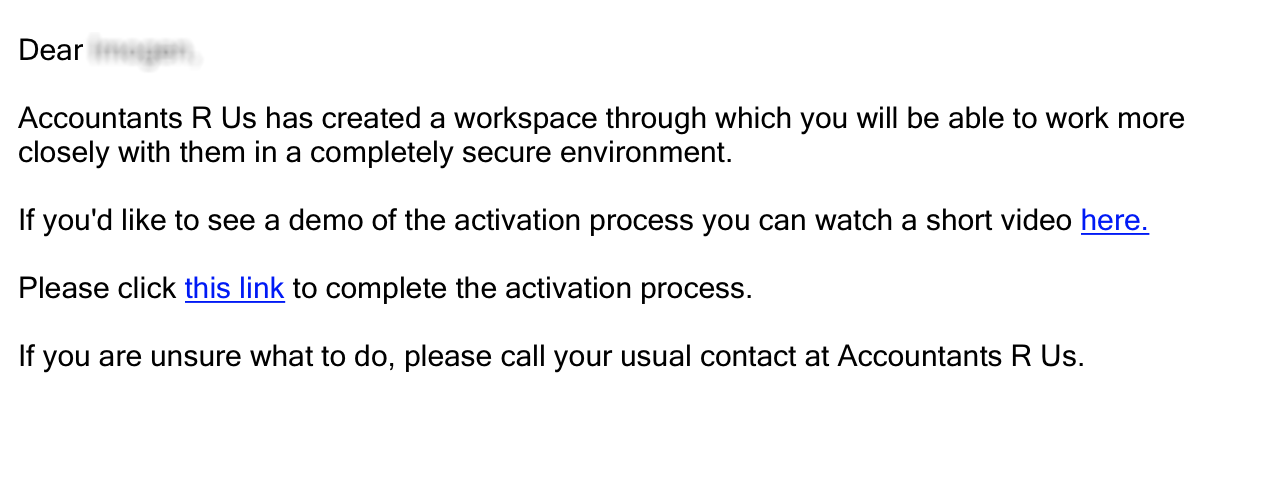
When you are given access to a Wolters Kluwer cloud application, you will receive an email asking you to accept an invitation or complete an activation process, similar to these examples:

Example standard email from Wolters Kluwer Account Example application specific email
clipboard_ee91644969ece2d5035b79b852f38aca7.png Email_Invite_Application_Specific_OC.png

Useful Information! The initial process to create your account may vary when you click the appropriate link in the email.

Standard Invite

To accept a standard invite to create a Wolters Kluwer Account, click the 'Accept invitation!' button:
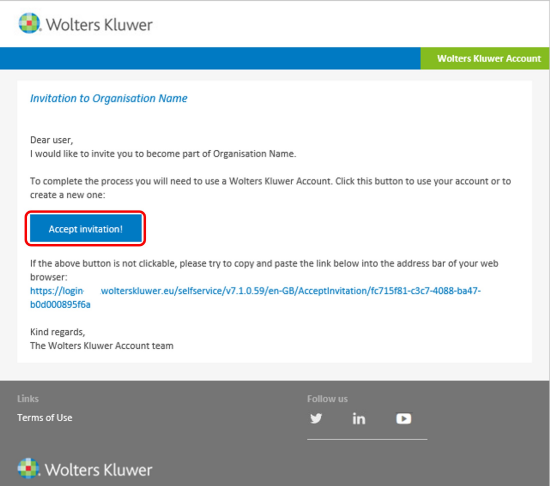
clipboard_e71cc5190996efeee587d0fff89b5df93.png

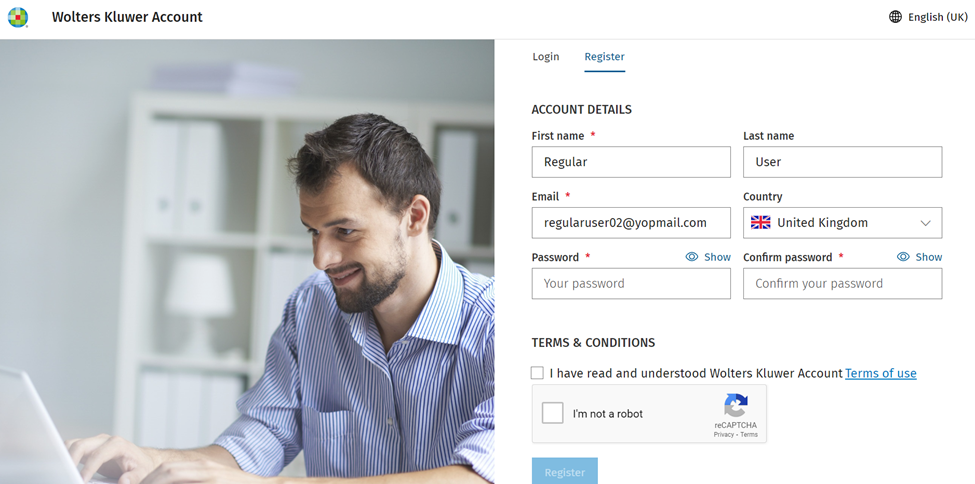
This will open the Wolters Kluwer Account Register page (the image on the left may vary).

NOTE: If clicking the link in the email takes you to the login page, this means that you already have an activated Wolters Kluwer Account for access to a different organisation.  Log in with your existing credentials to add the new organisation to your account.

Your ACCOUNT DETAILS will be pre-populated.
clipboard_eeeda795efa480bdfce335aeb93c10b8e.png

To complete your account setup, follow the instructions in the New Account Creation section below.

Application Specific Invite

To accept an application specific invite to create a Wolters Kluwer Account, click the highlighted link:
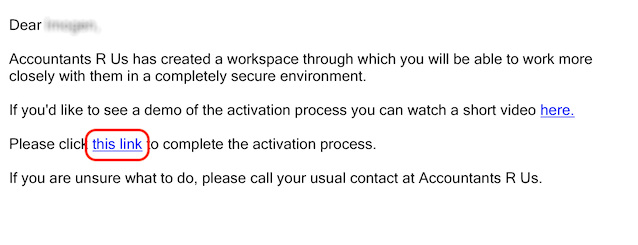
Email_Invite_Application_Specific_OC_Click_Here_HL.png

This will take you to the ACCOUNT DETAILS setup screen:
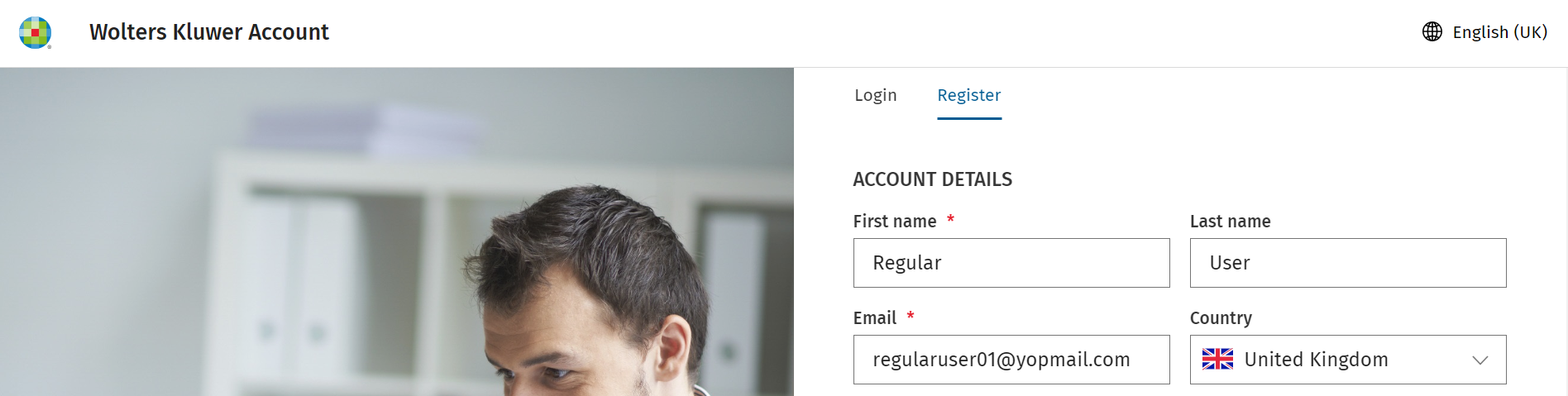
clipboard_e943e5b450effddad9a96bdc5df95c094.png

To complete your account setup, follow the instructions in the New Account Creation section below.

New Account Creation

In this screen your First name, Last name and Email will be populated:
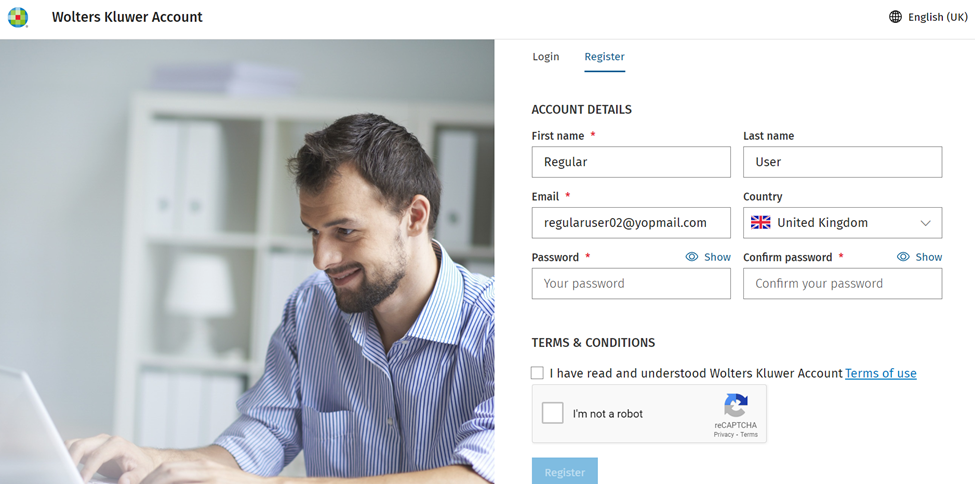
clipboard_e53cb45dea15fd32687f02b2ed969623a.png

Enter your desired login Password*. Your password must satisfy the minimum requirements shown on the page. Repeat the password in the Confirm password* field.

If shown, tick the box to confirm you have read and accepted the terms of use. Confirm that you are not a robot by ticking the 'I'm not a robot' box. You may be asked to complete an image CAPTCHA  once done click Register to save your details and create your account.
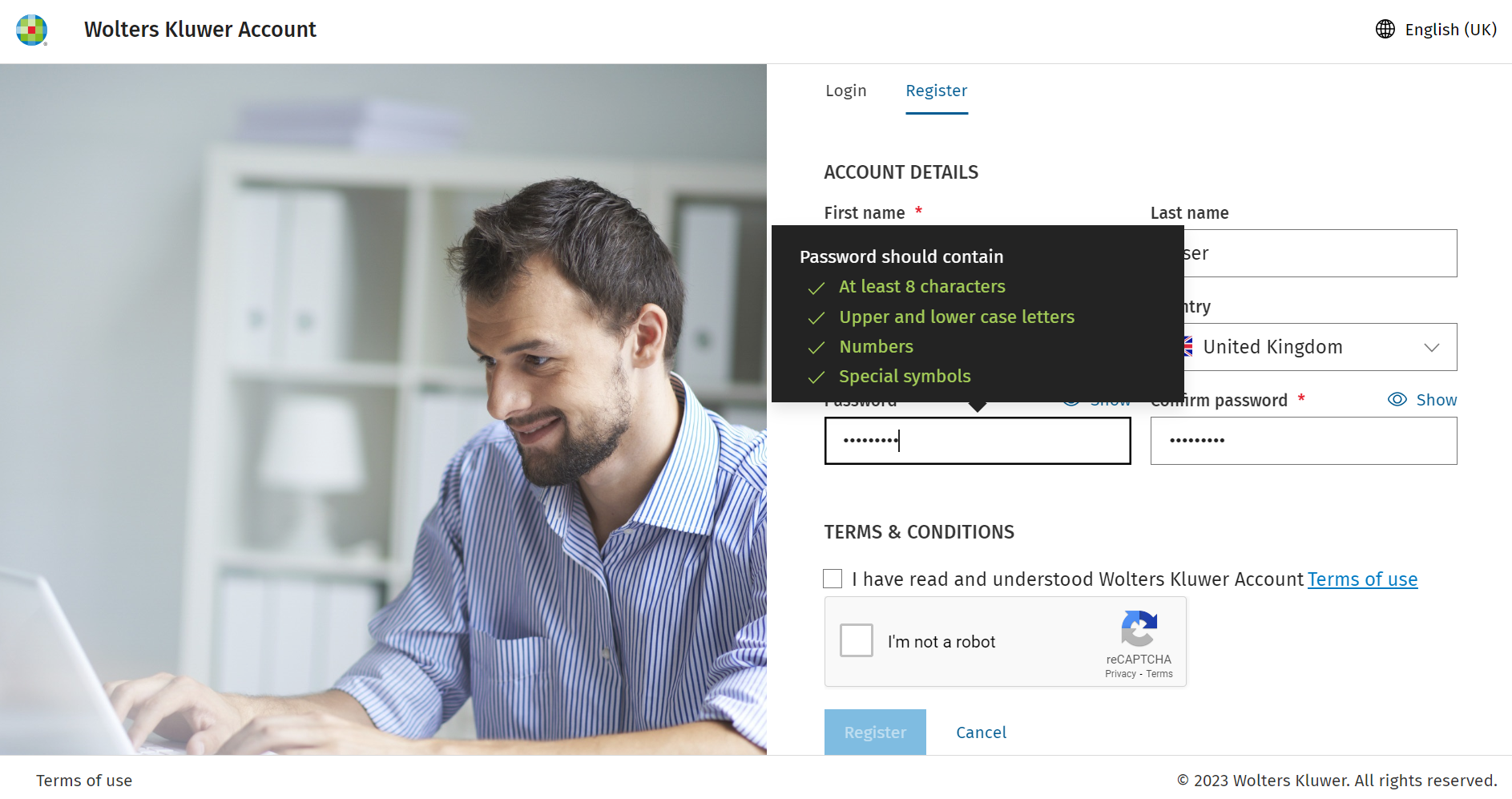
clipboard_edf289bf76b520de83b0c012003ea9865.png

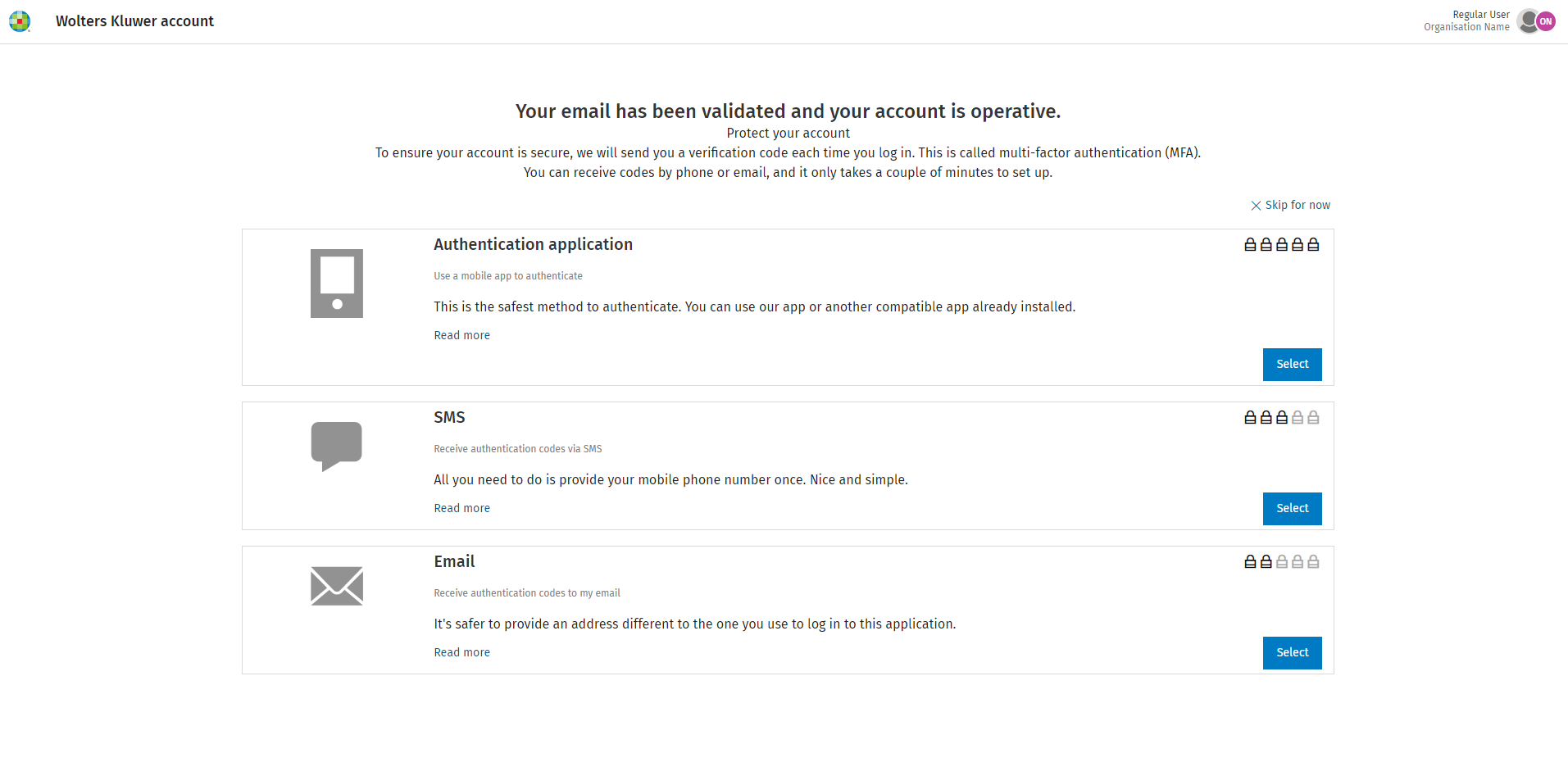
You will receive confirmation that your email has been verified and your account is active. You can set up multi-factor authentication for an additional layer of login security on your account. Select one of the options to configure, or click x Skip for now according to your preference. For more information on setting up multi-factor authentication for your account, please refer to the Use a Wolters Kluwer Account page.

NOTE: For some applications the use of multi-factor authentication (MFA) is mandatory, and after you click 'x Skip for now' you may still be required to set MFA up for your login.
clipboard_e70581b9c9ac7fdc13a7e24658d0d7a13.png

The Create Account process is now complete, and the Wolters Kluwer Account identity management system will redirect you to your original application.

Related documents

Release Schedule 2026
The document provides information about joining groups for updates on Wolters Kluwer software releases, particularly in the Tax and Accounting sector. It details scheduled releases for various software, including CCH Central, CCH OneClick, and CCH iFirm, along with specific dates and software functionalities. Key upcoming versions include CCH Central 2026.3 and several CCH iFirm releases throughout Q3/Q4 of 2026, focusing on enhancements and bug fixes across their suite of services. Users are encouraged to provide feedback through the relevant groups.
Northern User Group (NUG) Officers
The document outlines the key positions within the Northern User Group, including roles such as Chair Person, Secretary, and various sub-group chairs (CCH Accounting, CCH Trust Accounts, and CCH Central). It provides contact information for the Group Chairman, Stephen Leonard, including his email and phone number for inquiries.
How to Join the Northern User Group (NUG)
The CCH Northern User Group offers a 2025 subscription for £445, allowing unlimited delegate attendance at meetings. Founded in 1985, the group has undergone several name changes but remains independent of CCH. It now consists of various product sub-groups related to tax, accounting, and practice management. Members find the membership benefits exceed costs compared to traditional seminars. Potential members are encouraged to contact the Group Chairman for inquiries or to apply. Members can also engage in discussions and updates through a Support Portal group.
Scottish User Group (SCUG) Meetings
The Scottish User Group (ScUG) fosters collaboration among Wolters Kluwer customers, providing a platform for firms to share knowledge and best practices. Established in 2001, it currently includes about 50 members from 26 firms across Scotland. Meetings, held biannually, feature product updates from Wolters Kluwer and discussions on pertinent topics like tax legislation and operational efficiency. Members are encouraged to participate actively and suggest agenda topics. The next meeting is scheduled for March 19, 2026, at the Apex Dunblane Hydro Hotel. Interested individuals can contact Anne Melville for membership details.
How to Join the Scottish User Group (SCUG)
The Scottish User Group (SUG) offers Wolters Kluwer customers a platform for networking, learning, and influence. Members gain direct access to experts, share best practices, engage in topical discussions, and can customize their participation. The group fosters a supportive peer network focused on practical applications rather than sales. New members are welcome, and interested firms can contact the Secretary, Anne Melville, for more information. Additionally, members can join the SUG group on the Support Portal for updates and interactions within the community.