
Use a Wolters Kluwer Account

Resources to help you use your Wolters Kluwer Account identity management record.
You will always start your login process within the individual application, which will transfer you to the Wolters Kluwer Account to authenticate your login details, and if successful, return you to the initial application.
Logging In
The Wolters Kluwer Account is currently used to access the following applications in the UK:
| CCH OneClick | Support Portal & Wolters Kluwer Academy |
For CCH OneClick you will start on the specific login page for your firm, usually by clicking a link in an email. The URL will be in the format: https://<FIRM NAME>.accountantspace.co.uk | For Support Portal or Wolters Kluwer Academy login, click Log In at the top right of the home page. The URLs are as follows: Support Portal: https://help.wolterskluwer.co.uk/Customers/s/ Wolters Kluwer Academy: https://academy.wolterskluwer.co.uk/learn |
 | 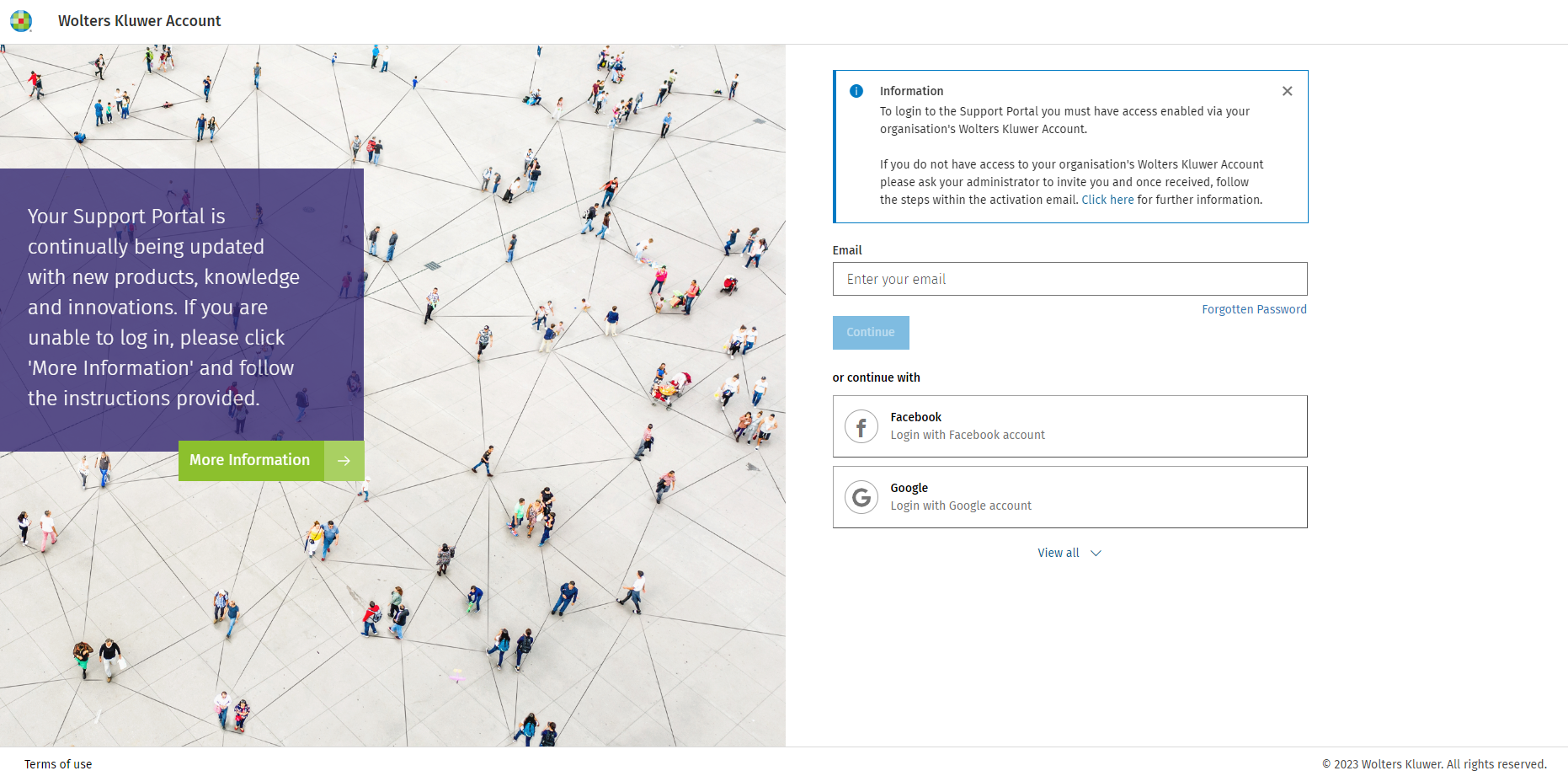 |
Enter your login email address and click 'Continue':
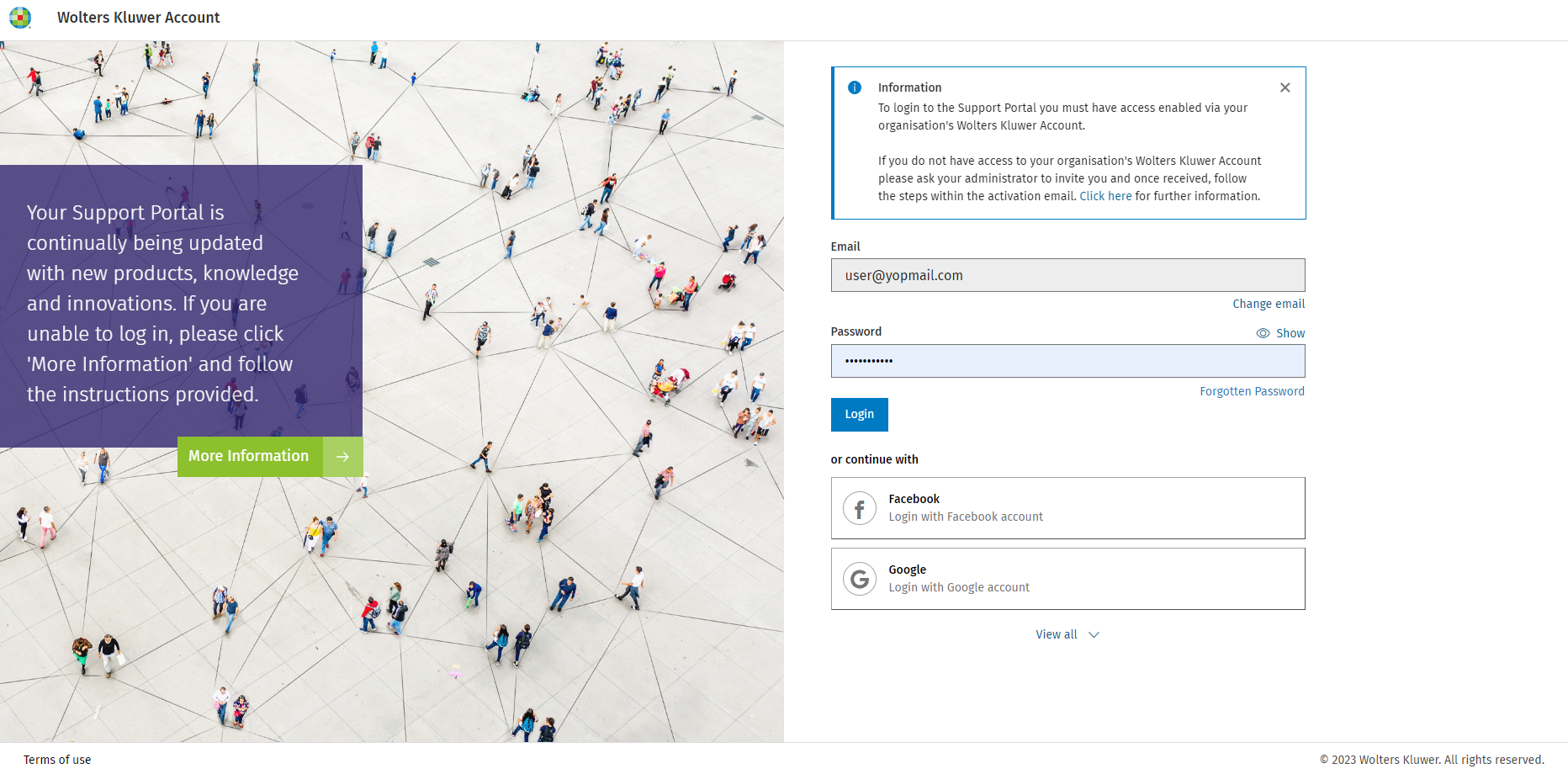
| CCH OneClick On the expanded screen, enter your login password and click 'Continue' again. | Support Portal & Wolters Kluwer Academy On the expanded screen enter your login password and click 'Continue' again. |
 |  |
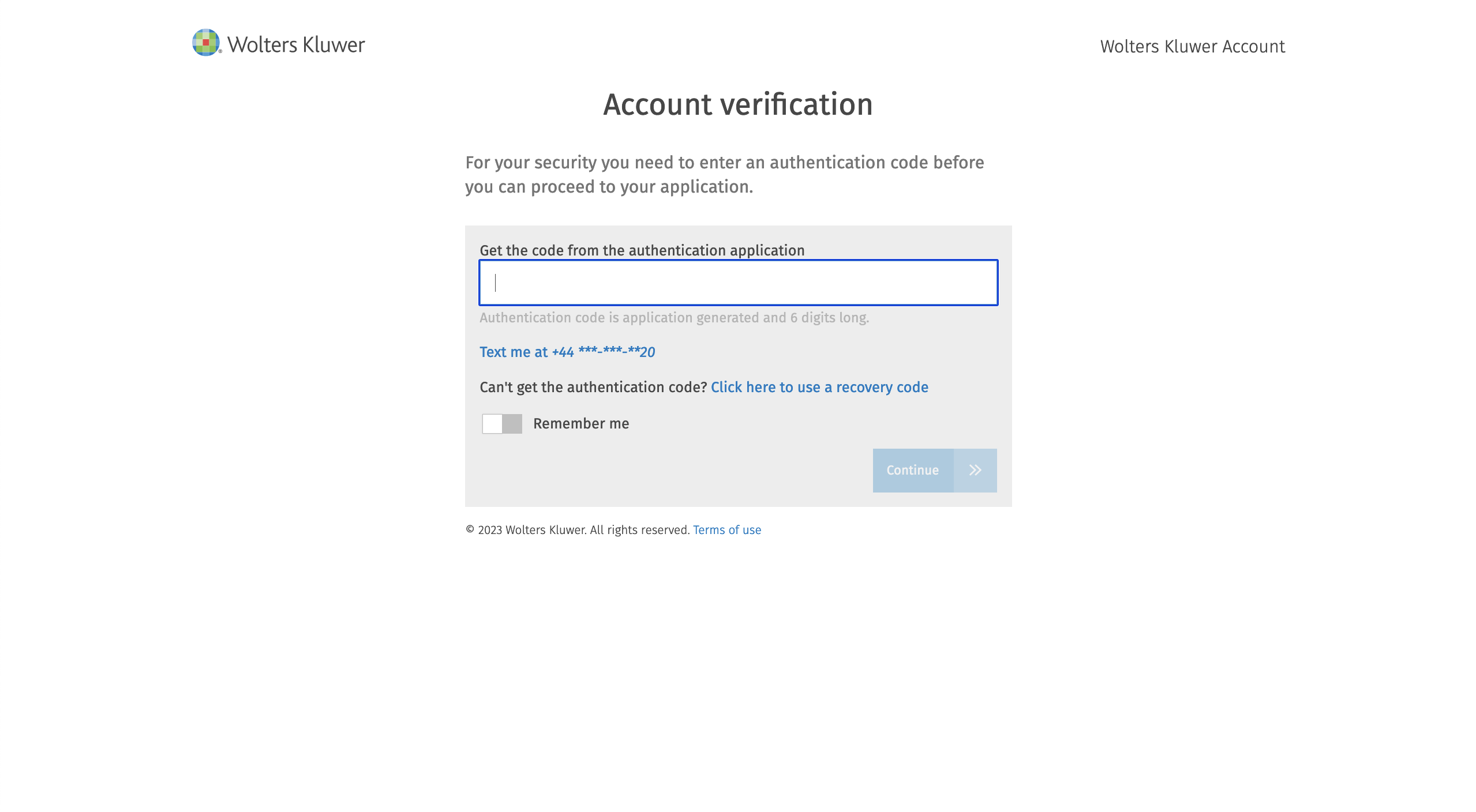
Depending on the requirements of the system you are logging into, you may then be required to enter a multifactor authentication 6 digit code.
Can't receive your MFA code? You can use the Click here to use a recovery code link to authenticate yourself when you can't receive the 6 digit code by any other means. If you don't have access to any codes please see the Recovery Codes section of this page for more information.
| CCH OneClick Multifactor authentication is likely to be required | Support Portal & Wolters Kluwer Academy Multifactor athentication is not likely to be required |
 | |
You will then be returned to your original application.
Changing your password
If you wish to change your login password while already logged in to an application, visit the Wolters Kluwer Account self-service page.
For CCH OneClick you can also click the My Login Preferences tile on your home page to access this functionality.
Your Wolters Kluwer Account profile page will be displayed:
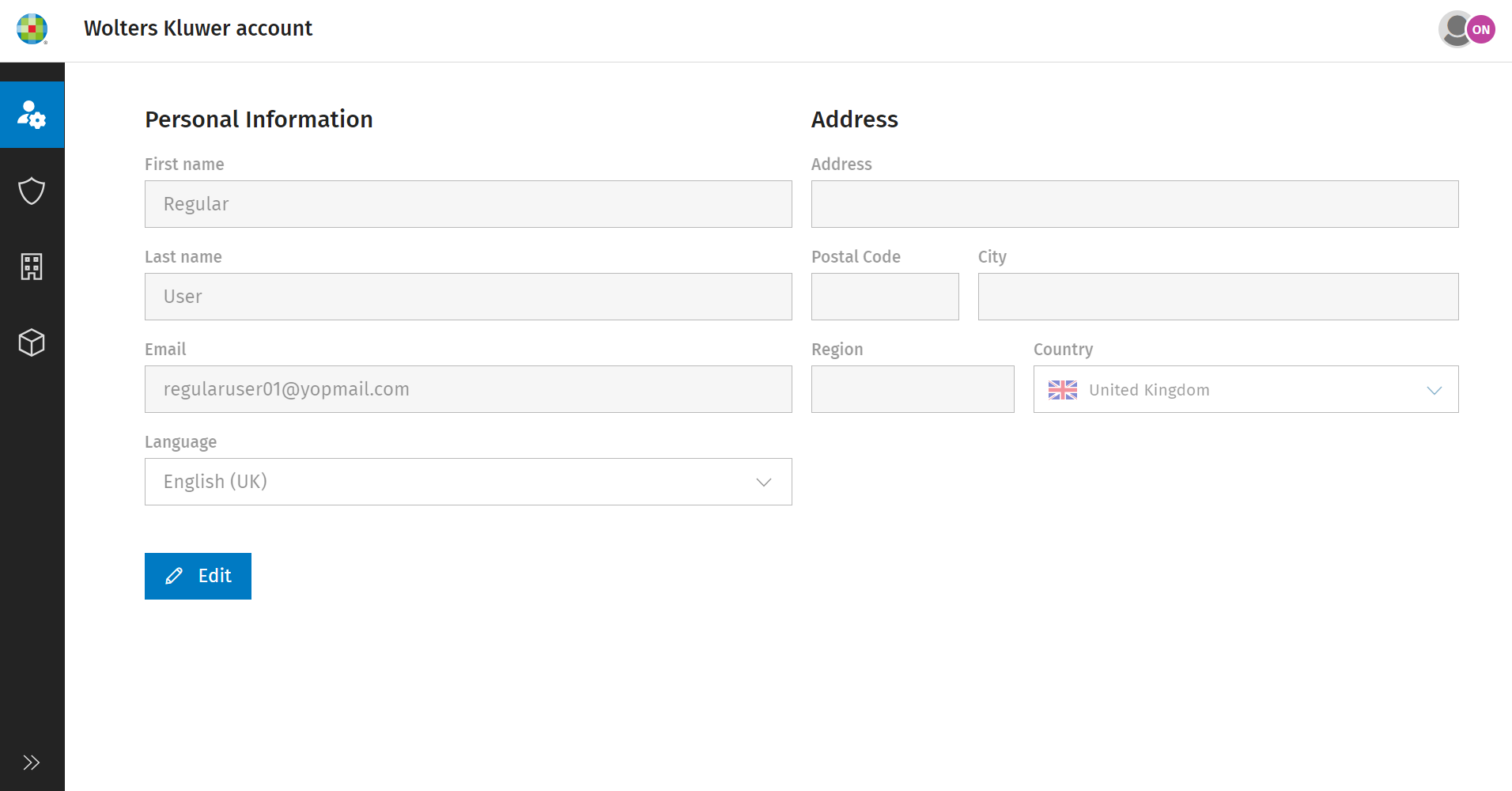
Click on the 'Shield' security icon on the left, and your Wolters Kluwer Account security page will be displayed:
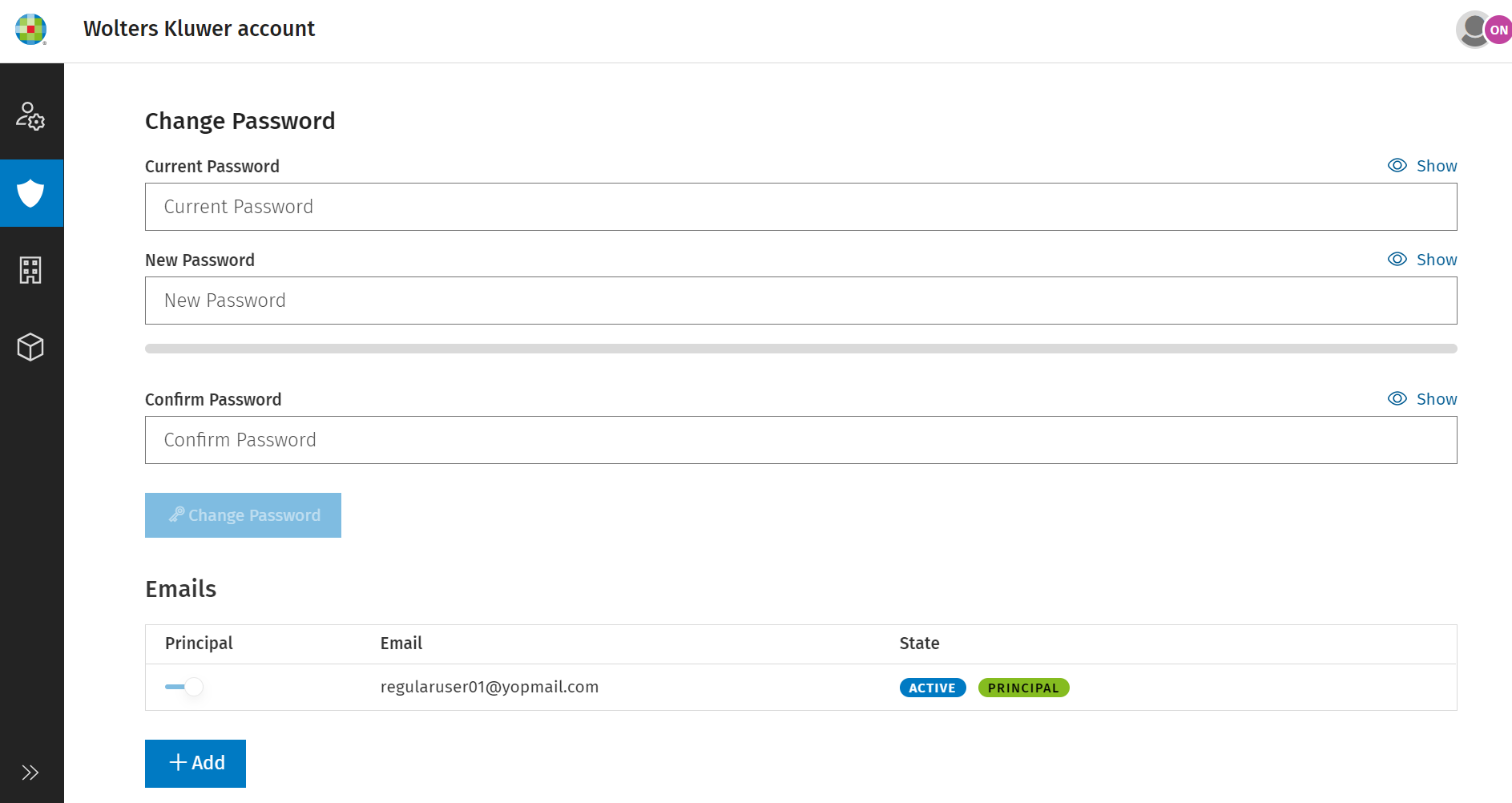
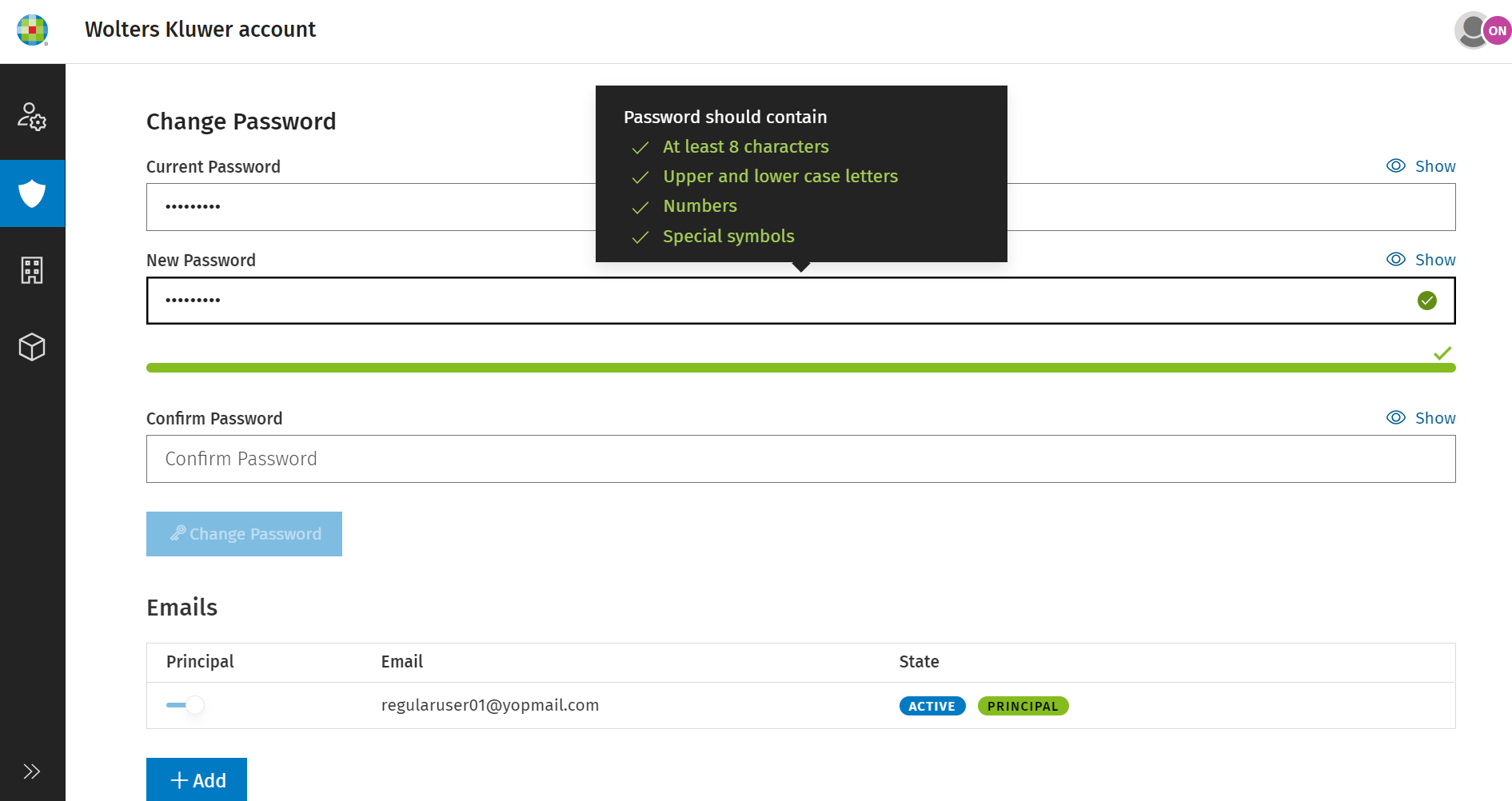
Enter your current password, followed by a new password, making sure the password meets the minimum complexity, and then confirm the new password. Finally click 'Change Password' to save your changes.
Changing your email address
Follow the steps below to change your email address in the Wolters Kluwer Account self-service.
Warning: If you have access to CCH OneClick, your email address change must be processed in CCH Central which will push the change through to your Wolters Kluwer Account. These instructions are only for users who do not have access to CCH OneClick.
To change your email address please follow these steps:
- Log in to Wolters Kluwer Account via this URL
- Select the ‘Security’ tab.
- Under the ‘Email’ section click ‘Add’ to add your new email address.
- Click ‘Add’ and ‘Accept’.
- Receive the verification email.
- Click the ‘Activate Now’ link to validate your email address.
- Return to your Wolters Kluwer Account self-service page and click the refresh button in your browser.
- Click on the slider beside the new email address to set that as your Principal email address.
- If applicable, delete the old email address by clicking on the trash icon.
For security purposes the above process will also send emails to your old email address to advise you what is happening to your account.
Note: This does not change your MFA settings (if you use email for MFA purposes). If applicable, please click here for the ‘Changing your multifactor authentication options’ section.
Changing your multifactor authentication options
To change your multifactor authentication options while already logged in to an application, visit the Wolters Kluwer Account self-service page.
For CCH OneClick you can also click the My Login Preferences tile on your home page to access this functionality.
Your Wolters Kluwer Account profile page will be displayed:
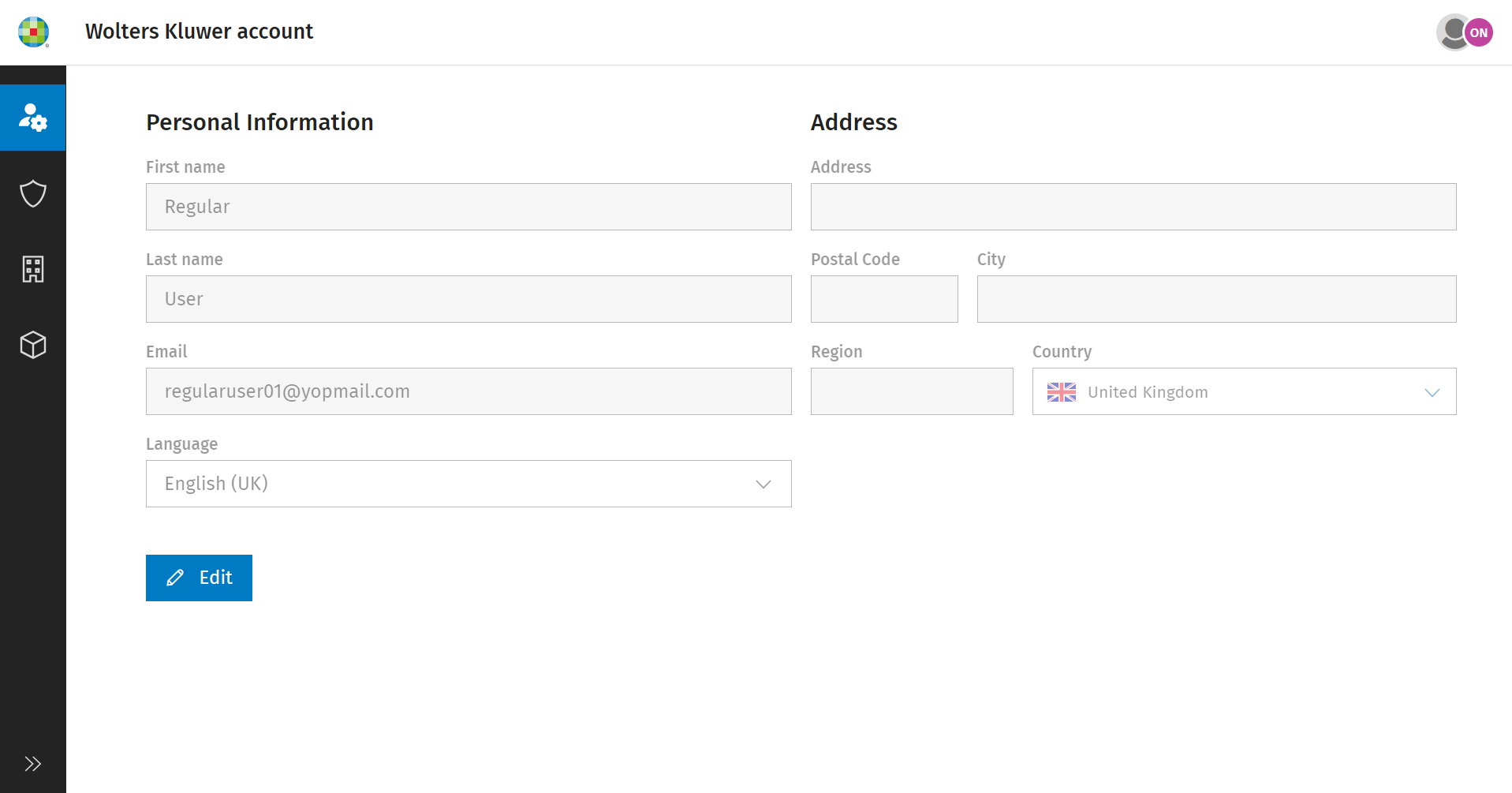
Click on the 'Shield' security icon on the left, and your Wolters Kluwer Account security page will be displayed:
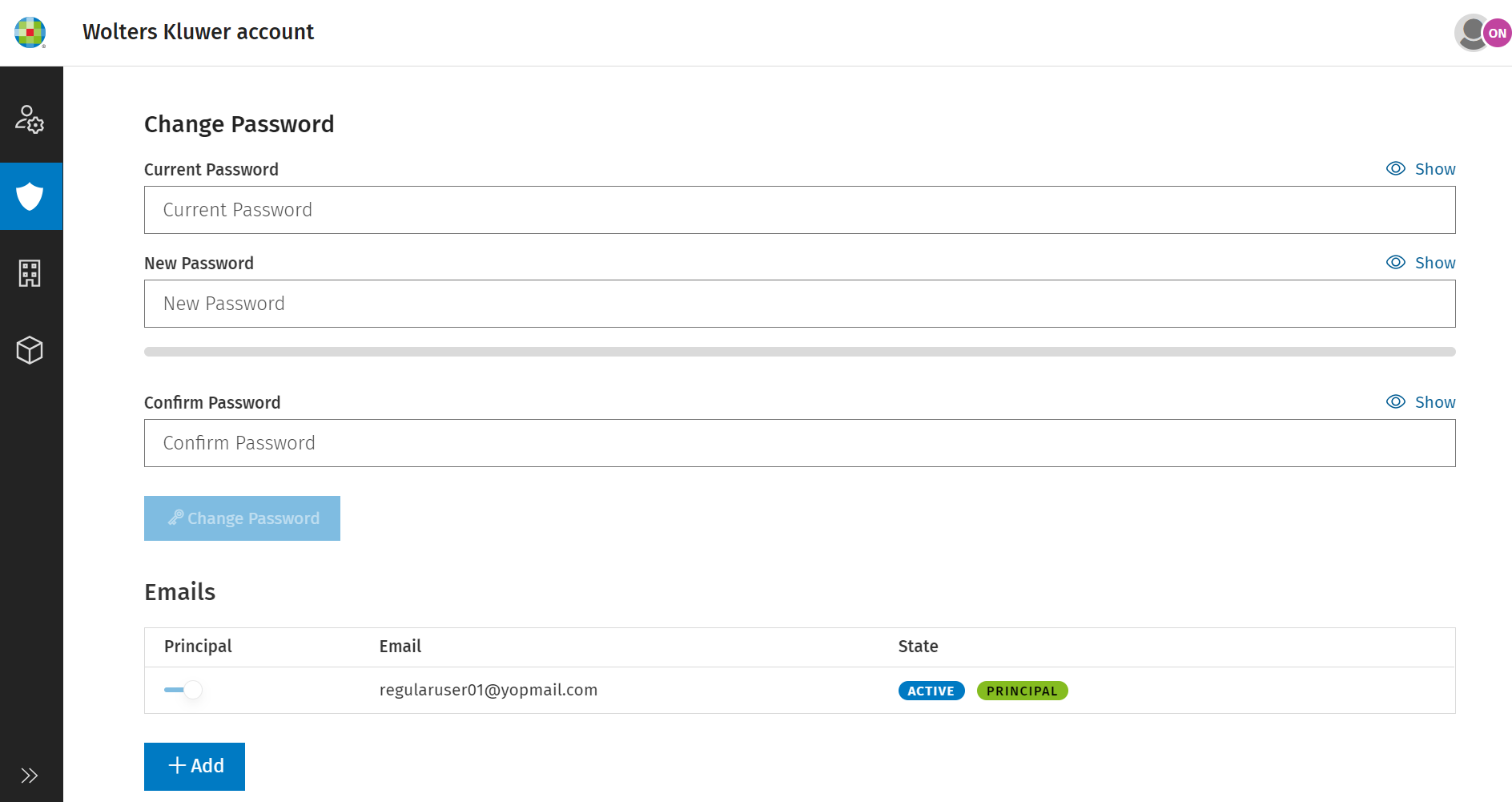
Scroll down to the Multi-Factor Authentication section:
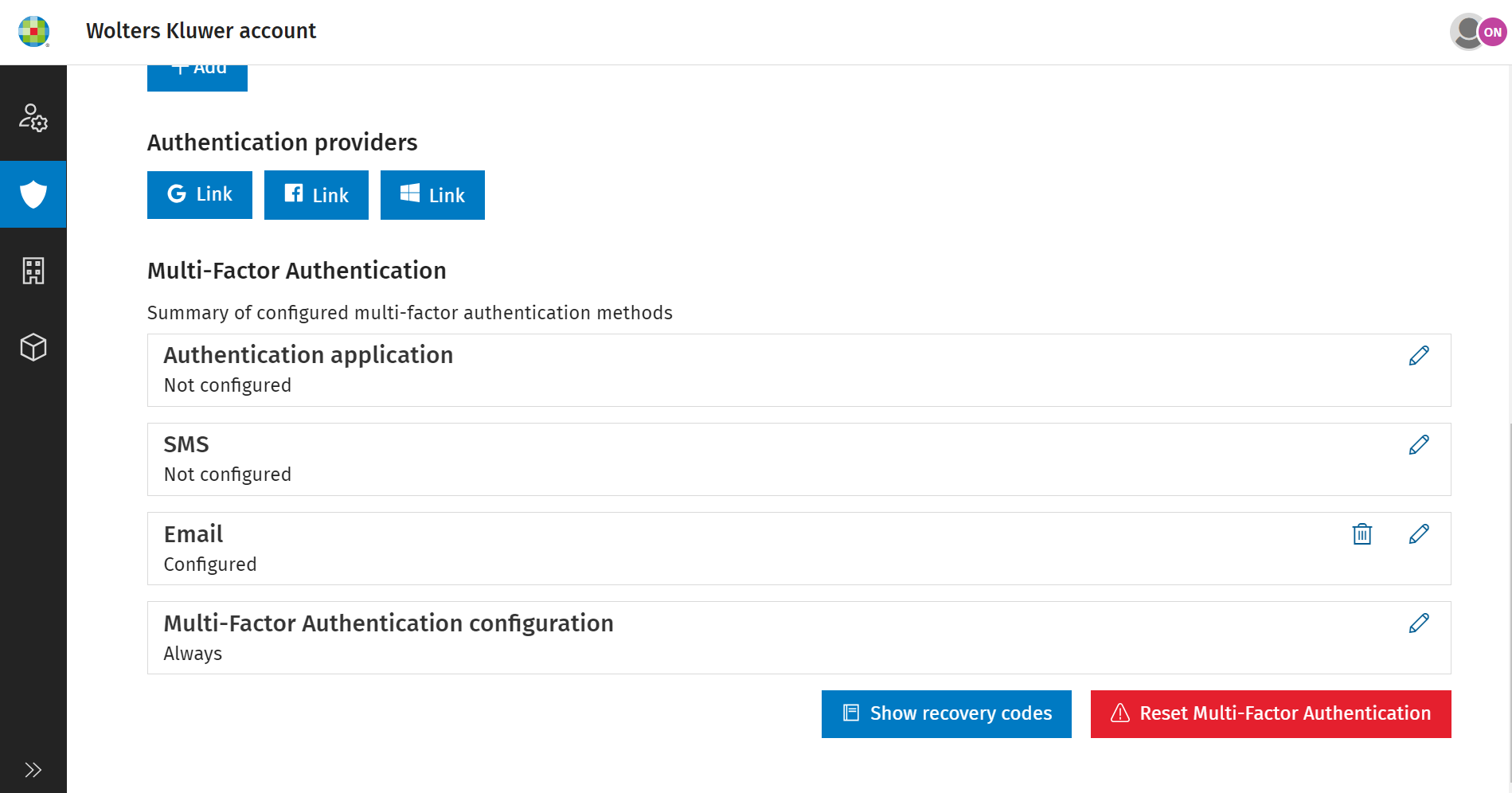
To configure or update one of the three available authentication methods, click the pencil icon to the right of the relevant method. You may be prompted to enter an MFA code in order to make any changes.
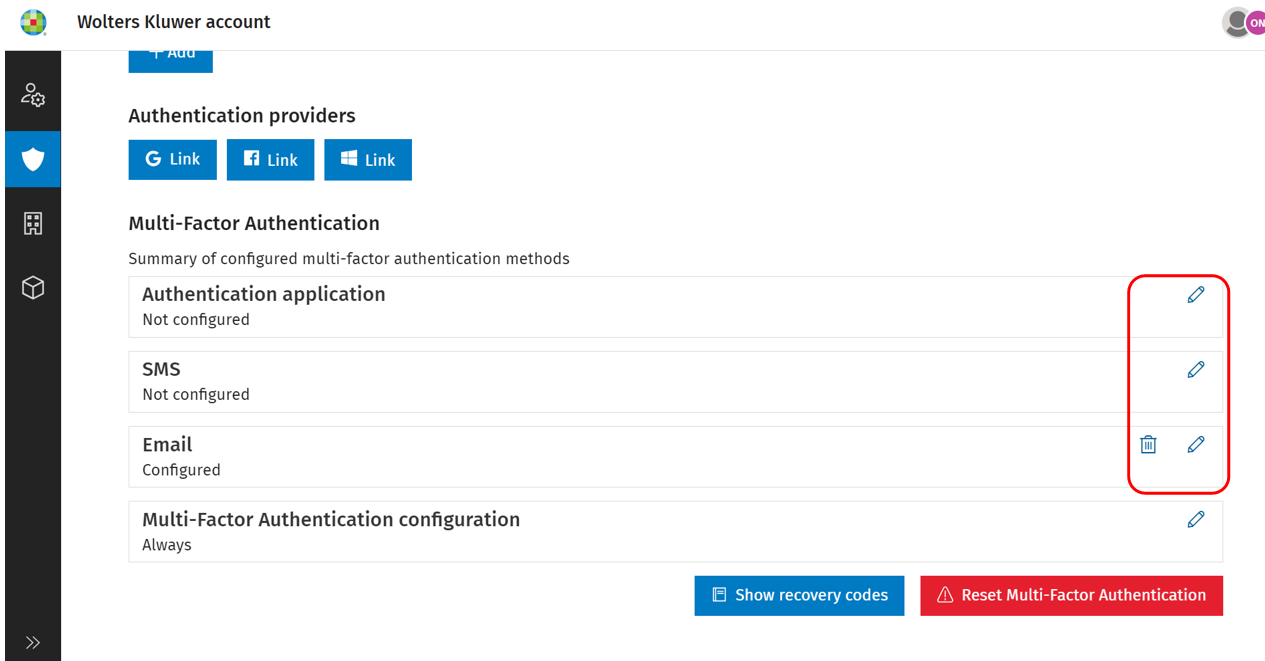
Can't receive your MFA code? You can use the Click here to use a recovery code link to authenticate yourself when you can't receive the 6 digit code by any other means. If you don't have access to any codes please see the Recovery Codes section of this page for more information.
| Video: You can watch this video to see how to amend each of the different multifactor authentication methods. |
Forgotten password
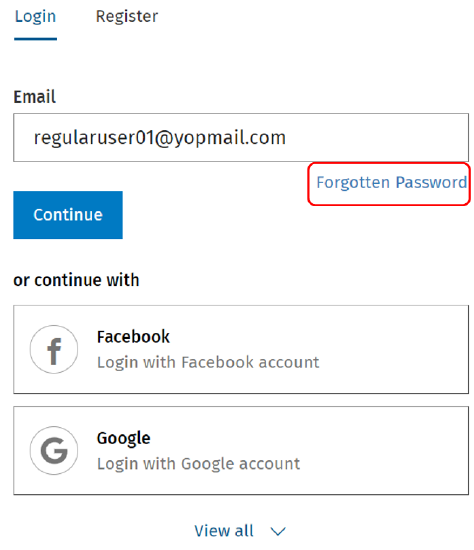
If you have forgotten your login password, you can request a password reset by using the Forgotten Password link on your application's login page. You can also visit the Wolters Kluwer Password Recovery page directly.
Enter your email address and click Continue, then click the Forgotten Password link:
Enter your login email address and click 'Send'.
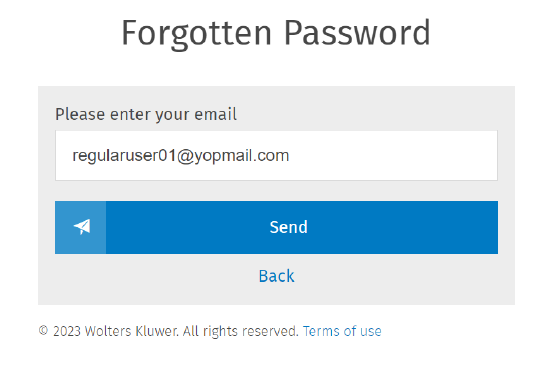
Type your email address carefully! For security the system will not validate your entry, and if you enter your email address incorrectly you will not receive the reset link.
If the email address you entered is linked to a valid Wolters Kluwer Account ID, you will receive a password reset email with a link to change your password. If you do not receive the email within a few minutes, check your Spam, Junk, or Clutter folders for an email from [email protected].
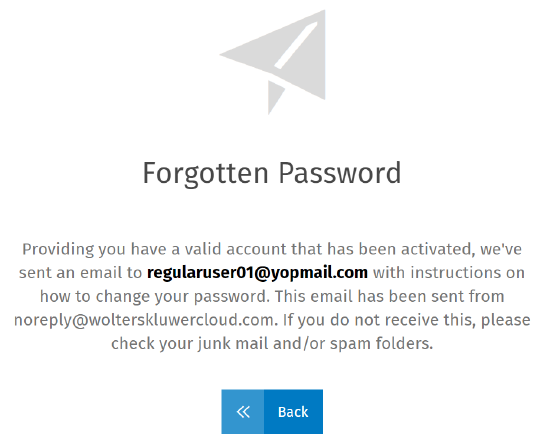
| Video: You can watch this video to see the password reset process. |
Recovery Codes
When logging in to some applications, after entering your email address and password, you may be required to enter a six-digit authentication code for additional security. If you are unable to receive this code by any of the methods you have previously configured, you may use a recovery code to gain access to your application.
You may, for example, have configured SMS as the method to receive your six-digit code, and subsequently changed your mobile number, so can no longer receive the codes.
When you first set up your Wolters Kluwer Account you should have saved a set of recovery codes. These will be saved to your default downloads directory and be called recovery-codes.txt unless you have moved or renamed the file.
Click the highlighted 'Click here to use a recovery code' link.
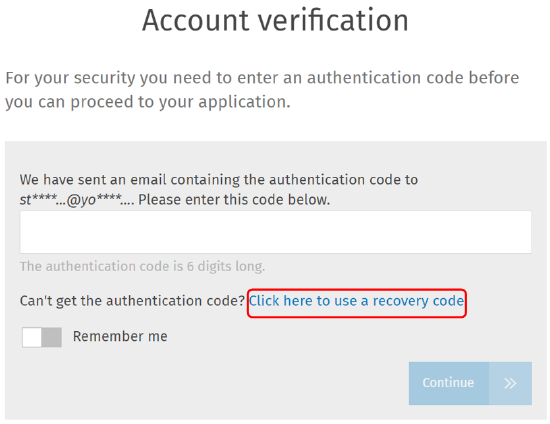
Open your recovery-codes.txt file and copy one of the unused codes, and paste it into the Account Verification screen and click Continue.
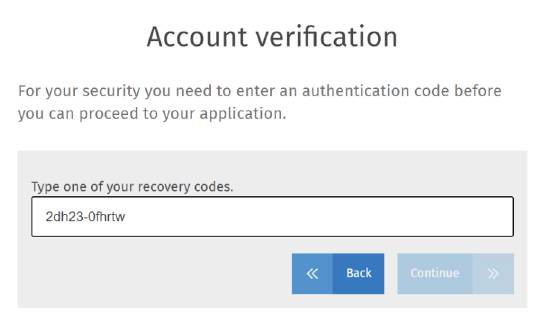
You can now modify your authentication settings to ensure you can receive your six-digit code next time you need to log in. See the Changing your multifactor authentication options section above.