Elements of a tag
Checking out what is within a tag
The information tagged is highlighted in blue when it belongs to the current period and in green when it belongs to comparative period.
Left click on any tag to open the Edit Tag dialog as below.
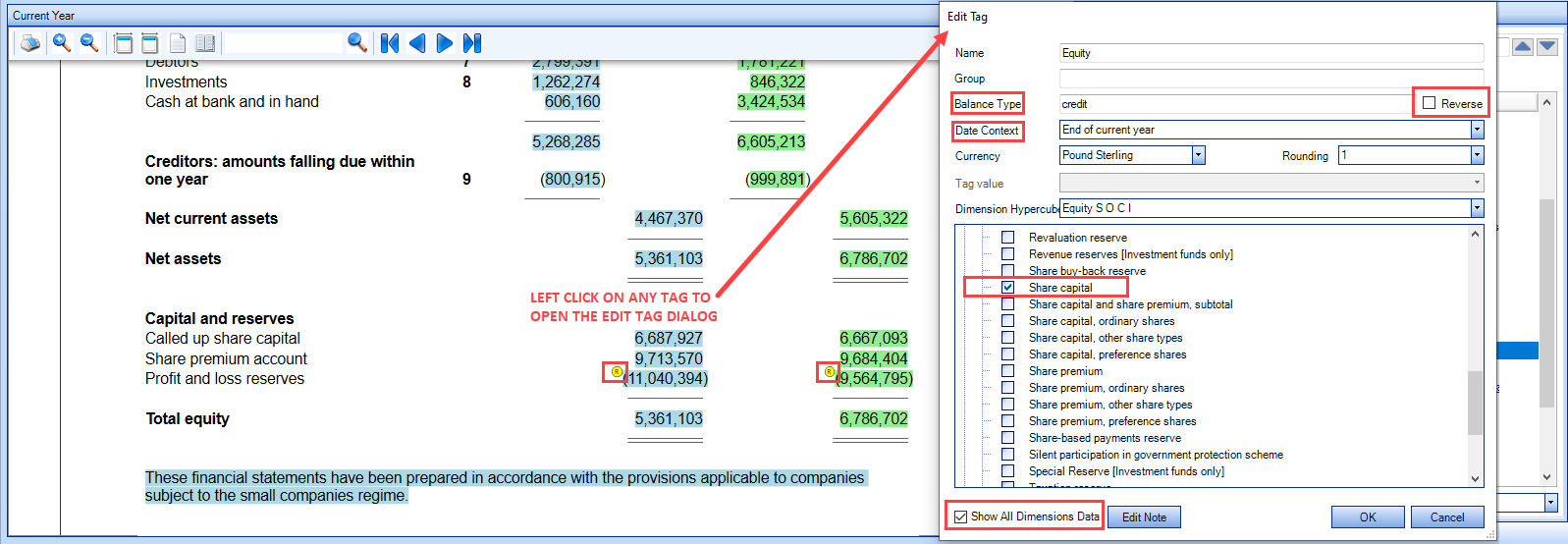
The Edit tag dialog (screen shot shown on the right hand side above) contains:
- Name of the tag: this is for information and is not editable (as the tag itself has a name and other information within it, the actual description column on the Accounts is not tagged on this instance).
-
Group: if the tag forms part of a grouping, the group identifier will appear here. You can edit the group identifier by clicking on this field.
- Balance Type of the tag: this is setup from the outset, it is the expected type of balance e.g. Debit or Credit. Shown for information and is not editable. If the information tagged has a balance different from what is set within the Balance Type, R&T will automatically tick the box Reverse and a yellow circle will be shownmon the left hand side of the balance (example on the profit and loss reserves line above).
- Date Context: this shows the current date context used for the tag. This can be changed by selecting a new date context from the drop down list which can contains, for example, end of current year or during of current year, etc.
-
Currency: the currency of the tagged item. This will default to the currency for the document, however it can be changed for any specific tag if the currency of the figure being tagged is different from the document default. To change, select the appropriate currency from the drop down list.
-
Rounding: the rounding precision applied for the tag, units, thousands, etc. will default to the rounding for the document, however it can be changed for any specific tag if the precision of the figure tagged is different from the document default. To change, select the appropriate rounding factor from the drop down list.
-
Tag value: the tag value will be active for Enumerated, Fixed and Boolean tags. The drop down list will contain the list of valid entries for the tag from which you can select the value to use. Example below.
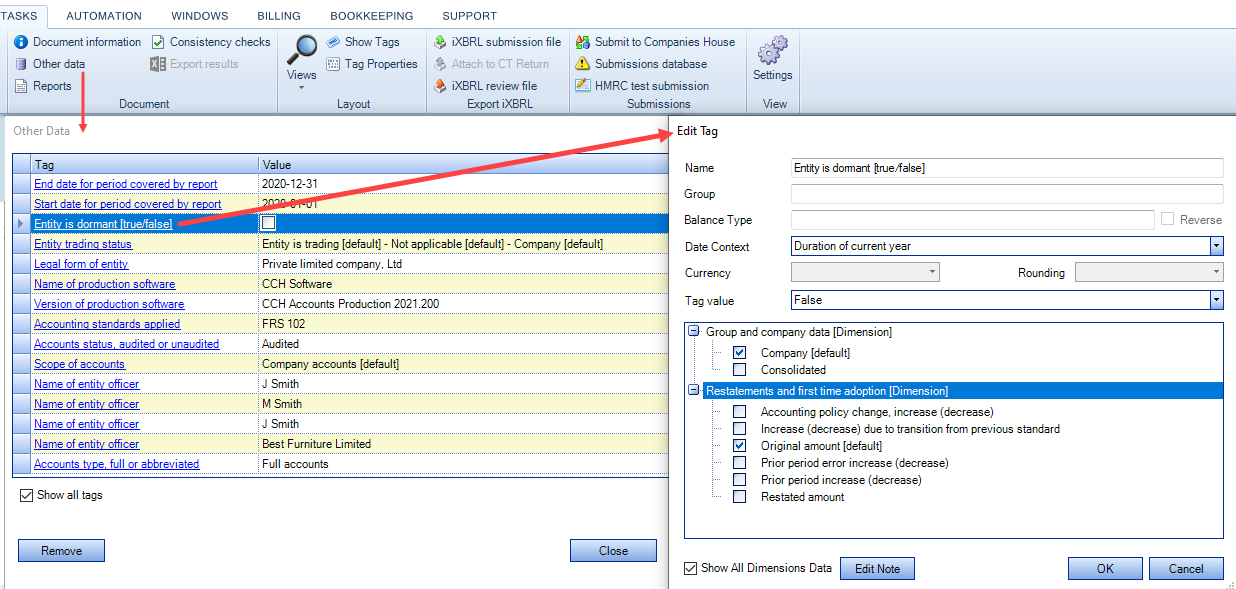
8. Dimensions: at the bottom left of the dialog, check the box Show All Dimensions Data; a list of options will be then be available to choose from. Dimensions differ from tag to tag.
9. Edit Note: it is possible to add a Note to a tag, simply click Edit Note and the following window appears.
To view a tag note, either print the Document Noted report or go to the tab Notes from within Exception report.