
How to add a supplier alias
-
On the main toolbar click the Suppliers button.
The Find Suppliers page is displayed. -
In the Search for field, type in the name (or part of the name) of the record you want to search for.
Tip! to display all the suppliers, either leave the Search for field blank and then click Search, OR type "%" in the Search for field and then click Search.
-
Select the Hide form when only one item found check box if required.
If you select the Hide form when only one item found check box, and there is only one record that matches your search criteria, the application directly displays the relevant page for that record instead of the search results page, where you would have to click the listed record to open it.
-
Select the Search any part of name/code check box if required.
If you select the Search any part of name/code check box, the search results will contain the search criterion in any part of the record name. When this check box is clear, only records with the search criteria at the beginning of the name will be returned. For example:
-
-
you enter 'mit' in the Search for field when searching for an employee. The Search any part of name/code check box is clear. The results will only contain employees with 'mit' at the beginning of their first or last name, such as 'Mitchell' or 'Mitch'.
-
you enter 'mit' in the Search for field when searching for an employee. The Search any part of name/code check box is selected. The results will shown any employee whose name contains 'mit' somewhere within it, such as 'Smith', 'Mitchell' or 'Amit'.
-
-
-
Select the Include closed suppliers check box if required.
-
Click Search or press the [Enter] key.
The records that match your search criteria are listed in the window.
Note: when aliases are attached to a supplier, the aliases will also appear listed on the search results screen. For example, when you search for all suppliers, a supplier with two aliases will appear thrice on the search results list - once using the name and twice using aliases.
-
Double-click the record you want to add the alias in.
The Supplier page for the selected record is displayed. -
Click the Main tab to display it.
-
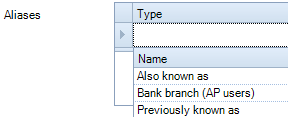
Click the alias Type field in the left column.
The drop-down list of alias types is displayed. -
Select an alias Type from the drop-down list.
-
Click in the Name field and enter the alias.
-
Press [Enter] to save the alias.
The newly added alias moves to the next row and a blank row is created at the top for further aliases. The alias Type drop-down list updates to exclude the type already selected.
Note: there must be an available alias type for an alias to be added to the supplier record. Alias types are set up in CCH Practice Management Maintenance>System>Alias Type.