
Journal Export File Definition
As previously indicated, it is possible to define the format of the journal posting file for the system as a whole. The definition of the posting file is made up of three sections:
Export header the information output at the beginning of the file
Export transactions the information exported for each journal entry which needs to be generated
Export footer the information which is output at the end of the file.
Audit Automation allows you to define each area via the [Control] option of the File menu on the Pack window. On selecting this option, a sub menu will appear which includes options to export the header, footer and transaction. The method of defining each of the three areas is the same, utilising the same dialog box, however, certain codes are available when defining transactions which are not available in the header or footer sections.
Editing the definition
Select the section to be edited from the sub menu and the Export definition dialog box will be displayed, showing any current definition.
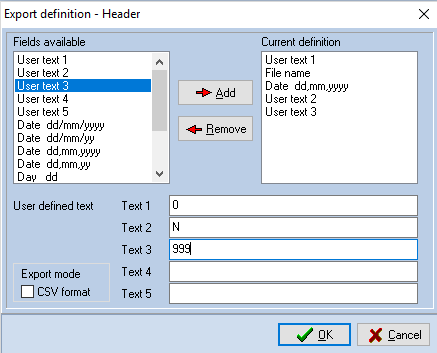
Export definition dialog box
The fields available for export are listed in the list box headed Fields available and are as follows:
All areas
* Up to 5 user defined text strings
* A date - 4 formats available
* Day
* Month
* Year - in 2 forms
* File name
Additional fields for transactions
* Reference
* Narrative
* Nominal ledger code
* Amount
The user defined text strings can contain whatever information you wish, up to a maximum of 20 characters. To enter the text to be used, select the entry box beside the text number, either using the <Tab> key or with the mouse, and enter the text required.
When the export file is created, the system will generate the section by writing the fields in the order in which they appear in the Current definition list box. To add a field to the definition, either double click on the name of the field in the Fields available list box, or highlight it with a single click and click on [Add]. The name of the field will appear in the Current definition list box. Continue to add the fields required until the Current definition shows all the fields to be output, in the order in which they are required. If you have added a field in error, or in the wrong order, you may remove the field, either by double clicking on it in the Current definition list box or by highlighting it with a single click and clicking on [Remove].
The final option on the Export definition dialog box is the Export mode. If the CSV format check box is checked, then the system will output the items on a single line, separating each field with a comma. If the check box is not checked, then the fields will be written to the file in line separated format with one field being written on each line.
Example
As an example of the definition of an export file we will look at creating a posting file in the format required for import by PROcap for DOS, the DOS version of our nominal ledger and accounts production system. The definition of the posting file for Accounts Production is as follows:
Header - included once at the beginning of the file
Posted flag Contains 0 before posting and is set to 1 by Accounts Production after posting
File name The name of the file being posted
Date In format dd,mm,yyyy and is the date of the period end to which the data should be posted
VAT type A single character of “N” to indicate that the entries have no effect on the VAT records
Control code The nominal ledger code to which the run total is taken. Not used for journal entries
The definition of this header would be as follows:
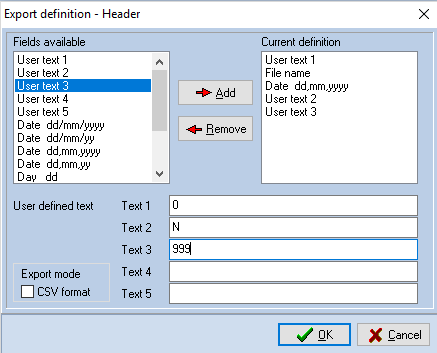
Accounts Production header export definition
As Accounts Production expects each field to be on a separate line, the CSV format check box is not checked. In addition, it should be noted that within headers, the date output is the period end date of the register.
Transaction record - one for each journal entry
Date In the format dd,mm,yy
Reference The entry reference
Narrative The entry narrative
Account code The account to which the item is to be posted
Amount The amount of the entry, credits are included as negative items
VAT code The VAT table to be affected by the entry - ignored for journals
VAT amount The amount of VAT associated with the transaction - ignored for journals
The following is the definition of the transaction section, which will achieve the above:
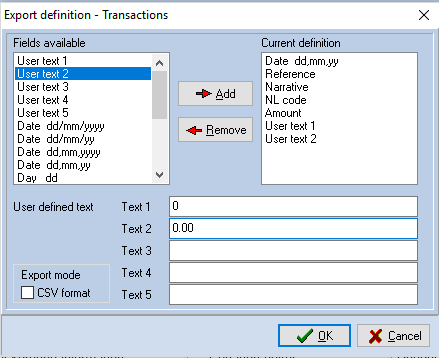
Export definition for transactions
As with the header, each field is expected on a separate line and the CSV format box is unchecked. For transactions the date output is the date of the transaction itself.
Footer - output once at the end of the file.
Accounts Production continues processing transactions until it comes to a line where the date is recorded as “99,99,99”. The only information which needs to be included in the footer is an instruction to output this line. The definition is therefore as follows:
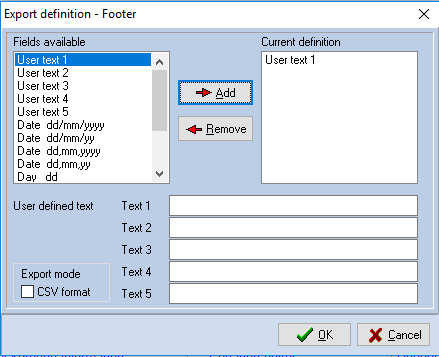
Export definition - footer
As indicated above, the export definition is stored within the system and it is only necessary to enter the definition once.