
Letter
Viewing the Letter Paragraphs
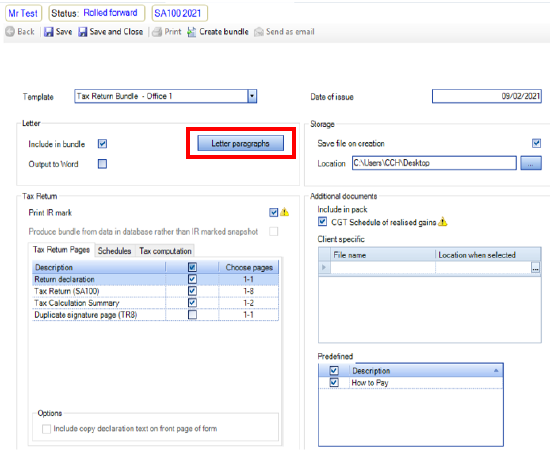
Note: Where the selected Template is linked to a mail merge letter then the Include in bundle or Output to Word check box will be ticked and the Letter paragraphs button will be enabled. If there is no letter associated with the template then both check boxes and the button will be disabled. Selecting the Include in bundle option add the letter to the Adobe Acrobat pdf bundle Selecting the Output to Word option opens the letter in MS Word. The letter is not included in the Adobe Acrobat pdf bundle.
Click on the Letter paragraphs button to open the Letter Paragraphs window within the client:
All paragraphs where the Include check box on the Letter paragraphs maintenance window was ticked will appear be default. If the Can Delete check box is ticked then the Delete button in at the top of the Letter Paragraphs window will be active when that paragraph is selected. Else the Delete button will be greyed out and inactive (as above).
In addition any paragraphs with an associated business rule where the rule is evaluated as being TRUE will also be displayed. To change the position of a paragraph relative to another paragraph select one of them and click on the Move up or Move down menu item in the Related Tasks section of the Task Bar.

When there are no more paragraphs available to be selected then the Paragraphs button is greyed out and disabled. This window includes the Status bar so that you can mark the input as All complete and Reviewed (which will lock the window).
Viewing Deleted Paragraphs
When a mandatory paragraph or a data driven paragraph is deleted then is disappears from the normal view of the Letter Paragraphs window. To view the deleted paragraphs click on the Show deleted menu item in the Letter Paragraphs section of the Task Bar that toggles to Hide deleted:

The Deleted paragraphs are indicated by the tick in the check box in the Deleted column and the fact that the text of the note is greyed out:

Reinstating Deleted Paragraphs
To reinstate the note remove the tick from the check box in the Deleted column.
Selecting Paragraphs from the 'Master Paragraphs' Window
Click on the Paragraphs button to open the Master Paragraphs window:

This displays all the user selectable paragraphs i.e. paragraphs that do not have business rules associated with them, where the Include check box on the Letter paragraphs maintenance window is not ticked (or is ticked but the Delete button has been used previously to delete the paragraph). In addition, if any paragraphs marked as mutually exclusive have been selected then the related paragraphs are not visible in the Master Paragraphs window and can not be selected.
Enter text in the Search box to display only those paragraphs that contain that text. To add the paragraph, select the row and click on the Insert button. When you have finished adding text click on the Close button to close the Master Paragraphs window and return to the Letter Paragraphs window.
The paragraphs are inserted based on their Section and Sub-Section. Any paragraphs on the Letter Paragraphs window that have been moved are ignored when deciding where to insert these paragraphs.
Evaluating the Data Items
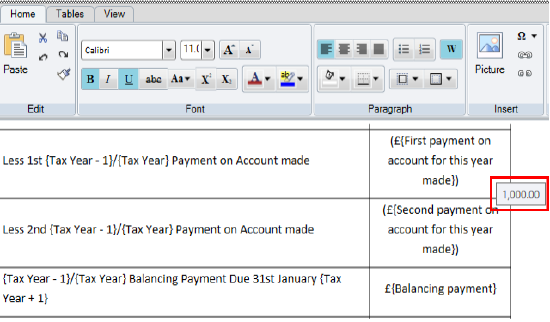
Where the paragraph has an embedded data item then when this paragraph is selected and you hover the mouse over the data item a tooltip will appear displaying the value of that data item:
Previewing the Letter
Click on the Preview menu item in the Related Tasks section of the Task Bar to preview the letter in PDF format. All data items in the letter paragraphs are evaluated.
Validations
Validations have been added to the Letter Paragraphs window so that you can easily identify non mandatory and non data driven paragraphs. In addition these validations are used to identify where the text of mandatory and data driven paragraphs have been changed. The icon is displayed in the first column of the window:
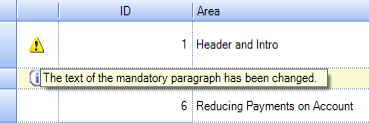
When you hover your mouse over the icon a tool tip is displayed.
There are 3 levels of validations (each with their own icon):
- Error
- Warning
- Information
Where at least one icon is present that is displayed on the Tax Return Bundle window next to the Letter paragraph button. Where more than one icon is present then the icon for the most serious type of validation is displayed.
We recommend that these validations are reviewed before creating the Tax Return Bundle.
Output the letter to Word
Depending on how your organisation has configured the bundle, you may see a check box in the letter section "Output to Word". If this box is ticked, when you create the bundle, the letter will open in Word (and thus be editable), and the rest of the bundle (tax return, backing schedules etc) will open as a PDF.
While this may be immediately convenient, please note that there are several disadvantages to this method of editing:
- You will now have two separate documents, so you will need to save the Word file as a PDF, then merge this with the rest of the bundle (if you require one document).
- There is no audit trail on the editing, so you can't revert the letter back to the original data driven paragraphs.
- The letter which appears in the bundle may not be the same as the one sent to your client