Making Tax Digital for VAT introduces the requirement for VAT registered businesses with taxable turnover above the VAT registration threshold to keep records in digital form and file their VAT returns via functional compatible software.

Introduction

Making Tax Digital for VAT introduces the requirement for VAT registered businesses with taxable turnover above the VAT registration threshold to keep records in digital form and file their VAT returns via functional compatible software.

Our priority is to support Advisors, and their Clients, by delivering a VAT filing solution that allows you to maintain your current VAT processes as closely as possible. Advisors have significant legacy calculations and formulas within spreadsheets today that make the recurring task of completing a VAT return for specific clients more efficient.

This quick start guide documents how to export VAT data from Bookkeeping solutions into MS Excel and the preparation for submitting the return through CCH OneClick - Making Tax Digital.

Bookkeeping solutions include:

  • Xero
  • QuickBooks
  • Exact
  • Sage One
  • CCH Practice management

Exporting VAT Data from Xero

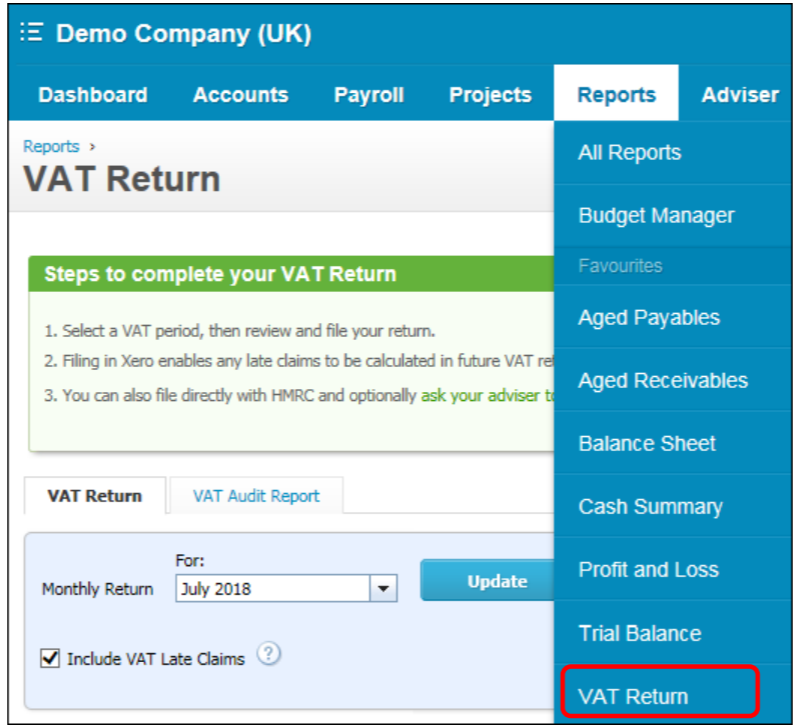
  1. From the 'Reports' menu select 'Vat Return'.
    clipboard_ec1139955b040d5edd3a98ddb25f5d009.png
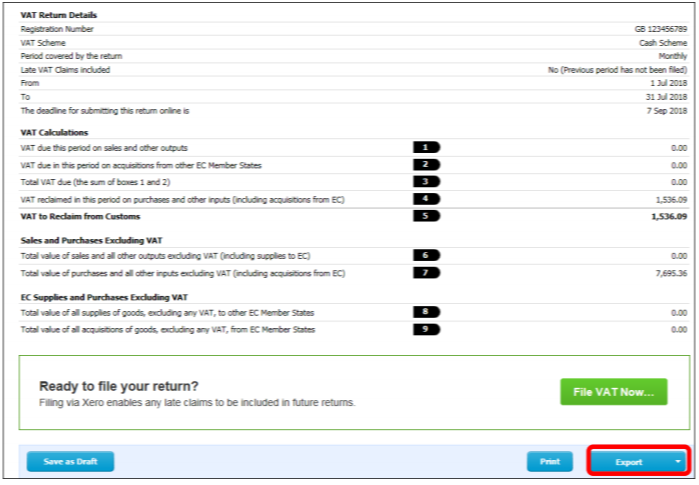
  2. Click on 'Export' in the bottom right of the screen
    clipboard_e102a58c9652dac0ac93634b81fc87df6.png
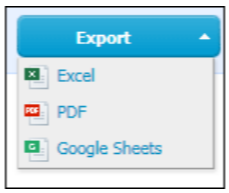
  3. Select 'Excel'.
    clipboard_eed076df0de42c3b9e6afe8c6d64d8f6f.png
  4. Save to a location.

Exporting VAT Data from QuickBooks


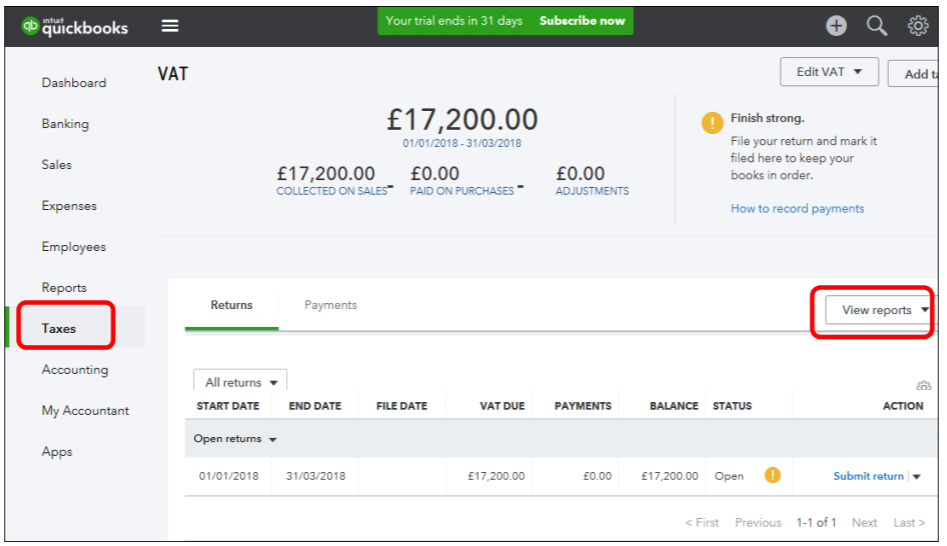
1. From the menu bar, select 'Taxes'.
clipboard_e5ff909403d4e008b67c4d433d1492bff.png
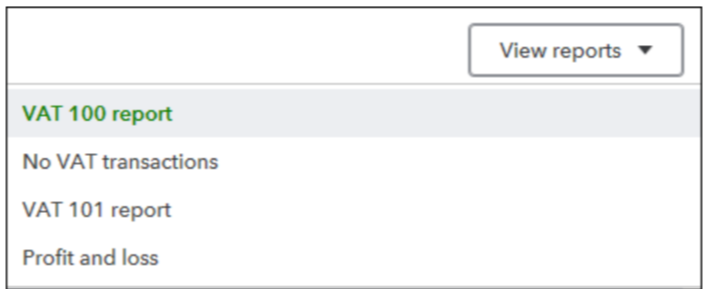
2. Click on 'View reports'.
clipboard_e413e08cdbcf72e19bbc4baa8468de11b.png
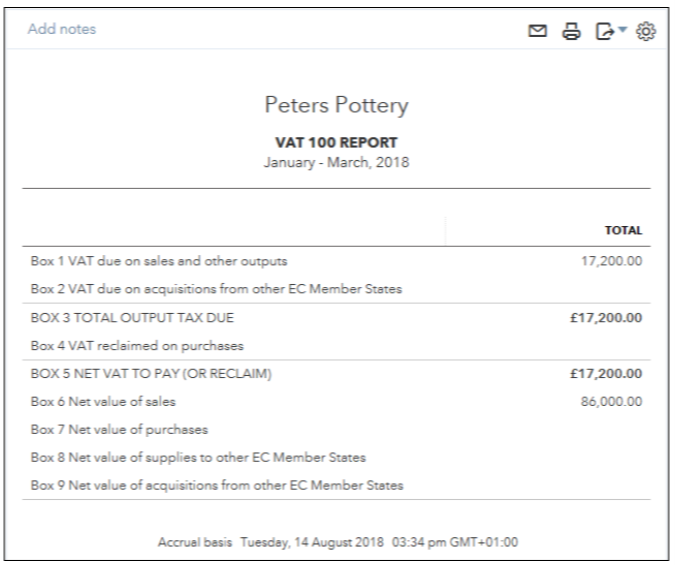
3. Select either VAT 100 or VAT 101 report.
clipboard_e6f8ffc5e135477496f4a0f59e9e0bed8.png
4. Click on the icon
clipboard_ef6c1996dfc13603307d7217018c2f19f.png
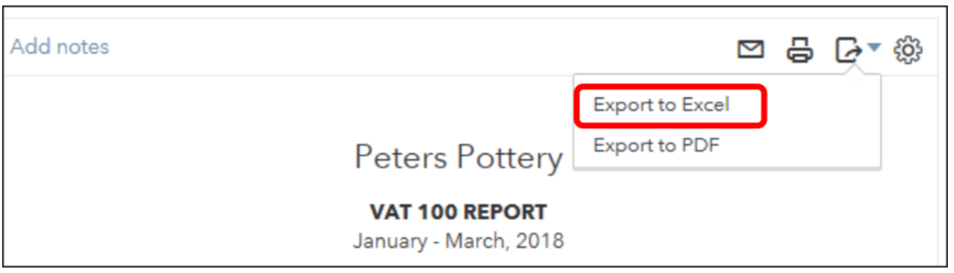
5. Select 'Export to Excel'.
clipboard_e344dd260266799d11d507564c75edb32.png
6. Save the file to a location.

Exporting VAT Data from Exact


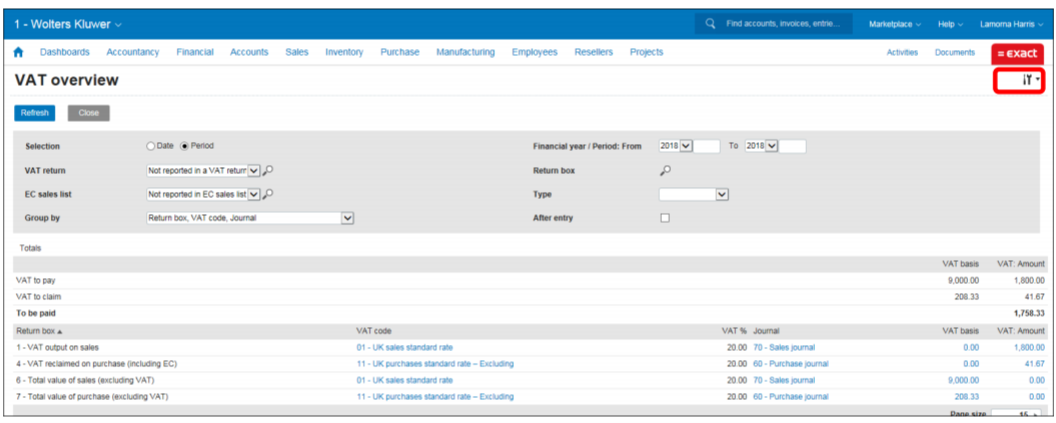
1. Go to Financials > Taxes > Reports > VAT overview.
clipboard_e30f3f9fad32528dad41eace71ea97182.png
2. Click on
clipboard_e32145f33733be400bb874a6110981d01.pngand select 'Export: Excel'.
3. Save the file.
 

Exporting VAT Data from Sage One

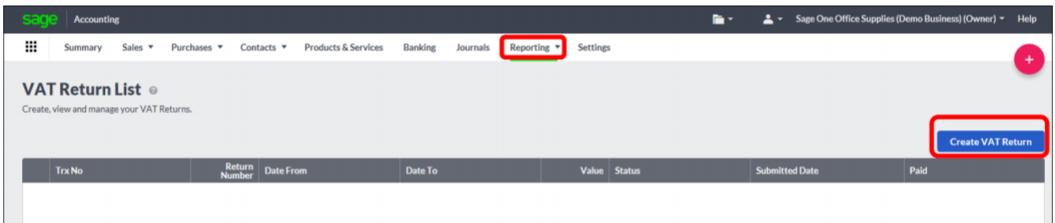
  1. From the menu bar, select Reporting, VAT Returns.
  2. Click on 'Create VAT Return'.
    clipboard_e1045130c541ee2b1d349354c43b3129e.png
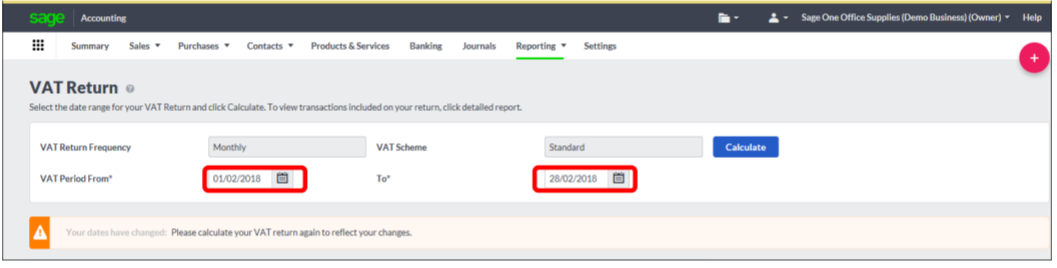
  3. Enter the relevant date ranges.
    clipboard_e76af02be6dc231262cf84d21187c031c.png
  4. Click on 'Calculate'.
    clipboard_e4531fa1a26d1b2150cc87857e3d092f1.png
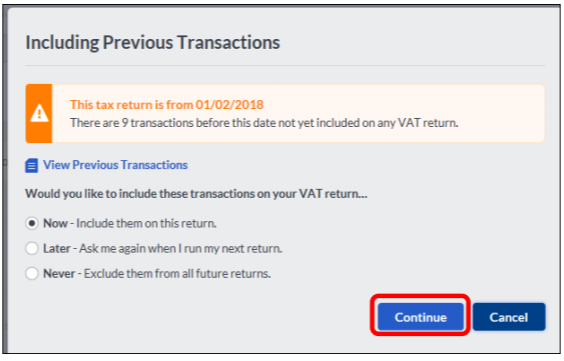
  5. If previous have not been included and you are required to include them, make sure the bullet is selected for 'Now - include them on this return'.
  6. Click on 'Continue'.
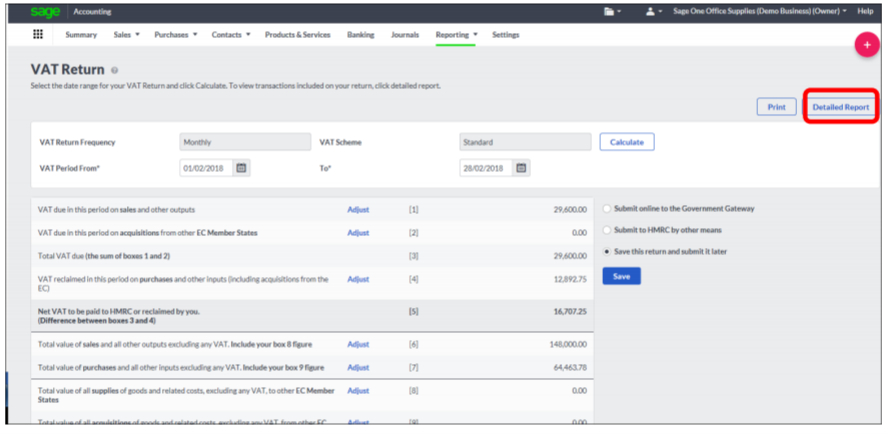
  7. Select 'Detailed Report' to export into a CSV file.
    clipboard_e35913fd2824cacb4d796bee2a6e3e332.png
  8. Select 'CSV'.
  9. To open the file click on 'VAT Return Detailed below.
    clipboard_e1f8a857829f8c0360f6706e18025e6c6.png
  10. Save the file as type .xls to a location.
Exporting VAT Data from CCH Practice Management

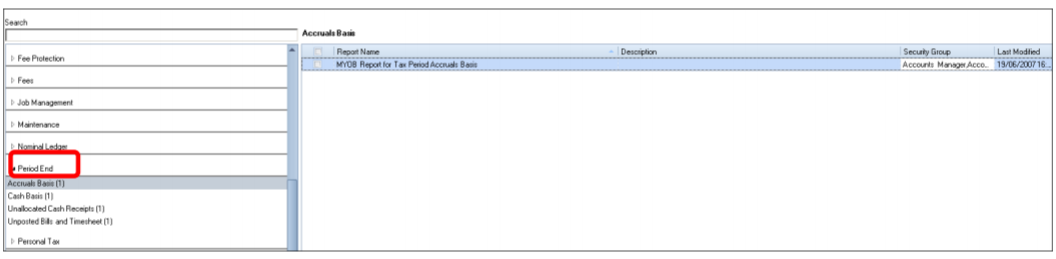
  1. From 'Smart Reports', select period end.
  2. Select 'Accruals Basis' or 'Cash basis'.
    clipboard_e127372442612ac422620df2b302b6db1.png
  3. To run the report double-click or click on 'Run' (F5)
    clipboard_e9ccfcab5ada5b4f6a358bd86de6d7edc.pngin the tool bar.
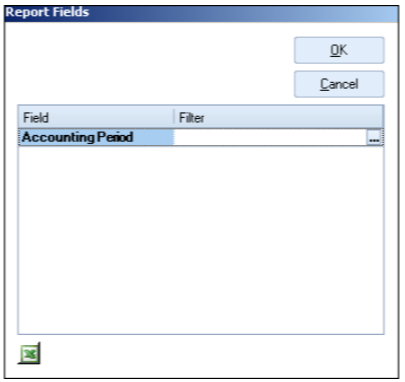
  4. Filter the correct period.
  5. clipboard_e7fc40d9cd668ba1c0a645fbbdeb77b8e.png

    Note: there are various options to export the data into Excel however, for the purpose of VAT reporting the method shown below is best practice.

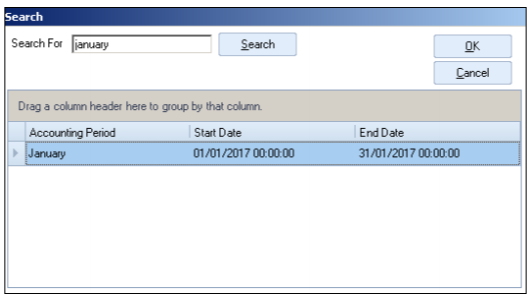
  6. Type in the period i.e. January.
    clipboard_e0be1e99b6ffbed98dccdf46cce5df348.png
  7. Click on 'OK'.
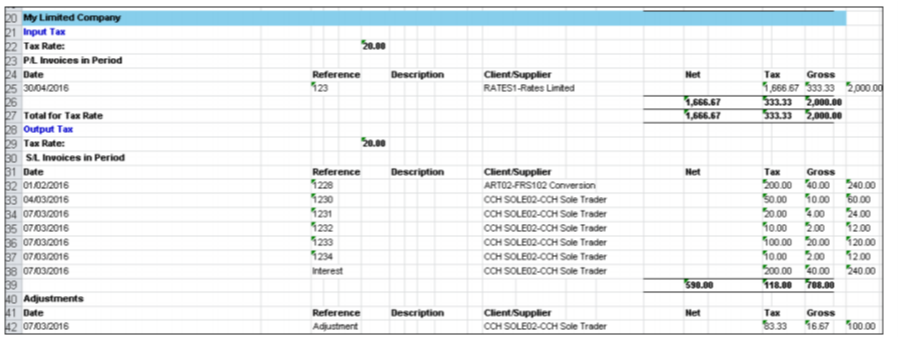
  8. Click on Export to left of the window.
    clipboard_e5c5e733456cec49f16ece795e08f51ba.png
  9. Save the file.
  10. clipboard_ea373033497f71a1aa8125f974b4a34a2.png

Note: please ensure that you close the relevant periods off as tax periods in Central, otherwise, the figures for the previous tax quarter(s) will also be included in the report that you run to obtain the next VAT period’s figures. This is because, all figures since the last tax period closure will be included and therefore will accumulate into future reports.

Note: for full guidance on 'How to ‘close an accounting period as a Tax period and run the reports to obtain your VAT figures’, please refer to knowledge base article 10411. Click here

Related documents

Step by Step Guide to Making Tax Digital (MTD) : HMRC sign up
This user guide assists users in navigating the sign-up process for Making Tax Digital (MTD) for VAT, clarifying that while Wolters Kluwer does not facilitate the sign-up, it has provided this resource to ease the process. Key points include creating an Agent Services Account for agents, the significance of the Business Tax Account, the steps to link existing and new clients, and the requirement for MTD-compatible software for submissions. It also highlights deadlines and contact information for HMRC support. Additionally, it refers users to helpful webinars and resources related to MTD.
eSign User Guide
This document outlines the operational guidelines for using the eSign functionality within CCH Central, emphasizing the need for Microsoft Edge WebView2 Runtime installation. It details the eSign and Approval processes for sending documents, including directions for document preparation and the management of multiple signatories. Key features include newly added email templates, internal signature capabilities, and updated status tracking in both Message Centre and Document Centre. Users can utilize various acrofields for signatures and customize their signing experience. Enhanced communication is facilitated through automated notifications and document management functionalities.
CCH OneClick 2026.1: Release Notes
Release Notes for CCH OneClick 2026.1
Get Started with Making Tax Digital for VAT
This document outlines the essential resources and steps required for getting started with Making Tax Digital (MTD) for VAT. Key points include the necessity to register with HMRC, create an agent services account, and authorize Wolters Kluwer Software. It emphasizes the importance of having a CCH OneClick account to access MTD features. The document also provides quick start guides, video tutorials, and client resources to facilitate a smooth transition to digital VAT returns. Additionally, there are links to guides for both clients and advisors to enhance understanding and implementation of MTD processes.
Activating individual clients
This document provides a comprehensive guide on activating individual clients for the CCH OneClick client workspace. It outlines necessary pre-checks, including verifying unique client email addresses and team responsibilities. The activation process can be done for single or multiple clients, with detailed steps for each. Additionally, there are options for enabling various features within OneClick for clients, including sending welcome messages and monitoring activation status. The document also highlights optional features available for clients after activation, ensuring effective client management within the OneClick system.