
The Audit Summary
The audit summary provides a snapshot of the position of the audit. It includes a list of the dates of the main stages of the audit, and the ability to view and print summaries of matters which are outstanding or yet to be completed.
To view the audit summary, click on the [Summary] button on the Reference menu and the Audit progress summary window will be displayed.
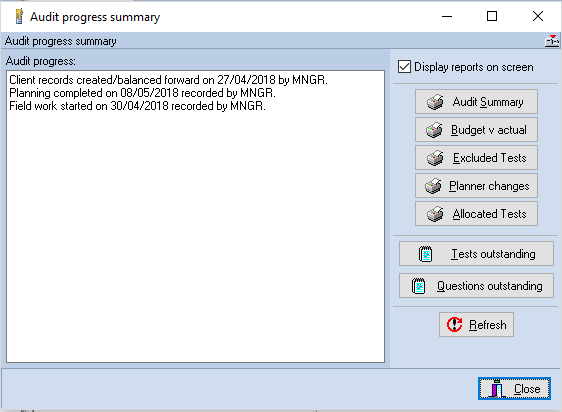
Audit progress summary window
The Audit progress text window shows the dates of the major stages of the audit and the member of staff who recorded the event, as follows:
- Clients records balanced forward
- Interim planning sign off
- Planning completed
- Field work started
- Field work completed
- Senior sign off
- Manager sign off
- Partner sign off
The five print buttons allow status data to be viewed on the screen or printed, and the test and questions outstanding provide links to the summary facilities described on click here.
Printing the audit summary
The audit summary shows the information displayed in the text window, together with details of outstanding tests and questions, the total of any time budgets recorded for uncompleted tests and the text of uncleared notes. The summary of the time budgets can provide a guide to the time required to complete the audit, and the notes can indicate if there are any major unresolved problems.
This report can be viewed or printed. To view the report, check the Display report to screen check box, and then click on the [Audit summary] button. To print the report, make sure that the check box is unchecked before selecting the button
If the report has been directed to the screen it will be compiled and presented in view mode. If it is directed to the printer the standard Windows Print dialog will be presented to allow you to select the printer to be used, or accept the default printer shown. The system will return to the Audit progress summary window after the report has been viewed or printed.
Printing budgets versus actual
The second button on the Audit progress summary window allows you to print, or view, the cost control form showing actual figures against budgets. The actual figures are compiled from the time entered to complete each test and figures requested when the report is run.
This report can be viewed or printed. To view the report, check the Display report to screen check box, and then click on the [Budget v actual] button. To print the report, make sure that the check box is unchecked before selecting the button. In both cases, the Actual figures dialog will be displayed.
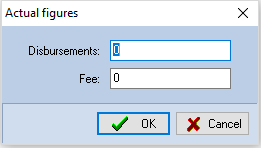
Actual figures dialog
This dialog allows you to enter the information which cannot be calculated from the completion information, namely the actual figures for disbursements and fees. Enter these figures and click on [OK].
If the report has been directed to the screen it will be compiled and presented in view mode. If it is directed to the printer the standard Windows Print dialog will be presented to allow you to select the printer to be used, or accept the default printer shown. The system will return to the Audit progress summary window after the report has been viewed or printed.
Printing excluded tests
During planning, the system will have excluded some audit tests and the planner will have carried out further customisation, during which more tests may have been removed. This option allows you to print, or view the full text of the tests which have been excluded, across all audit areas and indicates if the test was excluded by the computer or the planner.
This report can be viewed or printed. To view the report, check the Display report to screen check box, and then click on the [Excluded tests] button. To print the report, make sure that the check box is unchecked before selecting the button.
If the report has been directed to the screen it will be compiled and presented in view mode. If it is directed to the printer the standard Windows Print dialog will be presented to allow you to select the printer to be used, or accept the default printer shown. The system will return to the Audit progress summary window after the report has been viewed or printed.
Printing planner changes
During planning, the planner will have carried out customisation, during which tests may have been inactivated, edited or added. This option allows you to print, or view the full text of the tests which have been excluded, edited or added by the planner across all audit areas.
This report can be viewed or printed. To view the report, check the Display report to screen check box, and then click on the [Planner changes] button. To print the report, make sure that the check box is unchecked before selecting the button.
If the report has been directed to the screen it will be compiled and presented in view mode. If it is directed to the printer the standard Windows Print dialog will be presented to allow you to select the printer to be used, or accept the default printer shown. The system will return to the Audit progress summary window after the report has been viewed or printed.
Printing allocated tests
As explained on Click here, the system allows you to allocate audit tests to team members at the planning stage, and also to automate the allocation of a subsequent year based on the team member who completed the test in the current year. If you have carried out this allocation, the system can produce a list of the tests to be performed by each member of the audit team.
This report can be viewed or printed. To view the report, check the Display report to screen check box, and then click on the [Allocated tests] button. To print the report, make sure that the check box is unchecked before selecting the button.
If it is directed to the printer, the standard Windows Print dialog will be presented to allow you to select the printer to be used, or accept the default printer shown. The Team member dialog will then be displayed.
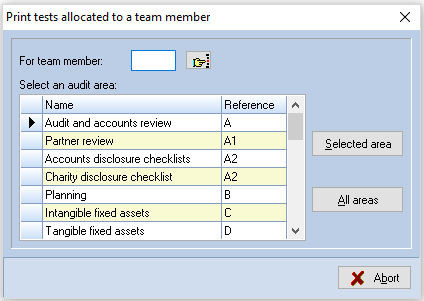
Team members dialog
This dialog allows you to enter the member of staff for which the report is to be produced, and either request that the report covers all audit areas, or be restricted to a single audit area. The [Abort] button allows the dialog to be closed without printing the report. Enter the team members initials, you may use the [Pick list] button to select the employee from the staff records, and proceed as follows:
To print tests for a single area
Highlight the area in the audit area list, using the scroll bar to bring it into view if it is not displayed, and click on [Selected area].
If the report has been directed to the screen it will be compiled and presented in view mode, if directed to the printer it will be printed. The system will return to the Audit progress summary window after the report has been viewed or printed.
To print tests for all areas
Click on [All areas].
If the report has been directed to the screen it will be compiled and presented in view mode, if directed to the printer it will be printed. The system will return to the Audit progress summary window after the report has been viewed or printed.
Outstanding tests and questions
The two buttons at the foot of the Audit progress summary cause the system to summarise the number of items outstanding for each audit area and display a list, as described on Click here.