
Using Account Status
The Account Status window
The Account Status is a descriptive addition to a status type and can be used by sites to differentiate between various situations and to monitor the movement between them from time to time.
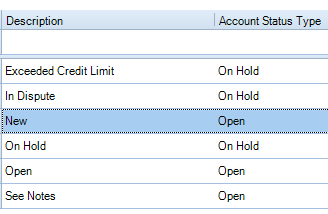
The Account Status window allows you to add and delete the Account Status for creditor accounts. The account status consists of the status (descriptive part) and the type (Open or On Hold) which is the effect of the status. For example, the account status In Dispute with the type On Hold associated with it will prevent a cheque or electronic banking run for the selected client or supplier.
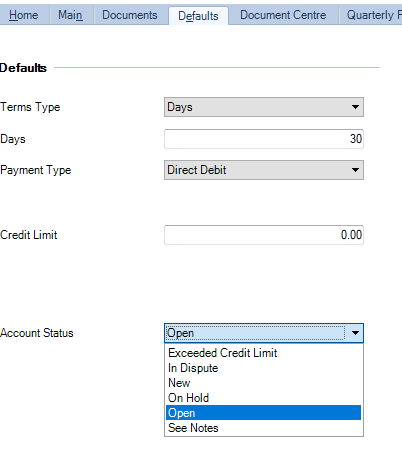
The Account Status for a client or supplier is set on the Defaults tab of the client or supplier details page.:
System administrators can customise the account status descriptions from File -> Mainteance -> Client/Supplier -> Account Status:
Additional supplier invoices cannot be posted to accounts that are intrinsically On Hold.
In addition to this, if a client has an account status type of anything other than "Open", users will receive a warning message when entering time against that client record:
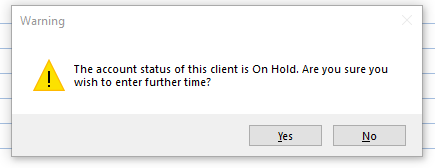
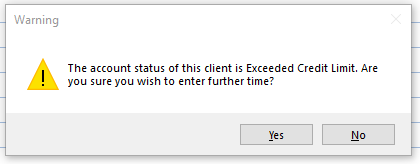
The "On Hold" warning refers to the account status from the Defaults tab of the client record. Users may see a variation depending on the status, for example:
Set up new Account Status
- Select File > Maintenance > Client/Supplier > Account Status.
- The Account Status window displays a table with two columns, Description and Account Status Type. The top row of the table is blank.
- In the Account Status window, in the top cell of the Description column, enter a unique status description. The Description must be informative but not more than 18 characters.
- Click the top cell of the Account Status Type column. The drop down arrow appears.
- Click
to expand the drop down list. Select from the two options: On Hold and Open.
- Click OK to save the new Account Status.
- The new status is added and a new blank row is created at the top of the table.
- The newly added status is available on the Default tab of contact details pages.
Edit an Account Status
- Select File > Maintenance > Client/Supplier > Account Status.
- The Account Status window displays a table with two columns, Description and Account Status Type. The top row of the table is blank.
- In the Account Status window, in the Description column, select the status description you want to edit. Once selected, the description appears highlighted.
- Edit the text in the Description cell as required. The Description must be unique.
- To edit the Account Status Type, click in the cell and select from the drop down list.
- Once you have finished editing, click OK to save changes and close the window.
Delete an Account Status
- Select File > Maintenance > Client/Supplier > Account Status.
- The Account Status window displays a table with two columns, Description and Account Status Type. The top row of the table is blank.
- In the Account Status window, to select the status description to delete click the blue margin cell next to it.
- The row appears highlighted.
- Press the [Delete] key on your keyboard.
- You are prompted to confirm the delete action.
- Click Yes to confirm the delete action. The Description and Status Type are deleted.
- Click OK to close the Account Status window.