The Raise Event and Wait Event provides the ability to create a workflow with a step that waits for another step in another workflow to complete.

For example, a Corporation Tax workflow can have a step that waits for a step from an Accounts Production workflow to finalise. In this case, the Accounts Production workflow has a Wait Event step and the Corporation Tax workflow has the Raise Event step.

Wait Event

The Wait Event is the step that waits for a Raise Event step from another workflow to complete. Once the Raise Event step is completed, the Wait Event step will be automatically completed. 
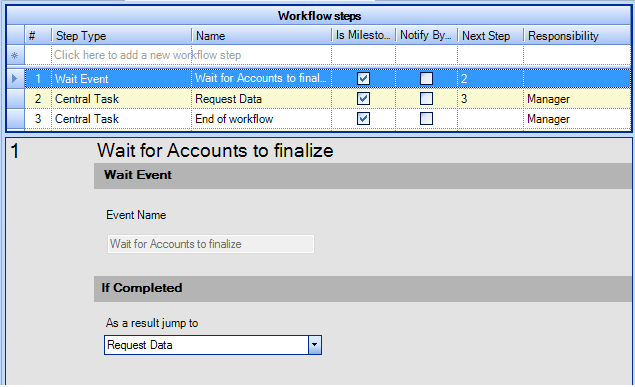
Wait_Event.png

To set the Step Properties:

  • Enter the Name of the Wait Event (As a result, the Name of the Wait Event will be automatically displayed in the Event Name section).
  • Select the next step from As a result jump to.

Raise Event

Provides the ability to start a Wait Event step from a different workflow. In the Step Properties Panel section all the available workflows that have Wait Event activities are displayed.

In the example below, the ‘Wait for Accounts to finalise’ step from a Corporation Tax workflow waits until the ‘Final Accounts Signed’ Raise Event step from an Accounts Production workflow is completed.
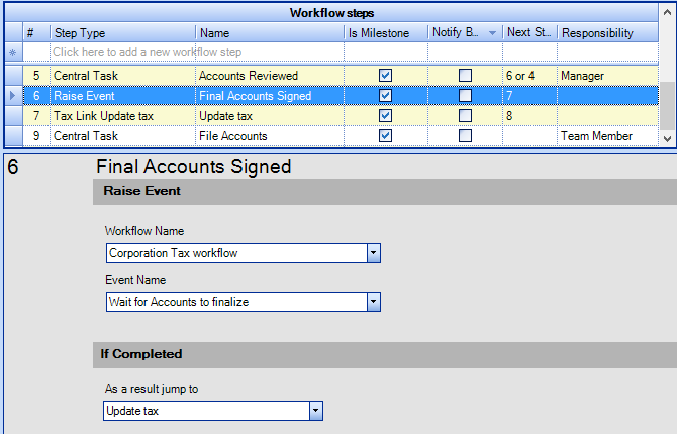
Raise_Event.png

To set the Step Properties:

  • Enter the Name of the Raise Event.
  • From the Workflow Name drop down option, select the workflow that contains the Wait Event.
  • From the Event Name drop down list, select a Wait Event step.
  • Select the next step from As a result jump to.

The following validation rules are applied when using the Raise and Wait Event activities:

Workflow Subjects that contain the Raise and Wait Events

Validation Rule  for the Wait Event to complete

Client/Contact – Accounts Production

If Client Year End  is equal to Accounting Period End Date

Client/Contact – Personal Tax

If Client Year End is equal to Tax Return End Date

Client/Contact – Corporation Tax

If Client Year End is equal to Period of Account End Date

Accounts Production – Corporation Tax

If Accounting Period End Date is equal to Period Of Account End Date

Accounts Production – Personal Tax

If Accounting Period End Date is between Tax Return Start Date and Tax Return End Date

Related documents

CCH Workflow 2025.3: Release Notes
The document provides release notes for CCH Workflow version 2025.3, highlighting installation prerequisites through the Central Suite Installer and introducing a new configuration key, Wf_DocumentExtraFields, which enables the merging of document extra fields. Firms wishing to disable this feature can adjust the key value. It includes legal disclaimers regarding accuracy and confidentiality, as well as trademark information. The content is proprietary to Wolters Kluwer (UK) Limited and is not to be reproduced without permission.
VAT Workflow : Quick Start Guide
This document serves as a comprehensive guide for managing VAT returns using the CCH Central Workflow system. It details the steps for creating a customized VAT workflow by saving the standard workflow as a practice-specific version, updating assignment responsibilities, and setting up VAT assignments and jobs. The guide covers the process for adding workflows to clients, customizing the homepage for workflow management, and tracking tasks within the workflow system. Additionally, it highlights automation features for task assignment and periodic workflow creation with links to further resources for detailed instructions.
Progressing the tasks
This document outlines the process for managing workflow tasks. Users can complete tasks via the Tasks homepage by selecting their names and using the ribbon bar for options like "Mark as complete." Multiple simple tasks can be completed in bulk. Tasks can also be reassigned to different employees, or specific employees can be selected for subsequent workflow steps. The document includes images to illustrate these procedures.
Progressing workflows
This document provides instructions on progressing tasks within a workflow homepage, detailing actions such as completing milestones, selecting outcomes, passing or failing tasks, and selecting employees. Users are guided on how to navigate the interface, including right-click options to manage tasks effectively. The document also mentions non-milestone tasks, directing users on how to reveal these tasks and proceed with their completion. Additionally, it highlights the ability to add comments to choices made within the workflow.
Introduction to the Workflow homepage control
The document provides an overview of the Workflow homepage control, detailing its functionality for monitoring workflow progression. It covers how to customize the interface, select workflows, and change view options, including due dates and employee views. The document also highlights the use of the "Field Chooser" for adding relevant columns, adjusting totals displayed for workflow steps, adding or editing comments, and applying filters to streamline the displayed workflows. Visual aids and step-by-step instructions complement the descriptions for ease of use.