
Workflow Task Permissions
To control who can access or edit areas of the workflow system, Task Permissions have been created for CCH Workflow.
Select File > Maintenance > Security > Task Permissions, from the Product drop down menu select Workflow:
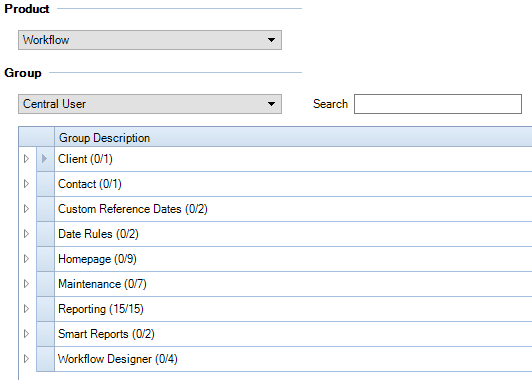
Below is a list of the individual task permissions and an explanation of their role:
|
Group Description |
Sub Category |
Role |
|
Client |
Workflow Homepage Tab |
Allows access to the Clients’ Workflow Tab. |
| Contact | Workflow Homepage Tab | Allows access to the Contacts’ Workflow Tab |
|
Custom Reference Dates |
Can Add |
Allows the adding of new custom reference dates |
|
Can Edit |
Provides the ability to edit an existing custom reference dates |
|
|
Date Rules |
Can Add |
Provides the ability to create new date rules |
|
Can Edit |
Provides the ability to edit existing date rules |
|
|
Homepage |
Can Add Edit Comments |
Provides the ability to edit comments in the Workflows Homepage |
|
Can Create AdHoc Tasks |
Provides the ability to create AdHoc tasks from a task assigned yourself |
|
| Can edit Deadline Date | Provides the ability to edit the deadline date on the homepage | |
|
Cancel Workflow |
Provides the ability to cancel selected workflows from the Workflows Homepage |
|
|
Maintenance |
Custom Reference Dates |
Provides the ability to access the Custom Reference Dates from File> Maintenance > Central Workflow menu |
|
Date Rules |
Provides the ability to access the Date Rules from File> Maintenance > Central Workflow menu |
|
| Notifications |
Provides the ability to access the Notifications from File> Maintenance > Central Workflow menu |
|
| Resume blocked Instances | Provides the ability to view and manually resume blocked workflow instances from File> Maintenance > Central Workflow menu | |
|
Standard Workflows |
Provides the ability to access the Standard Workflows from File> Maintenance > Central Workflow menu |
|
|
Workflow Designer |
Provides the ability to access the Workflow designer from File> Maintenance > Central Workflow menu |
|
| Workflow Management Console |
Provides the ability to access the Workflow Management Console screen from File> Maintenance> Central Workflow menu |
|
| Reporting |
ClientId |
The clients id used within the database |
|
Comment |
Displays the comments entered on steps |
|
|
Completion Date |
The date the workflow was completed |
|
|
Due Date |
The date the workflow is due |
|
|
Is Milestone |
Displays if the step was set as a milestone |
|
|
Step Name |
Displays the step name |
|
|
Step Status |
Displays step status, In Progress, Not Started, Completed |
|
|
Step Type |
Displays the step type; i.e Central Task |
|
|
Workflow Name |
Displays the workflow used |
|
|
Workflow Status |
Displays workflow status, Active, Cancelled, Completed and Terminated |
|
|
Workflow Subject |
Displays subject, i.e Client/Contact, Document Management, Accounts Production etc |
|
|
Smart Reports |
Tax Return Next Steps |
Provides the ability to create smart reports including data on the Next steps due for the tax return (CCH Tax Workflow only) |
|
Tax Return Steps |
Provides the ability to create smart reports including data on the current tax return workflow step (CCH Tax Workflow only) |
|
|
Workflow Designer is a separate chargeable module |
||
|
Workflow Designer |
Can Create |
Provides the ability to create new workflow templates in the Workflow designer |
|
Can Delete |
Provides the ability to access Workflow templates in the Workflow Designer and delete tasks |
|
|
Can Edit |
Provides the ability to access Workflow templates in the Workflow Designer and edit tasks |
|
|
Can open from File |
Provides the ability to open Workflow XAML files in the Workflow Designer |