Activating entity clients
CCH OneClick entity client activation
Checks before activating entity type clients for CCH OneClick
Important:
Before you activate a CCH company with OneClick, the following areas need to be checked:
- Client Association
- Client team responsibility
- Salutation
Client association
It is mandatory to add at least one associated contact that has the contact type of Individual (for example, is partner of, or, is director of) for a company as you will need to send messages and documents directly to an individual who is associated to this company.
Check the Associated tab for the company you wish to activate as a CCH OneClick company.
In the example below, you have 2 directors for the company:
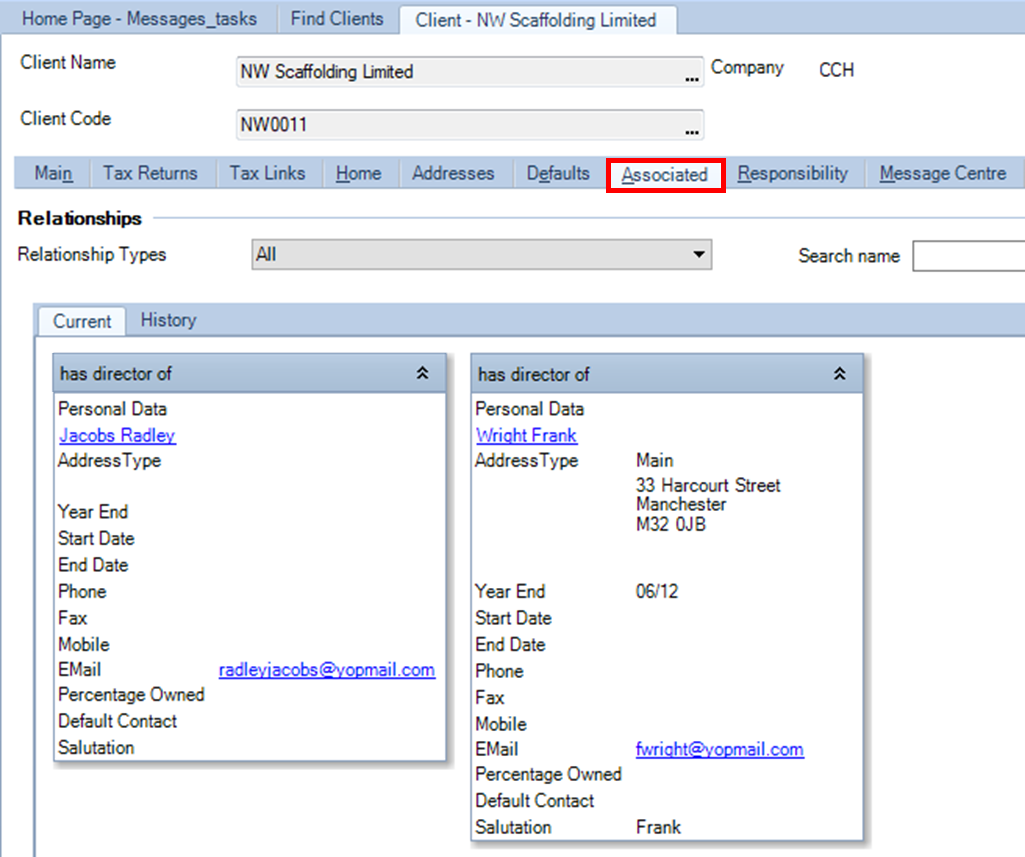
Each of them could be either a contact or an Individual client.
You must activate at least one of these contacts to activate the company for CCH OneClick.
Client team responsibility
Within the client record, there is a Responsibility tab which is used to record the various practice employees who will communicate with an activated CCH OneClick client. This client team will be reflected in the client workspace as long as these employees are themselves CCH OneClick activated.

In this example, there is the partner and two team members who will be the client team for NW Scaffolding Limited company.
Salutation
As messages will be sent to the company's associations that have been activated for CCH OneClick, the individual salutation is used. You should also have a salutation for the company, which is used when sending the same message to multiple recipients. It can be either Directors, Sirs etc.
In this example, it is Directors. The salutation is added and updated on the Main tab.
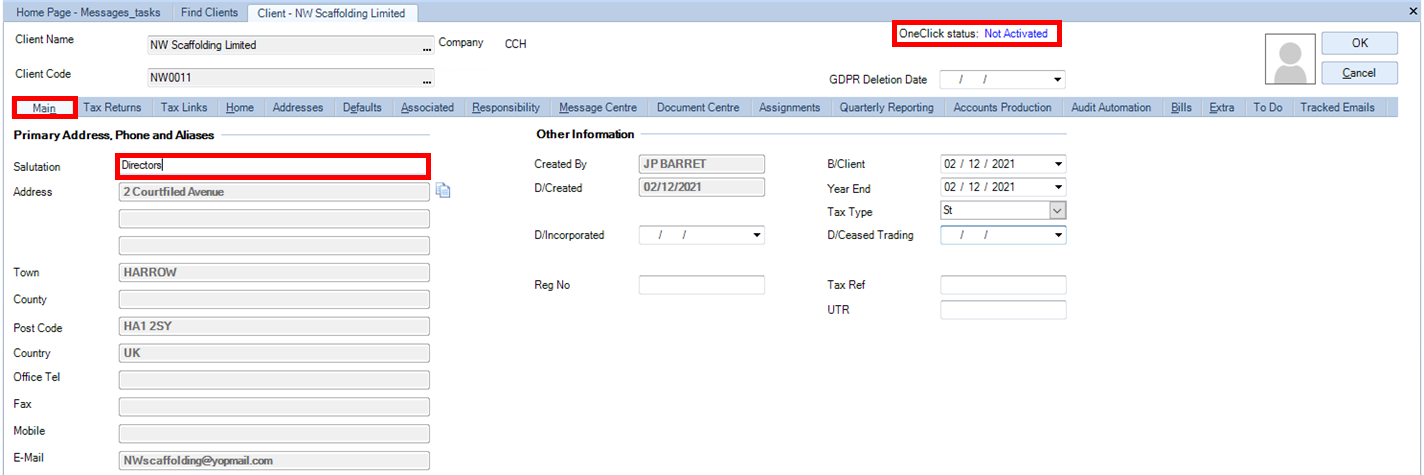
The Client company is not yet activated for CCH OneClick and you can check the status from the Main tab.
CCH OneClick Company activation
Once all of these checks have been completed, the Company client can be activated, by activating at least one of the associated contacts for your Company client.
Activate a company for CCH OneClick from within the client record
You will use this process when you want to activate only one company at a time.
We will use the NW Plumbing Ltd company as example.
Open the NW Plumbing Ltd client record from the client list.
Select the Associated tab to see the contacts who could be activated for CCH OneClick for this company.
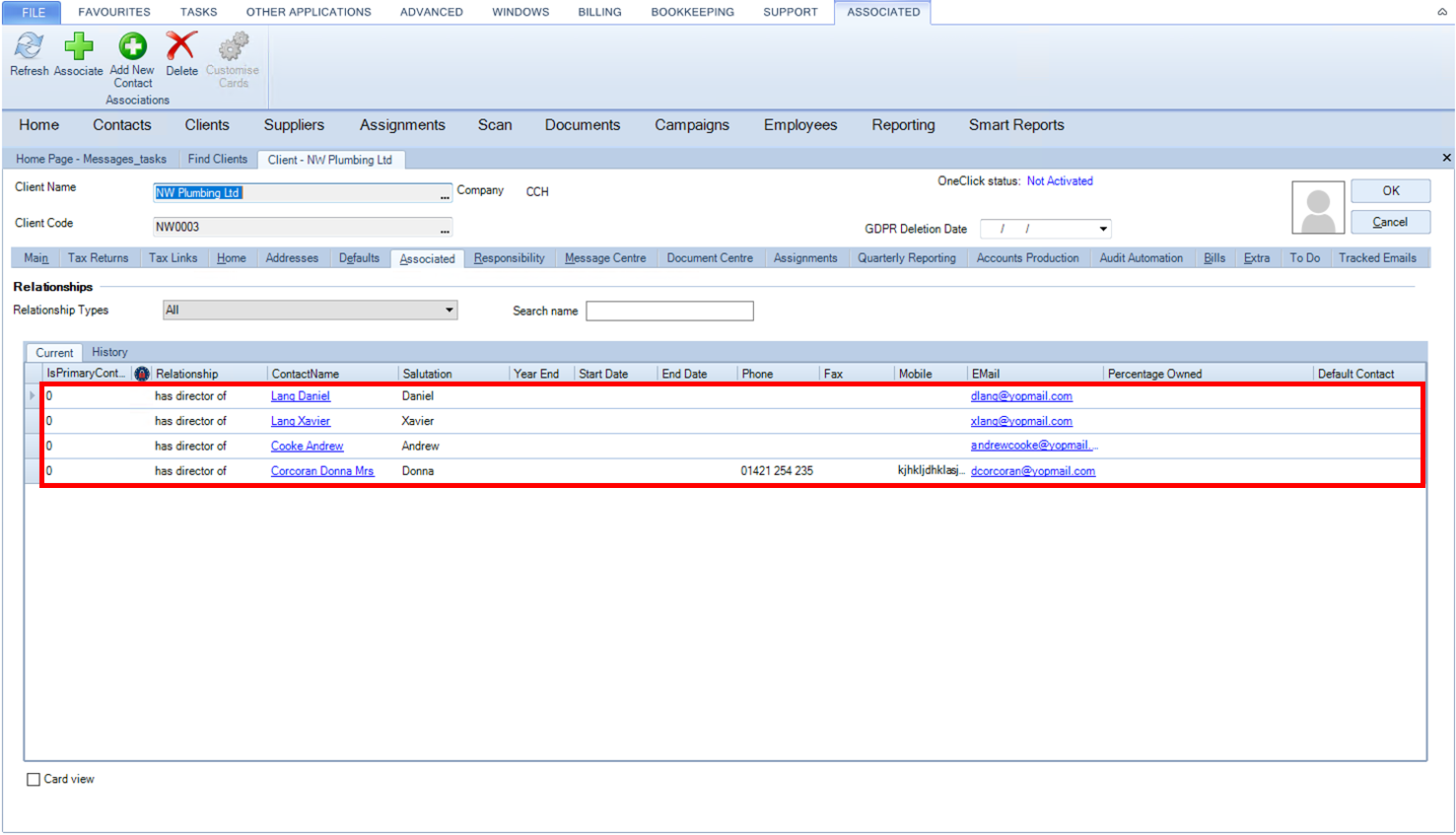
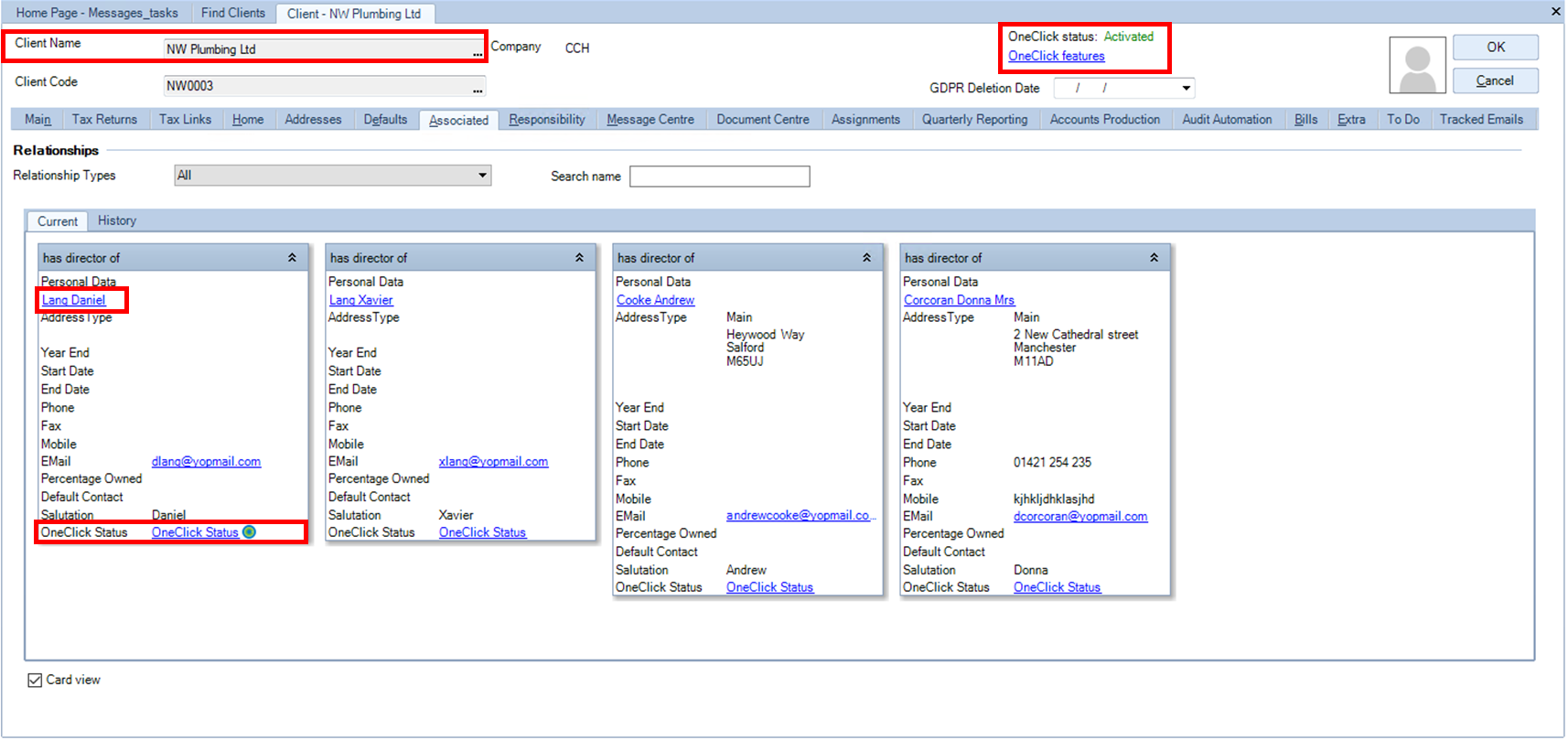
The NW Plumbing Ltd company has 4 directors. You can view them in a grid form as below:
or seen in Card view mode:
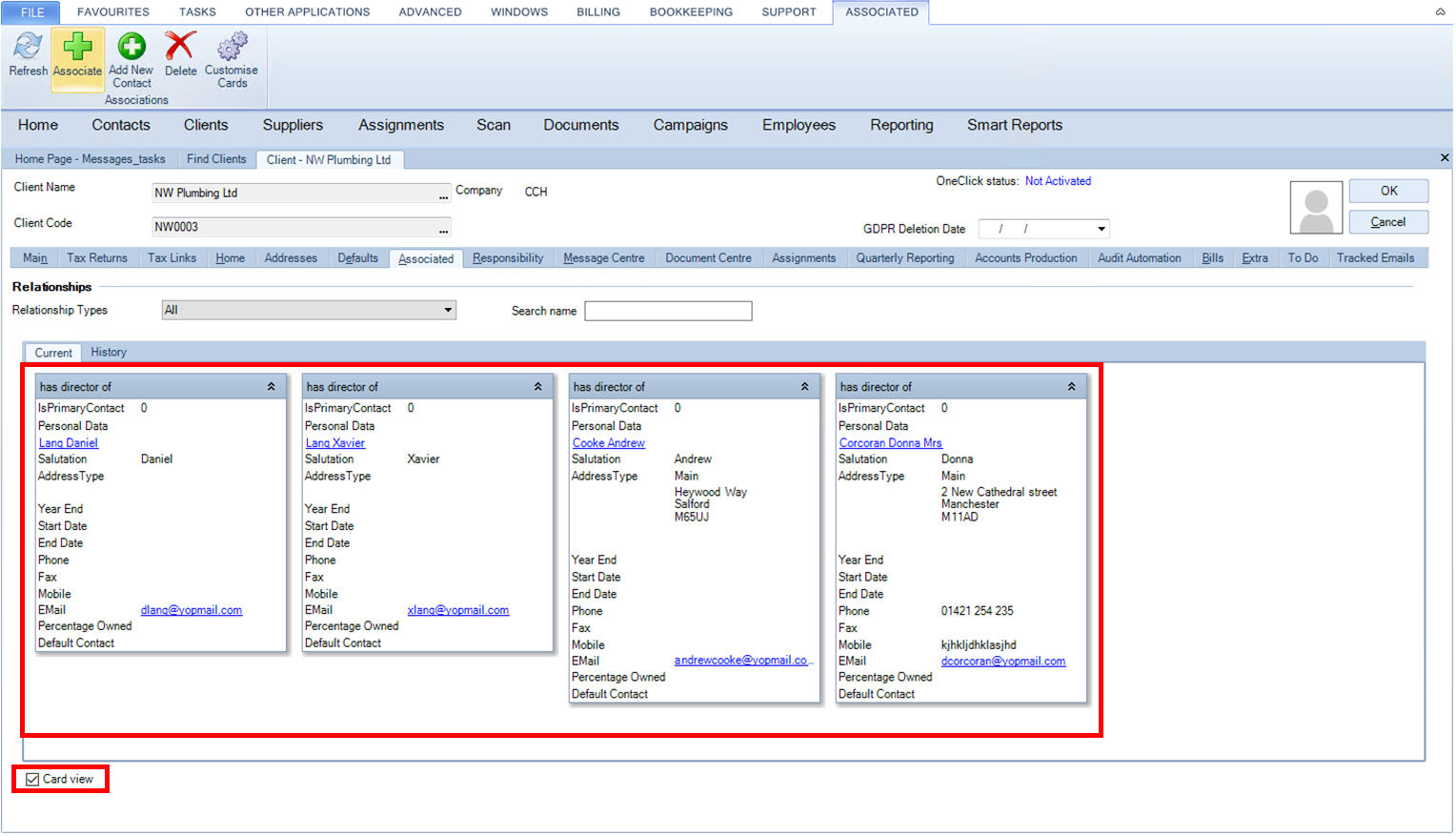
Tick or untick Card view box at the bottom right corner to change the view.
Click on TASKS menu and click on the Activate OneClick button in the ribbon.
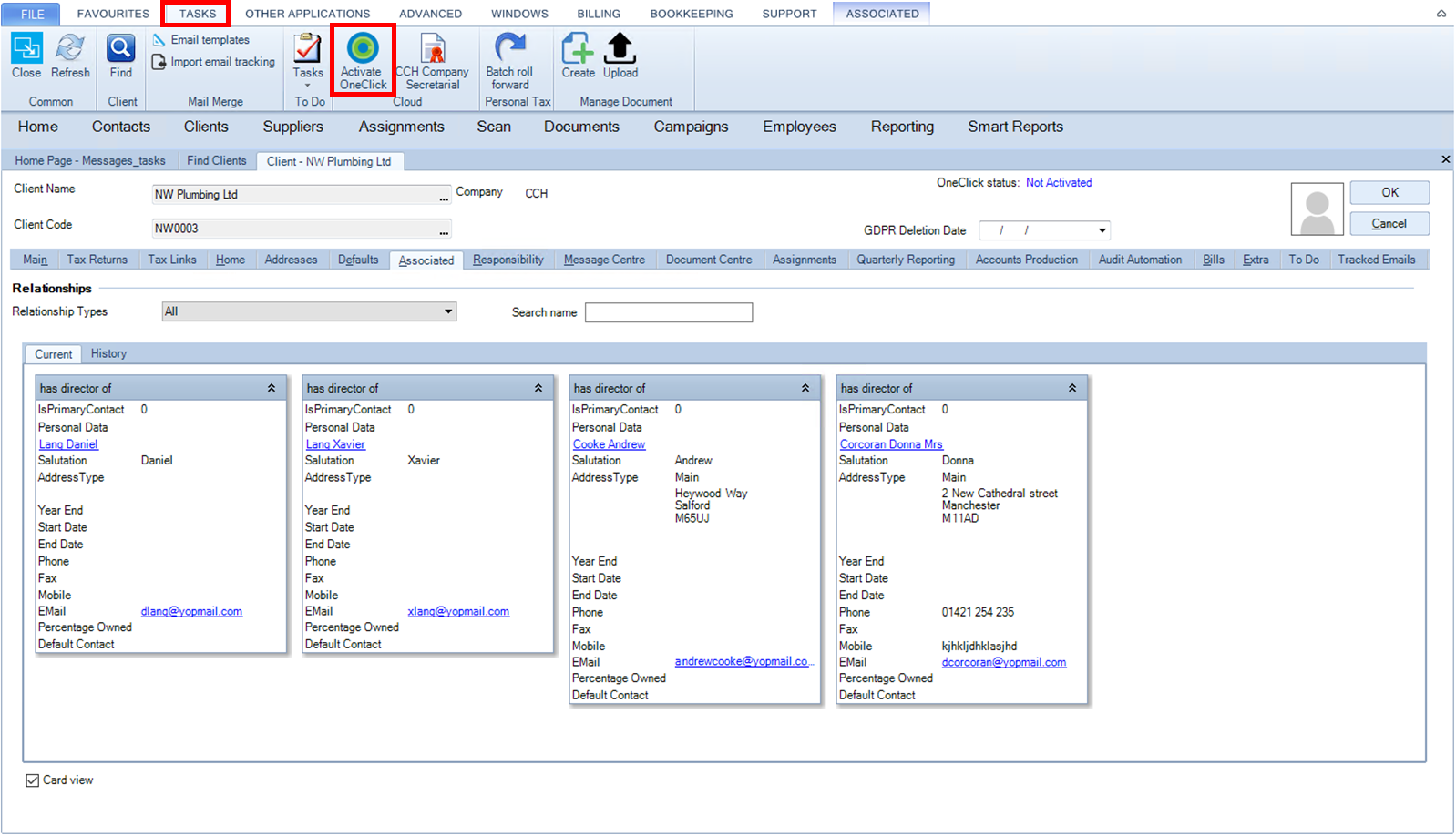
This screen will appear:
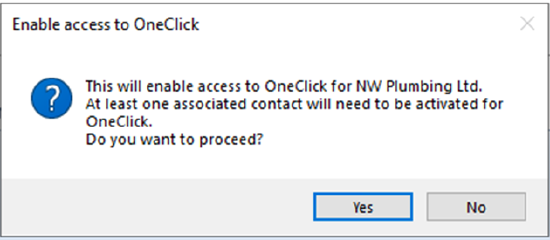
Click Yes to continue.
This screen will be displayed:
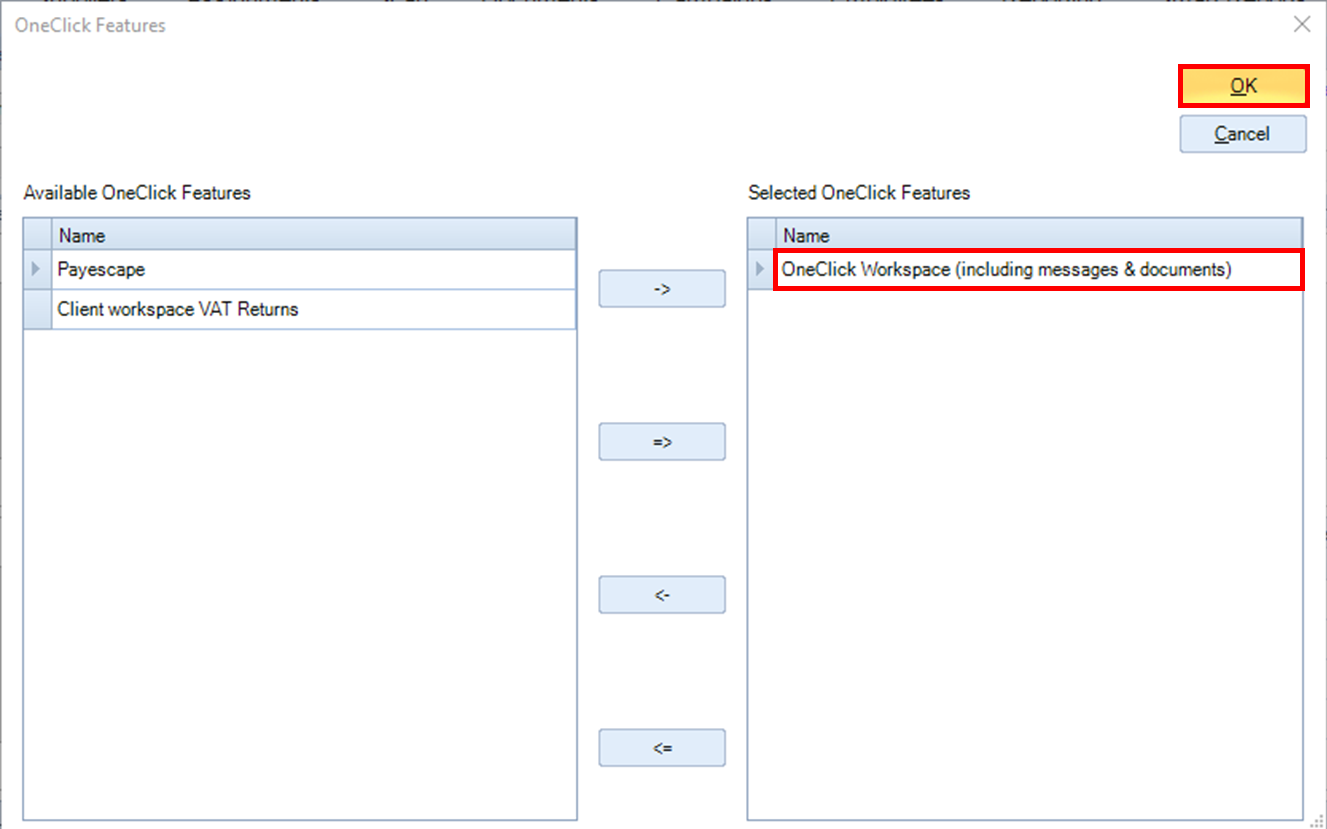
By default, OneClick Workspace (including messages & documents) is pre-selected.
Click OK.
You will get the associated contacts list:
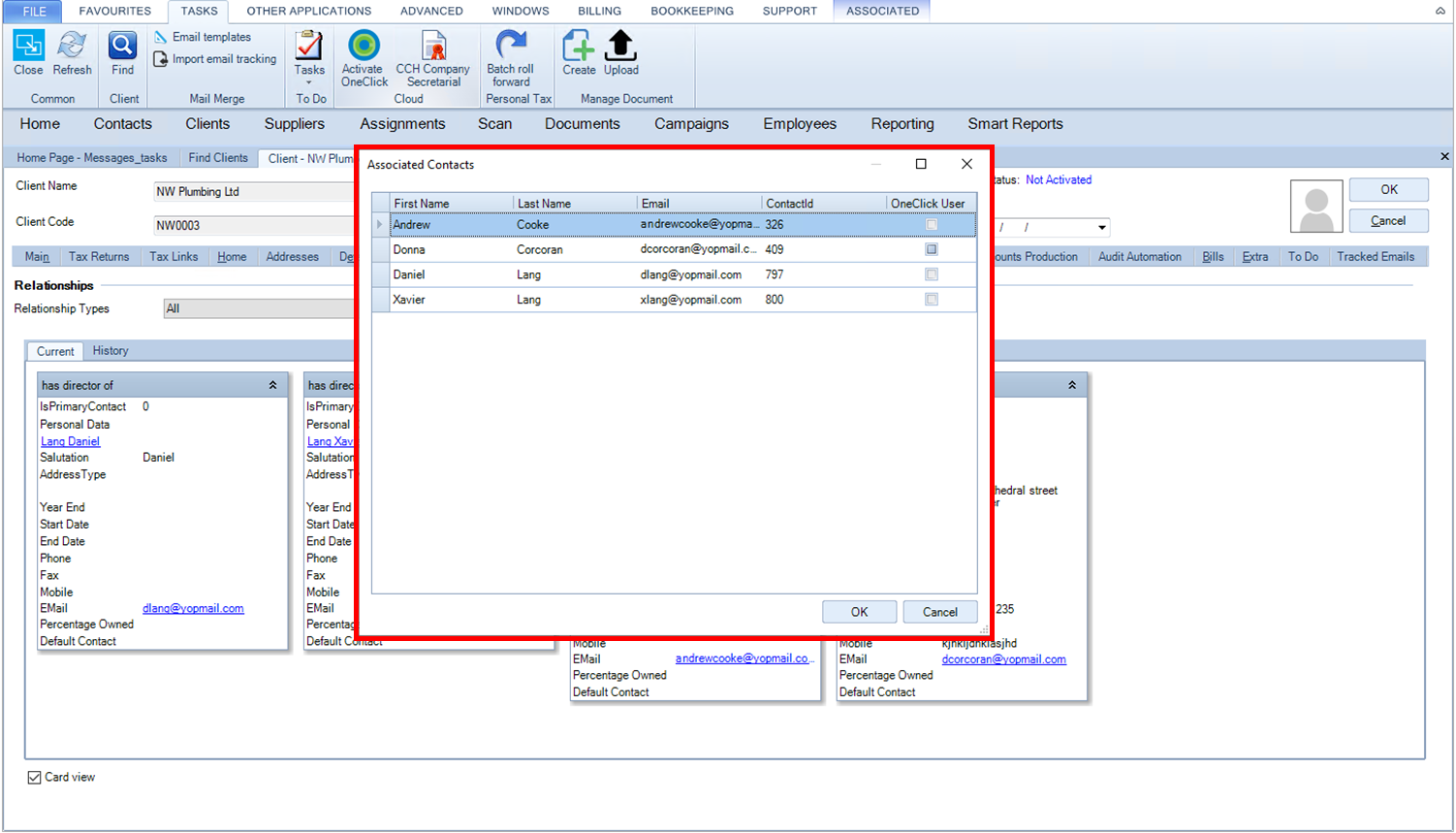
Click on all of the contacts you want to grant access to NW Plumbing Ltd. You must activate at least one of these 4 contacts to activate this company for CCH OneClick.
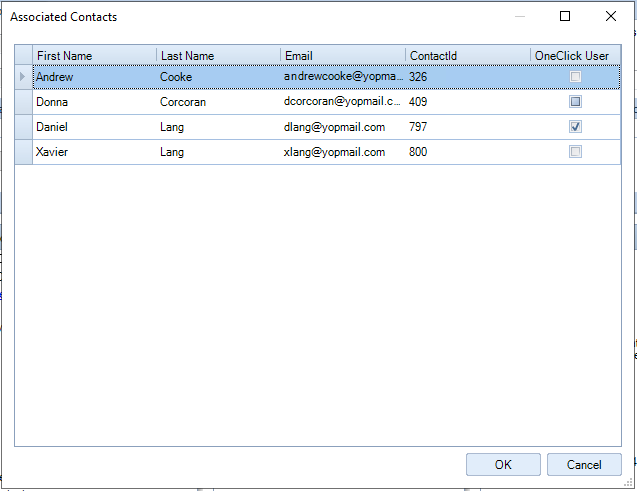
In this example, we will select only one contact, Daniel Lang. Tick the OneClick User box for Daniel Land and click OK
A message appears:
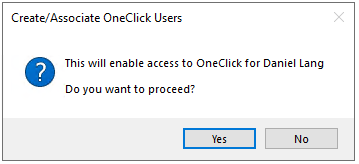
Click Yes and you will get a screen as below:
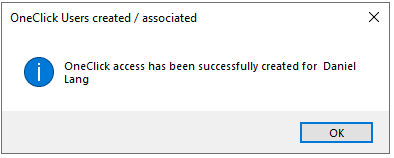
Click OK.
A progress bar will run for a short time:

Another message will appear:

To show the client a welcome message inside their portal once they activate their account and log in, click Yes. This is the recommended option for most clients.
If you have recently activated this individual for CCH OneClick as a contact for another client, you could consider clicking No to not send the welcome message.
Once the activation is complete, a new line appear in the Director's card with the OneClick Status.
For Daniel Lang, it is now activated as there is a green target close to the OneClick Status hyperlink.
And the company NW Plumbing Ltd is also activated for OneClick (check the OneClick status on the same line as the company client's name).
If you revert to the client list, you will see that the company NW Plumbing Ltd is with a grey target, meaning the Company has been been activated for one click on your side. Once Daniel Lang has activated his account, he will be to receive messages and documents on behalf of NW Plumbing Ltd.
Activate several companies for CCH OneClick from the client search tab
You can also activate several companies for CCH OneClick from the Search Client tab.
In this example, we will search for companies starting with NW (for the name or company code). NW Consultants LTD and NW Lighting Limited will be activated for CCH OneClick together:
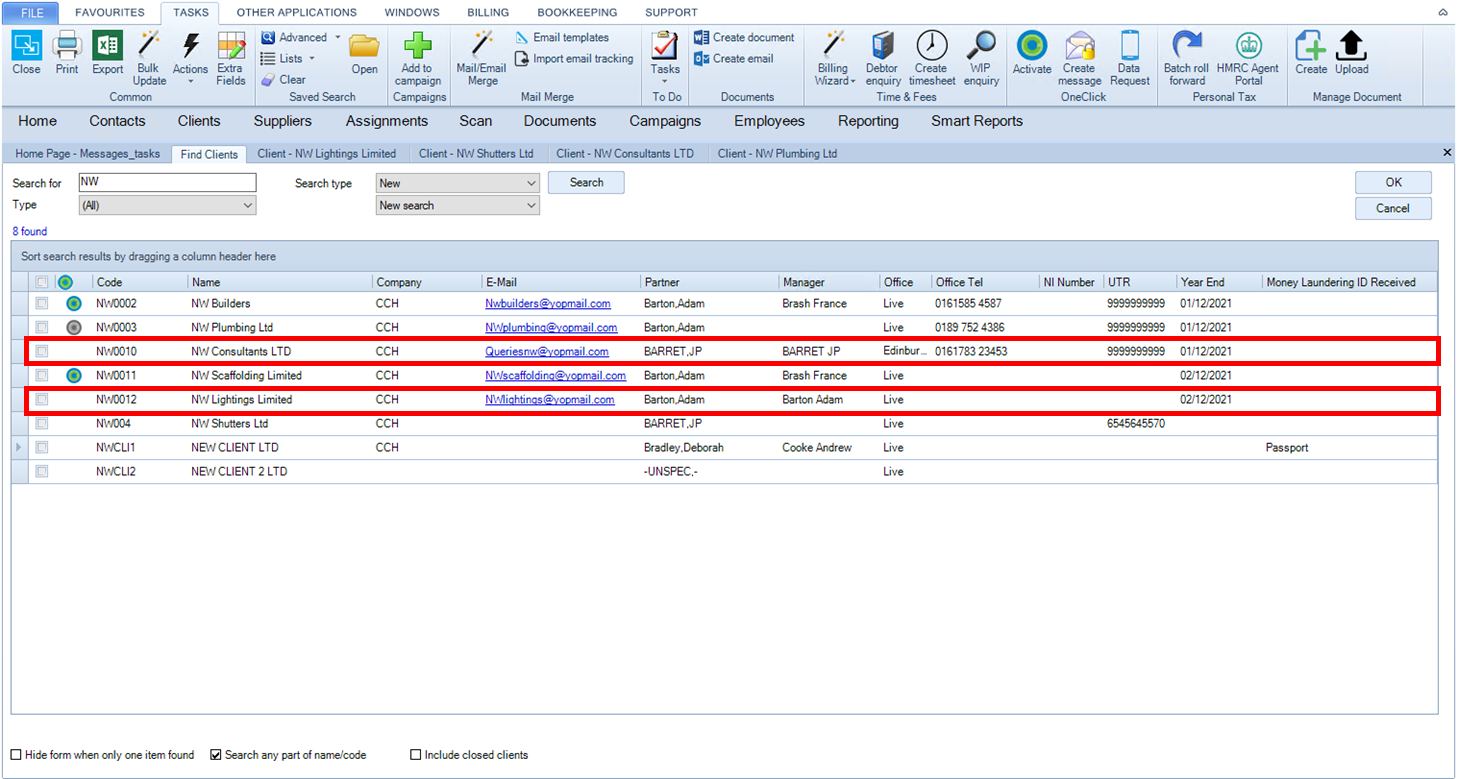
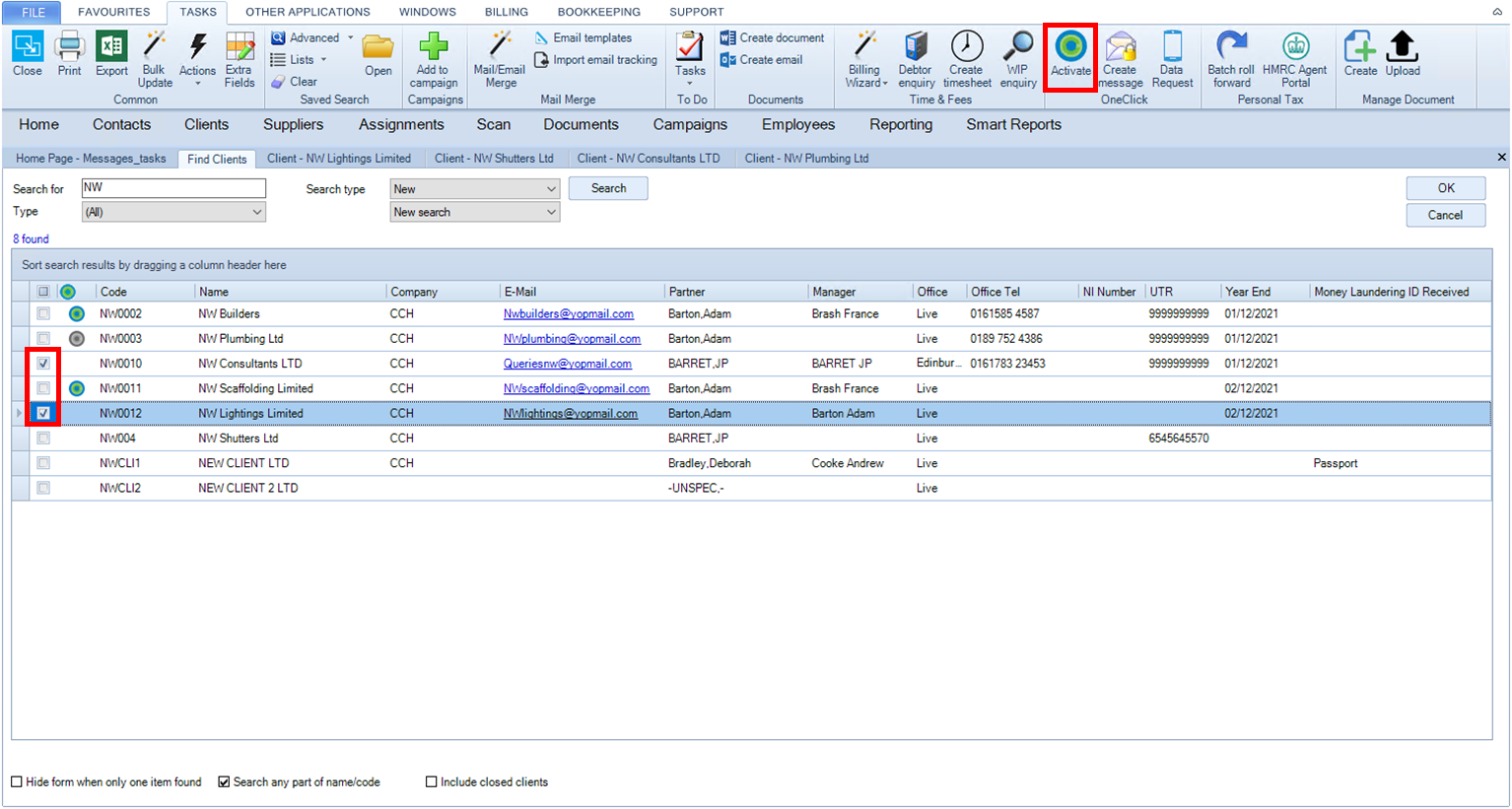
Tick the box at the front of the 2 client names and click Activate on the ribbon bar:
This screen is displayed:
Another message will appear:
To show the client a welcome message inside their portal once they activate their account and log in, click Yes. This is the recommended option for most clients.
If you have recently activated this individual for CCH OneClick as a contact for another client, you could consider clicking No to not send the welcome message.
The progress bar will run for a short time

Once done, a new tab will give you the Client Activation Results, where you get the OneClick status and the OneClick features for each of the companies selected.
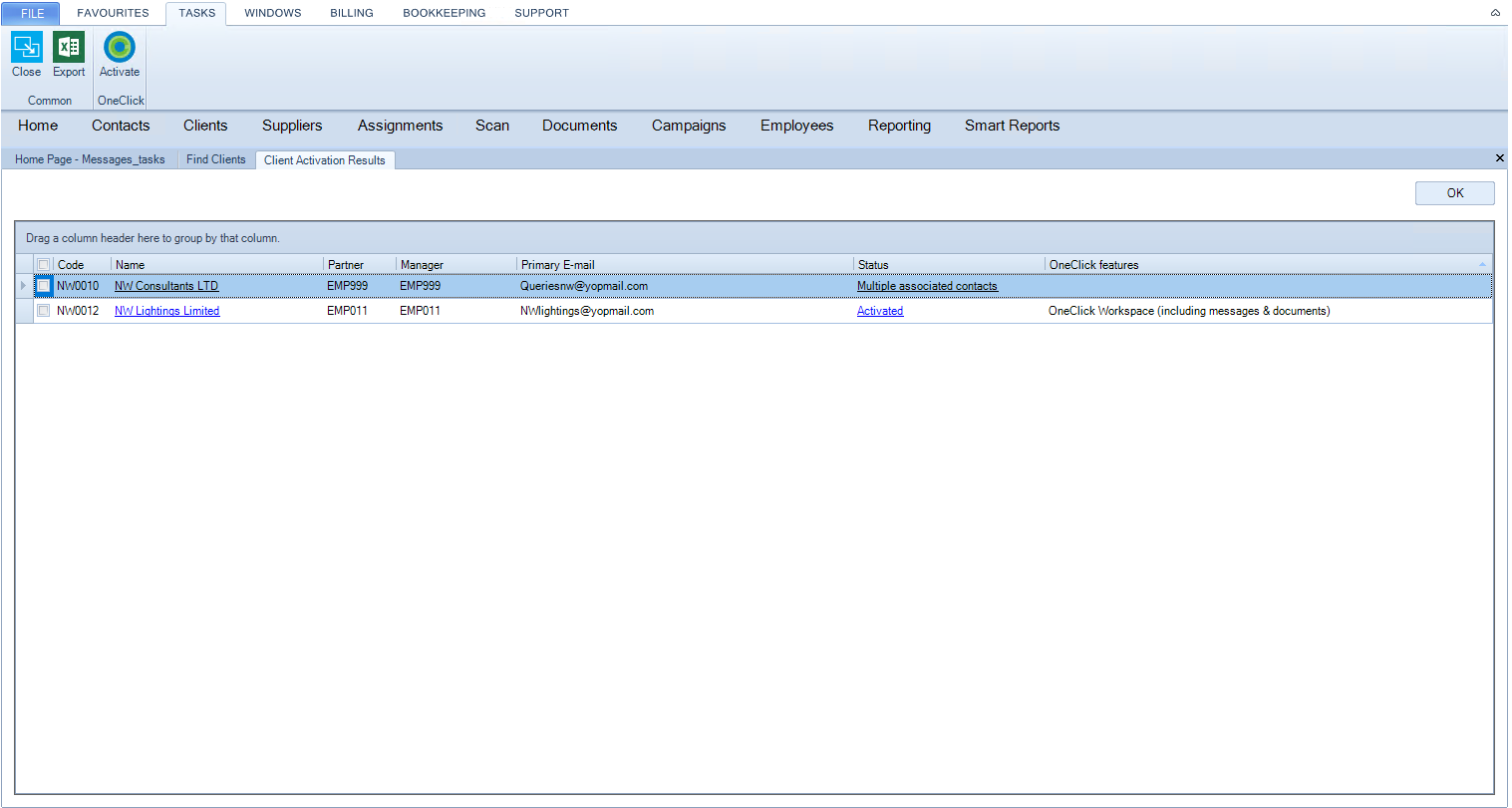
If the status is 'Activated' (for NW Lightings LTD in this example), the activation is a success.
If the status is 'Multiple associated contacts' then you need to open the client company and activate individually as above.
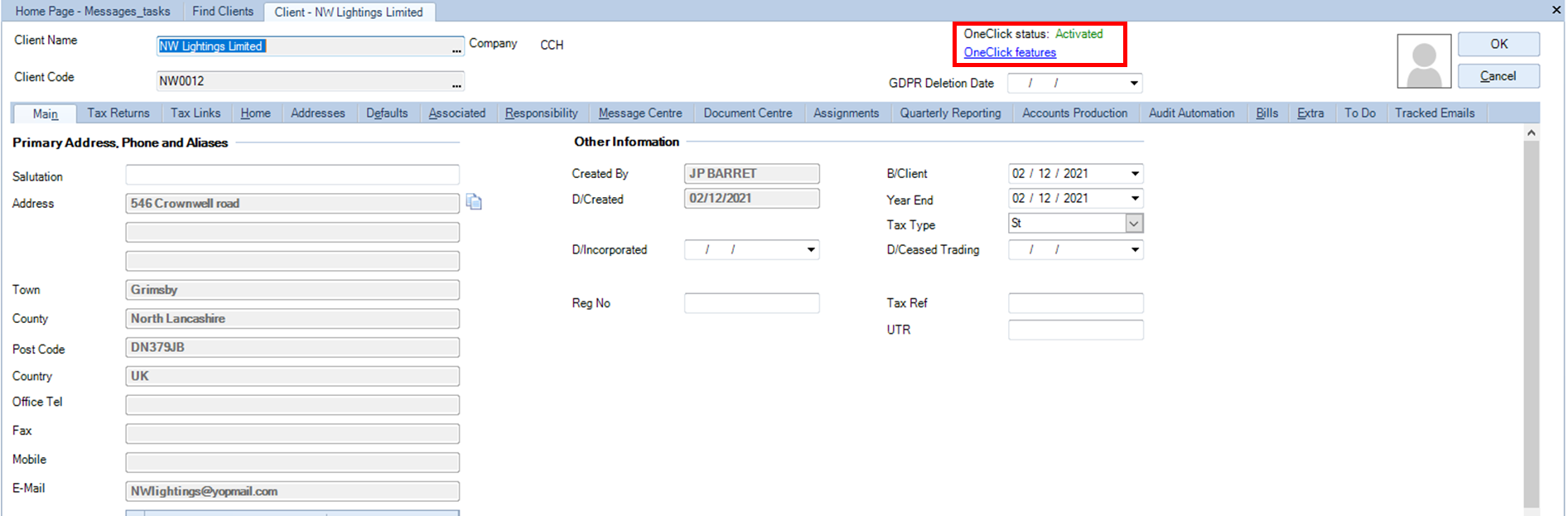
You can view a client's CCH OneClick status in the header of the client record: