How to add CCH Document Management documents to the bundle

When generating the IR Mark for online filing purposes it is now possible to add attachments directly from CCH Document Management.
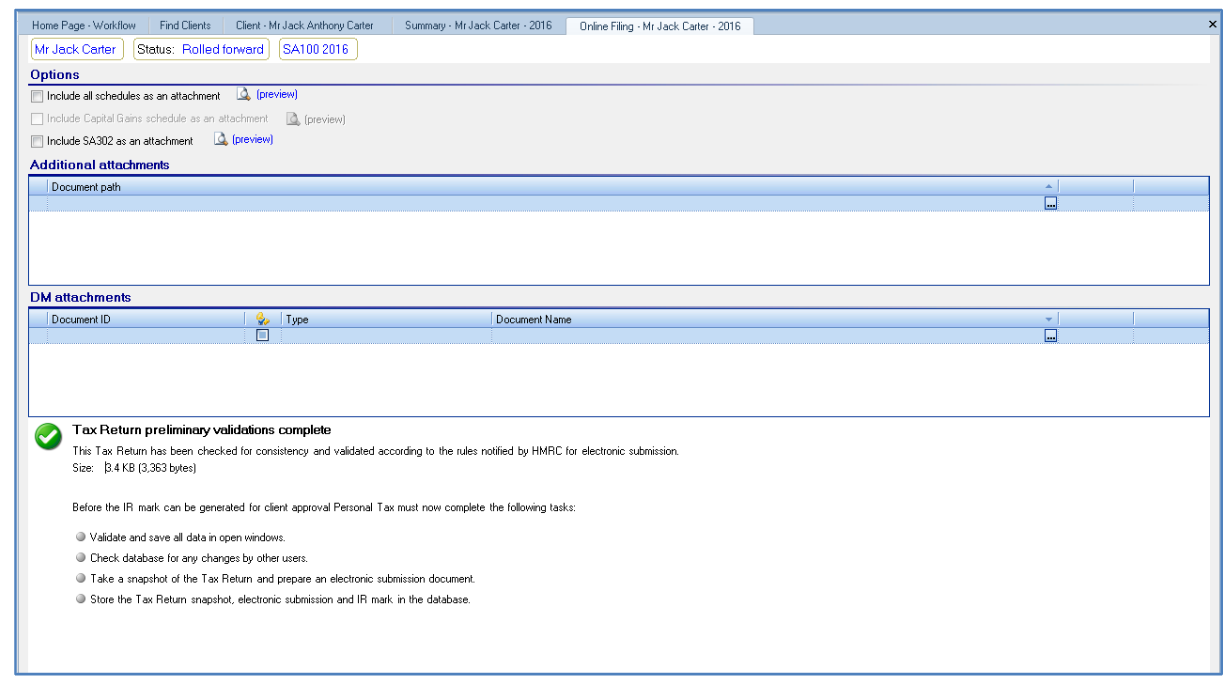
The Online Filing window has been updated to add a new grid DM attachments:
Personal_Tax_Online_Filing_Submission-Adding-Documents-to-the-Bundle_1.png

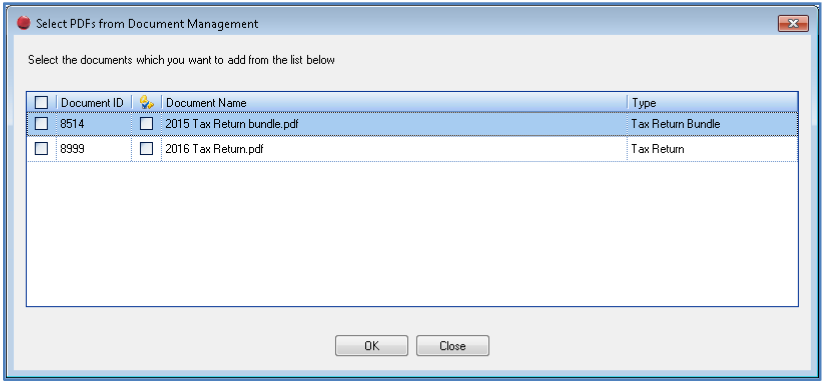
To add a document from CCH Document Management to the bundle for IR Marking purposes, click the ellipsis at the end of the Document Name field in the DM attachments area, a window appears listing all the PDF documents that currently exist in the client’s Document Centre:
Personal_Tax_Online_Filing_Submission-Adding-Documents-to-the-Bundle_2.png

If a document has been selected in error, when replacing that document from within the DM Attachments grid it is only possible to select a single replacement document. When adding additional documents click on a blank line and click the ellipsis, multiple documents may be selected and added simultaneously.

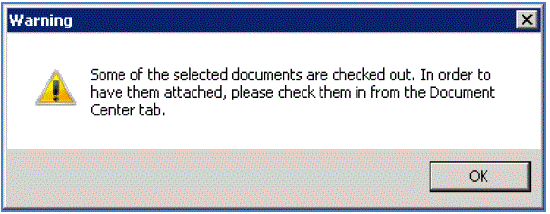
If a PDF document has been checked out this is indicated by a tick in the Check In/Out Status column. If you try to select this document a warning message appears:
Personal_Tax_Online_Filing_Submission-Adding-Documents-to-the-Bundle_3.png

Click OK and deselect the checked out document.
Select all the attachments required by ticking the check boxes in the first column, these appear in the DM attachments grid.Personal_Tax_Online_Filing_Submission-Adding-Documents-to-the-Bundle_4.png

If the document is checked out after being selected this is indicated by a tick in the Check In/Out Status column:

Personal_Tax_Online_Filing_Submission-Adding-Documents-to-the-Bundle_5.png

This does not preclude the checked out document from being included as an attachment in the file submitted to the HMRC.
The functionality for validating the PDF files is the same as that for Additional attachments:

  • The PDF file is a valid PDF file
  • The PDF file is not encrypted
  • The PDF file is not password protected on opening the file
  • The PDF file is not too big on its own to attach for online filing
  • All the attached PDF files are not too big for online filing

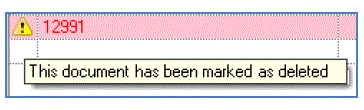
Any documents that fail validation are not attached to the bundle for online filing. If a file is deleted in Document Management but not destroyed after it has been selected then a warning appears however the document remains in the DM attachments grid:

When hovering the mouse over the warning icon a tooltip appears:Personal_Tax_Online_Filing_Submission-Adding-Documents-to-the-Bundle_6.png

Personal_Tax_Online_Filing_Submission-Adding-Documents-to-the-Bundle_7.gif

In addition, if a document is destroyed in CCH Document Management before the bundle is created, then it does not appear in the DM attachments grid after the Online Filing window is re-opened. If it is destroyed after the bundle has been created upon opening the Online Filing window, then the Data has changed message appears:

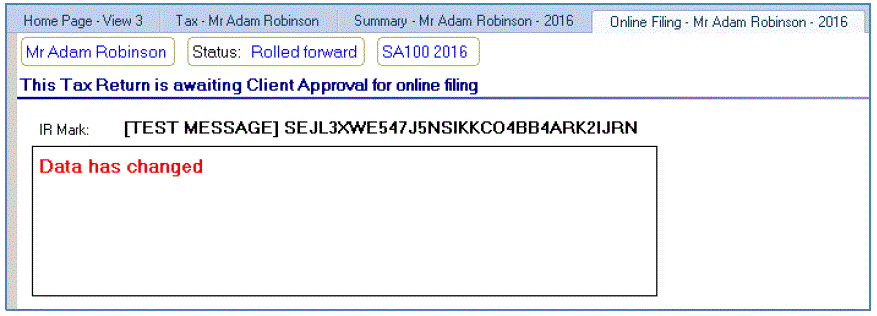
Personal_Tax_Online_Filing_Submission-Adding-Documents-to-the-Bundle_8.gif

Note: Although it is not explicitly stated, the change is due to the attachments.

Related documents

Enter Agent Credentials
The document outlines the procedures for adding online filing credentials for tax returns, prioritizing employee, departmental, and database credentials. Instructions for adding login details for individual employees involve searching for the employee and entering agent credentials in the Online Filing Details tab. Additionally, there are steps for entering organizational login details via the Tax System Parameters menu, specifying user ID, password, and email, followed by selecting the filing organization type. The document emphasizes related topics for further reference.
CCH Personal Tax 2026.210 Service Pack: Release Notes
CCH Personal Tax 2026.2: Release Notes
Release Notes for CCH Personal Tax 2026.2
Generating the Online Filing Submission and IR Mark
The document outlines the process for validating a tax return before submitting it to HMRC. It specifies steps to open the tax return, validate it against HMRC standards, and correct any errors. It also describes how to add attachments, including schedules and the SA302 form, while noting attachment size limitations. Finally, the process to generate the IR mark is detailed, highlighting that it occurs only when no validation errors remain. This includes data saving, error checks, and snapshotting the tax return for database records.
Tax Return Bundle Window
The Tax Return Bundle window facilitates the creation of a comprehensive tax return package, including a Transmittal Letter. This document outlines various sections, such as setting the date of issue, customizing cover letters, selecting which tax return items to include, and adding additional documents. It also covers the bundle creation process and the functionality of locking the window. Overall, it serves as a guide for users to efficiently manage and generate tax return documentation using the specified features of the software.