
Additional Documents
Including the Schedule of Realised Gains
The CGT Schedule of realised gains can only be added to the bundle where CCH CGT and Dividend Scheduling is installed along side Central and Personal Tax. If it is not installed then the Include in pack check box for CGT Schedule of realised gains will be greyed out and disabled:

This will also be the case where CCH CGT and Dividend Scheduling is installed but the Include check box in the CGT Schedule of Realised Gains section of the Contents tab of the Bundle details window for the associated template is not ticked.
Where the Include check box in the CGT Schedule of Realised Gains section of the Contents tab of the Bundle details window for the associated template is ticked then the check box will be enabled:

The system is designed to include the include the Final version of a Schedule of realised gains from a single portfolio in the bundle.
Validations
There are a number of validations in the system. These are visible on the Tax Return Bundle window but will not prevent the bundle being created.
No record available for year
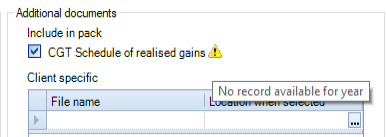
This validation will appear when there is no record for this client in CCH CGT and Dividend Scheduling for any tax year.
Portfolio not available for the tax year
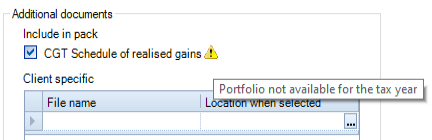
This applies where there is a record in CCH CGT and Dividend Scheduling but not for the current tax year.
Multiple portfolios are held but no consolidated portfolio schedule exists
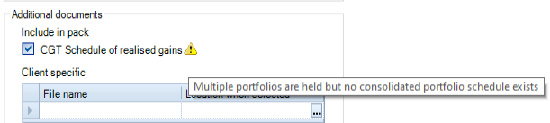
The bundle is designed to be linked to one portfolio. So where there are multiple portfolios a consolidated portfolio needs to be created. If not then the above validation appears. If the consolidated report is not set to Final then the following validation appears.
The status of the schedule is Proof. Update to Final for it to be included
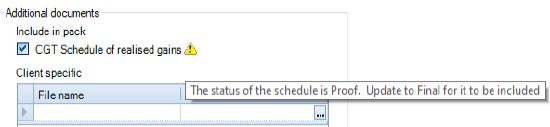
This validation will appear where the report is set to Proof rather than Final.
Unable to obtain schedule as more than 1 CGT record exists
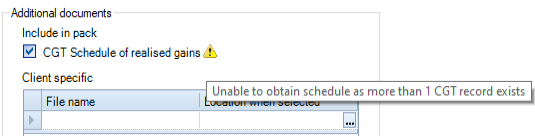
Where, on the Tax Links tab, there is more than one client linked to this client then the above validation appears.
Client Specific - Additional Documents
Note: You can attach client specifc documents to the bundle.
These documents must already be in PDF format.
In addition, any attachments uploaded for Online Filing will be added as client specifc documents at the point the IR mark is generated.
Additional Documents for Online Filing
When you create the IR mark any Additional documents added for Online Filing are added to the Client specific grid in the same order that they were added for Online Filing. These appear before any Client specific documents manually added on this window.
Adding a Client Specific Document
Click on the Location when selected field in the Client specific grid to activate the 
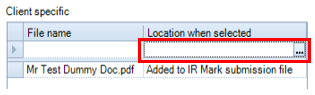
Click on the the
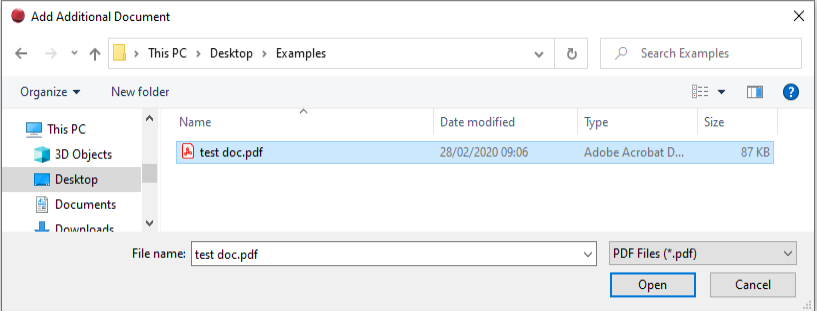
To delete an attachment highlight the row in the grid and press the Delete key on the keyboard. A message will be displayed:
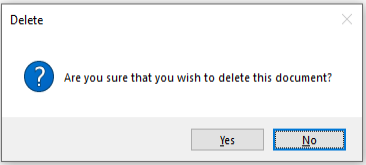
Click Yes on the message to delete.
Predefined Documents - Additional Documents
Note! You can choose which predefined documents are to be included in the bundle for the client.
By default all the predefined documents are displayed in the order they were attached to the Contents tab of the Bundle Details window. They are also pre-selected.
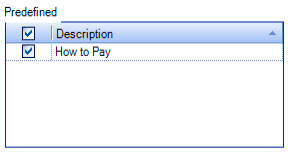
To de-select a document remove the tick from the corresponding check box. The documents will be included in the bundle in the order displayed in this window and will appear after the client specific attached documents.