Allowances
Use the Allowances section to enter personal allowances for the current tax year.
Note: Fields relating to married couples or civil partnership allowances remain locked until you add a marriage partner or civil partnership.
Claim Blind Person's Allowance
-
Open Allowances under the Tax Return Data section.
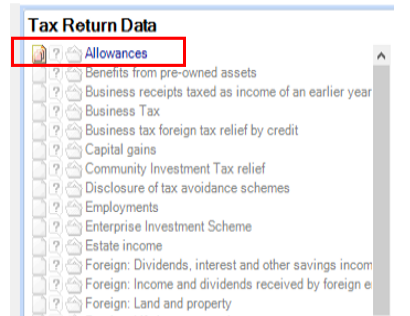
-
Complete the following:
Date of registration - This is the date that the individual was registered as blind.
Local authority (or other register) - Enter the name of organisation that the individual registered as blind with. -
Click Save and Close.
Claim Married Couple or Civil Partnership Allowance
Overview: The Married Couple's Allowance (MCA) is available to married couples or persons in a civil partnership where either were born before the 6th April 1935. However, it is not available in circumstances where either the married couple or civil partners have been separated for the whole tax year.
Claim Married Couple's Allowance
- Open Allowances under the Tax Return Data section.
- Select the check box Is the partner with higher income and claiming MCA, if the partner with the higher income is claiming married couples allowance.
- Select the applicable option in Married Couples Allowance allocated to you.
- Click Save and Close.
Transfer of Surplus Allowances
Overview: The unused portion of the blind person's allowance can be transferred to a married or civil partner even if they are not blind.
To Transfer Surplus Allowances
- Open Allowances under the Tax Return Data section.
- In the Transfer of surplus allowances section, select one of the following:
none
to this client - When you select this option you must enter the amount transferred.
to spouse/Civil Partner. - Click Save and Close.
Marriage Allowance
From 2016 the Marriage Allowance section is used to make or advise when the part transfer of Personal Allowance to / from the spouse/civil partner is made.
Transferring allowance to the spouse/civil partner
Claims to transfer Personal Allowance to the spouse/civil partner are made either:
- Online using the HMRC personal tax account
- In the Self-Assessment Tax Return.
While both methods update the annual tax calculation, if the claim is made online no further details are required in the Tax Return.
To make a claim in CCH Personal Tax, both the client and spouse/civil partner must have the following details:
- Date of birth
- Date of marriage
- National Insurance Number
- Spouse/civil partner's first and last name
To transfer the Personal Allowance in the Self Assessment Tax Return, tick the Claim transfer of Personal Allowance to spouse/civil partner on SA100 box:
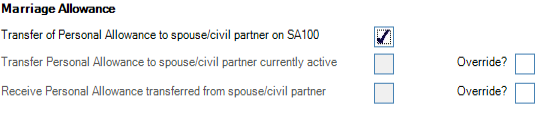
Claims made using the personal tax account
When the transfer of Personal Allowance has been made direct with HMRC using the personal tax account, CCH Personal Tax will automatically update these options as required.
Note: the automatic update is not currently available. HMRC aim to provide these details as part of the Making Tax Digital programme, but have not yet enabled this functionality. In the meantime to record an active online claim, first tick the Override? option, then select either:
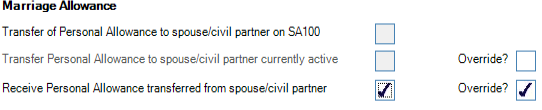
- Claim to transfer Personal Allowance to spouse/civil partner currently active box, to indicate when the current client has transferred part of their personal allowance out to their spouse/civil partner:

Or select:
- Receive Personal Allowance transferred from spouse/civil partner box, to indicate when the current client is receiving personal allowance transferred from their spouse/civil partner: