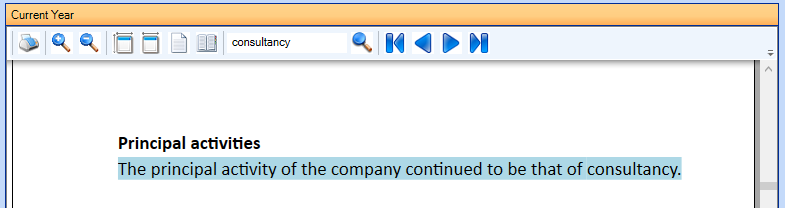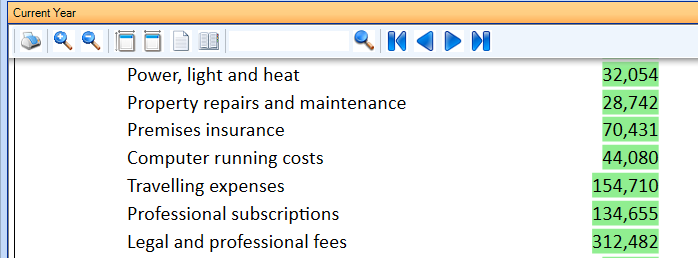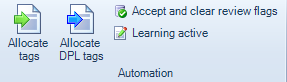
Automation within CCH iXBRL Review & Tag

Ribbon under automation - Automation functions.PNG

Each option is explained below:

Allocate tags

Ribbon under automation - Allocate tags 1.PNG Allocate tags : carries out an auto tagging process, after which the document will close and reopen. The system will look at the paragraph tagging dictionary and suggest tags thatcan be applied to this set of accounts.

   When the Allocate tags is used the system will generate flags for review before the final step of Accept and clear review flags.

   The review flags are:

  •   Review flag green.pngGreen circle – 1 tagging suggestion has been found
  •  Review flag red.png Red circle – Multiple tagging suggestions have been found, click on the red circle to set a tag, select which to apply

 If you are converting a Word or Excel document into iXBRL, using the Allocate tags allows you to review any tag which is listed within Paragraph dictionary. This can save time when applying tags.

1. Once the Accounts in Word or Excel are loaded, click on Allocate tags

2. The System will return the review flag to any information that matches what is in the dictionary. Hoover over the review flag to check its description as below

Ribbon under automation - Allocate tags.png

3. To accept and clear the review flags click Accept and clear review flags.

Allocate DPL (detailed profit and loss)

Ribbon under automation - Allocate DPL tags.PNG Allocate DPL (detailed profit and loss) carries out an auto tagging process for the DPL, click here to check the steps to tag the DPL on the Accounts.

Similarly to what was explained above, after clicking on Allocate DPL tags the system will generate flags for review before the final step of Accept and clear review flags.

   The review flags are:

  •   Review flag green.pngGreen circle – 1 tagging suggestion has been found
  •  Review flag red.png Red circle – Multiple tagging suggestions have been found, click on the red circle to set a tag, select which to apply

Once the Allocate DPL runs the routine, it returns the following; to check the options suggested for the red flag, click on it and the choose the appropriate tag.

Make sure the left box 'Apply tag select for the comparative period'.
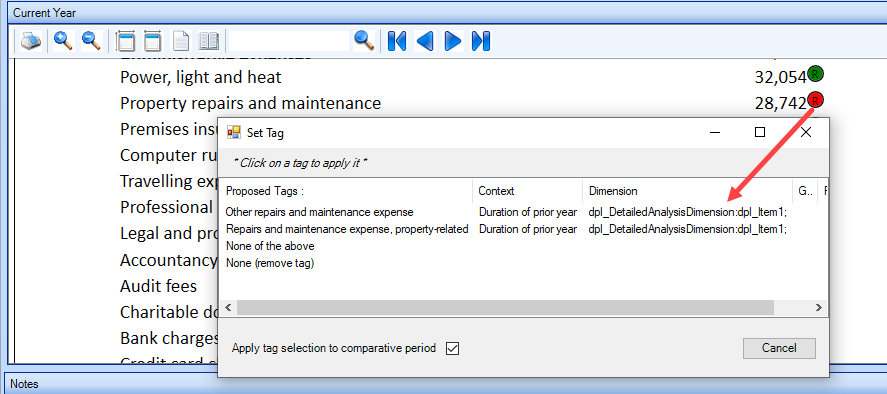
Ribbon under automation - Allocate DPL tags -review flag.PNG

Accept and clear review flags

Ribbon under automation - Accept and clear review flags.PNG  After review all the tags then click  Accept and clear review flag; the information will be highlighted as usual as below.

Ribbon under automation - Accept and clear review flags after accepted.PNG

Ribbon under automation - Accept and clear review flags after accepted 2.PNG

Related documents

CCH iXBRL Review & Tag: Training for Accounts conversion from MS Word and Excel (10133768)
This document outlines a training course for converting statutory accounts from Word and Excel into iXBRL format using CCH iXBRL Review & Tag. The course, lasting up to 3 hours, targets users needing to tag accounts for submission to HMRC and Companies House. Key objectives include understanding iXBRL requirements, importing documents, applying tags, and the submission process. Prerequisites include familiarity with accounts and having credentials for HMRC and Companies House. Additional resources such as eLearning courses and webinars are also provided for further learning.
CCH Accounts Production/iXBRL essentials training online (10133804)/(10133819)
This document outlines a course on using CCH Accounts Production software, aimed at helping new users efficiently produce statutory accounts. The course includes 1 x 2 hour session and 1 x 3 hour session focusing on practical skills such as setting up accounting periods, importing trial balances, and navigating the software. It is designed for all employees involved in preparing statutory accounts. Training is conducted in an interactive environment called CloudShare, with additional resources available online for further learning and support.
CCH iXBRL Review and Tag 2026.1
The latest release of CCH iXBRL Review and Tag
View
The document outlines the features of a software interface with two main tabs: "CCH iXBRL Review and Tag" and "Companies House Submission." The first tab provides product version details and access to review and tagging settings, which are further explained in a linked system administrator guide. The second tab includes functionalities related to the Companies House licensed module, with an option to update the license if it has expired. Visual elements include images depicting the interface for clarity.
Introduction: Tagging Detailed Profit and Loss
The document outlines the process for tagging the Detailed Profit and Loss (DPL) statement for HMRC compliance, indicating that it must be submitted with either Accounts or tax computations, but not both. It specifies that CCH provides two options for tagging the DPL: via the CCH Corporation Tax return or using CCH iXBRL Review & Tag. Additionally, a link is provided for further instructions on tagging the DPL through the Corporation Tax method.