
Companies House: how to generate and submit the XML file
Generate the file from Accounts Production
1. Access the client's Accounts Production screen.
2. From the left, under the Task Bar, click on Financial Statements.
3. If the company is Small then choose, via the Print selection, the Small Company Reduced Filing option, otherwise if Full Accounts will be submitted to Companies House choose Financial Statements for Members.
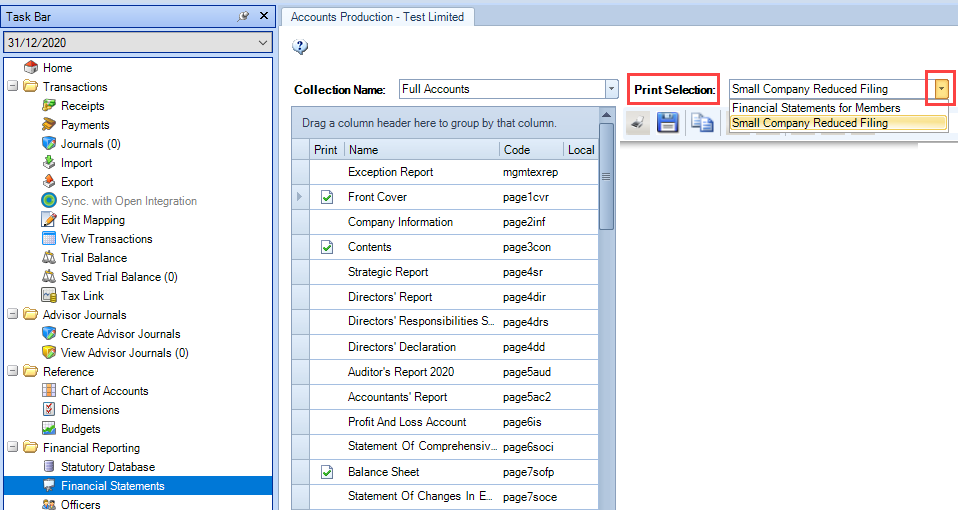
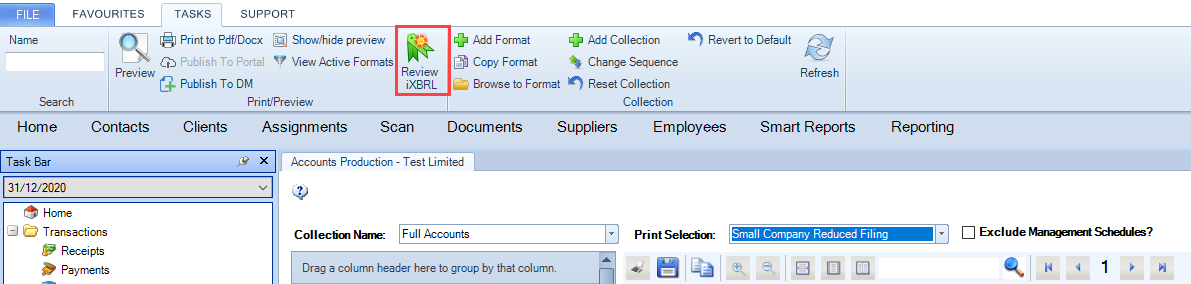
4. To launch the CCH iXBRL Review & Tag from the ribbon bar click on Review iXBRL
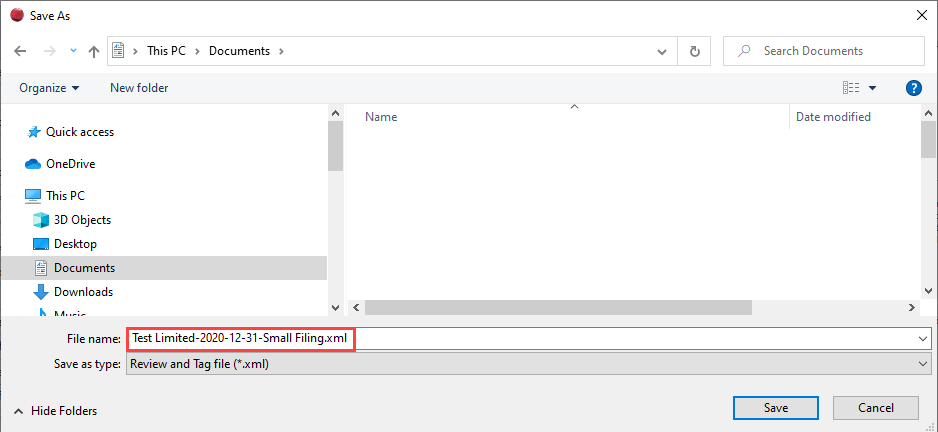
5. After the XML file is generated, save it on the recommended location or save in another location (i.e.depends on your internal process). The name of the file is auto-generated.
- If it is a small company then the file name will contain: the name of the company, the year end and the words 'Small Filing'. This helps you to identify the type of Accounts.
6. The Review & Tag panel opens, having the XML's name on the description of the tab, which assures which type of Accounts you are working on.
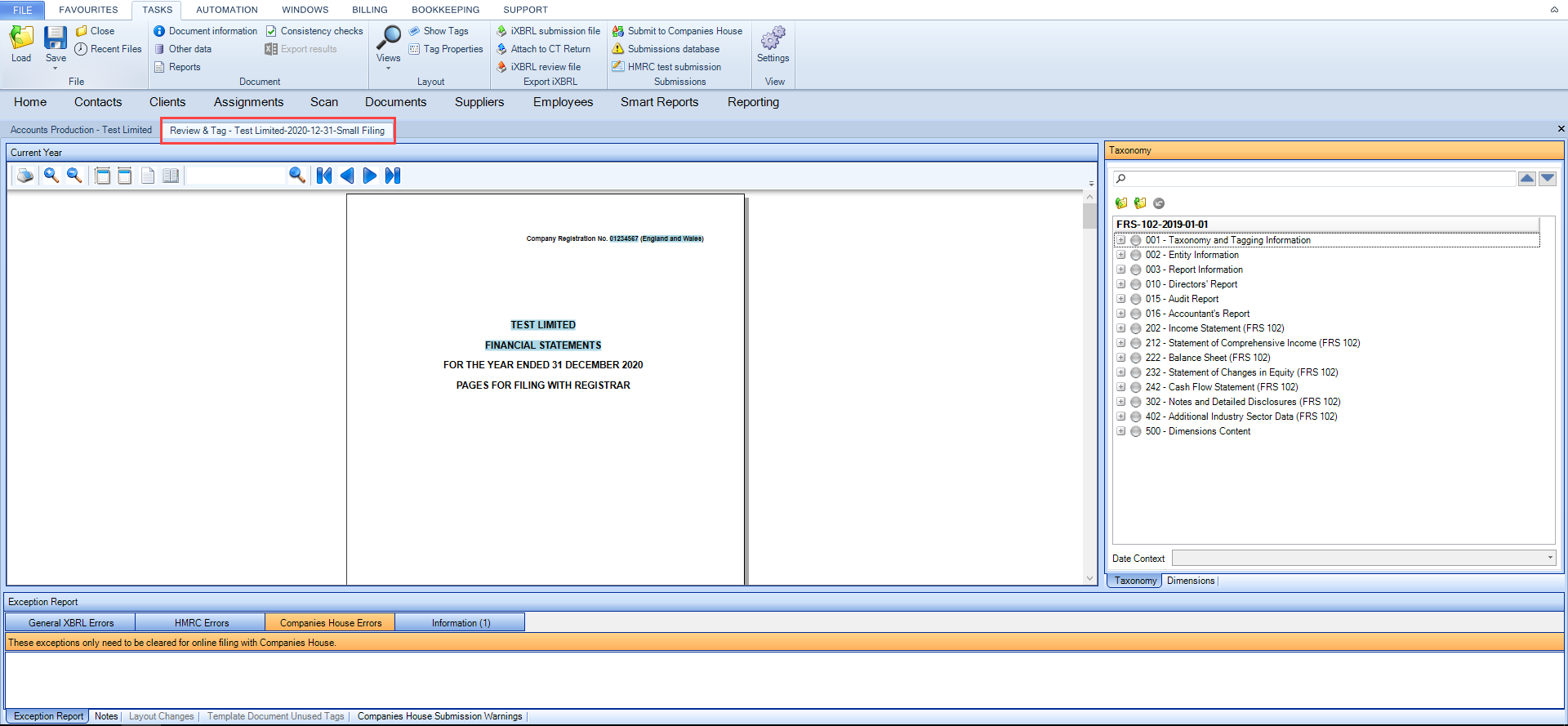
The XML file description contains the name of the company, the accounting period end and the type of the Accounts: it contains the word 'Members' for Financial Statements for Members and the words 'Small Filing' for Small Company Reduced Filing Accounts.
If Financial Statements for Members are been submitted to Companies House, the system will remove the detailed profit and loss, the message below appears:

If you regenerate the file, the system will create a new file, adding the version number in brackets at the end of file name, for example: 'Test Limited-2020-12-31-Small Filing(1).XML' therefore it is recommended you have just one version of the file saved on your network to avoid confusion.
Submitting the Accounts to Companies House
If you are submitting the Accounts straight after the file is generated:
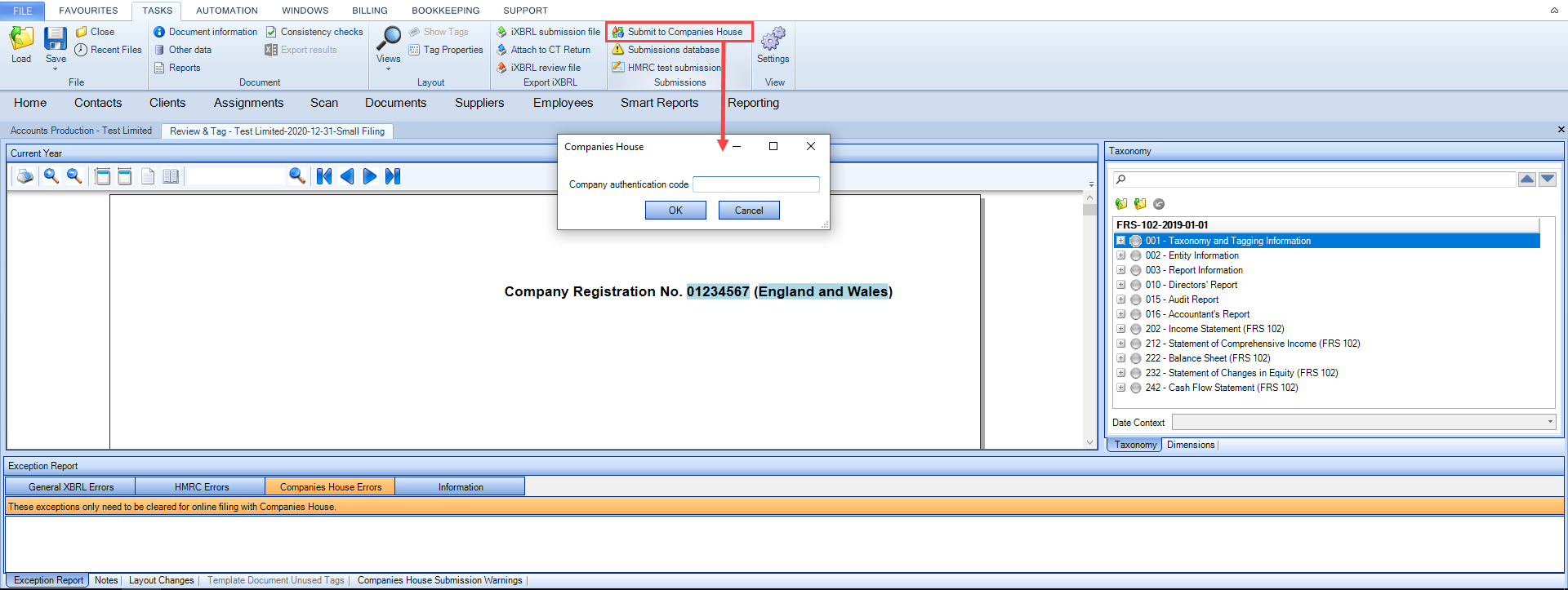
1. Make sure that the errors under Exception Report tabs General iXBRL Errors and Companies House Errors are cleared.
2. Submit the Accounts to Companies House by clicking the icon Submit to Companies House which is at the ribbon as below.
- If you are submitting the Accounts to Companies House in CCH for the first time, the system will ask for the Authentication code.
- For the subsequent years the authentication code should be saved within Document Information and the system should not request it.
If you are submitting Accounts after the file was generated and saved in the network.
1. Open the Review and Tag window by clicking on File / Accounts / iXBRL Review Tag as below.
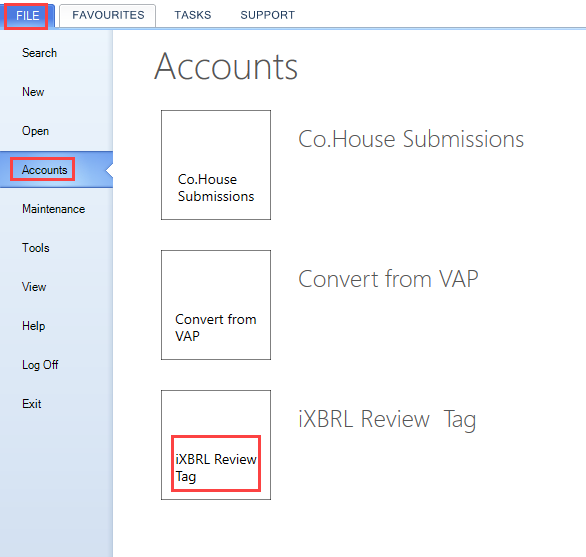
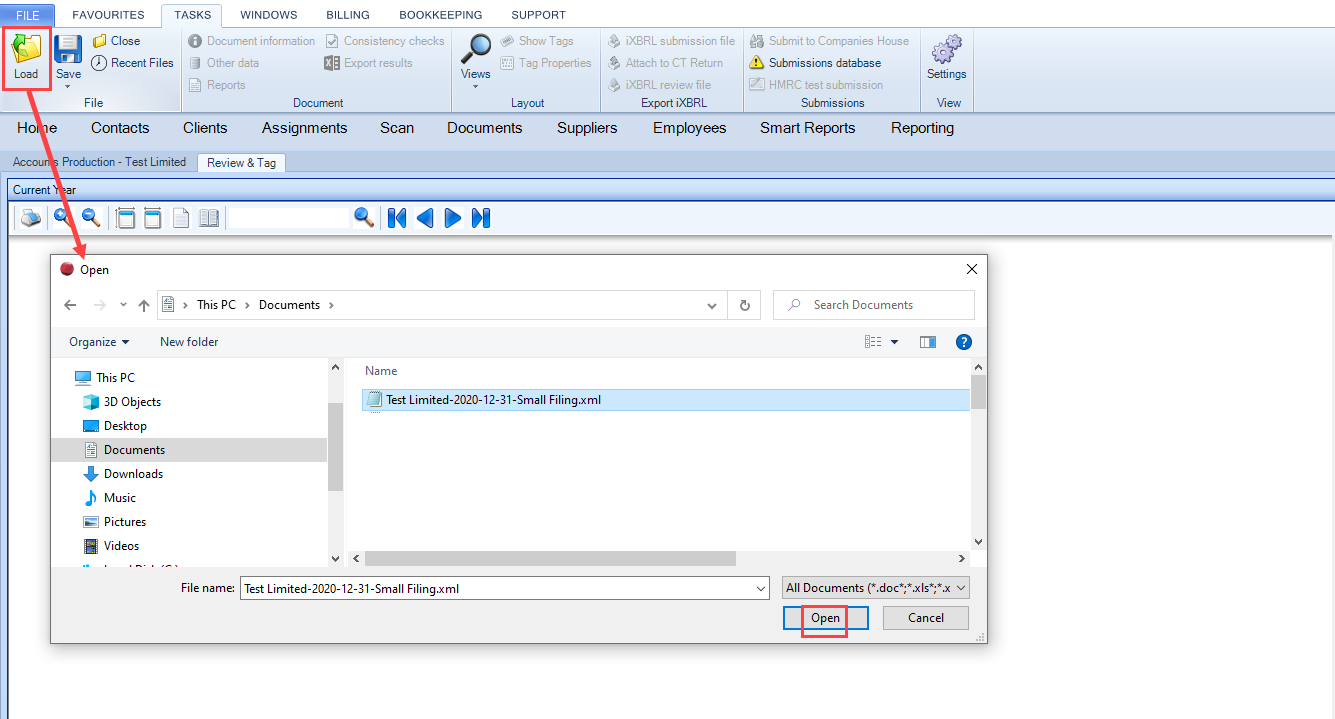
2. The window will open on the CCH Central main screen as below.
- Click on the icon Load on the ribbon bar to open the XML file saved on your network.
3. Make sure that the errors under Exception Report tabs General iXBRL Errors and Companies House Errors are cleared.
4. Submit the Accounts to Companies House by clicking the icon Submit to Companies House which is at the ribbon as below.
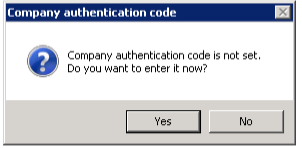
- If you are submitting the Accounts to Companies House in CCH for the first time, the system will ask for the Authentication code.
- For the subsequent years the authentication code should be saved within Document Information and the system should not request it.
When submitting accounts to Companies House for subsequent years for a client, the Company Authentication Code may not automatically be populated within the Document Information Screen. The warning message will be displayed as below :
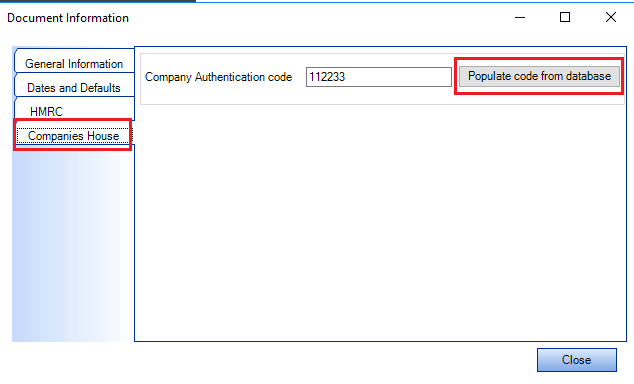
In these circumstances, please open the Document Information screen and click on the Companies House tab.
a. If the prior year’s accounts have been filed for this client then select “Populate code from database”
Please note: the submission to Companies House is a separate module from CCH Accounts Production and therefore requires a separate licence, please contact your Accounts Manager for more information.