Create the Bundle
Creating the Bundle

To create the bundle, including all the documents specified on the Tax Return Bundle window (including the letter if applicable), click on the Create bundle ... button in the menu bar. If there are any un-saved changes on the window then a message box is displayed:
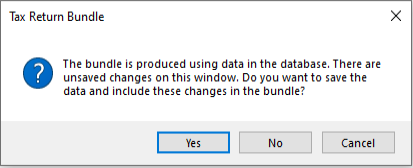
Selecting Yes saves the changes, closes the message box and if there are no further validations produces the bundle. Selecting No closes the message box without saving the changes into the database and if there are no further validations produces the bundle. Selecting Cancel closes the message box and returns you to the Tax Return Bundle window.
If the Save file on creation check box is ticked then the system validates that the folder specified in the Location field is valid. If not a message box is displayed to the user:
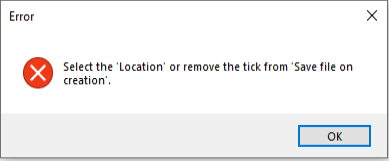
If this occurs click on the OK button to close the message box and select a valid Location. Next, the system will check that a bundle for this client is not already open in the PDF reader. If so, a message box is displayed to the user:
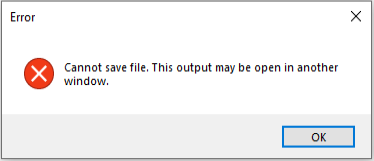
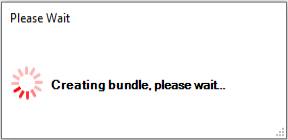
If this occurs click on the OK button to close the message box, go to the PDF reader and close the bundle. Then click on the Create PDF ... button to generate a new bundle. Whilst the bundle is being created a status indicator is displayed:
If the Save file on creation check box is ticked then the system will save a copy of that bundle to the folder specified in the Location field. The file name of the bundle will be:
Title FirstName LastName TaxYear UK Tax Return.pdf
e.g. Mr James McAvoy 2013 UK Tax Return.pdf.
When the Output to Word option is selected, a Word document is saved in the same location using the file extension .docx
e.g. Mr James McAvoy 2013 UK Tax Return.docx
Where the return is an amended Tax Return then the name of the bundle will be:
Title FirstName LastName TaxYear UK Tax Return - Amendement[n].pdf
e.g. Mr James McAvoy 2013 UK Tax Return - Amendment[1].pdf
One reason for the difference in naming convention is to distinguish the bundle from the other documents produced by Personal Tax.
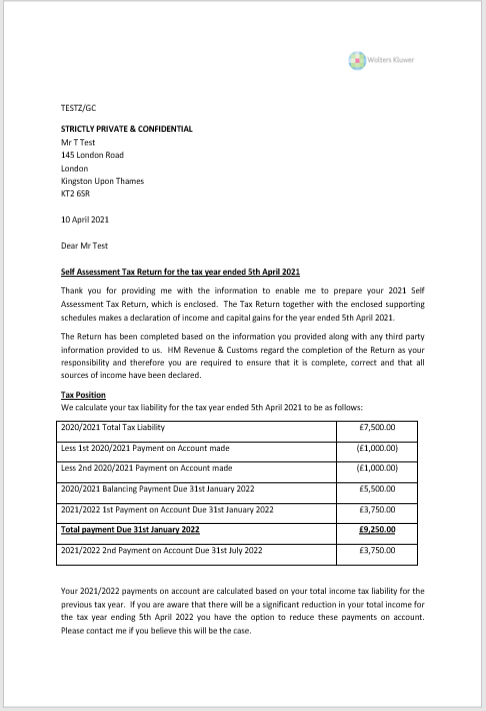
The contents of the bundle will be those specified on the Tax Return Bundle window, including the letter if applicable.
If a mail merge letter is included as part of the bundle then the mail merge fields in that letter will be populated and the resulting document converted to a PDF document before being included in the bundle.
The order of the documents in the bundle will be based on the Order set on the Contents tab of the Bundle details window for the associated template. If no Order is set for a particular document type on the associated template then those documents will be included in the bundle after any documents where the Order was specified and in the following order:
- Tax Return
- Backing Schedules
- Tax Computation
- Client specific documents
Client specific documents are treated as being part of the Predefined documents and are included in the bundle immediately before the Predefined documents.
Cover Letter
Currently there are three new mail merge fields that relate specifically to the Tax Return Bundle (Compliance Pack Generator):
- CPGIssueDate
- CPGLetterParagraphs
- CPGLetterParagraphs1
Where the bundle includes a letter and the template includes the merge field CPGIssueDate then this will be replaced with the value of the Date of issue field on the Tax Return Bundle window.
Where the bundle includes a letter and the template includes the merge fields CPGLetterParagraphs and CPGLetterParagraphs1 then the mail merge field CPGLetterParagraphs will be replaced with the text of the paragraphs, from the Letter Paragraphs window, to go into the letter and the mail merge field CPGLetterParagraphs1 will be replaced by the paragraphs to go into the Appendix. Where these paragraphs include data items these will be evaluated and replaced by their corresponding values: