
Data Parameters
Various features in Trust Accounts are optional. To set up many of these, from the Activities menu select System Management, and then Database Parameters.
Database Parameters
Various features in Trust Accounts are optional. To set up many of these, from the Activities menu select System Management, and then Database Parameters. Features that can be set up here include:
- Whether the Exshare service is in use.
- The Pricing Range in Days, stating how far to look back for security prices.
- Whether the certificate movement should be requested in Data Entry if the Certificate Register is in use.
- Whether the system should automatically calculate the tax credit on dividend and interest entries.
You should review the settings in the Database Parameters screen after each new release of Trust Accounts, to see if any more useful settings are available.
Data Feed Tab
Clicking on the Data Feed tab allows the set up of a data feed if one has been separately subscribed to.

Note: This is a cost paid directly to the provider of the data feed i.e. ICE (Exshare data feed) or Telekurs and is not part of the licensing of CCH Trust Accounts.
The Exshare data feed option when ticked allows further Data Feed Parameters to be set.

Please consult the relevant Data Feed installation instructions for an explanation as to how to complete the above screen.
Security Code Type. Securities can be accessed by SEDOL code, ISIN code or a user-defined code. The current setting for the Security Code Type can be seen in Database Parameters on the Data Feed tab.
On a new database it is set to ISINs.
To change the Security Code Type proceed as follows:
- Exit Trust Accounts and run QTRUMP32.EXE, which is located in the CCH Trust Accounts programs folder. This is a single-user version of Trust Accounts.
- Select Tools > Securities Parameters.
- Select one of:
- Set security codes to user-defined (no conversion)
- Set security codes to ISINs (no conversion)
- Set security codes to SEDOLs (no conversion)
Options Tab
There are some optional features in CCH Trust Accounts. These can be set up accessed from the Activities menu. Select System Management, and then Database Parameters.

Features that can be set up here include:
The default year ended 5th April. The year is assumed to end on 5th April (the UK tax year end). This setting is used to provide default dates for tax reports and for reports that include multiple clients. The dates can always be overridden when the report is run.
Note:
From CCH Trust Accounts 2020.1 a warning is given on login if the Default Year End date is more than 365 days in the past.
For instance, if the Default Year End is 2019, then you are not reminded to change it until 06/04/2020.
System default currency. Press F2 to select from a picklist. For UK users this should be GBP, for Irish users EUR. This setting is used as the default currency in several circumstances. It must not be left blank.
Pricing Range in Days. This determines how far back the system looks for a security price or an exchange rate. If prices are received monthly then 30 days is a reasonable setting.
Other options can be enabled as in the screenshot above by ticking the appropriate row in the table.
Other Tab
The final Database parameters screen on the tab marked Other, allows the definition of the link to CCH Central and the location of the directory for non-SQL files to be set.

Clicking on the Central button allows the SQL parameters to connect to the CCH Central database to be defined.
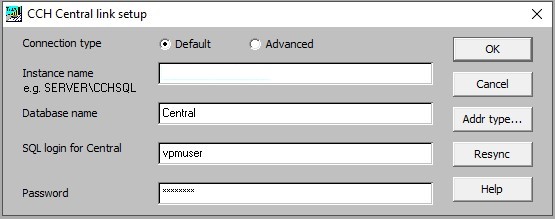
The address type indicates which of the client’s addresses set up in CCH Central will be shown in CCH Trust Accounts when linking a client from CCH Central to CCH Trust Accounts.

The connection can be confirmed by setting up a user (see below Setting up Users _ CCH Trust Accounts) and ensuring that the CCH Central User link can be successfully created.