Employee Activation
Activating an employee
In order for an employee to send messages or documents to a client they need to be activated for CCH OneClick. Before activating an employee for CCH OneClick there are 3 checks to make in the employee record:
-
In the Personal tab of the employee record, ensure there is a salutation populated. Most message templates use the salutation merge field, which is taken from this field of the employee record.
-
In the Personal tab of the employee record, ensure there is an up-to-date work email address. Every CCH OneClick user has an email address registered to their OneClick account, and you cannot activate an employee without a valid email address.
-
In the Security Groups tab of the employee record, give the employee 'OneClick User' or 'OneClick Admin' rights. If an employee does not have CCH OneClick security rights, they will not be able to use the features of CCH OneClick.
Note: If the employee is a Super User there is no need to add CCH OneClick permissions.
Once the above steps are completed you are ready to activate the employee for OneClick.
Consider completing the 2 additional steps below, although this is not mandatory:
-
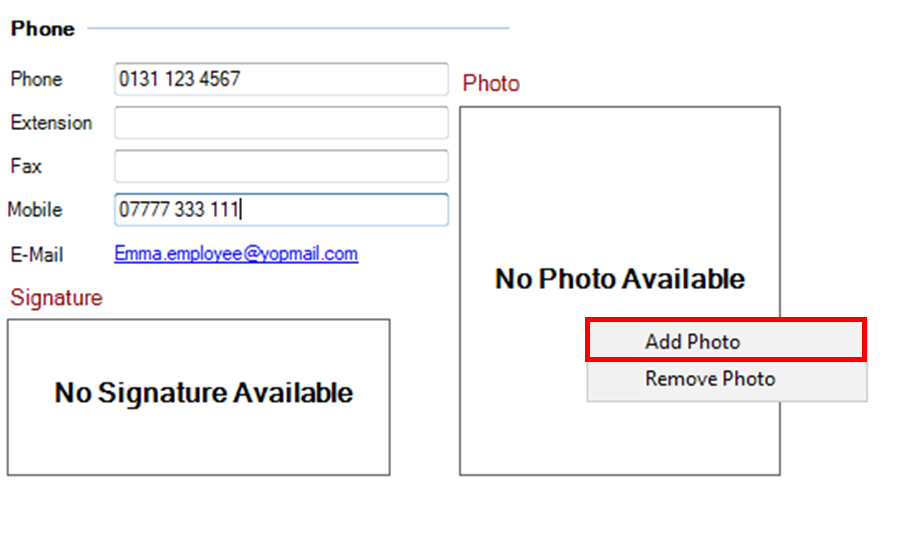
In the Personal tab of the employee record, add a photo of the employee by right clicking in the photo section (shown below) and selecting Add Photo.
A photo of the employee will be show in the client workspace which can make for a more personal relationship with your clients.
-
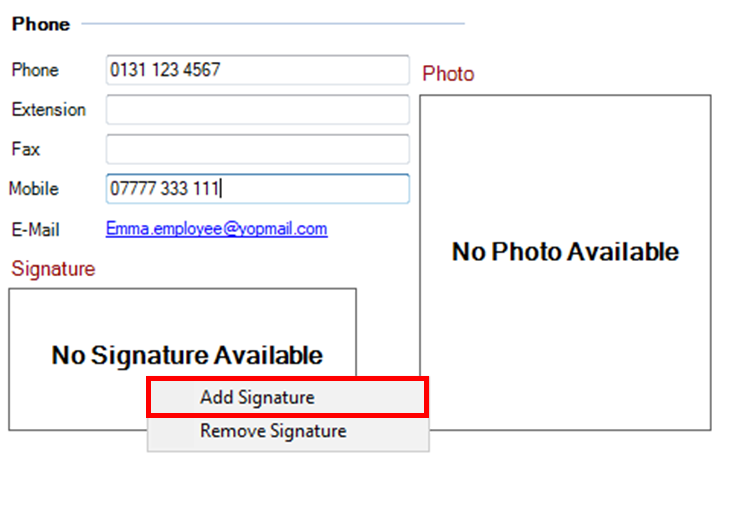
In the Personal tab of the employee record, add a signature of the employee by right clicking in the signature section (shown below) and selecting Add Signature.
Once the signature is on the employee record this can be used in message templates by that user.
Once the above steps are completed you are ready to activate the employee for OneClick. Select OK to close the employee record and save the changes you have made.
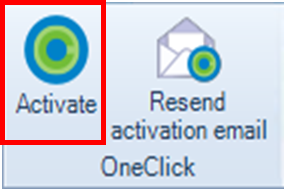
Open your Find Employee screen to Activate your employee(s). Tick the box next the employee you wish to activate for OneClick and select Activate on the ribbon bar (shown below). You can activate multiple employees to together if you have done the above checks on each employee record.
After selecting activate a green scroll bar will show the activation is in progress.

And a new tab will appear to confirm each employee was successfully activated.
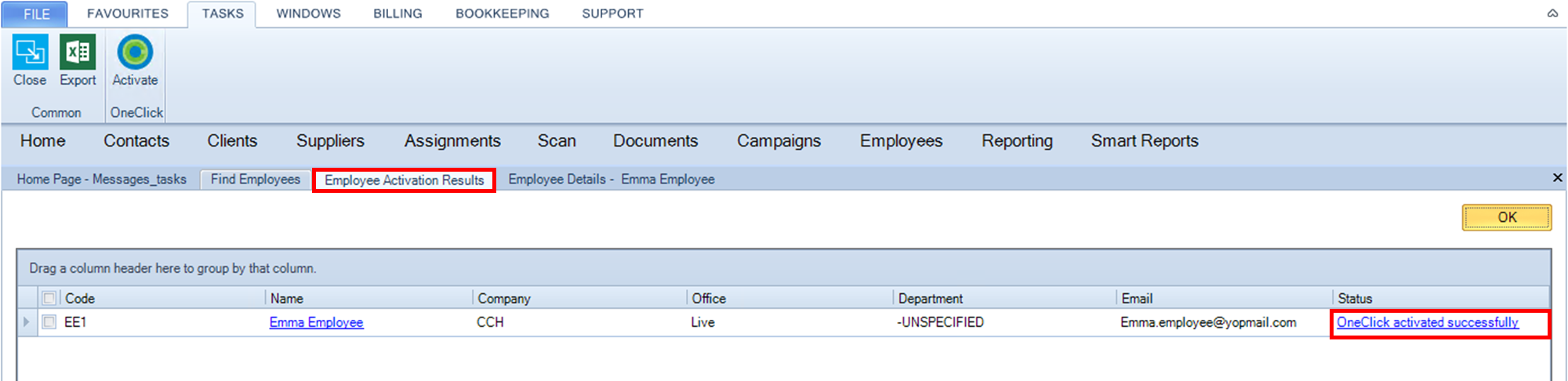
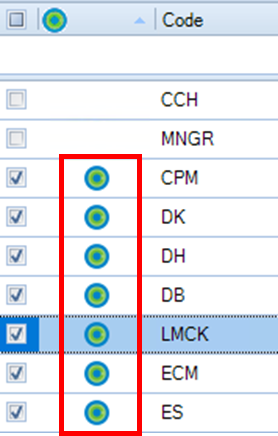
If any were unsuccessful there will be a message to explain why the activation failed. You can confirm the activation was successful by refreshing your Find Employees screen and all activated employees will show a green target (shown below).
Deactivating an employee
When an employee leaves the Practice, it is important to complete two steps to disable their OneClick and Central access:
-
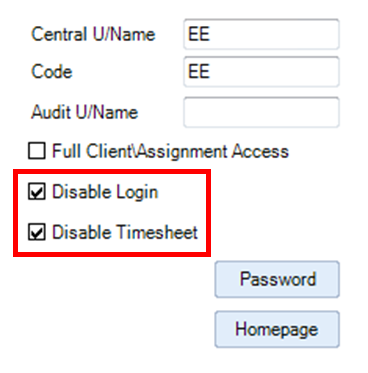
In the Personal tab of the employee record, tick the two boxes on the right-hand side to disable the login and timesheet.
-
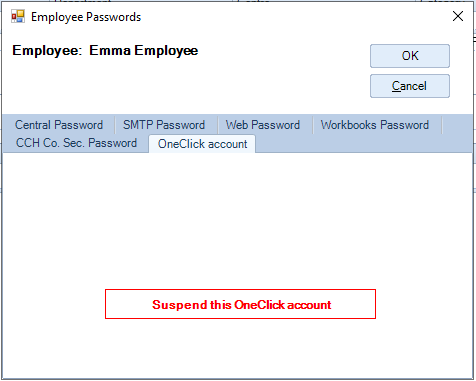
In the Personal tab of the employee record, select the Password button (shown above), select the OneClick account tab, and click on Suspend this OneClick account button.
The following screen displays:
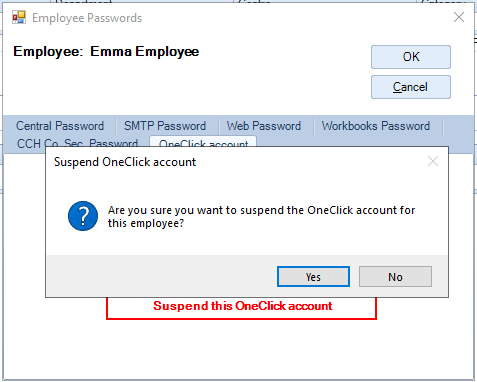
If you click Yes and you try to deactivate an employee who is listed as the client team, the following screen will be displayed:
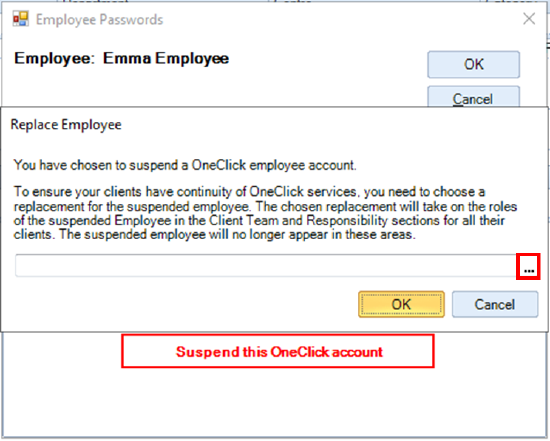
Click on the ellipsis to find a replacement for the the suspended employee. This replacement will apply for all the clients the ex-employee was part of the Client Team for.
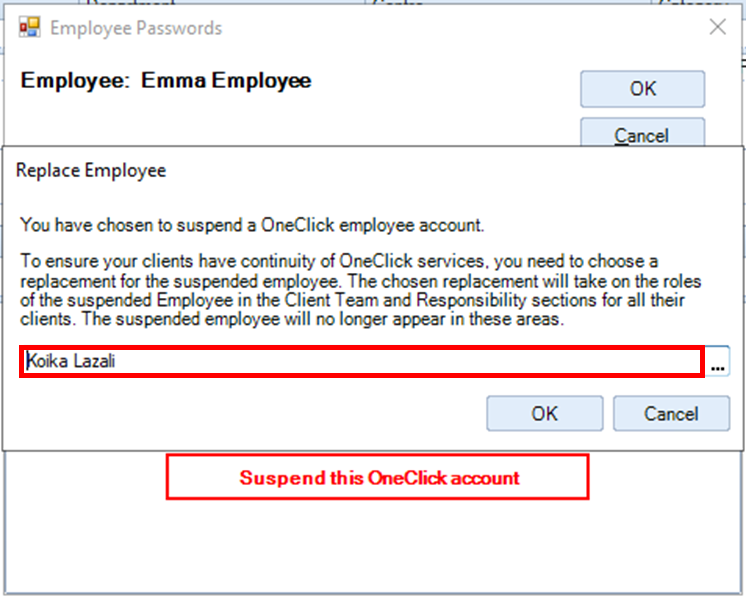
Once the replacement is found click on OK.
Managing a Client team
Caution! Only employees with permissions to update Responsibilities can do this.
Once you have activated your OneClick employees, they need to be added to the Client Team of their clients.
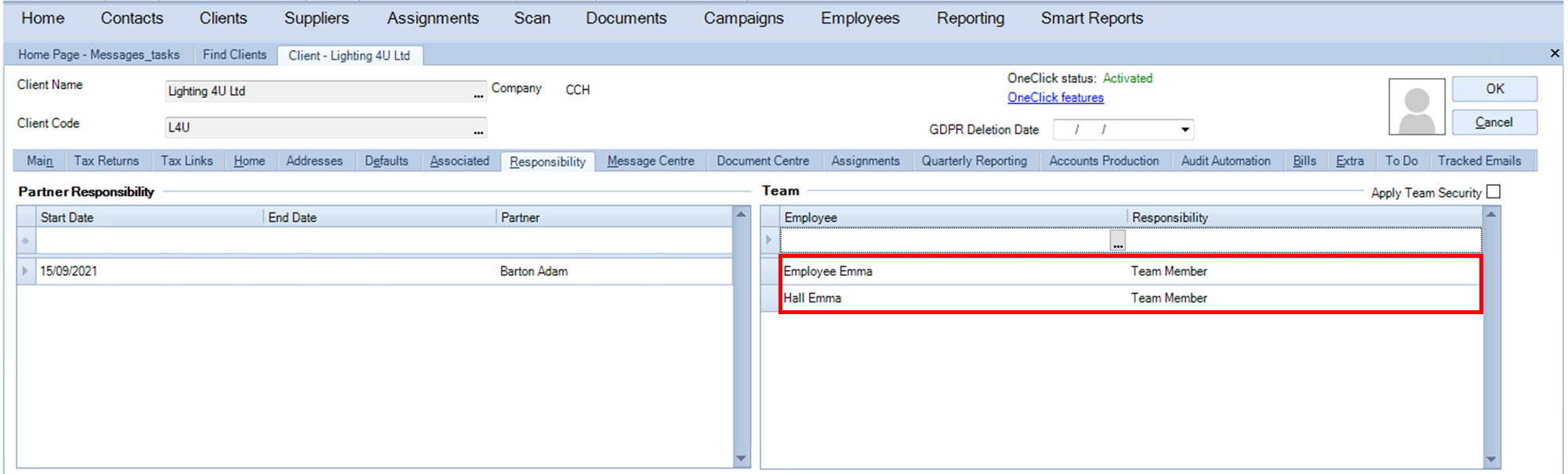
Let's take an example of a client who is activated on OneClick, the company 'Lighting 4U Ltd' and we would like to add two employees 'Emma Employee' and 'Emma Hall' as part of its client team.
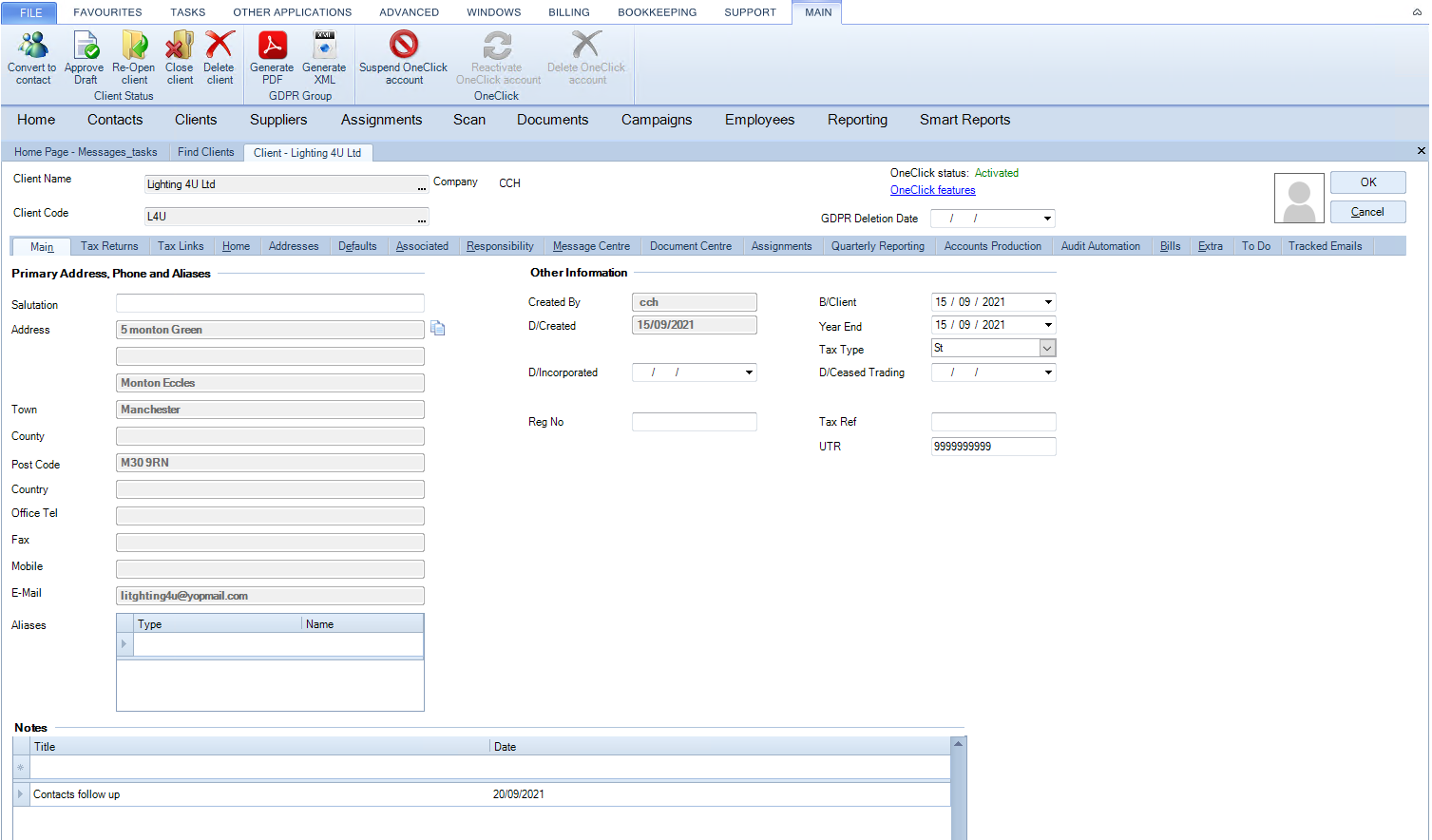
Double click on the client name to open the Client record.
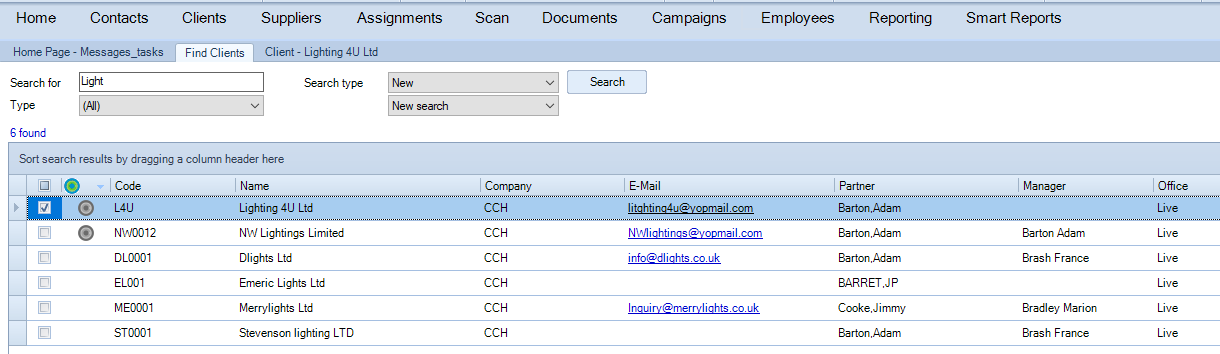
The client record opens on the Main sub tab:
Click on the Responsibility sub tab to view the Client Team.
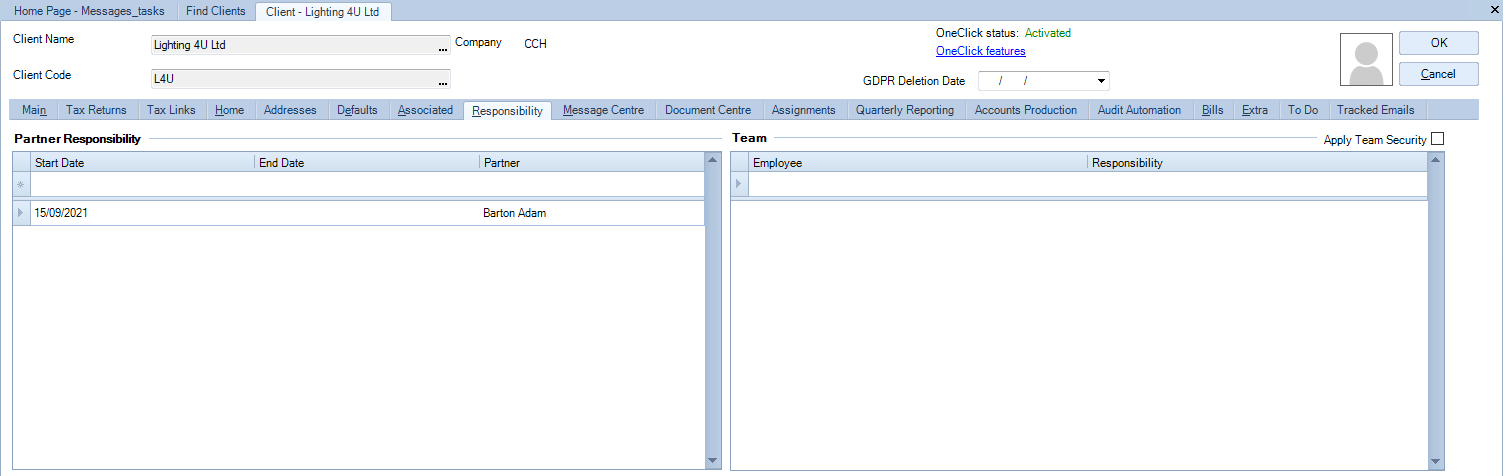
Click on the right side of the screen under the Employee field.
The ellipsis is now displayed:
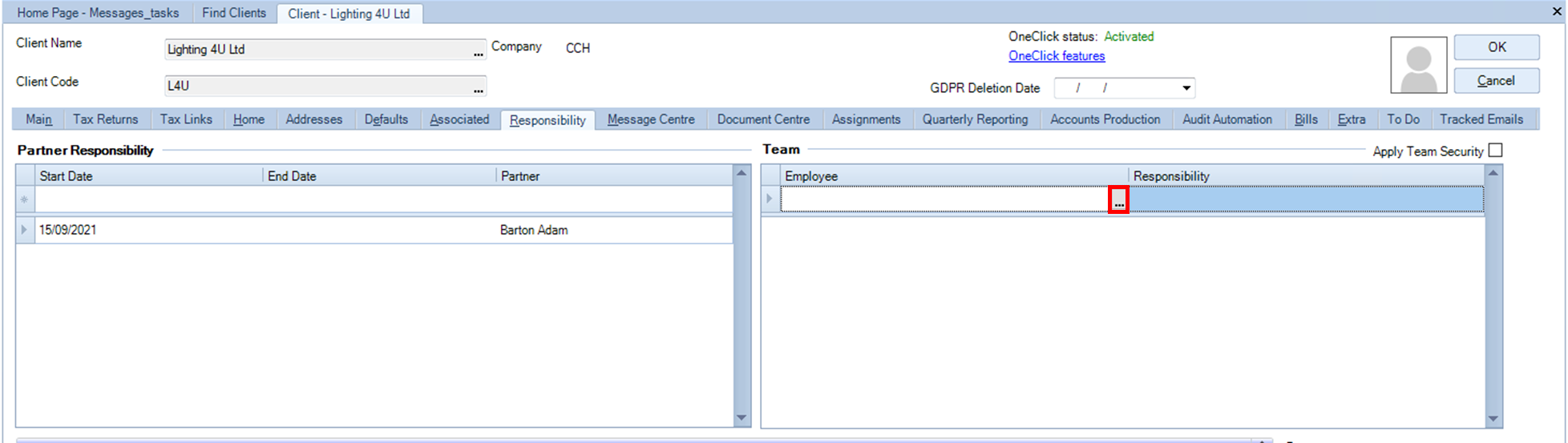
Click on the ellipsis to get the Find screen:
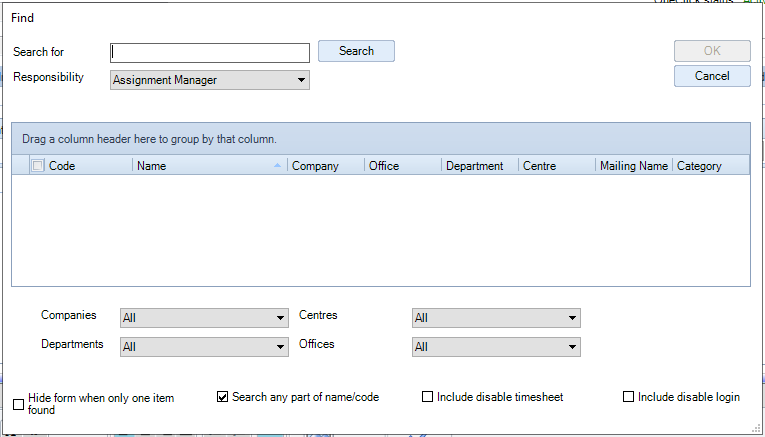
Type the name Emma in the Search for field and click Search
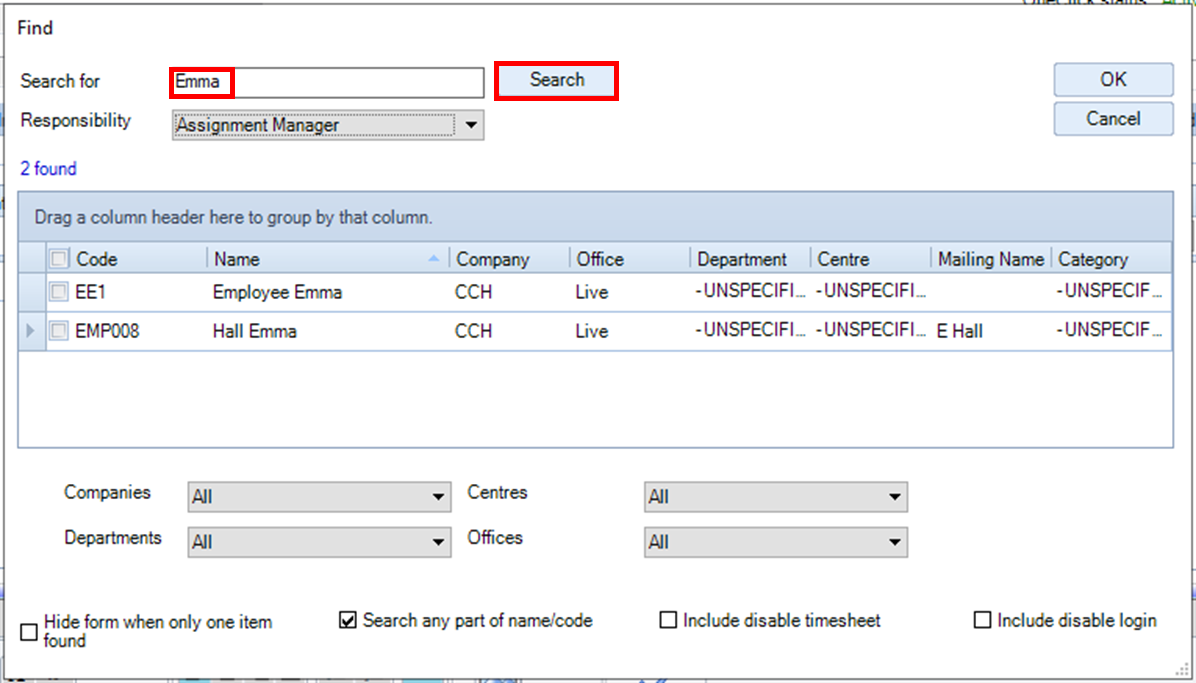
Change the Responsibility to Team Member and tick the boxes to select both employees:
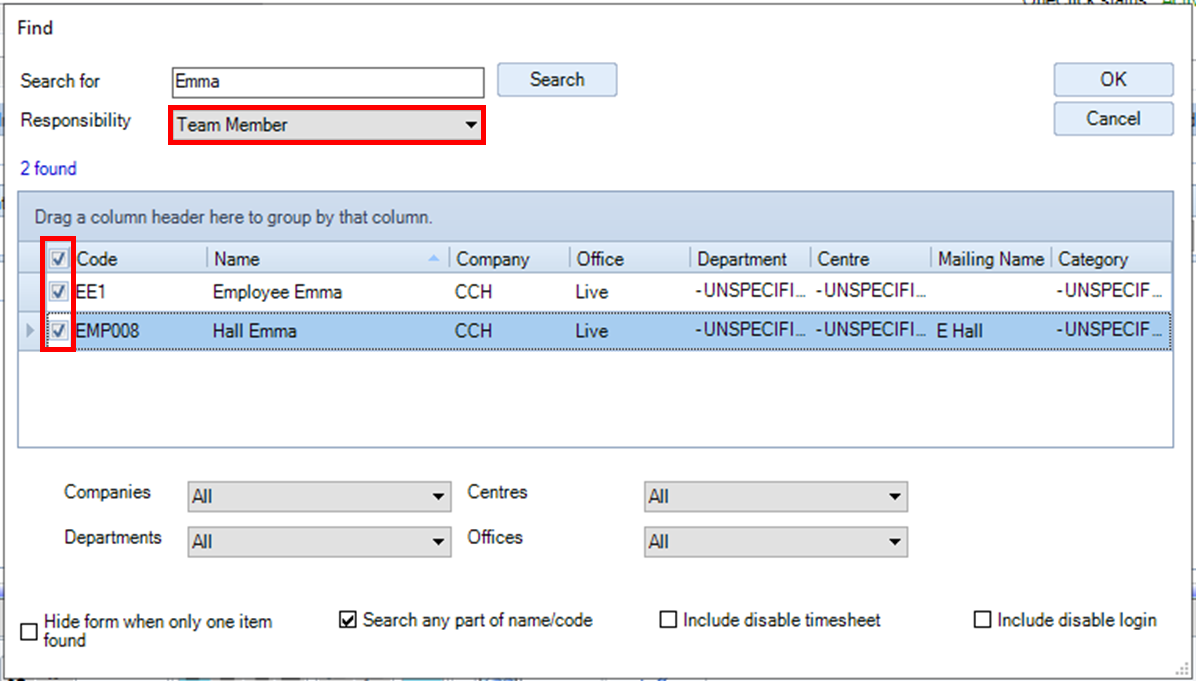
And click on OK.
A progress bar 'Updating client team...' is displayed:
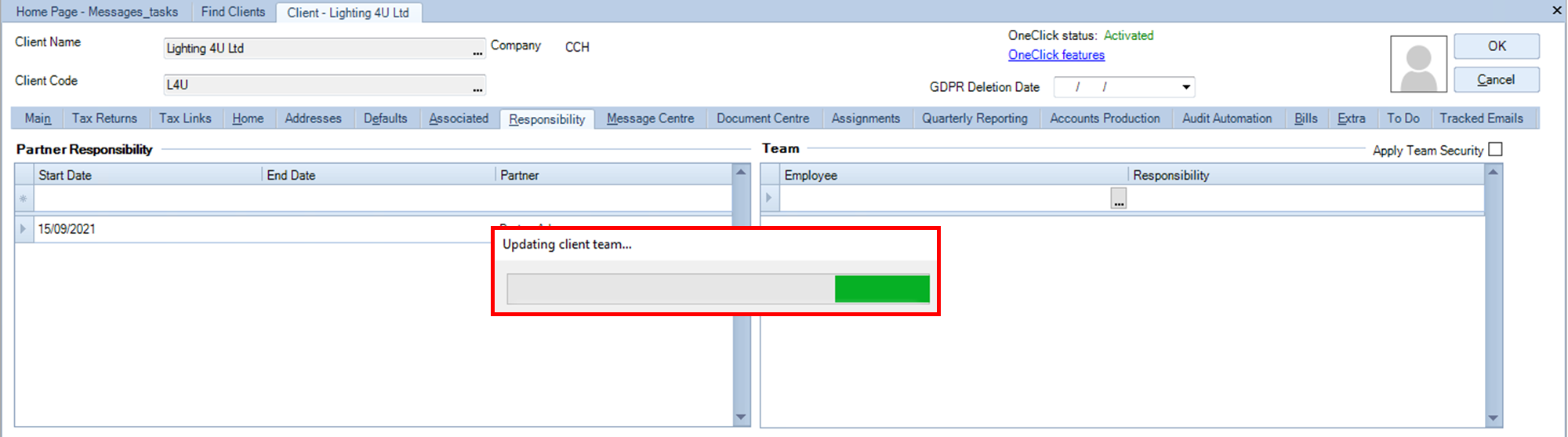
And when the process is complete, the two employees are shown under the Team responsibility: