
Employee Details page: Salary/Cost tab
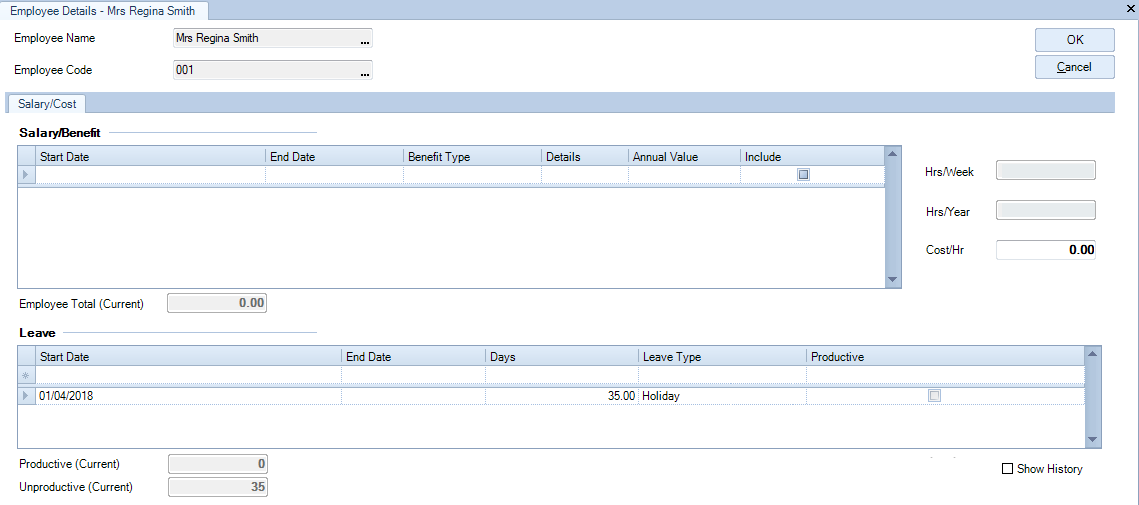
The Salary/Cost tab on the Employee Details page displays the Employee's salary, benefits and leave information. You can create, edit and delete any of this information using this tab.
In most cases, you will create the information on this tab using Step 5 of the Add New Employee Wizard accessed from the main menu — File > New > Employee.
The fields in the Salary/Cost tab are:
|
Salary/Benefit panel |
|
|
Field.... |
What it does.... |
|
Start Date |
Displays the start date for the benefit. Click the list box to access the calendar for date selection. |
|
End Date |
The end date for the benefit. Click the list box to access the calendar for date selection. |
|
Benefit Type |
Clicking the list box opens a drop-down list of benefit types that have been configured for the practice via the Maintenance menu. |
|
Details |
Text field with a maximum of 50 characters. Enter any information to be recorded with the benefit. |
|
Annual Value |
The annual salary amount. This figure can be used in the calculation of the employee’s cost rate. |
|
Include |
Select this check box to include the salary amount in the employee's cost rate calculation. |
|
Employee Total |
Displays the total cost of the employee calculated from the figures entered in the Salary/Benefit area. |
|
Hrs/Week field |
Displays the employee's weekly work hours as defined by their employee category. |
|
Hrs/Year field |
Displays the employee's yearly work hours as defined by their employee category. |
|
Cost/Hr field |
This field displays the grab cost per hour for the employee, calculated from the figures entered in the Salary/Benefit area and the assigned number of working hours. You can type over this amount at any time. |
|
Employee Total (current) field |
This field displays the total amount of the salary/benefits for the employee based on Current or historical data provided. This is affected by the Show History checkbox at the bottom of the page. |
|
Leave panel |
|
|
Start Date |
The first date of leave taken. Type the date (format is dd/mm/yyyy) or click the field and select the date from the drop down calendar. |
|
End Date |
The final date of leave taken. Type the date (format is dd/mm/yyyy) or click the field and select the date from the drop down calendar. |
|
Days |
Manually calculate the number of days leave and enter it into the field. |
|
Leave Type |
The type of leave taken. Click the field and select the type of leave from the drop down list . |
|
Productive |
If checked the hours of leave are included in the productivity calculation. |
|
Productive (current) field |
This displays the productive leave for the employee during a period. |
|
Unproductive (current) field |
This displays the unproductive leave for the employee during a period |
|
Show History field |
This displays all (historical) entered data for salary/benefit and leave for the employee. |