
Farmers Averaging
Note: Farmers can elect to take advantage of either the 2 or 5 year averaging provisions. Artistic or Literary businesses can only average over 2 years.
For 2016/17 onwards we have introduced the new averaging calculator to facilitate easier calculation and for planning purposes.
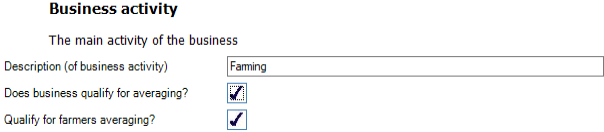
Qualifies for farmers averaging
If the business qualifies for averaging, then the Qualify for farmers averaging? Box should be ticked:
Using the Averaging calculation hyperlink
To access the Averaging options after entering the accounting period details select the Basis period. The adjustments window appears:
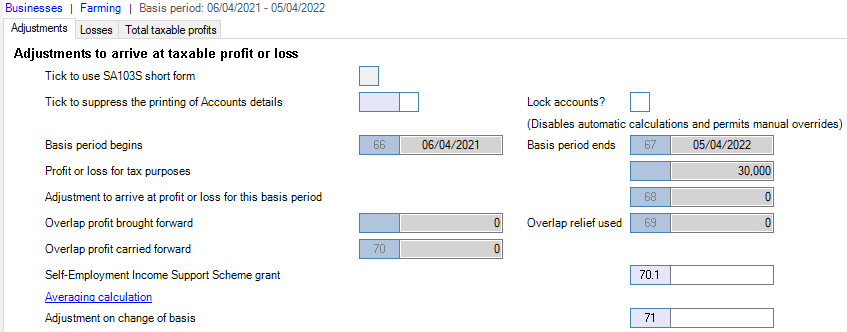
Click the Averaging calculation hyperlink, the Averaging Calculation window appears:
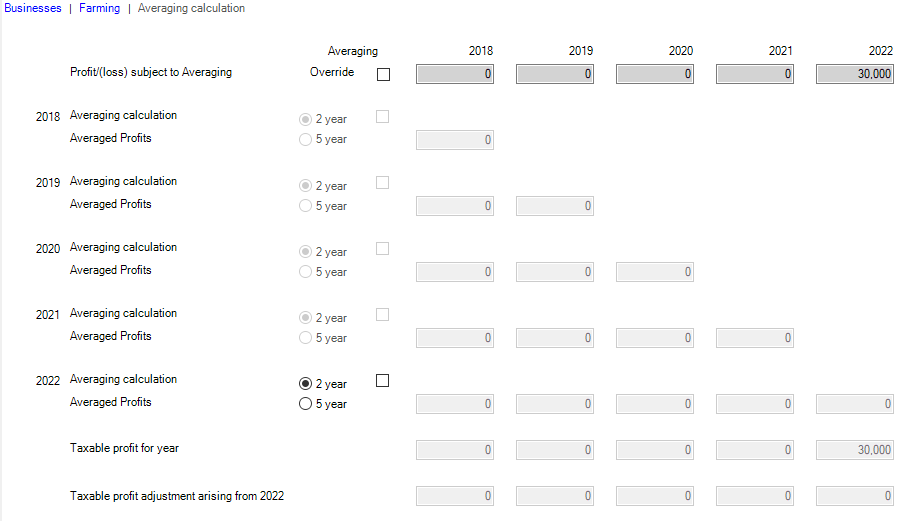
Where profits are available for earlier years, these appear in the Profit / (loss) subject to Averaging. For new clients where earlier profits may not have been entered into Personal Tax, click Override to enter the adjusted profit or loss for the relevant years.
Note: Override can also be used for planning purposes and does not override the values entered in earlier year’s returns.
By default 2 year averaging is automatically applied when the averaging option is selected for the year. For 2017 onwards, the new rules are automatically applied. For 2016 and earlier the full or marginal relief is calculated contingent upon the level of profits to be averaged.
For 2017 and later, the 5 years averaging option is available provided the data is in accordance with HMRC requirements.
Click Save > Back and the Tax profit adjustment is written back to box 72:
Note: It is not yet possible to calculate the change in tax liabilities for earlier years when the averaging calculation is made for a sole trader.
Partnership Pages (SA104)
The farmers averaging calculations are also available within the Partnership pages for an individual and function in exactly the same way.
Select Partnership from the data entry menu and click Trading Income:
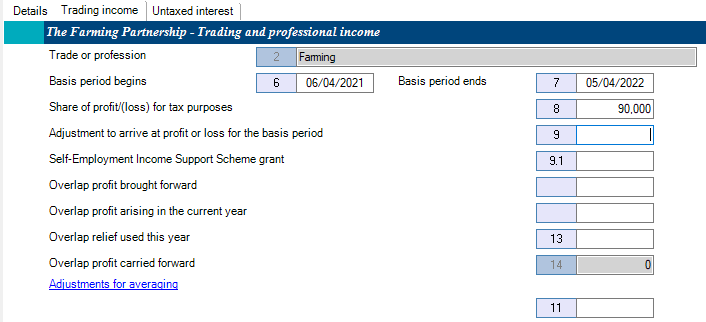
Click on the Adjustments for averaging hyperlink.
The Averaging calculation window appears and functions in the same way as for an individual.
The Averaging calculation screen provides three rows, displaying for each tax year:
- Original tax position
- Revised tax position
- The change in tax position for each year, and the sum of all differences as required in the SA100 Tax calculation summary
To activate the calculation click Recalculate to perform or update the computations:
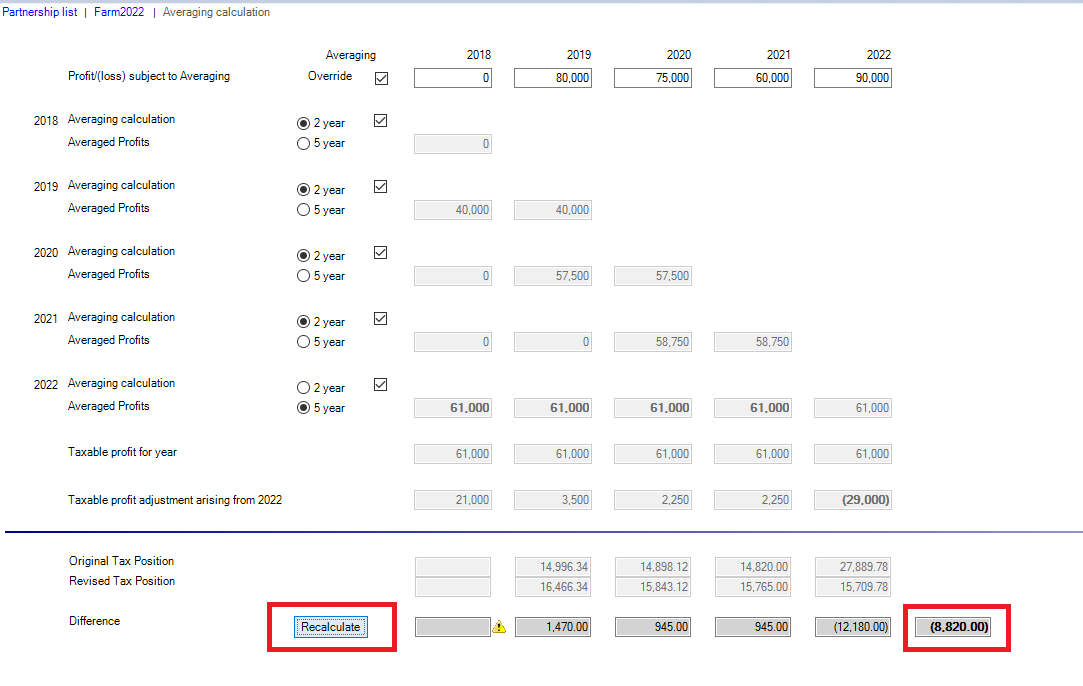
The original tax position is taken directly from that year’s Return, but updated for any adjustments made in subsequent years, i.e. to display the tax position based on the most recently assessed profit/(loss)
The revised tax position is based on the amount calculated in the Taxable profit for year row.
The final column highlighted in the above screen shot shows the overall changed tax position. This value is NOT written back to box CAL14 or CAL15 as other adjustments may be required in addition to the Farmers Averaging.