Use the Foreign Land and Property section to add details relating to income and expenses associated with property owned abroad.

Add Foreign Land and Property

The Land and property section displays the property information on three tabs and they are: Income/Expenses - this tab stores incomings, outgoings and tax adjustments. Chargeable Premiums - this tab to add details relating to premiums or lump sum payments. Details - this tab stores the property type as well as address details.

  1. Open the Foreign Land and Property section.

  2. Click the hyperlink'Click here to create a new land and property'. 
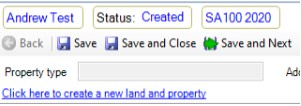
      Personal_Tax_Foreign_land-and-property_1.jpg

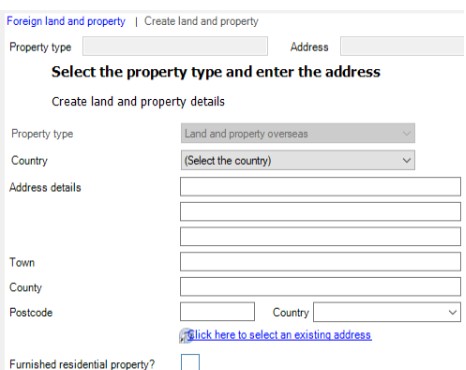
     The 'Create land and property details' wizard appears.
      Personal_Tax_Foreign_land-and-property_2.jpg

  1. Use the Country drop-down to select the country that the property resides in.

  2. Do one of the following:

  • Complete the remaining property fields.
  • Choose Click here to select an existing address.
  1. Click Next to verify the details that you have entered.

  2. Click Finish to save. The Income/ Expenses, Chargeable Premiums and Details tabs appears with the Income / Expenses tab selected by default.

Related documents

Enter Agent Credentials
The document outlines the procedures for adding online filing credentials for tax returns, prioritizing employee, departmental, and database credentials. Instructions for adding login details for individual employees involve searching for the employee and entering agent credentials in the Online Filing Details tab. Additionally, there are steps for entering organizational login details via the Tax System Parameters menu, specifying user ID, password, and email, followed by selecting the filing organization type. The document emphasizes related topics for further reference.
CCH Personal Tax 2026.210 Service Pack: Release Notes
CCH Personal Tax 2026.2: Release Notes
Release Notes for CCH Personal Tax 2026.2
Generating the Online Filing Submission and IR Mark
The document outlines the process for validating a tax return before submitting it to HMRC. It specifies steps to open the tax return, validate it against HMRC standards, and correct any errors. It also describes how to add attachments, including schedules and the SA302 form, while noting attachment size limitations. Finally, the process to generate the IR mark is detailed, highlighting that it occurs only when no validation errors remain. This includes data saving, error checks, and snapshotting the tax return for database records.
Tax Return Bundle Window
The Tax Return Bundle window facilitates the creation of a comprehensive tax return package, including a Transmittal Letter. This document outlines various sections, such as setting the date of issue, customizing cover letters, selecting which tax return items to include, and adding additional documents. It also covers the bundle creation process and the functionality of locking the window. Overall, it serves as a guide for users to efficiently manage and generate tax return documentation using the specified features of the software.