Home Page
Upon launch, CCH Central presents a Home Page. This Home Page is your starting point each time you log in.
Home Page components
The Home Page comprises the:
These four components are standard across all the windows you use in CCH Central.
The Home Page can be customized to display and quickly access information that is appropriate to your use of the application.
- To navigate away from the Home Page:
- make a selection on the Toolbar
or
- click in any tab of an open page shown in the tab bar
The tab of the current page shown on the content area is displayed in white. Tabs of other open pages are displayed in blue.
- To view a page, click the tab to bring the page to the content area.
- To scroll through open tabs not in view on the tab bar, use the scroll buttons on the top right of the content area.

- To close a page, click the Close

- icon on the top right of the content area.
Customising your Home Page
Customise the Home Page to display and quickly access information tailored to your use of the application. You can define different Views with different names and view options.
1. On the toolbar Home, under the Task Bar click View, then choose one of the views to customise, for example, Main View or View 2.

- Still on the toolbar Home, under the Task Bar, select Customise.

The Toolbox opens displaying a list of options per module, for example Job Summary under Accounts Production, drag the option on to the content area to display it.
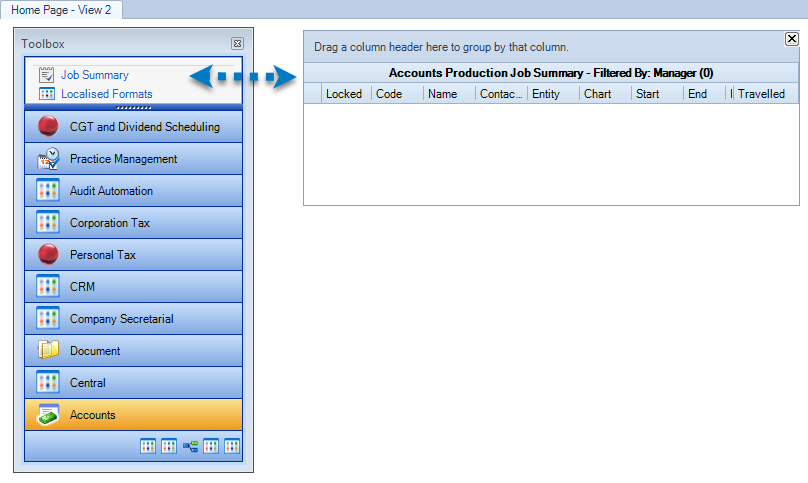
3. When the Toolbox is displaying you can also resize, move or delete the individual display windows.
To resize and move the windows, click and drag in the same way you would do with other application in Microsoft Windows (expanding the sides and bottom).
To close a window click the cross button on the top right of the window.
4. To exit the Customise homepage mode, click the cross button at the top right of the Toolbox.
5. Under Tasks on the Task Bar click

. In the Edit Homepages window, change the name of the view to something more meaningful to you, for example: Accounts Production.
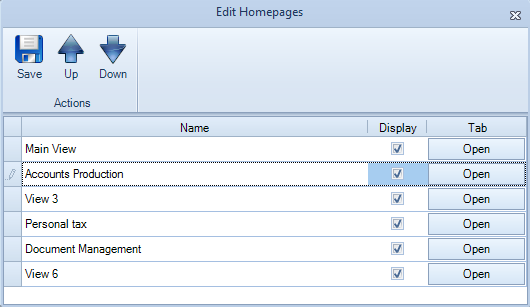
5. Tick or untick the Display boxes (second column on the screen above) for which views to display when you select the option

from toolbar Home, step 1. Click the arrow buttons to rearrange the view order, except for the first view which is always the default view. Click Save.
- Repeat Steps 1 to 5 for each view you want to customise.
- Click Home on the toolbar, click
- and the customised Home Page appears from the drop-down list.
Note: what you see when you select an option in the Toolbox is limited to your security access permissions - you may only see blank windows if you only have limited access. The system administrator sets up the security access permissions. While the Toolbox is displayed you can also resize, move or delete the individual display windows.
Copying Home Page graphs
Home Page graphs can be copied to other applications such as Microsoft Excel, Word or other third party applications.
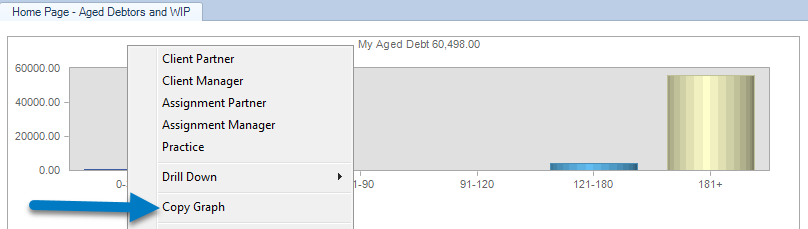
- On the Home Page, right click the graph you want to copy and then select Copy Graph from the pop up menu that appears.
- Open the application you want to import the graph into — such as Microsoft Excel or Word — and paste the image.