Below are all our customer support options. You must be logged into the Support Portal to request assistance from a support agent.

The Search Bar

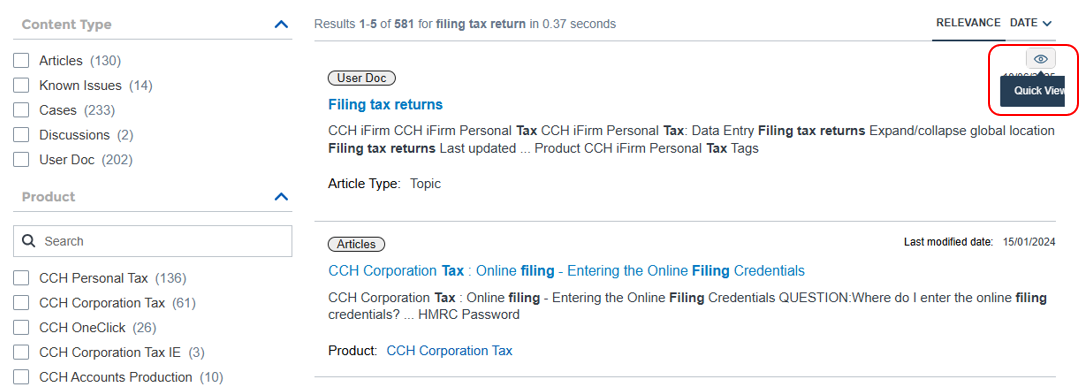
The search bar on the homepage should be your first port of call. You don't need to be logged into the Support Portal to search our knowledge base and product information area. Our support agents use this search tool to assist them with customer queries so this is a good shortcut for you.

clipboard_e9f12d4d97fc4f1127576f1ecc2768bb5.png

Click into the search box How can we help you? and type your question.

Top tips for information search:

  • consider what information you need and think about the question that is most likely to get that information for you
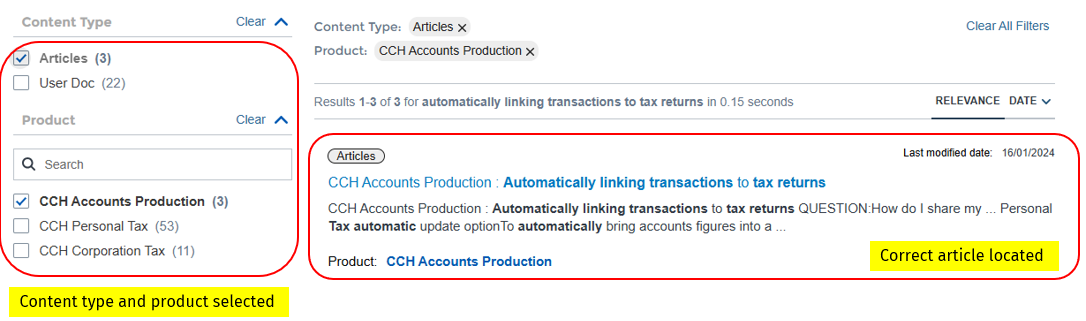
  • use the filters on the left side to refine the product category search
  • if you think an article might have the information you need, hover over Quick View and click the 
clipboard_e644b7d10a3b6cabb31ab0cfb58fe215e.png
  •  icon to check.

Search Example:

clipboard_e7fbf9b2de54416706d6fe058a080fb9a.png
clipboard_e1ee12e43531303fc32bb64f0bfca2aad.png
clipboard_ec2718a6ffa099c3e70d19a7821584bb2.png
clipboard_ec33cca5f93bec19f5f51b3723ddc4a88.png
clipboard_ebcfc35fe4650198b7f77a9b7d9b266ef.png

Ask our Virtual Assistant

Login to the Support Portal and click on the Virtual Assistant icon at the bottom right of your screen.  The Virtual Assistant will guide you through searching for answers without needing to log a support case. The more refined the information you provide, the more relevant the search results will be.  

If you are unable to locate your answer by using the Chatbot search, you can continue your journey by creating a case and selecting support from one of our agents.

Create a Support Case

If you are unable to locate the answer you need by using the search bar from the homepage or using our Virtual Assistant, you can create a support case either from the Support Portal or from our Virtual Assistant. 

Using email communication

To work by email with a support agent, click the Cases tab located in the top menu. Click here for full instructions on how to raise a support case.

NOTE:  If you require urgent support, select your reason for urgency from the Reason for me to create this case field in the case form.
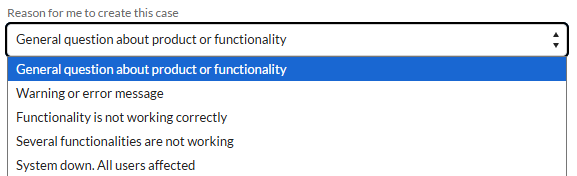
clipboard_ead4c3032e36819fc9ada2c428bccd376.png

Then, let us know whether there are any limitations to your work by selecting from the Can you continue to work? field.
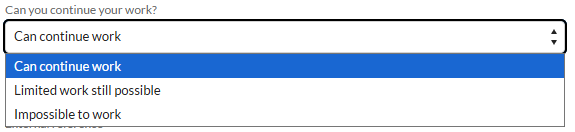

clipboard_e66b65c5de44fa97d81fcc6eacc5b0971.png
clipboard_e599157881b0509103347069534dd6d4e.png

Using email, telephone or live chat support

Login to the Support Portal and click on the Virtual Assistant icon at the bottom right of the homepage. Follow the prompts through to I require Support Agent assistance, complete the case form and select from the following three support options:

NOTE:  If you require urgent support, select your reason for urgency from the Case Reason field in the case form.

  • Create a case – typically we will use email to communicate with you
  • Call me Back – you will receive telephone support
  • Live Chat – if we have a support agent available, you will be assisted online in real-time
Onboarding_access_customer_support_1.png

Ask the Community

You can ask other Support Community members for their experience and expertise with the CCH product you use. You will find the Ask the Community tab located in the top menu.

clipboard_e9e4e206ec8ab052a7541c66674320fef.png
clipboard_e1ab04067ba28399746ba8d4bdc927d8c.png

To ask a question, type into the Ask a Question field and complete the details in the pop up window. Click here for full instructions on how to use this resource.

Note: If you are NOT a Support Portal member, please locate your Wolters Kluwer Account Administrator and discuss joining.

If you don't know who your administrator is, contact Wolters Kluwer Support. Any communication received through this channel will NOT result in a support case being created.

Related documents

Release Schedule 2026
The document provides information about joining groups for updates on Wolters Kluwer software releases, particularly in the Tax and Accounting sector. It details scheduled releases for various software, including CCH Central, CCH OneClick, and CCH iFirm, along with specific dates and software functionalities. Key upcoming versions include CCH Central 2026.3 and several CCH iFirm releases throughout Q3/Q4 of 2026, focusing on enhancements and bug fixes across their suite of services. Users are encouraged to provide feedback through the relevant groups.
Northern User Group (NUG) Officers
The document outlines the key positions within the Northern User Group, including roles such as Chair Person, Secretary, and various sub-group chairs (CCH Accounting, CCH Trust Accounts, and CCH Central). It provides contact information for the Group Chairman, Stephen Leonard, including his email and phone number for inquiries.
How to Join the Northern User Group (NUG)
The CCH Northern User Group offers a 2025 subscription for £445, allowing unlimited delegate attendance at meetings. Founded in 1985, the group has undergone several name changes but remains independent of CCH. It now consists of various product sub-groups related to tax, accounting, and practice management. Members find the membership benefits exceed costs compared to traditional seminars. Potential members are encouraged to contact the Group Chairman for inquiries or to apply. Members can also engage in discussions and updates through a Support Portal group.
Scottish User Group (SCUG) Meetings
The Scottish User Group (ScUG) fosters collaboration among Wolters Kluwer customers, providing a platform for firms to share knowledge and best practices. Established in 2001, it currently includes about 50 members from 26 firms across Scotland. Meetings, held biannually, feature product updates from Wolters Kluwer and discussions on pertinent topics like tax legislation and operational efficiency. Members are encouraged to participate actively and suggest agenda topics. The next meeting is scheduled for March 19, 2026, at the Apex Dunblane Hydro Hotel. Interested individuals can contact Anne Melville for membership details.
How to Join the Scottish User Group (SCUG)
The Scottish User Group (SUG) offers Wolters Kluwer customers a platform for networking, learning, and influence. Members gain direct access to experts, share best practices, engage in topical discussions, and can customize their participation. The group fosters a supportive peer network focused on practical applications rather than sales. New members are welcome, and interested firms can contact the Secretary, Anne Melville, for more information. Additionally, members can join the SUG group on the Support Portal for updates and interactions within the community.