
Installing and Configuring the Scan Profiler Service
Note: For the Scan Profiler Service to operate as required, it needs to be configured. Review the guidance notes in full before configuring on your system.
Considerations
Scan Profiler provides a means of routing documents directly from a Multifunction Device (MFD) to an employee’s CCH inbox for further profiling. The scan profiler utilises an additional software service and requires configuration.
Understanding the Scan Profiler
Scan Profiler is an additional function associated with CCH Document Management. A typical scenario for using Scan Profiler: Paper documents which are required by an individual staff member are first scanned via a MFD to a network folder identified as associated to the staff member by name or code as used in CCH Central. A service is configured to monitor the scan folders and route the pdf documents to CCH Document Management in the pending library, the document is flagged via a task to the staff member for their attention in their scan profiler homepage.
Scan Profiler requirements
- The functionality and configuration of your business Multifunctional Device (MFD), can this be configured to scan directly to a folder structure on your network? A suitable network folder location is one which can communicate with the MFD and the Scan Profiler Service.
- MFD set up, you may need to contact your scanner IT support if you need to reconfigure your scanner.
- Each staff member using central requires a homepage view which allows them to manage their scan profiler documents.
- The Scan Profiler Service needs to be installed, this is often done by the CCH technical consultants or can be self installed via the Central Suite Installer (CSI).
This then needs to be configured, please see the user guide, Installing and Configuring the Scan Profiler Service.
As with any process utilising CCH Document Management your own company document policies need to be considered, i.e appropriate details when profiling documents? retention policy around hard copies? do documents in CCH Document Management need to be passed onto other users for further attention?
Installing
The Scan Profiler Service is available in the Services Install section within the Central Suite Installer (CSI):
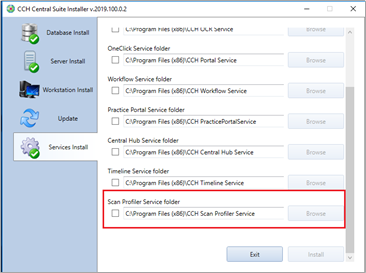
Select the tick box and choose Install.
The default location for the service folder is C:\Program Files (x86)\CCH Scan Profiler Service
During the installation of the Scan Profiler service, the folder, in which the users will add the files that are automatically filed into Document Management, is created in this location: C:\ScanFolder.
After the installation of the Scan Profiler service is complete, the service properties need to be edited so that it logs on as local account. To setup the Scan Profiler service to log as local system account:
1. Right-click in the Taskbar and click on Task Manager:
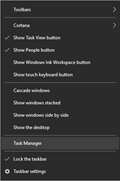
Note: use the appropriate method to access services according to your version of operating system.
2. From the Task Manager dialog, select the Services tab then Open Services at the foot of the screen:
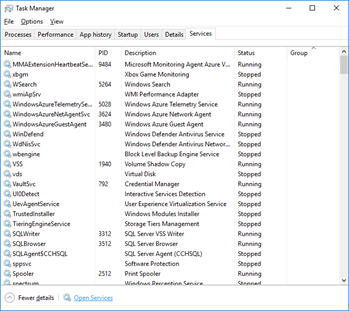
3. From the Services dialog, select CCH Scan Profiler Service.
4. Right click on it and click on Properties:
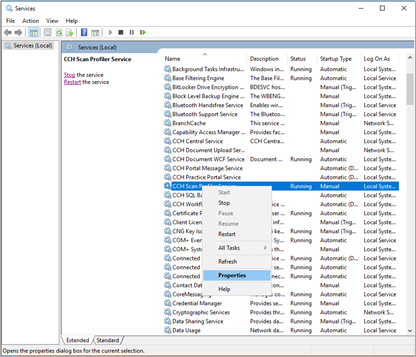
5. The CCH Scan Profiler Service Properties will open.
6. Click on the Log On tab and select the Log on as: Local System account.
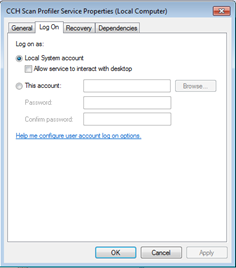
7. Click 'OK' to save the changes then restart the CCH Scan Profiler Service by either a right clicking andclick restart or click the Restart Service icon in the ribbon.
Configuration
To review and change the default settings of the CCH Scan Profiler service, navigate to the installation location as defined in the CSI – default folder is C:\Program Files (x86)\CCH Scan Profiler Service
Open the WKUK.CCH.Document.Import.exe.Config file and edit the following details:
- SQL Server name
- Import folder location
- Default employee (from central employees)
- Use Employee code (True/False)
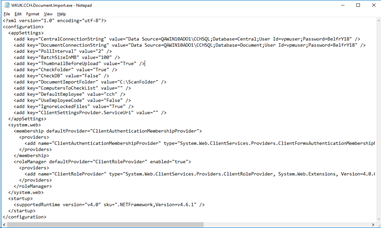
Note: if the file is not associated with an application, right mouse click and choose Open with and select Notepad.
- SQL details: Server name, Central database name, Document database name.
<add key="CentralConnectionString" value="Server =TEST\CCH2008; Database = Central; User Id=vpmuser;Password=BelfrY18 " /> <add key="DocumentConnectionString" value="Server =TEST\CCH2008; Database = Document ; User Id=vpmuser;Password=BelfrY18" /> |
- The location of the root folder where the Scan folder resides. By default, the Scan Folder is added in the C drive. Recommend change.
| <add key="DocumentImportFolder" value="c:\ScanFolder" /> |
- The U/Name (Employee Details screen > Main tab) of the employee that will file the documents into Document Centre through the Scan Profiler. The files that are uploaded will be assigned to this employee within CCH Document Management by default if a subfolder within the above location is not selected. Change to suit your employees.
<add key="DefaultEmployee" value="cch" />
<add key="UseEmployeeCode" value="True" /> |
- Polling interval is the interval at which the Scan Profiler service checks the Scan folder. In this example the configured time interval is set to 2 seconds. Leave as default.
<add key="PollInterval" value="10" /> The value set for the BatchSizeInMB key represents the maximum file size that the Scan Profiler service can upload once. Leave as default. <add key="BatchSizeInMB" value="100" /> |
Note: once these settings are edited then saved, the CCH Scan Profiler service needs to be restarted again, see above.