Setting up and Profiling documents
Setting up the Scan Profiler Homepage

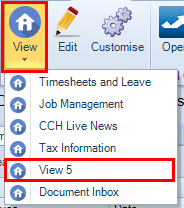
From the Homepage tab click on View icon dropdown in the ribbon and select a blank view.
clipboard_ec37c606ea3a39ff25ebb0a0581f2e3dc.png

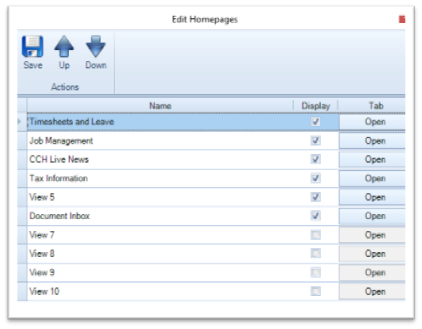
Note: if you do not have any spare homepage views, click the Edit button
 clipboard_ee2c9d6e86a66c1b6ff568fd02d700f70.png 
and select the Display tick box against any spare views. If you do not have any spare views, contact your system administrator. Rename the homepage view, by selecting and over typing, click 'Save'.
clipboard_e5afaa144dbf5a34d8dce72f0b4f64d31.png

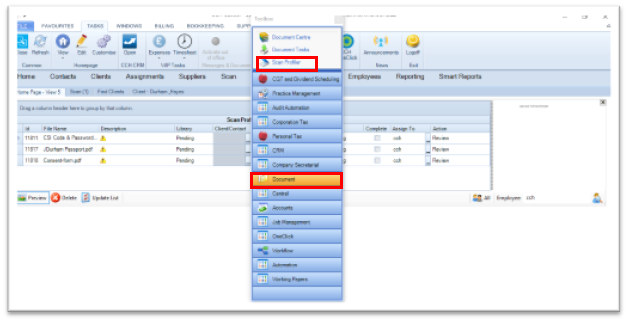
To Create the Scan Profiler Homepage, click on the Customise button to open the Toolbox clipboard_eb759a40dd8b6c5efa91c211ec6495753.png

When the Toolbox is open, select the Document category and from the top section click and drag the Scan Profiler option into the blank white area.
clipboard_edb5da053b87464a3aac261a96052e10f.png

Note: you need to leave the Toolbox open whilst adjusting the homepage. Closing it Saves the homepage.

  • The Toolbox is a floating screen and can be moved.
  • You may also wish to add Document Tasks (Document Inbox) to the same homepage or it can be added to a separate homepage.
Profiling documents in the scan profiler homepage

Each document routed to an employee via the scan profiler function is listed their homepage control screen until profiled. The following components are required to profile the document:

  • File Name will be a default name from the MFD and can be amended
  • Description - this is a mandatory field
  • Library - change the library as required i.e. Client
  • Add the Client/Contact (for the client library)
  • Add an assignment and Job - Optional/according to your own company policies
  • Select the document type - mandatory
  • Assign to another user if required (This sends the document onto another users Document Inbox)
  • Select an action for the receiving user

When all the required fields are complete, tick the Complete column and select Update List from the foot of the screen clipboard_e8d9aafd76d3eb69d050cc272ede2c5a3.png

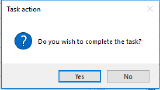
Click 'Yes' if you wish to Complete the Task.  clipboard_ef57c88938e80252525930c0cc43bf261.png
Note: when selecting other Libraries, some fields may be greyed out

Profiling the document from the Document Inbox

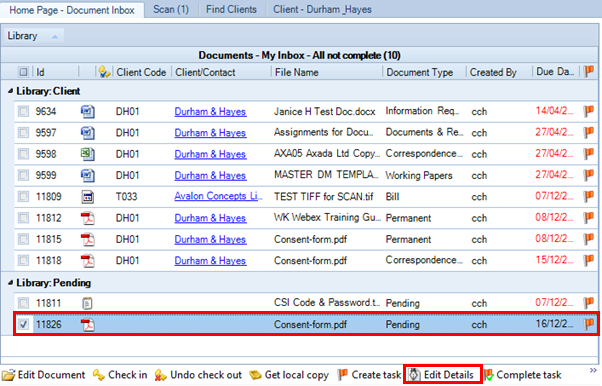
The document will also appear on the Document Inbox homepage and is currently in the Pending Library. You can profile it from the Document Inbox.

  • Click the tick box 
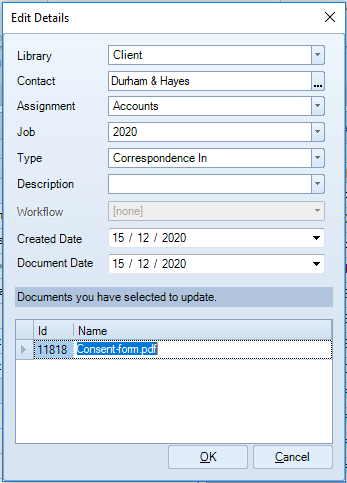
  • Click Edit Details from the menu at the foot of the screen
     clipboard_e15a55e476981622eef0262b8f46acd2a.png  clipboard_edce252c4ac98cc00b527d9968b23ae71.png

Profile the document:

  • Select the Library
  • Select the Contact
  • Select the Assignment and Job if required
  • Select the document Type
  • Add a Description if required
  • Dates defult to today and can be amended
  • File Name can be amended
  • Click 'OK'

  Click 'Yes' to Complete the Task  clipboard_ef57c88938e80252525930c0cc43bf261.png

Related documents

CCH Scan 2025.3 Service Pack: Release Notes
The CCH Scan 2025.3 Service Pack Release Notes outline the installation process using the Central Suite Installer, ensuring all prerequisites are met and products are installed correctly. It highlights a quality improvement regarding the Scan Profiler homepage, specifically noting an issue where users cannot preview the last document. The document also includes legal disclaimers regarding accuracy and proprietary information, emphasizing that it is confidential and not to be distributed without consent.
CCH Scan 2026.3: Release Notes
1. Scan Profiler Considerations
The document outlines the functionality of the Scan Profiler, a tool integrated with CCH Document Management, enabling users to route scanned documents from a Multifunction Device (MFD) to their CCH inbox. It describes the process of scanning documents to a designated network folder that is monitored by a service routing the PDFs to the CCH pending library. Requirements include proper MFD configuration, staff homepage access, and installation of the Scan Profiler Service. Additionally, it highlights the importance of aligning with company document policies regarding profiling and retention.
Installing and Configuring the Scan Profiler Service
This document outlines the configuration and installation process for the CCH Scan Profiler Service. Key considerations include configuring backup options, addressing potential issues with domain names and file length, and setting default folder locations. Installation steps involve using the Central Suite Installer and adjusting service properties to log on as a local system account. Configuration adjustments include specifying SQL server details, import folder location, default employee settings, and polling intervals. It emphasizes the importance of saving changes and restarting the service post-configuration.
Stopping a Scan
This document provides instructions on how to stop a scan job using the "Stop Scan" option located on the task bar. By clicking this option, the ongoing scan will be aborted after a short delay.