
Making Tax Digital for VAT: Digital links Quick Start Guide
Introduction
Making Tax Digital for VAT reaches its second birthday in April 2021. A ‘soft landing period’ was granted to businesses adopting Making Tax Digital (MTD) for VAT by HMRC in 2019. This gave them 24 months to get their systems 100% digitally linked, to comply with MTD’s requirements.
There has been a lot of noise around what happens after the soft-landing period ends, around what constitutes a digital link. Is cutting or copying and pasting of data prohibited?
What is an MTD digital link?
It occurs when the VAT data required for MTD is transferred between two digital places, such as software or computing devices. A digital link also applies to recapturing or modifying the data when moving it between two digital places.
For example, a digital link exists when a business digitally transfers VAT accounting data to their accountant so a partial exemption can be calculated. It also occurs when a business retains all transactions in a spreadsheet and uses a formula to calculate a total.
HMRC accepts the following are digital links: As detailed in (HMRC's VAT Notice 700/22: Making Tax Digital for VAT section 4.2.1 Digital links)
- Spreadsheets containing digital records so the information can be imported into another software product
- Transferring a set of digital records onto a portable device (for example, a pen drive, memory stick, flash drive) and physically giving this to someone else who then imports that data into their software
- XML, CSV import and export, and download and upload of files
- Automated data transfer
- API transfer
Therefore, you can still continue to use spreadsheets and submit these through CCH OneClick, MTD for VAT module.
Creating Digital Links
The VAT data can be exported from bookkeeping software or can be created within Excel.
In this example we are starting with a spreadsheet that contains a list of VAT sales and purchase data that has been extracted digitally from software directly into the spreadsheet – this is often via an export option.
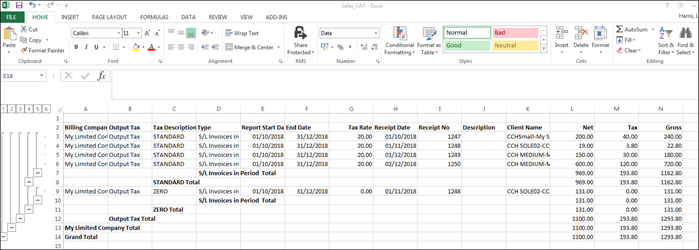
1. Open the sales VAT data spreadsheet
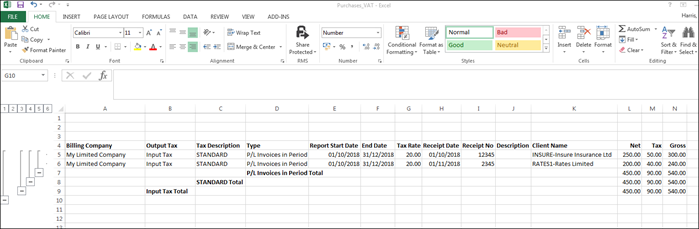
2. Open the spreadsheet for the exported VAT return data for the purchases
3. Create a new Workbook within Excel for example - VAT Return
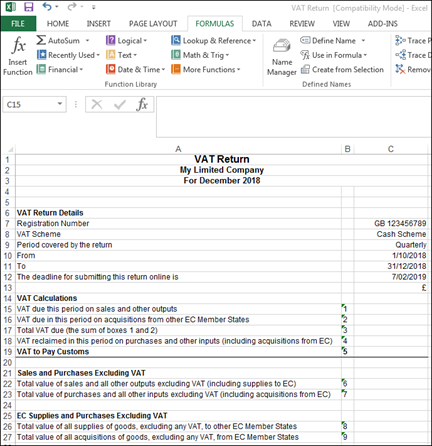
4. In row 15 column C, type = then browse to the Total VAT figure from Sales_VAT spreadsheet and press enter
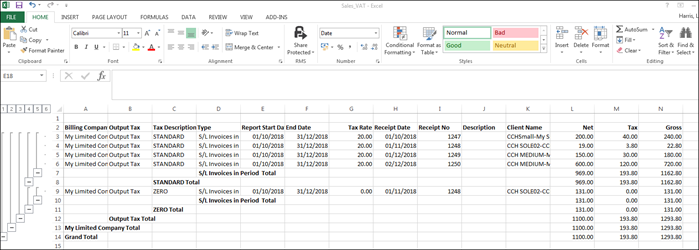
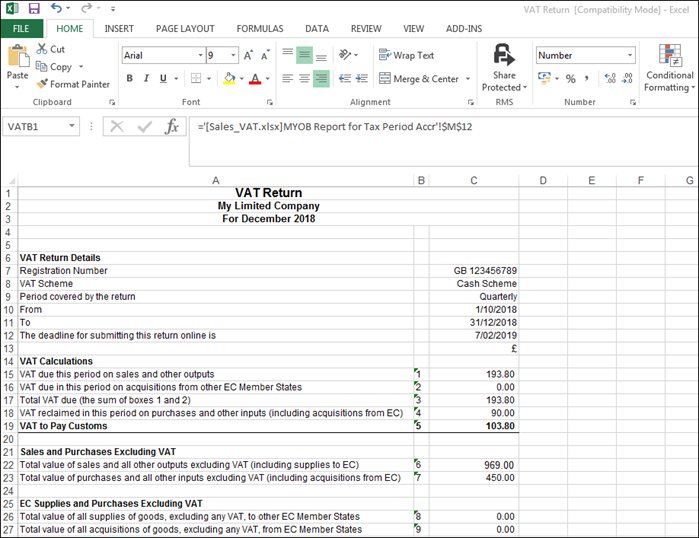
5. In row 18 column C, type = then browse to the Total VAT figure from Purchases_VAT spreadsheet and press enter
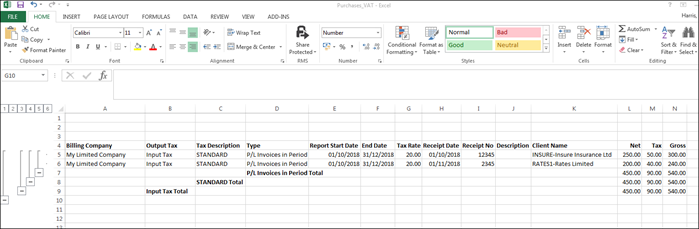
6. Continue the process until all relevant values have been digitally linked
Please note: the spreadsheets can have any naming convention, the above is for demonstration purposes only. Please make sure all relevant values and have been digitally linked.
Tagging the Excel Spreadsheet
Before the spreadsheet can be uploaded into Making Tax Digital within CCH OneClick, tags need to be applied to boxes 1 to 9.
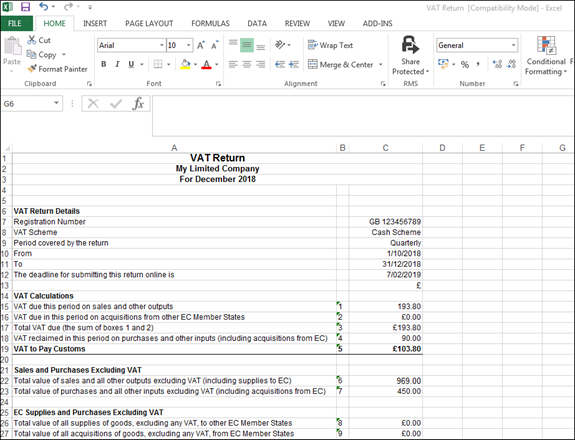
1. The Excel Name function is used to tag the VAT information to allow it to be imported. This will allow the software to read the data
2. To apply the tags to the above example, Click on Cell C15
3. Select Formulas>Name Manager>New
4. Name = VATB1
5. Name = VATB2
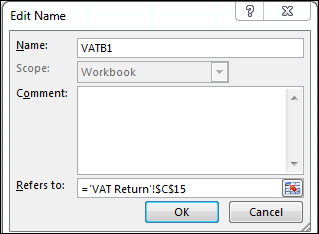
6. Repeat the process for the other 7 VAT box cells
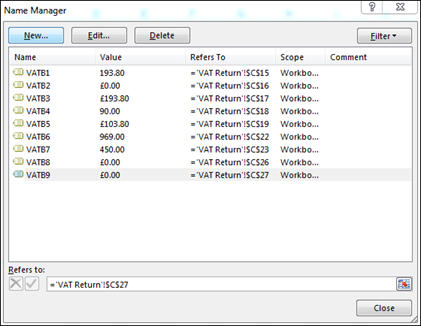
Your spreadsheet is now digitally linked, and your VAT return is ready for upload to CCH OneClick in readiness for submission to HMRC.