
Notes : Overview
Working Notes, Adding, Importing/Exporting Notes etc
Overview
CCH Personal Tax supports three types of note:
- Tax Return disclosure note (formally known as Note).
- Working note (formally known as Memo).
- Explanation of estimated figures.
These can be entered against an individual item or as a general note against a source.
The functionality of the Tax Return disclosure note is explained in more detail under CCH Disclosure Notes. These notes appear in the white space on the Tax Return.
The Explanation of estimated figures is a special type of Tax Return disclosure note that appears in the white space on the Tax Return and is used in conjunction with the Estimated check box in the Summary section on the data entry windows.
Notes Window

Click on the

box below the notepad and the menu items on the Notes window appears as follows:
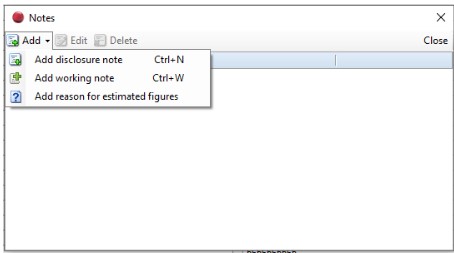
Click on the Add working note option and add a note, details of the person who created or last edited the note are recorded along with a date stamp:

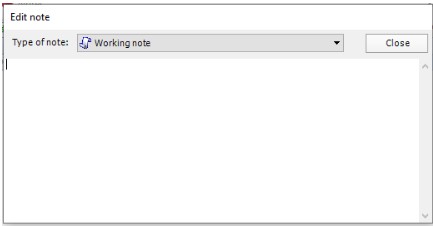
Working Notes Summary window
Add Note
It is possible to add Working notes directly, select Working Notes from the Ribbon Bar:

Click on the green Add sign:
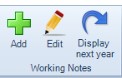
The Add note window appears:
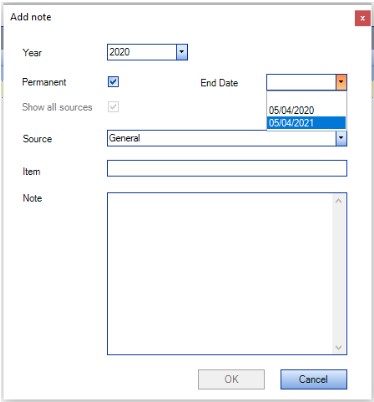
By default the Year defaults to the Tax Year being processed it also displays any later tax years available. Where the note is to be made available for more than one tax year select the Permanent check box:
It is possible to add an End Date after which the permanent note ceases to be available. The Source defaults to General. A specific source may be selected from the drop down list:
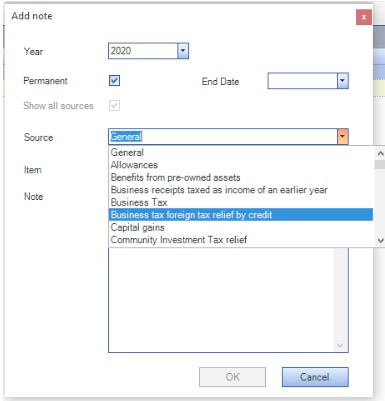
An item may be selected either by clicking on the item from the list or by typing in the first letters of the name of the Source.
Where the Show all sources check box is blank only sources that have data associated are displayed. The Show all sources check box is ticked and disabled where either:
- The Permanent check box is ticked
- The Year selected is after the current Tax Year being processed
The Item field is limited to 50 characters but is not mandatory.
The Note field is mandatory. It does not have the ability to format text and has a limit of 1,000 characters.
Edit Note
Working notes may be edited in this window. To edit an existing note, select the note from the grid and select Edit from the Ribbon Bar:
The Edit note window appears:
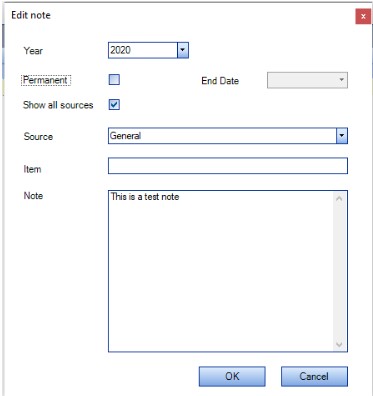
If the note was entered against a specific data entry window only the Note field is editable. In all other instances all the fields are editable:
Display Next Year
To view working notes that have been entered for the following tax year, select Display next year menu item in the Ribbon Bar:
Notes for both the current and following tax year are then displayed:
Printing Working Notes
Select Print to print the contents of the Working Notes summary window:
Export/Import of Working Notes
The date shown against the working notes is the date the note was imported rather than the Date Modified from the export file.
Task Permissions
Access to the Tax Return > Task Bar > Working note menu item is controlled by the following task permission:
Product = Personal Tax
Group Description = Menus
Permission Description = [Task Bar][Working notes]

By default this permission is set to disallow.
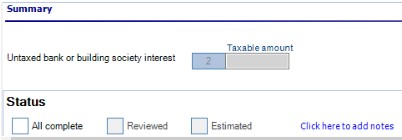
Add a General Note
Click the blue hyperlink to add a general note:
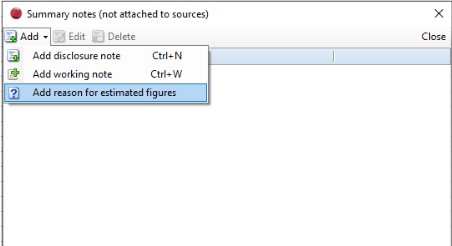
The summary notes wizard appears and the drop down arrow produces a list of options:
Add Individual Note
Click the Note icon

next to row that you want to add a note to.